
You're trying to get online with your Galaxy Tab S9, but the Wi-Fi icon just sits there, stubbornly refusing to connect. It's a frustrating roadblock on a device meant for streaming and browsing. The good news is that this is almost always a software or settings issue you can fix yourself, without needing a trip to the repair shop.
Toggle Wi-Fi and Restart Your Tablet
Start with the simplest fix. Swipe down from the top of your screen to open the Quick Panel and tap the Wi-Fi icon to turn it off. Wait about ten seconds, then tap it again to turn it back on. This forces the tablet's network adapter to reset and re-scan, which can clear up a temporary glitch.
If that doesn't work, give your Tab S9 a full restart. Press and hold the Volume Down button and the Side button (power button) together for about ten seconds. Let go when you see the Samsung logo appear. A reboot clears out cached data that can sometimes interfere with network connections.
Use Airplane Mode to Reset All Radios
Airplane mode is a more thorough reset than just toggling Wi-Fi. When you enable it, it shuts down the Wi-Fi, Bluetooth, and any cellular radios in the tablet all at once. Swipe down for the Quick Panel and tap the airplane icon.
Leave it enabled for a solid 30 seconds before turning it off again. This gives the system time to fully reset. When you disable airplane mode, your Tab S9 will attempt to reconnect to available networks with a clean slate, which often does the trick.
Forget the Problem Network and Rejoin
Your tablet might be holding onto corrupted login information for your Wi-Fi network. To clear this out, go to Settings > Connections > Wi-Fi. Tap on the name of the network you're trying to join, then select Forget.
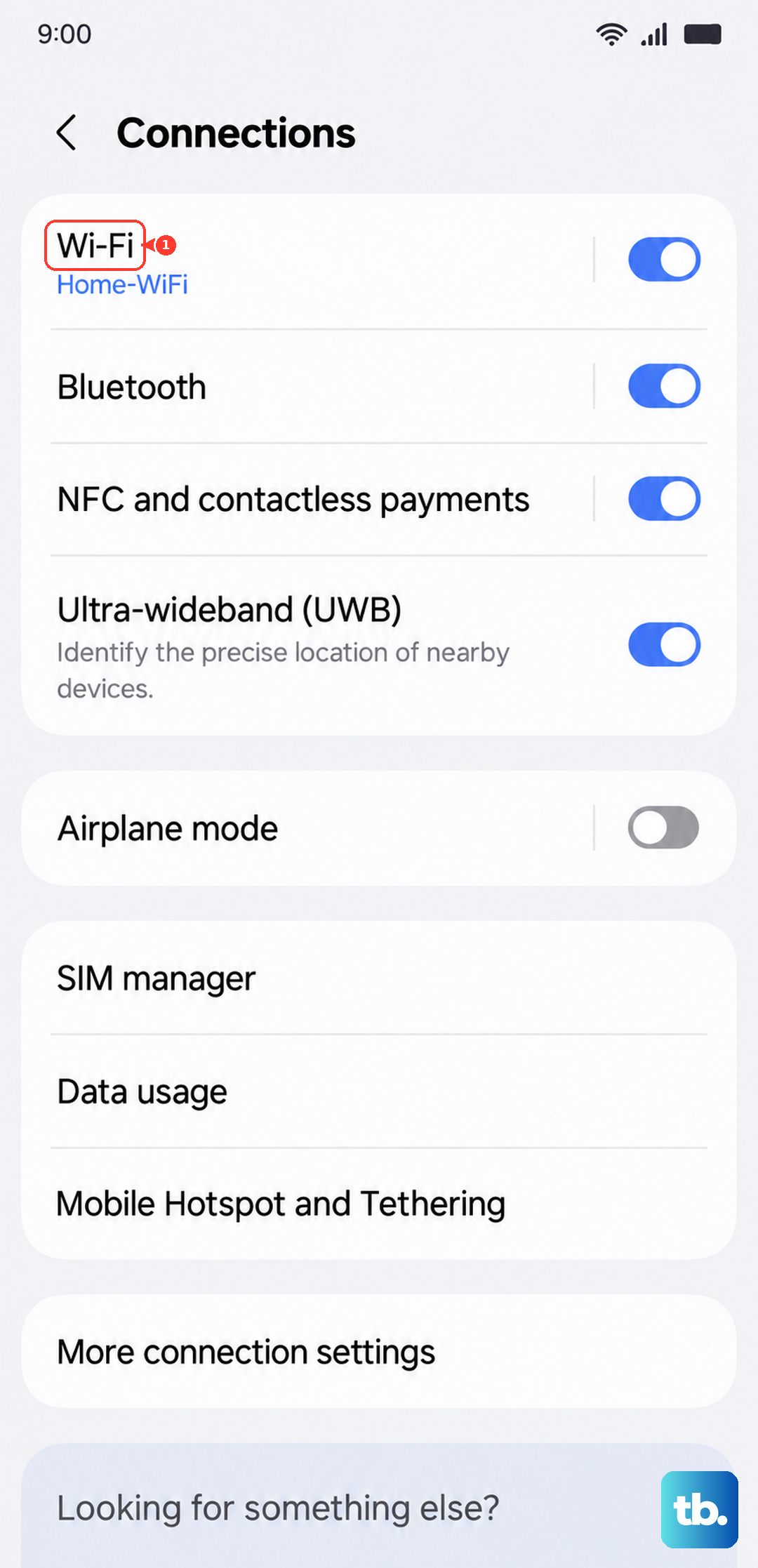
Now, tap on the same network name from the list again. You'll be prompted to re-enter the password. Type it in carefully, making sure caps lock isn't on, and connect. This is the most effective fix if you've recently changed your router's password.
Check for Router or Internet Issues
Before you spend more time on your tablet, make sure the problem isn't with your internet source. Try connecting another device, like your phone, to the same Wi-Fi network. If that device also can't get online, the issue is with your router or modem.
Unplug your router from power, wait a full 60 seconds, and plug it back in. This classic fix resolves a huge number of home Wi-Fi problems. While you're waiting, check if any other devices connected to the router are working, as a widespread outage points directly to the router.
Disable Bluetooth to Prevent Interference
Bluetooth and Wi-Fi can sometimes interfere with each other because they operate on similar frequency bands. If you have a Bluetooth keyboard, mouse, or headphones connected to your Tab S9, try disconnecting them.
You can quickly turn Bluetooth off from the Quick Panel by swiping down and tapping its icon. See if your Wi-Fi connection stabilizes afterward. If it does, you've found a simple workaround for when you need a reliable internet connection.
Turn Off Power Saving and Adaptive Features
One UI includes features designed to save battery, but they can limit Wi-Fi performance. First, check if Power Saving mode is on by going to Settings > Battery and device care > Battery. If it's enabled, turn it off.
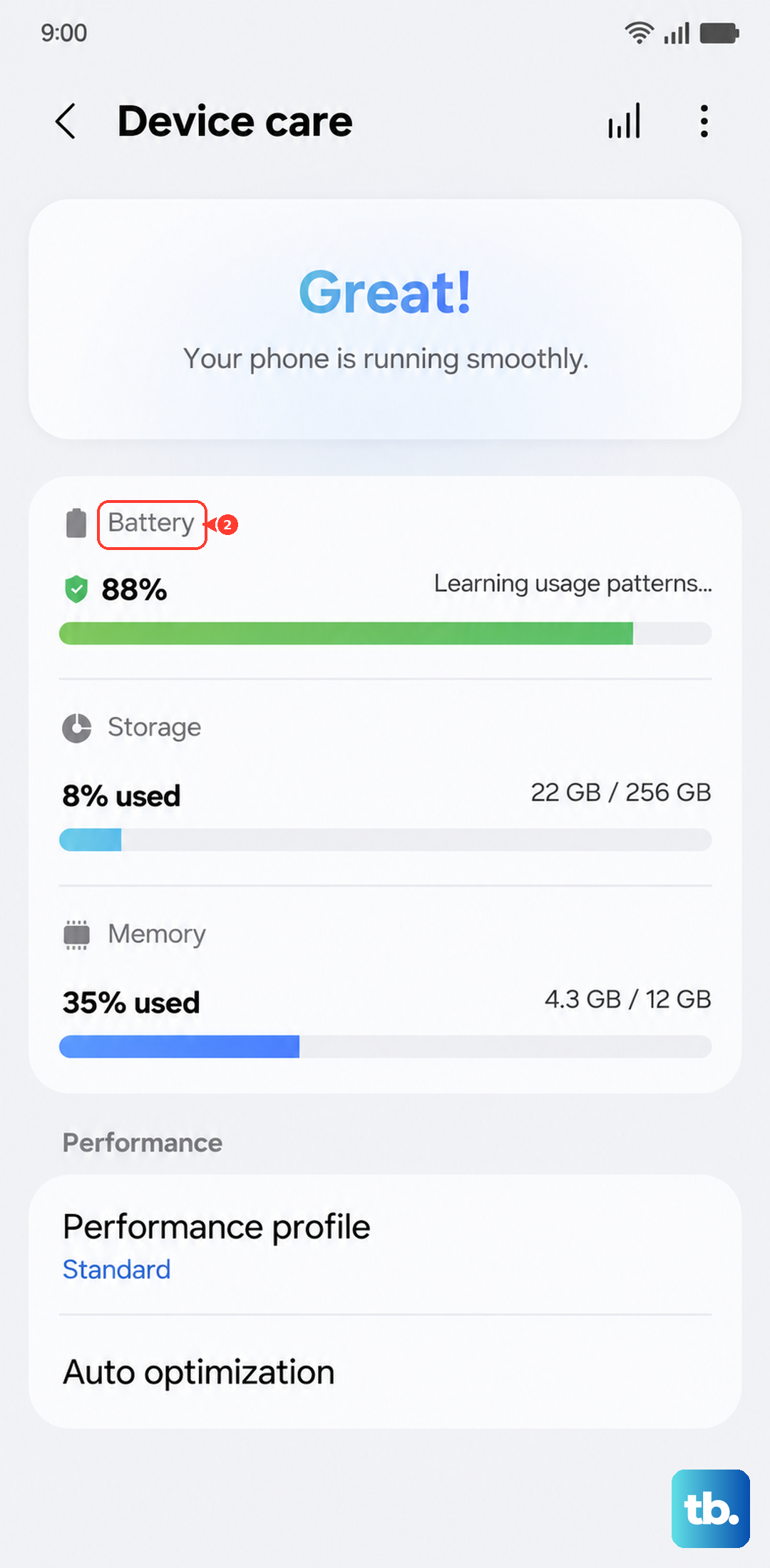
Next, look for the network switching feature. Go to Settings > Connections > Wi-Fi, tap the three-dot menu, then Intelligent Wi-Fi. Here, you can turn off options like Switch to mobile data or Auto switch to mobile networks. These features can prematurely abandon a weak Wi-Fi signal.
Verify Your Date and Time Settings
An incorrect system time can break Wi-Fi authentication because security certificates rely on accurate timestamps. This is an easy thing to overlook. Go to Settings > General management > Date and time.
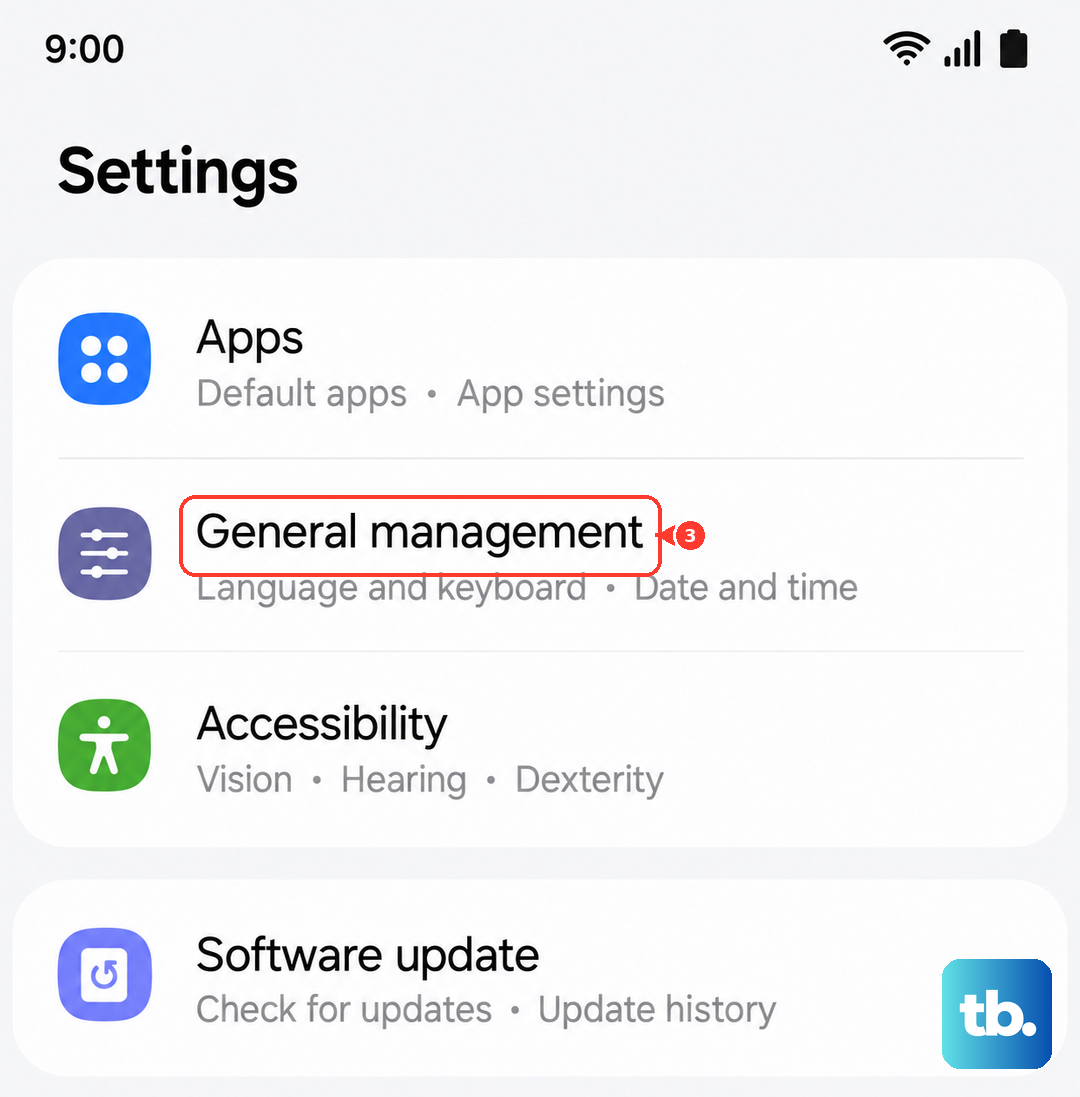
Make sure the Automatic date and time option is turned on. This allows your Tab S9 to sync with network time servers. If it was off, turning it on can immediately resolve connection errors related to security.
Check for a Software Update
Samsung regularly releases updates that fix bugs, including ones related to network stability. Running an old version of One UI could be the root of your problem. To check, go to Settings > Software update > Download and install.
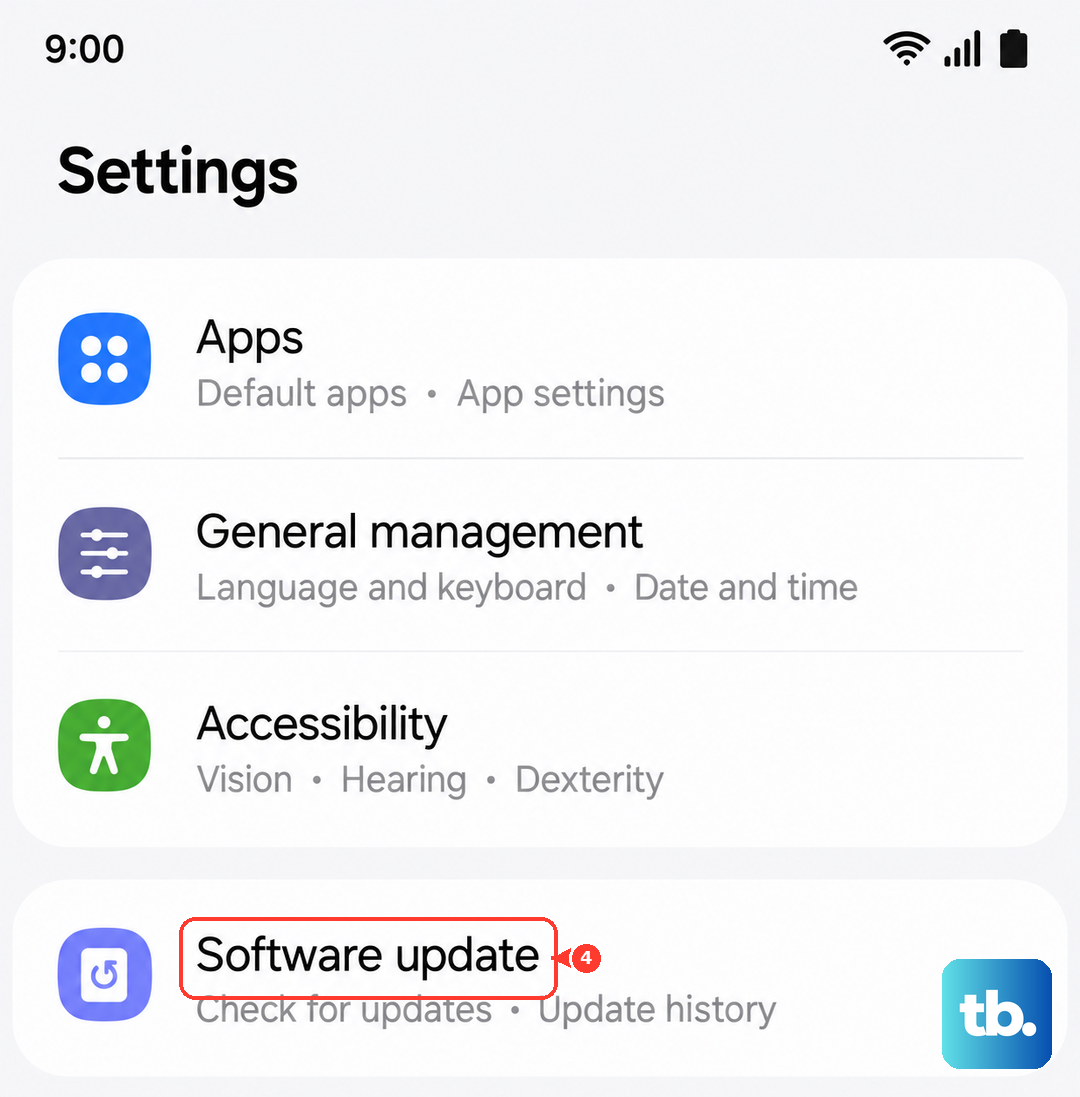
If an update is available, install it. It's best to do this over a cellular connection if your Wi-Fi is down, or by using a different, working Wi-Fi network. I've seen updates specifically mention "improved Wi-Fi stability" in their patch notes.
Boot Into Safe Mode to Check for App Conflicts
A third-party app you installed could be interfering with network functions. To test this, you need to boot your Tab S9 into Safe Mode, which temporarily disables all downloaded apps. Press and hold the Side button and Volume Down button until the power menu appears.
Then, tap and hold the Power off icon on your screen until you see the Safe Mode prompt. Tap it to restart. If your Wi-Fi works perfectly in Safe Mode, you know a downloaded app is the culprit. You'll need to uninstall apps one by one, starting with VPNs, ad blockers, or network tools, to find the bad one.
Reset Your Network Settings
This is a more significant step that resets all network-related configurations to factory defaults. Go to Settings > General management > Reset > Reset network settings. Tap the reset option and confirm.
Be aware this will erase all saved Wi-Fi networks and passwords, Bluetooth pairings, and any custom mobile network settings on your tablet. You'll have to reconnect to your Wi-Fi and re-pair Bluetooth devices afterward, but it often clears up persistent, confusing connection issues.