
If your Samsung Galaxy Tab S9 has gone silent when it should be buzzing, it's a surprisingly common hiccup. The good news is it's usually a quick software or settings fix, not a sign of hardware failure.
Start With a Force Restart
Before you dive into settings, give your tablet a fresh start. Press and hold the Volume Down button and the Side (power) button together for about 10 seconds. Release them when you see the Samsung logo appear.
This simple reboot clears out any temporary glitches in the system that might be telling the vibration motor to stay quiet. I'd start with this one every time.
Check Your Sound and Vibration Mode
On the Tab S9, your sound mode directly controls vibration. Swipe down twice from the top of the screen to open the Quick Settings panel. Look for the "Sound" icon.
If it says "Mute" or shows a speaker with a line through it, vibration is disabled. Tap it to cycle to "Sound" or "Vibrate" mode. In "Vibrate" mode, you'll get haptic feedback but no ringtones or alert sounds.
Verify the Main Vibration Switch
Open the Settings app and go to Sounds and vibration. Right at the top, you'll see a toggle for "Vibrate while ringing." Make sure this is switched on.
If it's already on, try turning it off and back on again. Just below that, also check that "Vibration intensity" is set to a level you can feel. Sometimes it can get dialed down by accident.
Inspect App-Specific Notification Settings
If your tablet vibrates for some alerts but not others, the problem is likely with a specific app's configuration. Go to Settings > Apps, select the app that's not vibrating (like Messages or Gmail), and tap Notifications.
Here, make sure notifications are allowed overall. Then, tap into specific notification categories (like "New messages") and ensure the "Vibrate" option is enabled for each one you care about. Apps have a lot of control over their own alert behavior.
Update Your Tablet's Software
An outdated version of One UI can sometimes have bugs that affect system functions like haptics. It's always worth checking for an update.
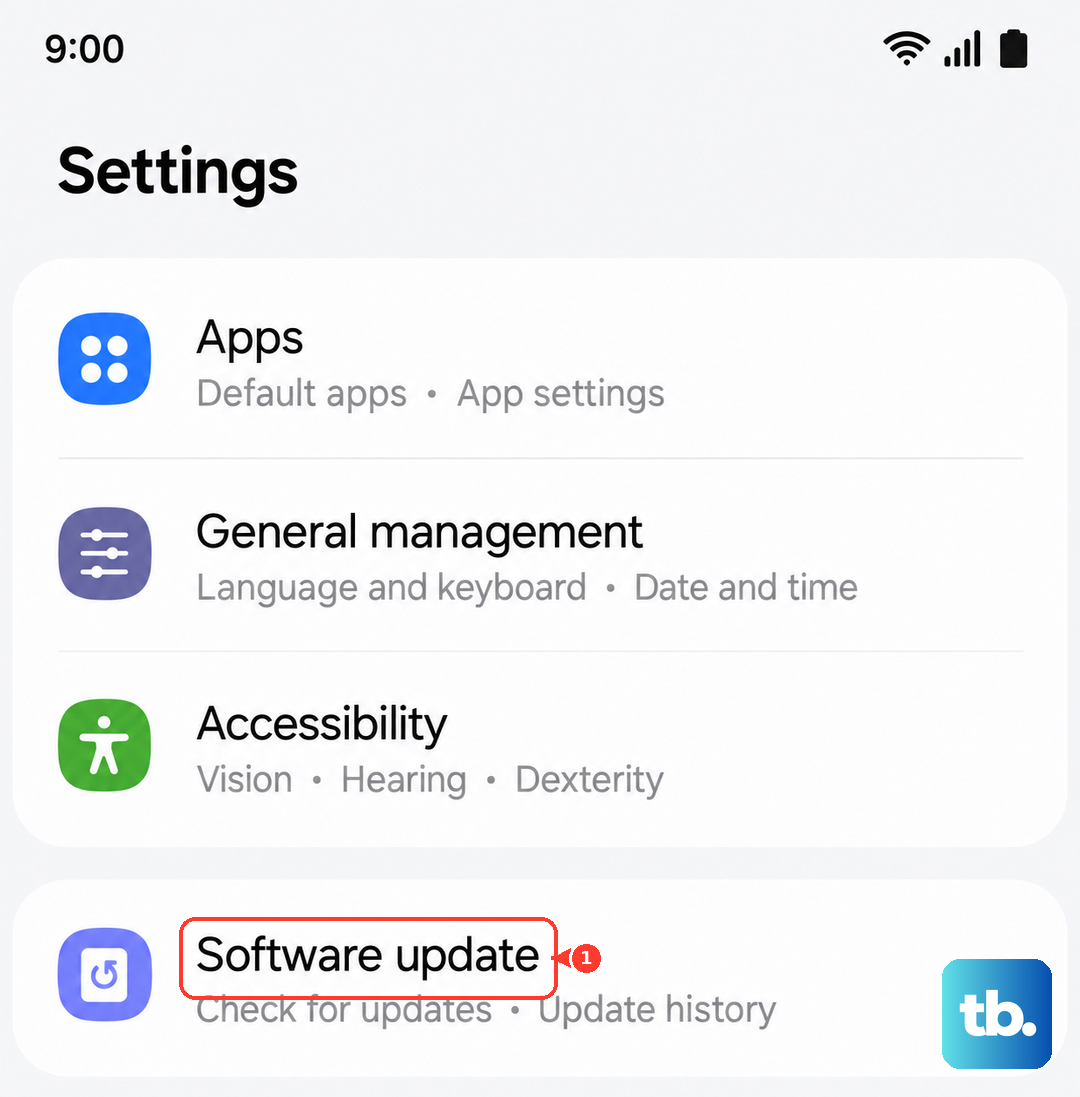
Go to Settings > Software update and tap Download and install. If an update is available, install it and see if your vibration returns afterward. This has resolved the issue for many users after a major OS update.
Test in Safe Mode
This step helps you figure out if a third-party app you installed is causing a conflict. To boot your Galaxy Tab S9 into Safe Mode, first press and hold the Side and Volume Down buttons to power it off completely.
Once it's off, press and hold the Side button until you see the Samsung logo, then immediately press and hold the Volume Down button. Keep holding it until the tablet finishes starting up. You'll see "Safe mode" in the bottom-left corner.
If vibration works normally in Safe Mode, a recently downloaded app is the culprit. Restart normally to exit Safe Mode and try uninstalling apps one by one to find the offender.
Reset All Settings
If you're still not getting any buzz, you can reset all your system settings without touching your personal data. This will revert sound, display, and connectivity settings back to their defaults.
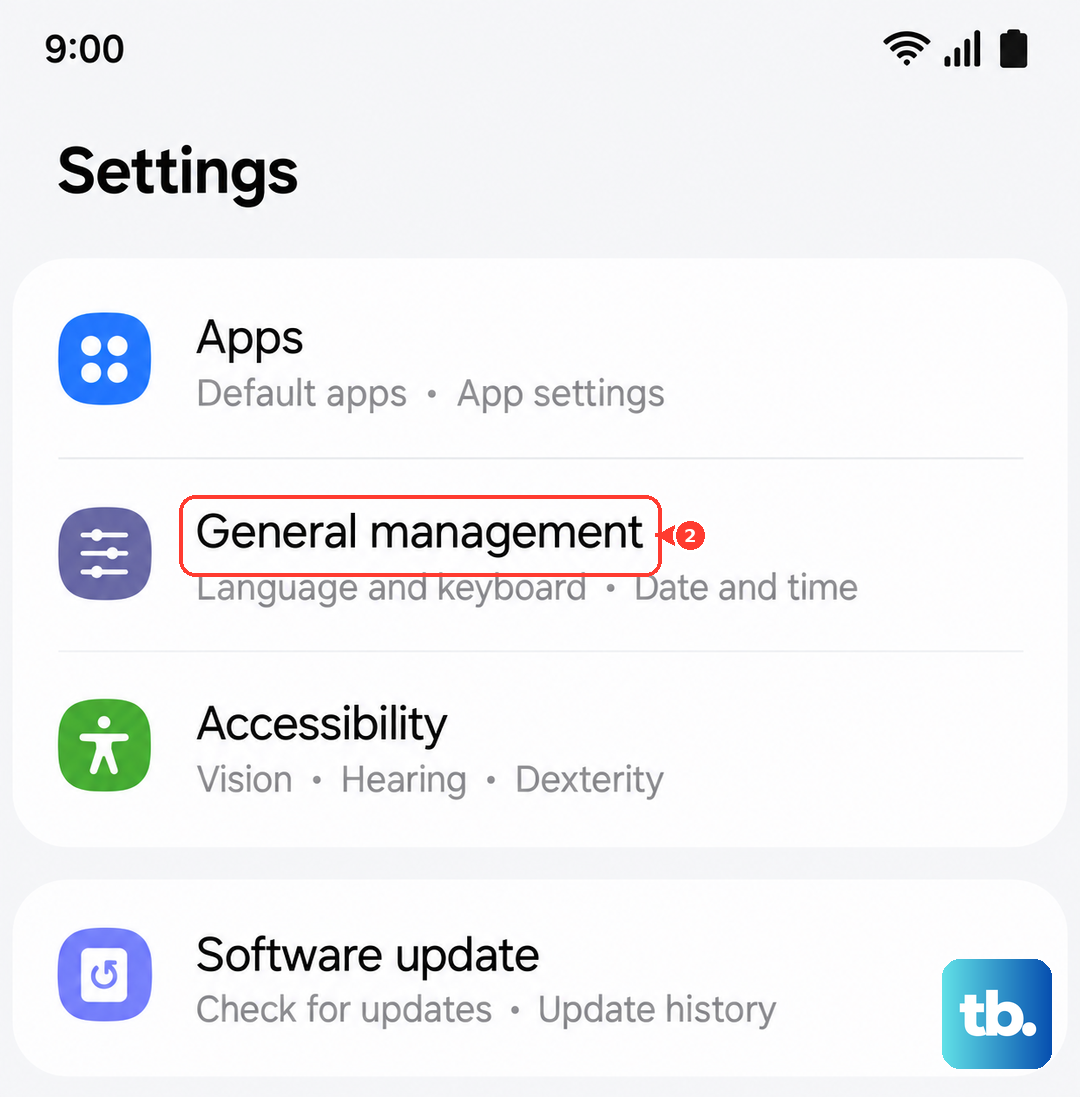
Go to Settings > General management > Reset. Tap on Reset settings and confirm. Your tablet will reboot. Afterward, you'll need to re-adjust your Wi-Fi, wallpaper, and similar preferences, but it often clears up stubborn glitches.
Run a Hardware Diagnostic Test
Samsung includes a built-in diagnostic menu you can use to test the vibration motor directly. Open the Phone app (if you have a cellular model) or a dialer app, and enter the code *#0*#.
This will open a secret service menu. Tap on the "Vibration" test button. If your Tab S9 vibrates in a long, steady pattern during this test, the physical hardware is working perfectly and the issue is purely software-based.
If there's no vibration at all during this hardware test, it could indicate a problem with the motor itself or its connection, which would require a professional repair.