When your Samsung Galaxy Tab S9 starts sending every call straight to voicemail, it can feel like you're suddenly unreachable. This problem can pop up for a few different reasons on your tablet, but the fixes are usually pretty straightforward. I'd start with the quick checks first, as they often solve it right away.
The most common culprit is a simple setting like Do Not Disturb or a temporary network glitch. Let's walk through the steps to get your calls coming through again.
Check Do Not Disturb and Focus Modes
Swipe down from the top of your screen twice to open the full Quick Settings panel. Look for the Do Not Disturb icon, it looks like a circle with a line through it. If it's highlighted, tap it to turn it off.
You should also check your Focus modes. Go to Settings > Notifications > Do Not Disturb. Look at any schedules or rules that might be active and temporarily disable them to test.
Restart Your Galaxy Tab S9
A simple restart clears out temporary software bugs that can mess with cellular connectivity. Press and hold the Volume Down button and the Side button together for about 10 seconds.
You'll see the Samsung logo appear as the tablet forces a reboot. This takes about 30 seconds and doesn't delete any of your data.
Verify Your Mobile Network Signal
Since the Tab S9 is a cellular model, it needs a good signal. Check the signal bars in the top-right corner of your screen. If you only have one bar or see an "X," you might be in a poor coverage area.
Try moving to a different location or near a window. You can also try toggling Airplane mode on and off from the Quick Settings panel to force the tablet to re-establish a connection with the cell tower.
Review Call Blocking and Spam Settings
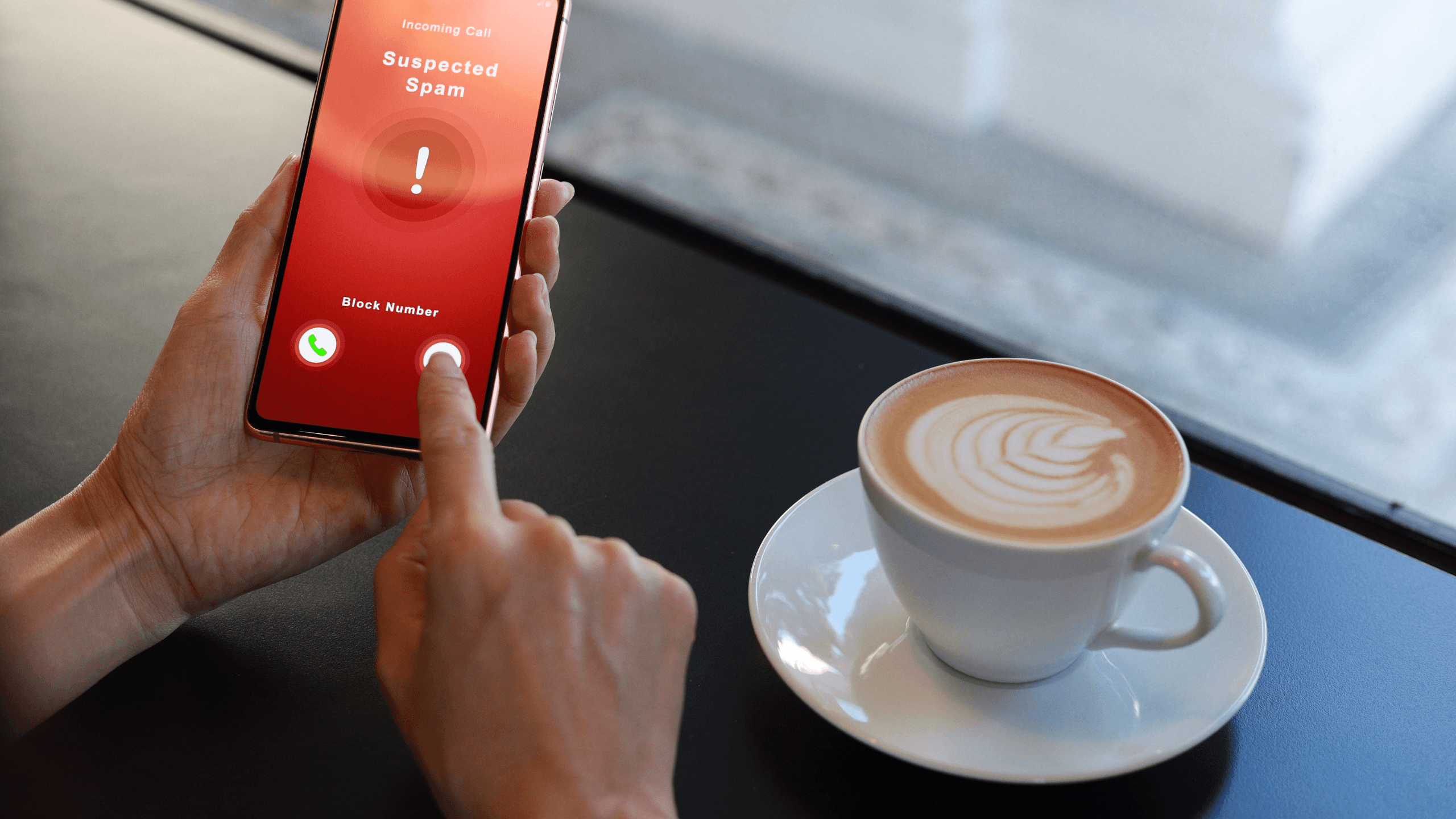
Samsung's Phone app has built-in spam protection that can sometimes be too aggressive. Open the Phone app and tap the three-dot menu in the top right, then go to Settings > Block numbers.
Make sure no important numbers are listed here. Also, go back and check Settings > Caller ID and spam protection to see if that feature is enabled and potentially blocking calls.
Disable Call Forwarding
Call forwarding could be silently redirecting your calls. To check, open the Phone app and tap the three-dot menu. Go to Settings > Supplementary services.
Tap on Call forwarding. You'll see options for different scenarios like "Always forward" or "When busy." Make sure each one is set to "Turn off" or "Disable."
Check Your SIM Card
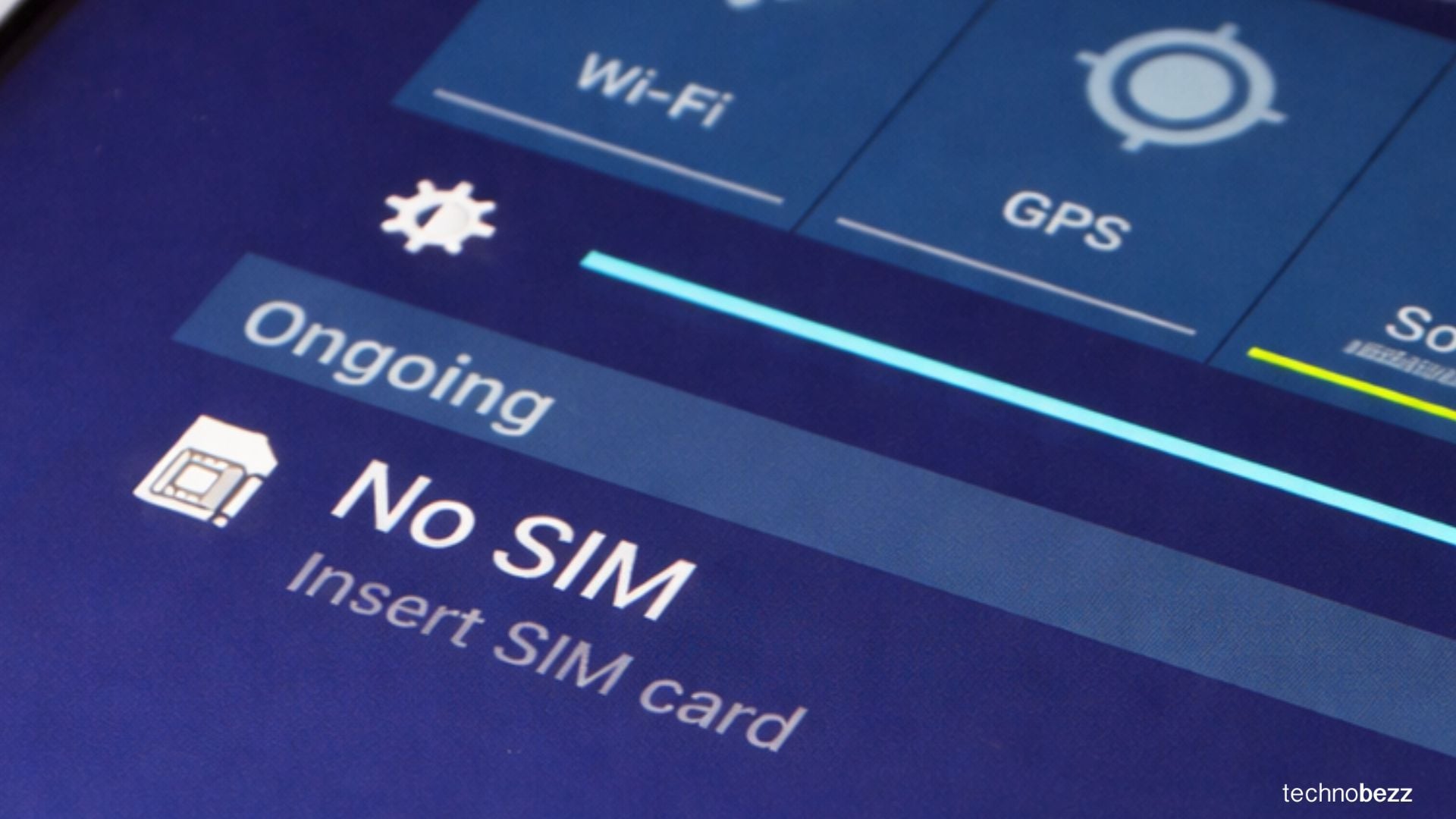
The SIM card tray on the Tab S9 is on the bottom edge. Use the ejector tool that came with your tablet to gently pop out the tray. Remove the SIM card and inspect it for any visible damage or dirt on the gold contacts.
Gently wipe the contacts with a soft, dry cloth and reinsert the SIM, making sure it's seated correctly in the tray. Push the tray back in until it clicks. After the tablet restarts, see if the issue is fixed.
Reset Your Network Settings
This step clears all your network-related configurations, which can resolve deeper connection issues. Go to Settings > General management > Reset.
Tap on Reset network settings. Confirm the action. Remember, this will erase all saved Wi-Fi passwords, Bluetooth pairings, and mobile data preferences, so you'll need to set those up again.
Update Your Tablet's Software
Outdated software can have bugs that affect calling. Samsung regularly releases updates to fix these kinds of problems. Go to Settings > Software update.
Tap Download and install. If an update is available, connect to Wi-Fi and let it install. Your tablet will restart during this process. Keeping your Tab S9 on the latest version of One UI is one of the best ways to prevent issues.
Clear the Phone App's Cache and Data
Corrupted data in the Phone app itself can cause problems. Go to Settings > Apps. Find and tap on the Phone app in the list.
Tap Storage. First, tap Clear cache. If the problem persists, come back and tap Clear data. Clearing data will reset the app's settings, but it won't delete your contacts or call history.
Contact Your Mobile Carrier
If you've tried everything else, the issue might be on your carrier's end. There could be a network outage in your area, or there might be a problem with your specific account or line provisioning.
Call your carrier's support number from another phone. Ask them to check for outages and to verify that your tablet's line is active and properly configured for voice calls. They can often refresh your connection from their side, which can work wonders.