Your Galaxy Tab S9 lights up one minute and shows nothing but a dark panel the next, and it is hard to tell whether the tablet is off, frozen, or genuinely broken. Sometimes the screen stays black even though you can feel a vibration or hear a notification chime, which usually points to a software hang rather than a dead device. The 11-inch Dynamic AMOLED 2X panel is built to run smoothly at 120Hz, so a blank or unresponsive display is almost always something you can work through on your own. Run the steps below in order, starting with the quickest and safest, and save the reset and repair options for last.
These fixes apply to both the Wi-Fi version (SM-X710) and the 5G version (SM-X716) running Samsung's One UI on Android, a device Samsung lists as eligible all the way up to the One UI 8.0 update.
Start With the Charger, Cable, and Case
Before assuming the screen has failed, rule out the simple physical causes. A bad cable, a blocked port, or a case pressing on a button can leave the display dark because the tablet never actually charges or because a button is stuck. This first pass costs you nothing and solves a surprising number of black-screen cases.
Check the tablet, charger, and USB-C cable for cracks, bent pins, lint in the port, or any sign of liquid damage.
Remove any cases or other accessories that may cover the charging port or buttons.
Swap in a known-good Samsung cable and adapter, and try a different wall outlet to rule out a single bad component.
Force a Restart When the Screen Is Frozen or Black
If the screen is black or frozen and taps do nothing, a forced restart cuts power to the hung software and reboots the tablet cleanly. The Tab S9 has no physical Home button, so this is done entirely with the Power and Volume keys.
- 1.Press and hold the Power button (or Side button) and Volume down button for 20 seconds.
- 2.Keep holding until the device restarts, which can take up to 60 seconds.
- 3.Release the buttons when the Samsung logo appears on the screen.
Official guidance also phrases this combination as holding the Power button and the Volume down button simultaneously for more than 7 seconds until the device reboots, so do not panic if it reacts a little sooner. If nothing happens at all, press and hold the Power button for up to two minutes to shut down the device, leave the tablet off for one minute, then press the Power button again to switch it back on.
Give a Drained Battery a Full Hour on the Charger
A deeply drained battery can look exactly like a broken screen, because there is not enough charge to power the display or even show the charging icon. The fix is patience plus the right power source.
Connect and charge the tablet using the appropriate charger for at least 1 hour; the battery charging indicator may take up to 10 minutes to appear on the display.
Plug the adapter into a wall outlet rather than a computer USB port, since plugging the USB cable into a computer or another device will lengthen the charging time.
After charging, press and hold the Power button (or Side button) for 15 to 20 seconds until the Samsung Galaxy logo appears.
Use only original Samsung travel adapters and USB cables with the tablet. The Tab S9 ships with a USB-C cable in the box but no wall charger, so you supply your own adapter. The fastest 45-Watt Super Fast Charging 2.0 speed needs a compatible 45W Samsung adapter paired with a 5A USB-C cable, but the tablet still charges normally at lower wattages with other genuine Samsung chargers, so any proper adapter will bring it back to life.
Boot Into Safe Mode to Catch a Misbehaving App
If the tablet powers on but the screen keeps going black, crashing, or rebooting on its own, a downloaded app may be the culprit. Safe mode starts the tablet with only its built-in software so you can confirm the cause. Use the power-off method first.
Completely power off the tablet.
Turn on the device and, when the Samsung logo appears, press and hold the Volume down button.
If done correctly, "Safe mode" will display in the bottom-left corner of the screen.
You can also reach it from the power menu by pressing and holding the Side button and the Volume down button at the same time, then touch and hold the Power off icon and tap the Safe mode icon. If the black-screen behavior stops in Safe mode, a downloaded app is to blame, so uninstall anything you recently added or updated, checking after each removal. Restart the tablet normally to exit Safe mode.
Update One UI to Clear Software-Side Display Glitches
Outdated firmware can cause display glitches, and Samsung pushes fixes for exactly this kind of problem through software updates. Before you start, charge the tablet to at least 50%, connect to Wi-Fi, make sure you have free storage, and back up your data.
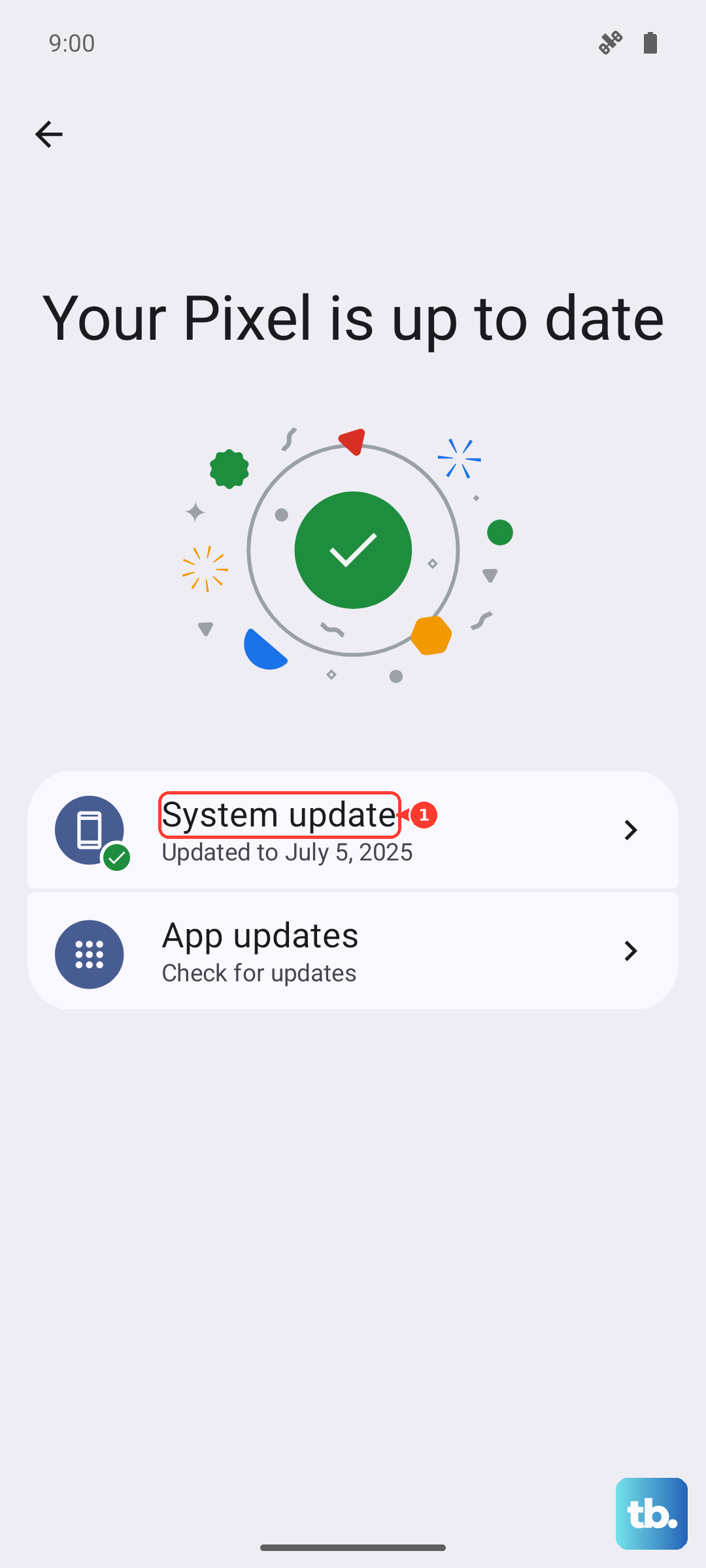
Open Settings > Software update > Download and install.
Tap Install now to apply any available update.
Depending on your model or carrier, the menu may instead read System updates or Check for software updates, but the path is the same. Letting the tablet install the latest One UI release keeps it current and clears bugs that older builds may carry, and it is worth checking again after the first update in case a second one is queued.
Repair the Firmware From a Computer With Smart Switch
When the screen is too dark or unresponsive to navigate the on-device Settings, you can still service the software from a computer. Samsung Smart Switch is the official desktop app, for Windows PC or Mac, used to update or restore firmware and transfer data when the tablet is connected by cable.
Install Samsung Smart Switch on a Windows PC or a Mac.
Connect the Tab S9 to the computer with its USB-C cable.
Follow the on-screen prompts in Smart Switch to update or restore the tablet's firmware.
This route is especially useful for a black-screen tablet, because it does not depend on you being able to read or tap the display. Restoring or re-flashing firmware can erase the data on your tablet, so back up anything important first if you are still able to reach your files.
Back Up, Then Try a Factory Data Reset
As a last self-service step, a factory data reset wipes the tablet back to its original state, which clears stubborn software faults that survive an update. Because it erases everything on the device, back up first. Samsung's own warning is blunt, stating: "Please save any information you need prior to the factory reset because your personal information may not be recovered."
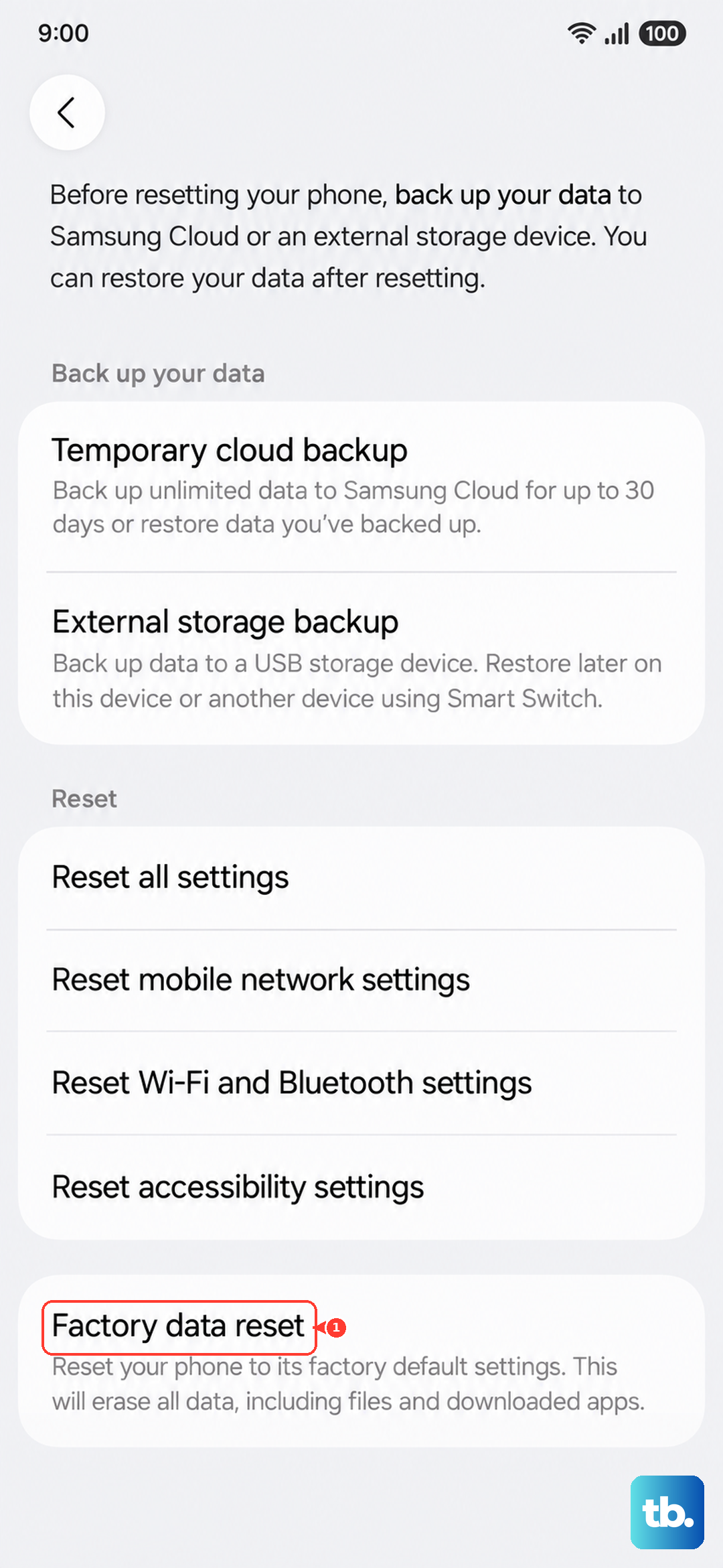
Open Settings > General management > Reset > Factory data reset.
Tap Reset, then tap Delete all.
If the black screen prevents you from reaching this menu, use the Smart Switch route above to restore the software from a computer instead.
When to Book a Repair With Samsung
If the screen still will not turn on after a force restart and a full charge, the issue is most likely hardware rather than software. At that point your device needs service, so contact Samsung Support for further assistance. Book a repair through Samsung Support or take the tablet to a Samsung service center, and have your model number (SM-X710 or SM-X716) ready so they can confirm your warranty and the right parts.
Frequently Asked Questions
Why does my Galaxy Tab S9 screen stay black even when it is plugged in?
A very low battery, a faulty cable, a blocked charging port, or a frozen system can all keep the display dark while the tablet is plugged in. Charge it with a genuine Samsung adapter in a wall outlet for at least 1 hour, remembering the charging indicator may take up to 10 minutes to appear, then try a force restart if it still will not wake.
How do I force restart a Galaxy Tab S9 with a frozen screen?
The Tab S9 has no Home button, so press and hold the Power button (or Side button) and the Volume down button for 20 seconds, or until the device restarts, which can take up to 60 seconds. Release the buttons when the Samsung logo appears.
Does the Galaxy Tab S9 come with a wall charger in the box?
No. The box includes a USB-C cable but not a wall charger, so you buy the adapter separately. The tablet supports 45-Watt Super Fast Charging 2.0 at its fastest with a compatible 45W Samsung adapter and a 5A USB-C cable, yet it still charges at lower wattages with other genuine Samsung chargers.
Will a factory data reset fix a black screen, and will I lose my data?
A reset can fix black-screen problems caused by software, but it erases everything on the tablet, so back up first. Samsung warns that your personal information may not be recovered once the reset is done.