
Your Galaxy Tab S11 Ultra takes gorgeous photos, but it's no help if they get stuck on "sending." Whether you're using Google Messages, WhatsApp, or your email app, this usually comes down to a connection handshake or a misconfigured setting. Here are the specific fixes to try right now.
Start with a force restart
Before diving into menus, rule out a temporary glitch. The Tab S11 Ultra can sometimes get its network stack stuck after waking from sleep or a full battery drain.
Press and hold the Power button and the Volume Down button together for about 10 to 15 seconds. Just keep holding until the screen goes black and the Samsung logo reappears. This clears the RAM without deleting anything and often re-establishes a stuck data session.
Is RCS messaging connected?
Android's RCS (Rich Communication Services) is the backbone for sending high-quality images. If RCS Chat is disconnected, your tablet silently falls back to old-school MMS, which has tiny file size limits and often fails on tablets that don't have a perfect carrier profile.
Open the Google Messages app, tap your profile picture in the top right, and head to Messages settings > RCS chats. Make sure the status shows "Connected." If it says "Connecting" or "Disconnected," tap the toggle to turn RCS off, wait 30 seconds, then turn it back on. It can take a minute to re-register with your carrier's servers.
Check your network connection first
The Tab S11 Ultra supports both WiFi and cellular data, and pictures will send over either one. But the tablet doesn't always switch between them gracefully.
If you're on WiFi, make sure the icon is solid and you can load a webpage. If you're using mobile data, pull down the Quick Settings panel and confirm that Mobile Data is enabled. Toggle it off and back on to force a fresh connection to the tower. A weak signal is the most common reason MMS or RCS messages hang.
Make sure MMS is enabled in your messaging app
Even with RCS available, Google Messages has a fallback MMS setting that controls whether large media will try to send over standard SMS/MMS protocols. If this is off, pictures won't send at all when RCS is unavailable.
Open Messages, tap your profile picture, and go to Messages settings > Advanced. Make sure Auto-download MMS and Auto-download MMS while roaming are turned on. Also confirm that Group messaging is enabled if you're sending to multiple people.
Verify your APN settings
This one catches a lot of Tab S11 Ultra owners off guard. The Access Point Name (APN) tells the tablet how to reach your carrier's data and MMS gateways. If the APN is wrong or blank, pictures will queue up and fail without any useful error message.
Go to Settings > Connections > Mobile networks > Access Point Names. Compare the fields (especially MMSC, MMS proxy, and APN type) with your carrier's official settings. You can find these on their support page. If you see any typos or missing info, tap the three-dot menu and select Reset to default, or edit them manually.
Check the date and time settings
Encrypted messaging and carrier authentication rely on accurate timestamps. If your Tab's clock is off by even a few minutes, RCS and MMS servers will reject the connection.
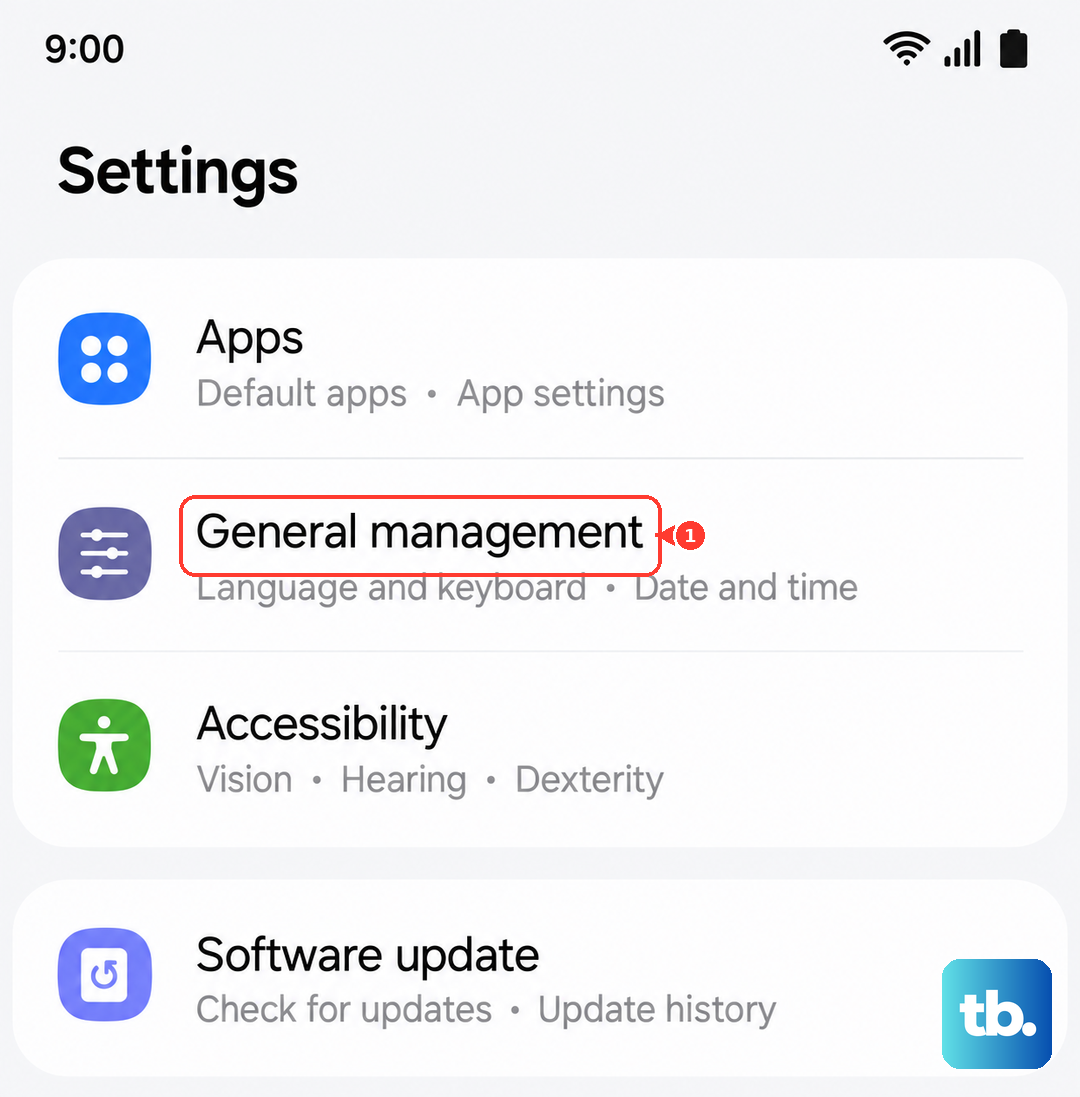
Open Settings > General management > Date and time. Toggle on Automatic date and time and Automatic time zone. If they're already on, toggle them off, wait 10 seconds, then turn them back on to force a sync with the network.
Charge the tablet properly if it died completely
The Tab S11 Ultra has a known quirk: if the battery drains to zero, the charging indicator can take up to 10 minutes to appear. A dead tablet can't send anything, and the delayed response makes people think the charger is faulty.
Plug your tablet directly into a wall outlet with the included 45W USB-C cable and charger. Avoid power strips or extension cords. Let it sit for 15 to 20 minutes before attempting to power it on or send media. You can also try a force restart (Power + Volume Down) while it's plugged in to wake the charging circuit.
Update the software and carrier settings
Samsung and Google regularly push updates to Android 16 that fix underlying radio and messaging bugs. Running an older build can cause sending failures that have already been patched.
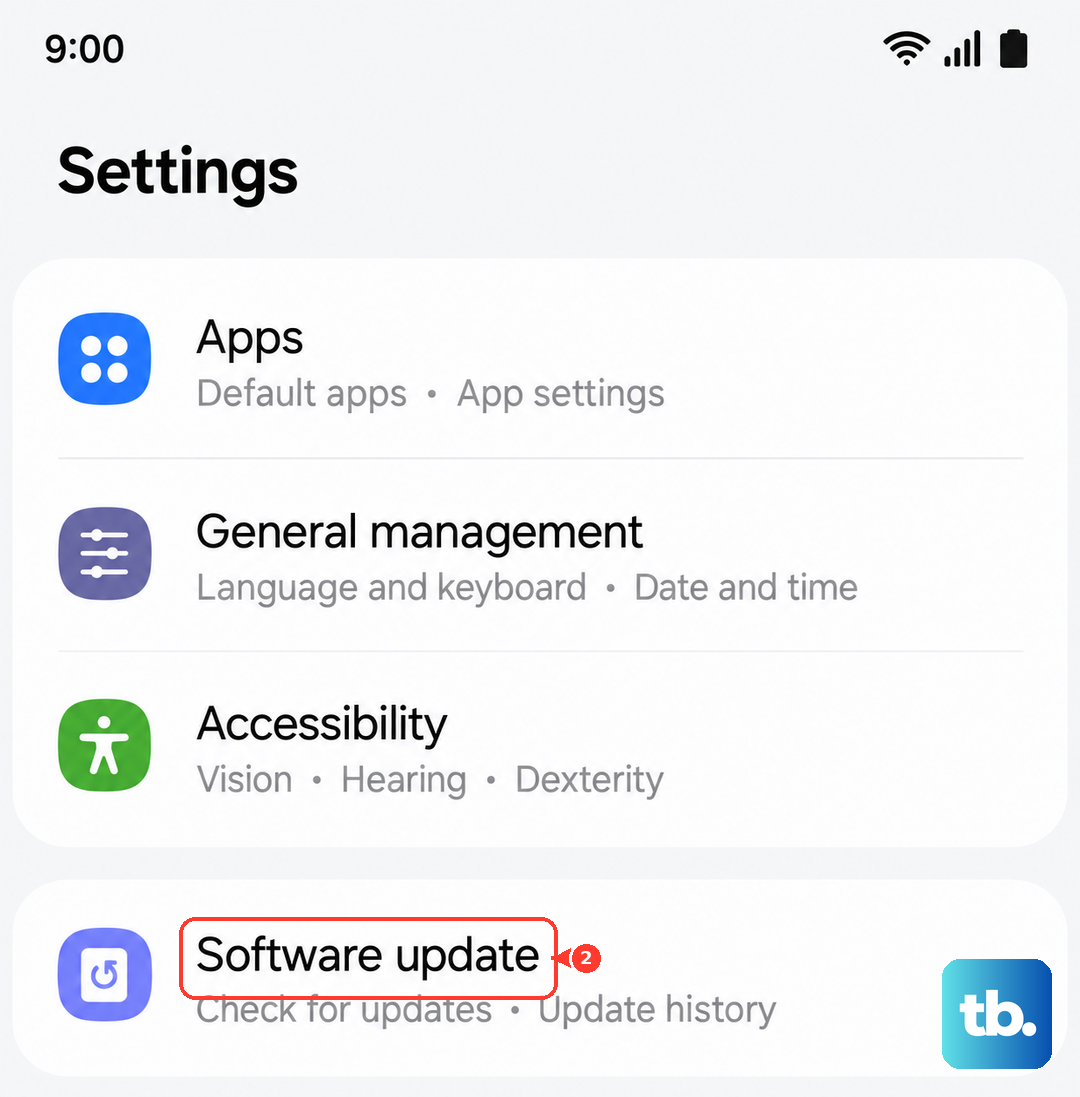
Head to Settings > Software update and tap Download and install. While you're at it, go to Settings > Connections > Mobile networks > Carrier and tap Update now to refresh the carrier configuration. These are quick steps that resolve stubborn network mismatches.
Reset network settings as a last resort
If you've tried everything above and pictures still won't send, the network configuration on the Tab itself is likely corrupted. A settings reset clears saved WiFi networks, Bluetooth pairings, and APN customizations so you can start fresh.
Go to Settings > General management > Reset > Reset network settings. Enter your PIN or password and confirm. The tablet will restart. You'll need to reconnect to WiFi and re-enter any APN changes, so take a screenshot of your carrier's APN first if you had custom values.