
Seeing the Samsung logo stuck on your Tab S11 Ultra's screen is a gut-punch, especially if you were in the middle of something. The tablet just sits there, the logo glowing, and nothing happens. This usually traces back to a failed software update, a corrupted cache, or the battery draining completely while the device was off. Let's walk through the fixes that actually work for this specific model.
Give It Time to Charge and Finish Loading
Your Tab S11 Ultra has a known quirk where the charging indicator can take up to ten minutes to appear if the battery is completely empty. If the device died and then you plugged it in, the logo might appear but the tablet won't boot because the battery is too low to finish the startup routine. Leave it plugged into a wall outlet (not a power strip or extension cord) for at least thirty minutes before trying anything else.
Even if the battery isn't dead, a major Android 16 update can take a long time to optimize apps on the first boot. If you see the Samsung logo with no progress bar, give it a full twenty minutes. If there's a loading bar or percentage under the logo, the system is still working and you should not interrupt it.
Force Restart the Tablet
If you've waited and the logo is still frozen, a force restart is the quickest fix. Press and hold the Power button and the Volume Down button simultaneously for 10‑15 seconds. Keep holding until the screen goes black and the Samsung logo reappears. This bypasses the stuck boot process and often gets the tablet past the logo without losing any data.
I've seen this work on multiple Galaxy Tabs when a normal restart wouldn't. If it loops back to the same frozen logo after a few seconds, move on to recovery mode.
Boot into Recovery Mode and Clear the Cache
Recovery mode lets you fix software corruption without wiping your apps and files. With the tablet turned off (force restart if needed), press and hold the Volume Up and Power buttons together. Release both buttons when the Samsung logo appears and the recovery menu loads. Use the volume keys to navigate, and the power button to select.
First, try selecting Wipe cache partition. This clears the system cache that sometimes gets corrupted during updates and causes boot loops. Confirm the action, then select Reboot system now. This alone fixes the stuck logo in a lot of cases.
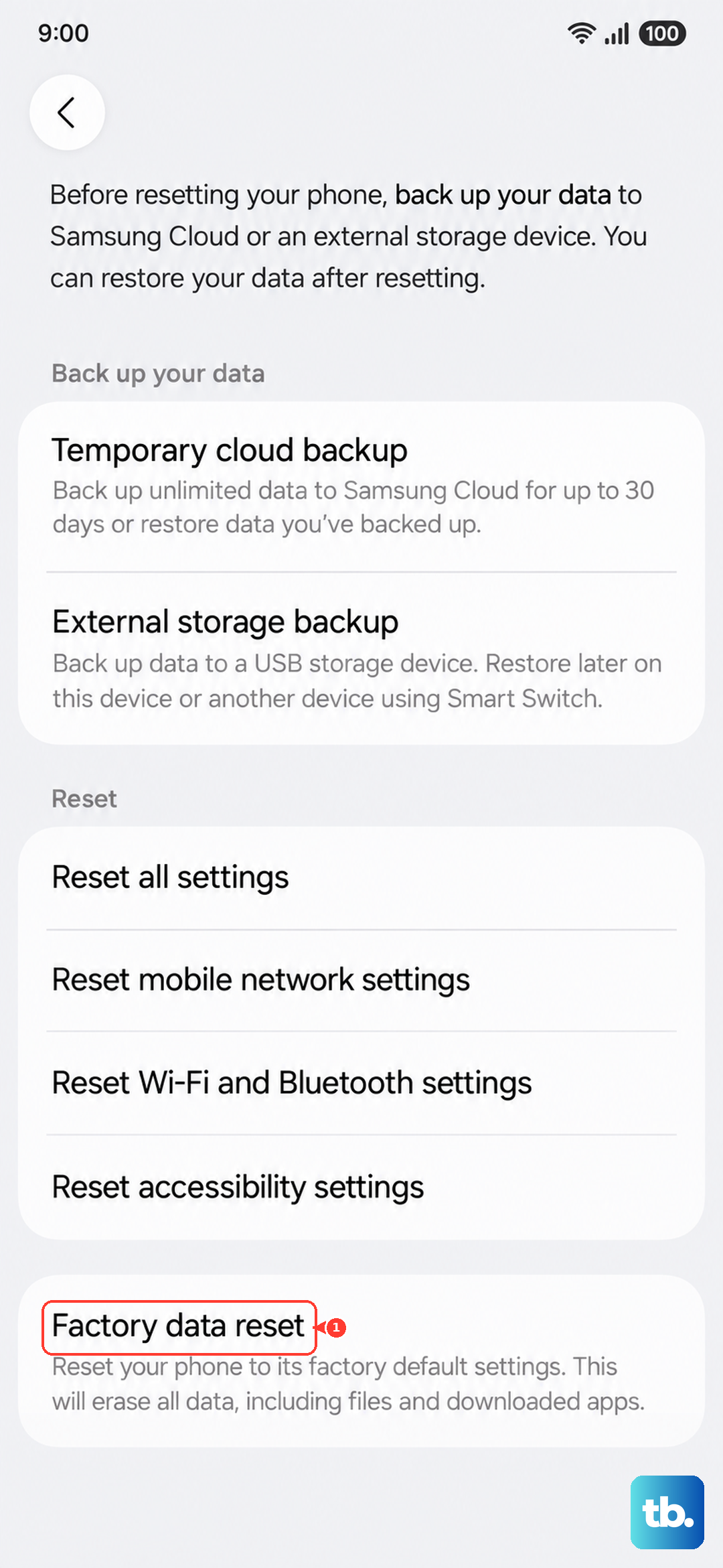
If the tablet still won't boot, you have two options in recovery: Apply update from ADB (if you have a computer) to reinstall the update, or a Factory data reset as a last resort. A reset wipes everything, so only do it if you're backed up.
Use Download Mode to Reinstall the Firmware
When recovery mode fails and the logo keeps freezing, a deeper reinstall is needed. Download Mode (the Samsung equivalent of DFU mode) allows you to flash the full firmware using a computer and the Odin tool. Turn off the tablet. Press and hold Volume Up and Volume Down, then connect the USB‑C cable to your computer while holding those buttons. Release when a warning screen appears, then press Volume Up to confirm.
On your computer, open Odin and load the correct firmware file for your Tab S11 Ultra model (you can get it from Samsung's official site or SamMobile). Click Start and wait. This completely rewrites the system partition and is the most reliable way to fix a software-induced logo freeze. The process takes about ten minutes and does not erase your data unless you check the "Re‑partition" option.
A word of caution: only use this method if you're comfortable with Odin. If not, the previous steps (cache wipe and factory reset) are safer.
Check the Charging Port and Cable
Your Tab S11 Ultra has a known issue with the USB‑C port becoming intermittent. If the tablet isn't getting enough power during a boot attempt, it can hang on the logo. Inspect the port for lint, dust, or bent pins. Use a wooden toothpick or a plastic pick to gently clean it out. Also try a different USB‑C cable and a different wall charger (use a cable that supports 45W or higher to match the tablet's max wattage).
Make sure you're plugged directly into a wall outlet. Power strips and extension cords can introduce voltage drops that prevent the tablet from charging properly, especially after a full battery drain.
Wait for the Battery to Wake Up
If the tablet was completely dead for a while, the battery may be in a deep discharge state. Plug it in and look for the charging icon. If you don't see it within ten minutes, try the force restart while it's plugged in. I've seen this kick-start the charging circuit on several Samsung tablets. Leave it charging for at least an hour before trying to boot again.
Factory Reset from Recovery (Destructive)
If nothing else has worked, a factory reset from recovery mode is your last shot before hardware repair. Boot into recovery as described above, select Wipe data/factory reset, then confirm. This erases everything on the tablet, including your accounts, settings, and media. After the reset, select Reboot system now. If the logo still freezes after a factory reset, the issue is almost certainly hardware-related.
When the problem is a corrupted system file that survived the cache wipe, a full reset often clears it. Just make sure you've backed up anything important beforehand.
If your Tab S11 Ultra still refuses to boot past the Samsung logo after all these steps, the culprit is likely a failing hardware component like the storage chip, the motherboard, or a damaged charging port that's preventing the device from getting enough stable power to boot. At that point, a professional diagnostic is the only remaining option.