
The Settings app crashing on the Samsung Galaxy Tab S11 Ultra usually means a corrupted cache or a system-level hiccup on Android 16. This device has some particular quirks you should know about before diving into fixes. The good news is that most cases clear up in a few minutes without losing any data.
Start with the thing that fixes this most often: a simple force restart. Your Tab S11 Ultra has a dedicated button combo for this. Press and hold the Power button and Volume Down button simultaneously for 10-15 seconds until the device restarts. This is different from a normal reboot and clears out stubborn temporary errors that might be crashing the Settings app.
If the Settings app crashed immediately on launch, try opening it again right after the restart. Let it sit for a few seconds before tapping anything. Android 16 sometimes needs a moment to settle after a hard restart.
The Cache Is Usually the Culprit
Corrupted cache data inside the Settings app itself is the most common cause of this crash on Samsung tablets. Fortunately, clearing it is straightforward and doesn't affect your personal data at all.
Open Settings > Apps and tap the three-dot menu in the top right. Select Show system apps so you can see everything. Scroll down until you find Settings (it might be listed as "com.android.settings" depending on your view). Tap Storage, then tap Clear Cache.
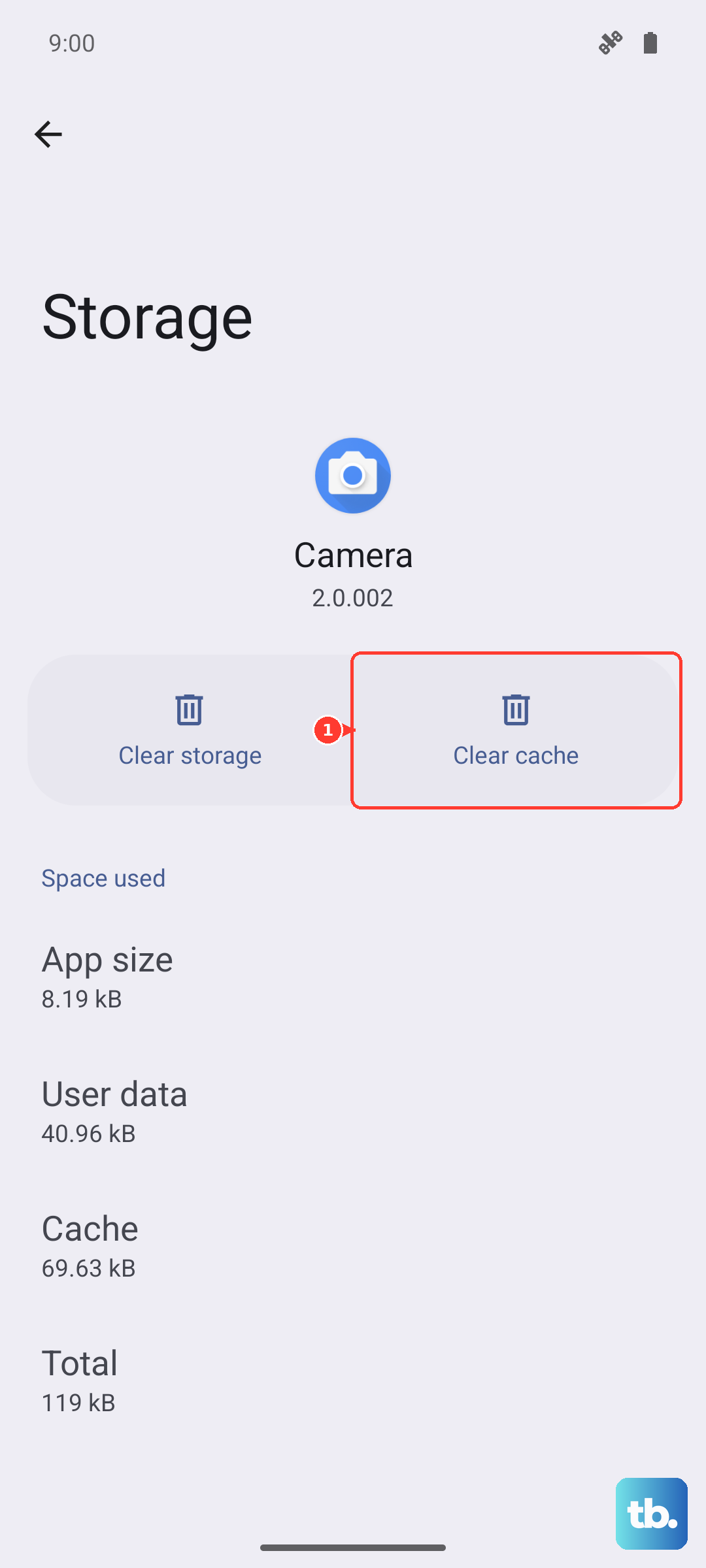
Do not tap Clear Data yet. Just the cache. Back out and try opening Settings again. This clears out any corrupted temporary files without resetting your preferences.
Force Stop and Try Again
If clearing the cache didn't work, force stopping the app gives it a completely fresh start. Back in Settings > Apps, find Settings again, and tap Force Stop. Confirm the prompt and wait about ten seconds before trying to open Settings.
This kills any background processes that might be stuck. On Android 16, the Settings app has deeper system integration, so a force stop often resolves crashes that refuse to clear with just a restart.
Google Play Services Could Be the Problem
The Tab S11 Ultra relies heavily on Google Play Services for system communication. If that service has corrupted data, it can take down the Settings app with it. Start by force stopping Google Play Services. Go to Settings > Apps > Show system apps, find Google Play Services, and tap Force Stop.
Next, clear its cache and data. From the same app info page, tap Storage, then Clear Cache. After that, tap Manage Storage and then Clear All Data. This does not delete your Google account or your personal files, but you may need to re-accept some permissions the next time you use Google apps.
Restart the tablet after this step. Let Google Play Services reinitialize completely before testing the Settings app. Give it about a minute.
Check for Play Store Update Conflicts
A recent Google Play Store update can interfere with system apps on Android 16. If the Settings app started crashing after a Play Store update, rolling back the update often fixes it right away.
Go to Settings > Apps > Show system apps and find Google Play Store. Tap the three-dot menu and select Uninstall Updates. This reverts the Play Store to its factory version. Restart the tablet, then open the Play Store and let it update itself again in the background.
This is a safe step. Your apps and data stay exactly where they are.
Update the Tablet's Software
Running an outdated version of One UI or Android 16 can cause compatibility issues with system apps. Samsung pushes regular updates for the Tab S11 Ultra, and some of those directly address system app stability.
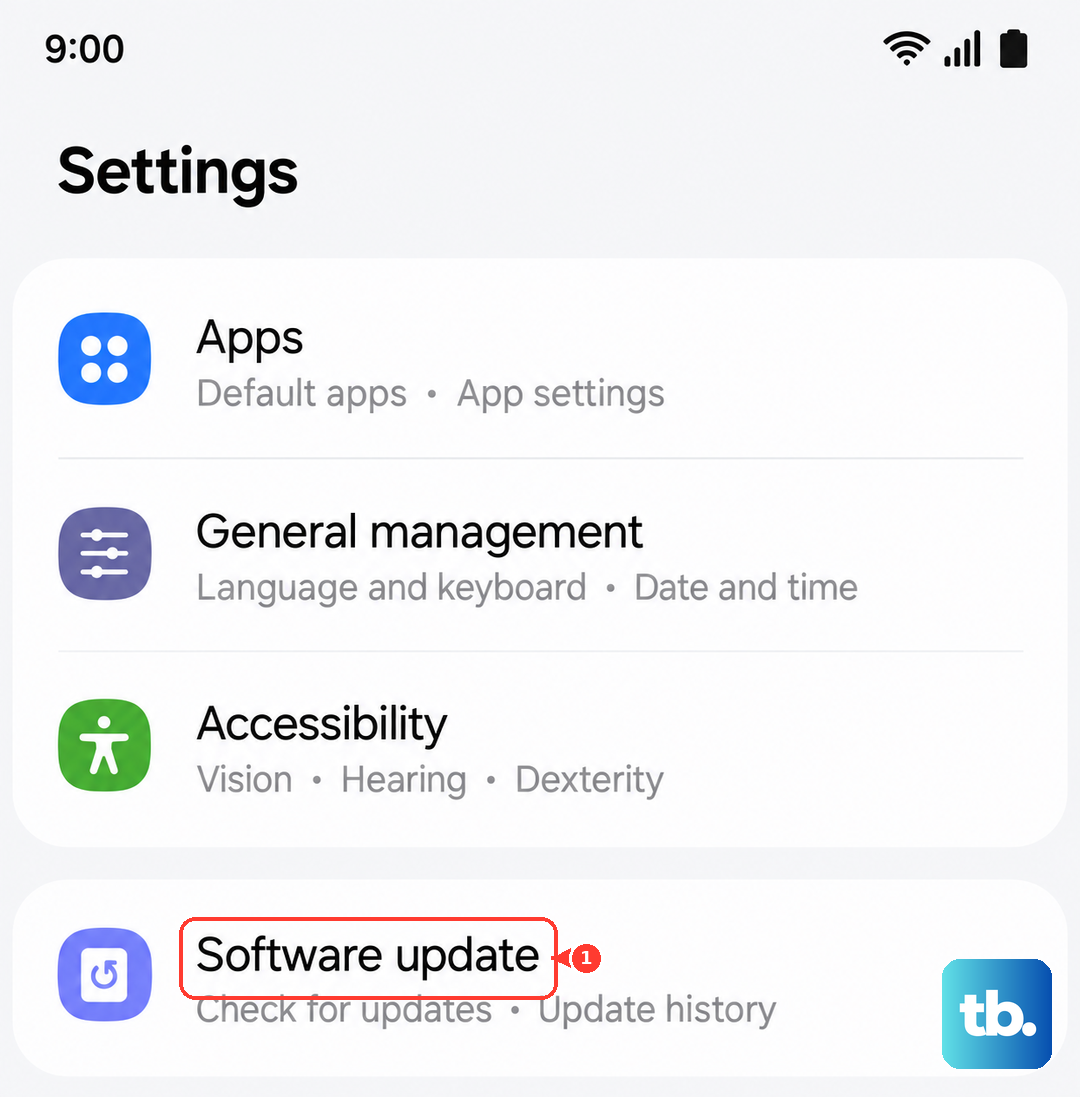
Open Settings > Software Update and tap Download and Install. If an update is available, install it and let the tablet restart. Check the Settings app after the update finishes. Even if nothing pops up as available, sometimes checking triggers a background refresh that helps.
A Note on Battery Drain and Charging Issues
This one's specific to the Tab S11 Ultra. If your battery completely drained and the tablet became unresponsive, the Settings app might crash because the system is in a low-power recovery state. Plug the tablet into a wall outlet directly, not a power strip or extension cord, and wait up to 10 minutes for the charging indicator to appear.
Once the tablet has some charge, try the force restart method (Power + Volume Down for 10-15 seconds) before touching any settings. A drained battery can cause system instability that looks like a Settings crash but is really just the tablet waking back up.
Make sure your USB-C cable and port are clean. A bit of lint or debris in the charging port can cause intermittent charging issues that eventually lead to full battery drain. A quick visual check and a gentle clean with a toothpick can save you a lot of troubleshooting later.
When to Clear All Settings Data
If you've tried everything above and the Settings app still crashes, you can wipe its data entirely. This resets your customized settings and preferences but doesn't delete your files, apps, or accounts.
From Settings > Apps > Show system apps, tap Settings and go to Storage. Tap Clear Data and confirm. The tablet will treat the Settings app as if it's brand new. You'll need to re-enable any specific toggles or preferences you had, but the crashing should stop.
If you can't get into the Settings app at all to reach Apps, long-press the Settings icon on your home screen and tap App info. That shortcut bypasses the main Settings interface entirely.
Factory Reset as a Final Step
A factory reset is the nuclear option, but it works if nothing else has. Back up everything first because this erases all your data. Samsung's Smart Switch app makes it easy to back up and restore on the Tab S11 Ultra.
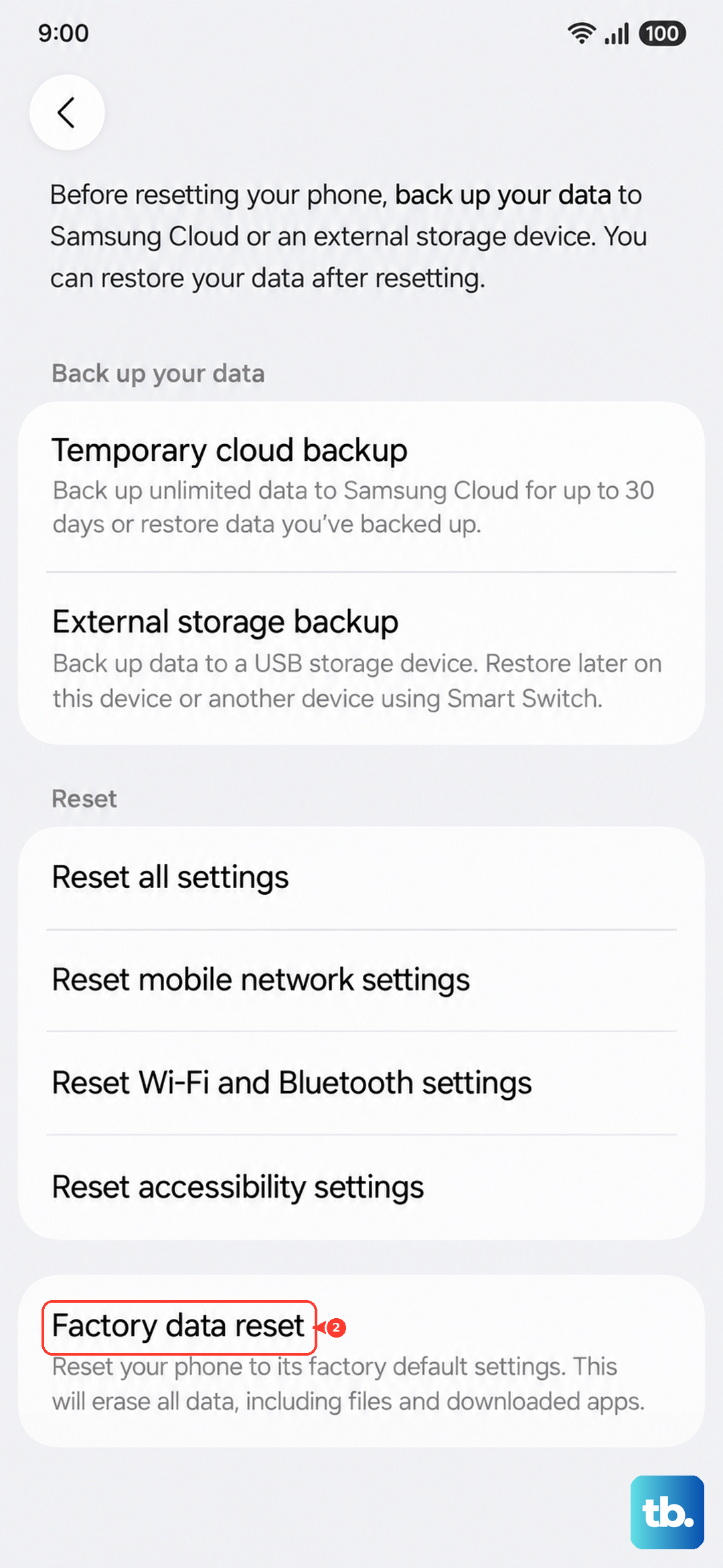
If you can still get into Settings long enough to navigate, go to Settings > General Management > Reset > Factory data reset. If the Settings app crashes before you can reach that menu, use the hardware key method at boot. Power off the tablet completely, then press and hold Volume Up and Power together until the Samsung logo appears, then release Power but keep holding Volume Up until you see the Android Recovery menu. Use the volume keys to navigate to Wipe data/factory reset and press Power to confirm.
After the reset, set up the tablet as a new device first and test the Settings app. If it works, restore your backup. If it still crashes, you're looking at a hardware issue that needs Samsung's attention.