
Network registration errors aren't limited to phones. Your Samsung Galaxy Tab S11 Ultra can hit the same "not registered on network" roadblock, leaving you without mobile data, calls, or texts. The tablet's IMEI gets corrupted or the connection to your carrier drops, and you're stuck with a Wi-Fi-only device. Most of the time, a few straightforward fixes get you back online without any deep surgery.
You can check the Tab S11 Ultra's IMEI by opening the dialer (if you have a phone app) and typing *#06#. If you see "IMEI Null" or a string of zeros, something is off. Work through these fixes in order. Many of them resolve the problem without needing to touch the IMEI at all.
Force Restart the Tab S11 Ultra
A force restart is stronger than a normal reboot. It cuts power completely and forces the tablet to reinitialize all hardware, including the cellular radio. Press and hold the Power button and Volume Down button together for at least 10 seconds. Keep holding until you feel a vibration or see the Samsung logo appear on screen. Let the tablet boot up fully and check if the network error is gone.
Toggle Airplane Mode On and Off
This forces a fresh connection to your carrier without a full reboot. Swipe down twice from the top of the screen to open the quick settings panel, then tap the Airplane Mode icon. Wait about 10 seconds, then tap it again to turn Airplane Mode off. The tablet will re-register with the nearest cell tower, which often clears temporary glitches.
Remove and Reinsert the SIM Card
A loose or dirty SIM card is a common cause of registration issues on tablets. Power down your Tab S11 Ultra, then locate the SIM tray (usually on the left edge or bottom). Use the ejection tool to pop the tray out, remove the SIM, and gently blow any dust off the card and tray slot. Place the SIM back, push the tray in firmly, and power the tablet on. If the error persists, the SIM itself might be damaged.
Check Your Carrier Plan Status
The problem might not be with your tablet at all. If your prepaid plan expired, your bill is unpaid, or your account was suspended, you'll see the same error. Log into your carrier's app or website from another device, or call customer service. Confirm your account is active before diving into more technical steps.
Reset Network Settings
This wipes all saved Wi-Fi networks, Bluetooth pairings, and cellular configurations. It's a big reset, but it clears corrupted settings that block registration. Go to Settings > General Management > Reset > Reset Network Settings. Enter your PIN if prompted, then confirm. The tablet restarts and attempts a clean connection to your carrier. You'll need to reconnect to Wi-Fi afterward.
Change the Network Mode Manually
Your Tab S11 Ultra might be trying to lock onto a network band that's weak or unavailable where you are. Switching from 5G to LTE, or from LTE to 3G, can sometimes get you registered. Go to Settings > Connections > Mobile Networks > Network Mode and select a different option like LTE/3G/2G. If the tablet connects on a lower band, the issue is likely coverage-related with the higher band.
Update the Software on Your Tab S11 Ultra
Samsung and carriers push software updates that fix known network bugs. An outdated system may contain unfixed issues that cause registration failures. Open Settings > Software Update > Download and Install. If an update is available, install it, let the tablet restart, and check if the error clears.
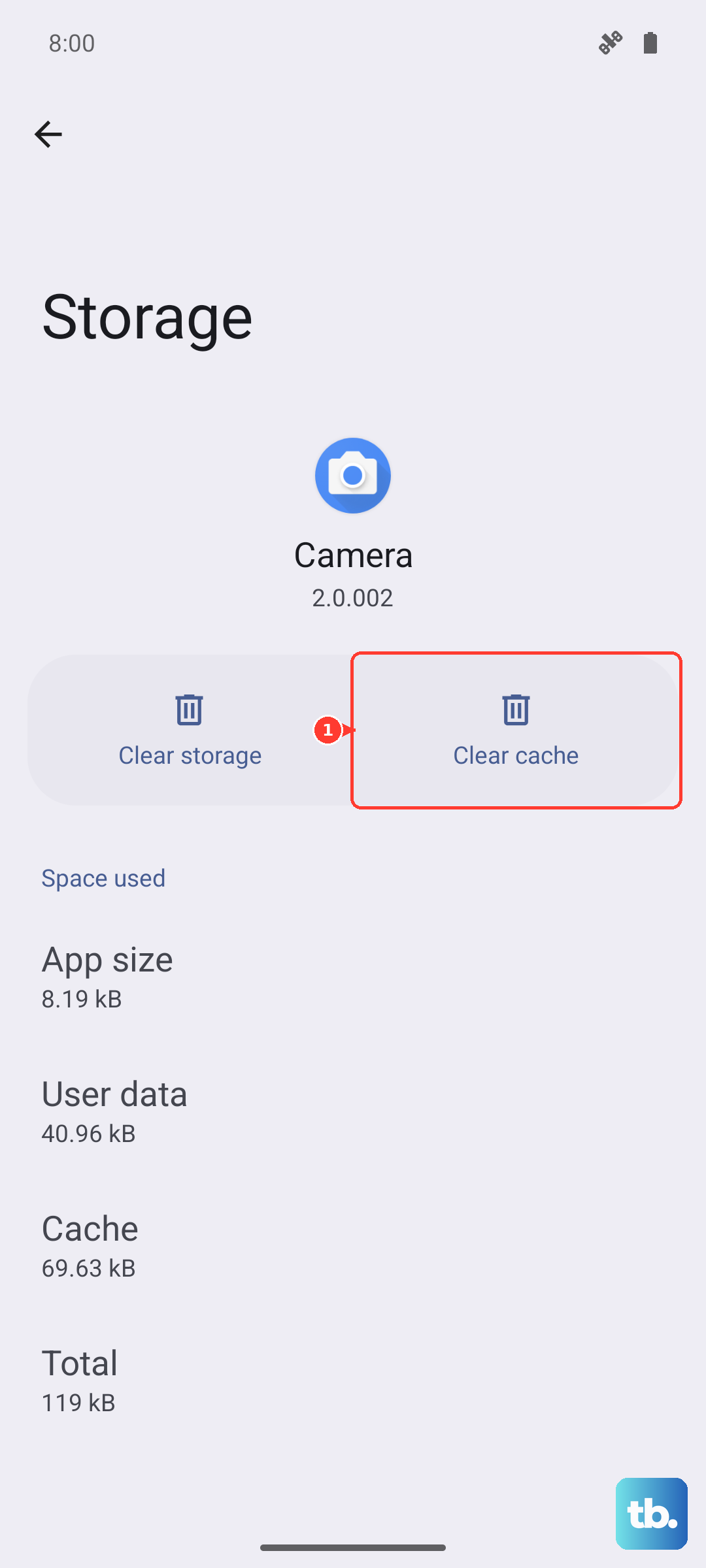
Clear the Cache of the Phone App
Even on a tablet, the Phone app handles telephony functions like network registration. A corrupted cache in that app can cause problems. Go to Settings > Apps > Phone > Storage and tap Clear Cache. This won't delete your contacts or call history. After clearing the cache, restart the tablet to let everything rebuild cleanly.
Try a Different SIM Card
If none of the above helped, your SIM card could be faulty. Borrow a working SIM from a friend or family member and insert it into your Tab S11 Ultra. If the borrowed SIM connects to the network without issue, your original SIM needs replacing from your carrier. If the borrowed SIM also fails, the problem is with the tablet's hardware or software.
Factory Reset as a Last Resort
A factory reset wipes everything on the tablet and returns it to out-of-box condition. Back up your photos, documents, and any important data first. Then go to Settings > General Management > Reset > Factory Data Reset and follow the prompts. After the reset, set up the tablet from scratch and test the network. If the error remains after a factory reset, it's likely a hardware issue with the cellular radio module, and you should contact Samsung support or visit an authorized repair center.











