If your Samsung Galaxy Tab S11 Ultra keeps restarting on its own, you're not stuck with a broken tablet. This is a known issue that can usually be traced back to a software glitch, a problematic app, or even a minor charging problem. Before you panic, run through these fixes, most take under a minute and don't require any tools.
The Tab S11 Ultra runs Android 16, and like any complex OS, it can hit a rough patch. The good news is that Samsung gives you plenty of ways to dig into the problem without losing your data. Just back up anything important first, you'll thank yourself later if a factory reset ends up being the solution.
Force Restart First
This is the fastest thing to try and it works more often than you'd think. A force restart clears out temporary glitches without wiping your data. On the Tab S11 Ultra, press and hold the Power button and Volume Down button simultaneously for 10-15 seconds until the device restarts. You'll see the Samsung logo, and the tablet should boot up normally. If it was stuck in a loop, this usually breaks it.
Check the Charging Port and Battery
Random restarts can actually be power-related, even when the battery looks fine. The Tab S11 Ultra has a known issue where a faulty charging port can cause intermittent power loss, messing with the device. Also, if the battery drains completely while the tablet is off, it might become unresponsive or restart unexpectedly when you plug it in.
Start by inspecting the USB-C port. Grab a flashlight and look for lint, dust, or debris inside. A wooden toothpick (not metal) works great for gently cleaning it out. Make sure the cable and charger are in good shape too. Plug directly into a wall outlet, skip power strips and extension cords. If the charging indicator doesn't show up for several minutes after a full drain, that's normal for this model. Give it up to 10 minutes. If nothing happens, try a force restart again while it's plugged in.
Boot Into Safe Mode
Third-party apps are a common cause of random restarts. Safe mode temporarily disables all downloaded apps, letting you test if the problem is app-related. To enter safe mode, press and hold the Power button, then tap and hold the "Power off" option on screen until you see the Safe mode prompt. Tap it. The tablet will restart with "Safe mode" in the bottom-left corner.
If the restarts stop while in safe mode, you've got a rogue app. Uninstall recently downloaded apps one by one until you find the culprit. Reboot normally to exit safe mode.
Update Apps and Android
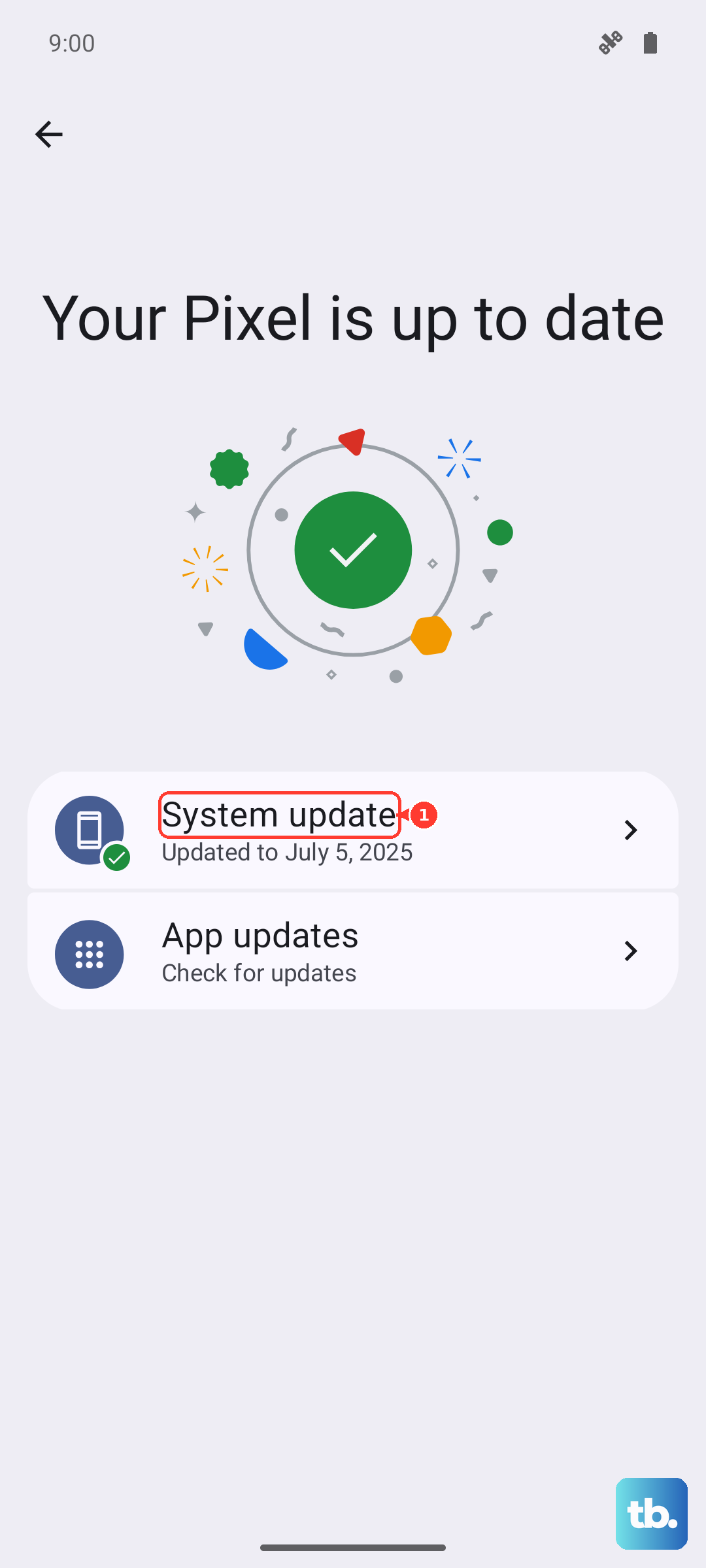
Outdated software can cause all sorts of weird behavior, including random restarts. Open the Google Play Store, tap your profile icon, then tap "Manage apps & device." Hit "Update all" to bring every app up to date. While you're at it, check for a system update: go to Settings > Software Update > Download and install. Samsung pushes regular security patches and bug fixes, and sometimes that's all it takes to stabilize the tablet.
Free Up Storage Space
When the internal storage gets near full, the system can become unstable. Open Settings > Device care > Storage. You'll see a breakdown of what's taking up space. Tap "Clean now" to remove temporary files and junk. If you're running low, move photos and videos to cloud storage or an SD card. You should leave at least 10-15% of the total storage free for smooth operation.
Run a Diagnostic With Samsung Members
Samsung includes a built-in diagnostic tool that can check for hardware issues. Open the Samsung Members app (if you don't have it, download it from the Play Store). Tap "Get help" or the "Diagnostics" option. Run the battery and charging tests. The app can also check for device overheating or other problems that might cause restarts. If any test flags an issue, you'll get specific guidance.
Reset All Settings
If the tablet keeps restarting but you don't want to lose your data, resetting all settings is a good middle ground. This clears network, display, and system settings without touching your apps or files. Go to Settings > General Management > Reset > Reset all settings. Enter your PIN or password and confirm. The tablet will restart, and you'll need to reconfigure things like Wi-Fi and wallpaper, but your photos and documents stay put.
Wipe the Cache Partition
Corrupted system cache can cause random restarts. Wiping the cache partition removes temporary system files without deleting your personal data. To do this, power off the tablet completely. Then press and hold the Power + Volume Up buttons simultaneously until the Samsung logo appears, then release. This boots into recovery mode. Use the volume buttons to navigate to "Wipe cache partition" and press the Power button to select it. Confirm, then select "Reboot system now." This clears out temporary junk that might be causing the issue.
Factory Reset (Last Resort)
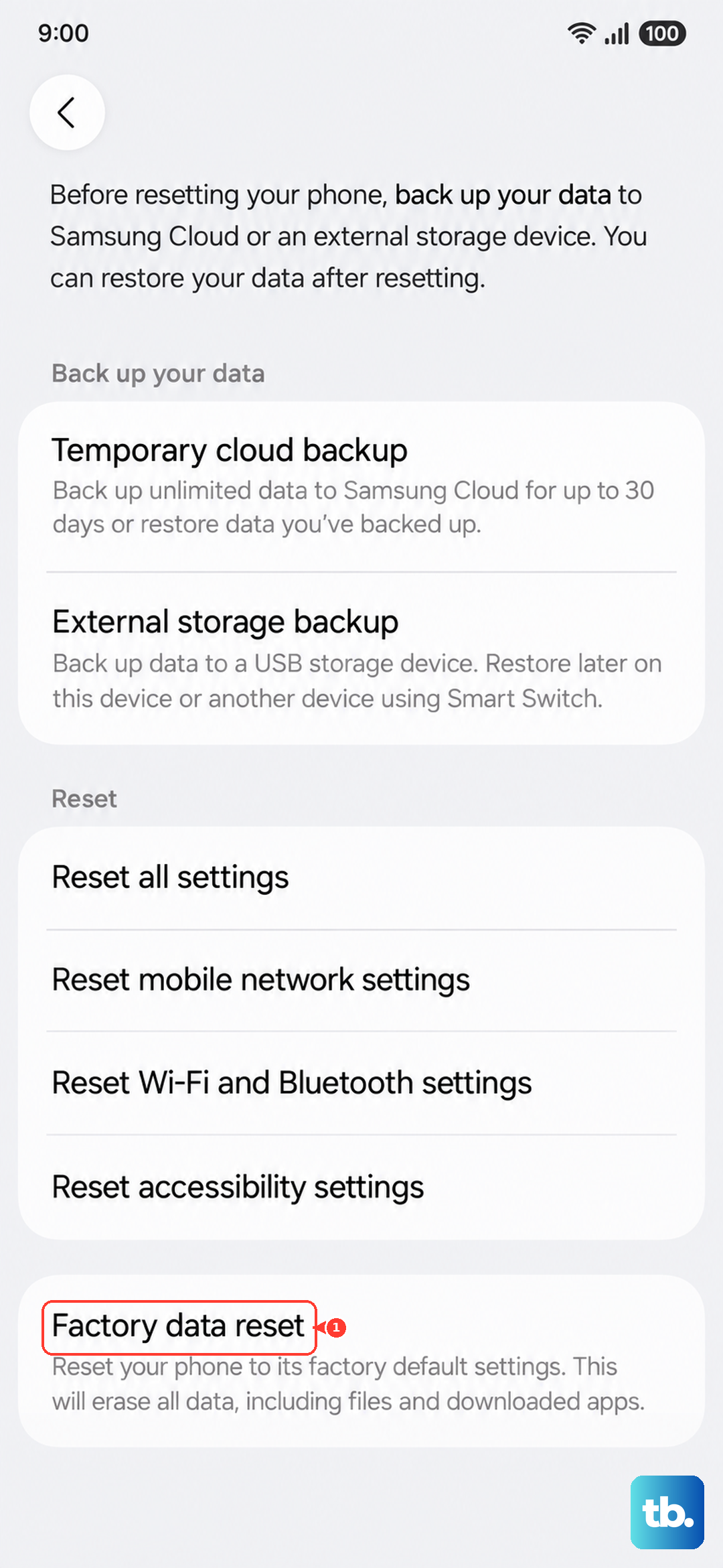
If nothing else has worked, a factory reset will wipe the tablet clean and reinstall Android. This should fix any deep software corruption. Before you do it, make sure everything you want to keep is backed up, this erases all data. Go to Settings > General Management > Reset > Factory data reset. Tap "Reset" and confirm. The tablet will restart and walk you through the initial setup like it's brand new. If the restarts stop after this, the problem was software. If they continue, it's likely a hardware issue, specifically the charging port or battery, and you'll want to contact Samsung support.