
Nothing kills the convenience of unlocking your Samsung Galaxy Tab S11 Ultra faster than a fingerprint sensor that won't read your finger. The in-display scanner is usually snappy, so when it starts acting up, it's almost always something you can fix yourself.
The Tab S11 Ultra uses an ultrasonic fingerprint sensor embedded under the display. That's different from the optical sensors on older devices, and it means a few things can throw it off. Let's go through the most likely culprits.
Start With a Force Restart
Before you dive into settings and re-registering anything, try a force restart. This clears out any temporary software hiccups that might be freezing the sensor. Press and hold the Power button and Volume Down button simultaneously for 10-15 seconds. Hold it until you see the Samsung logo pop up and the tablet restarts. Test the fingerprint scanner right after the reboot.
Clean Your Fingers and the Screen
Ultrasonic sensors read the ridges and valleys of your fingerprint through the display glass, but oil, lotion, or moisture on your finger can blur that reading. Wash and dry your hands thoroughly, then give the screen area where the sensor sits a wipe with a soft microfiber cloth.
If you've been handling anything greasy or dusty, that alone can cause the scanner to fail repeatedly. Try again with clean, dry fingers before changing any settings.
Check Your Screen Protector
This is the most common reason the Tab S11 Ultra's fingerprint sensor stops working right. The ultrasonic sensor can struggle to read through thick tempered glass protectors or ones with an adhesive pattern that blocks the signal.
If you're using a screen protector, try removing it completely and see if the sensor starts working again. If it does, you'll need a protector specifically designed to be compatible with ultrasonic fingerprint sensors. Samsung's own official screen protectors usually work fine, as do third-party ones that explicitly mention ultrasonic compatibility.
Re-register Your Fingerprints
Sometimes the data the sensor has stored just gets corrupted or becomes a poor match for how your finger actually touches the screen now. Removing and re-adding your prints takes about two minutes and fixes this more often than you'd think.
Go to Settings > Biometrics and security > Fingerprints. Enter your PIN or password. Tap on any registered fingerprint and choose Remove. Once they're all cleared, tap Add fingerprint and follow the setup process. When you register the new prints, rotate your finger slightly between each press so the sensor captures more of the fingerprint surface area. Register the same finger twice if you want even better accuracy.
Update the Software
The Tab S11 Ultra runs Android 16, and Samsung pushes regular updates that include biometric improvements and bug fixes. An outdated system can cause the sensor to behave erratically.
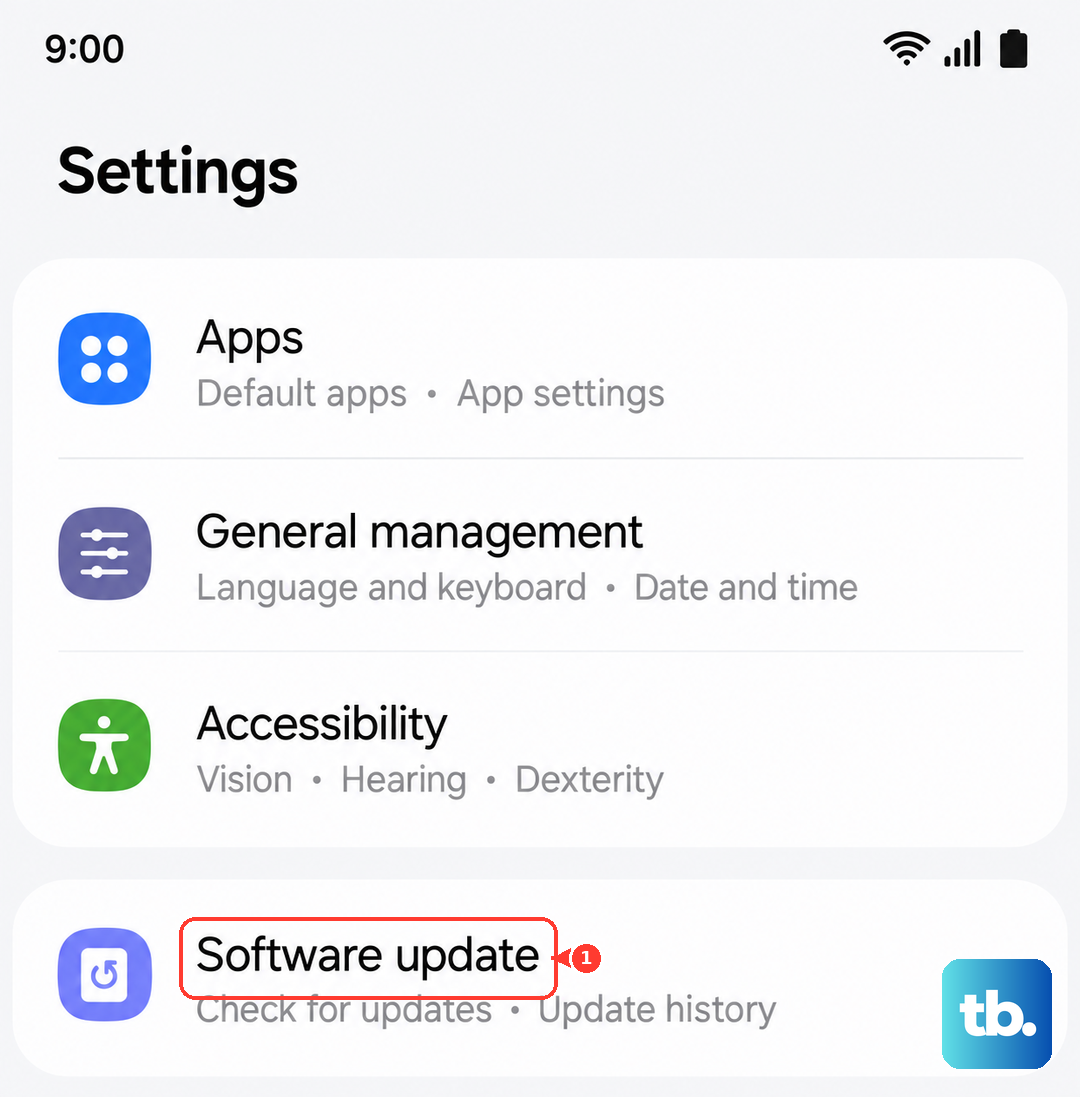
Open Settings > Software update > Download and install. If there's a pending update, install it and restart the tablet. After the update finishes, give the fingerprint sensor another try.
Register More Than One Finger
This isn't really a fix for a broken sensor, but it's a smart workaround. If you normally use your right thumb and it's not reading well, register your left thumb or an index finger as a backup. Go back into Settings > Biometrics and security > Fingerprints and add a couple more prints. That way you have options if one finger is wet, injured, or just not cooperating.
Wipe the System Cache
This clears out temporary system files that might be interfering with the sensor's software without deleting any of your personal data. It's a safe step to try if nothing else has worked.
Turn the tablet off completely. Press and hold the Power button and Volume Up button together until the Samsung logo appears, then release both buttons. When the Android recovery menu shows up, use the Volume buttons to scroll to Wipe cache partition and press the Power button to select it. Confirm the action, then select Reboot system now when it's done.
The cache wipe itself takes just a few seconds. Once the tablet boots back up, test the fingerprint sensor.
Hardware Possibilities
If you've tried all of this and the scanner still doesn't register a single finger properly, the issue could be hardware-related. The sensor itself is bonded under the display, so it's not something you can access or repair on your own. In that case, the tablet needs a professional look.
You can still use the Tab S11 Ultra fine with a PIN or password in the meantime. Just go to Settings > Biometrics and security > Fingerprints and toggle off fingerprint unlock if you want to stop the scanner from trying to read your finger on every wake.