
If your Galaxy Z Fold 7's fingerprint scanner stops recognizing your print, it can be a real hassle. This side-mounted sensor on the power button is convenient but not immune to glitches. Here's how to get it working again.
Clean the Power Button Sensor
The fingerprint sensor on the Z Fold 7 sits right on the power button. A layer of dirt, oil, or grime from your fingers can block the reading. Wipe the button gently with a soft, dry cloth, no liquids or cleaners needed. If you've got stubborn residue, a slightly damp microfibre cloth followed by a dry wipe works fine.
Restart Your Fold 7 First
Many sensor issues are just temporary software hiccups. A quick restart can clear them out. Press and hold Volume down and Side buttons simultaneously for 10 seconds until the device restarts. That forced restart usually solves odd behaviour without losing anything.
Remove and Re-register Your Prints
Sometimes the fingerprint data gets corrupted or becomes inaccurate over time. Head to Settings > Biometrics and security > Fingerprints and enter your PIN. Tap any print you're having trouble with, then select Remove. After that, tap Add fingerprint and follow the on-screen prompts, rotating your finger to capture the edges. Re-adding often fixes recognition problems.
Check for Software Updates
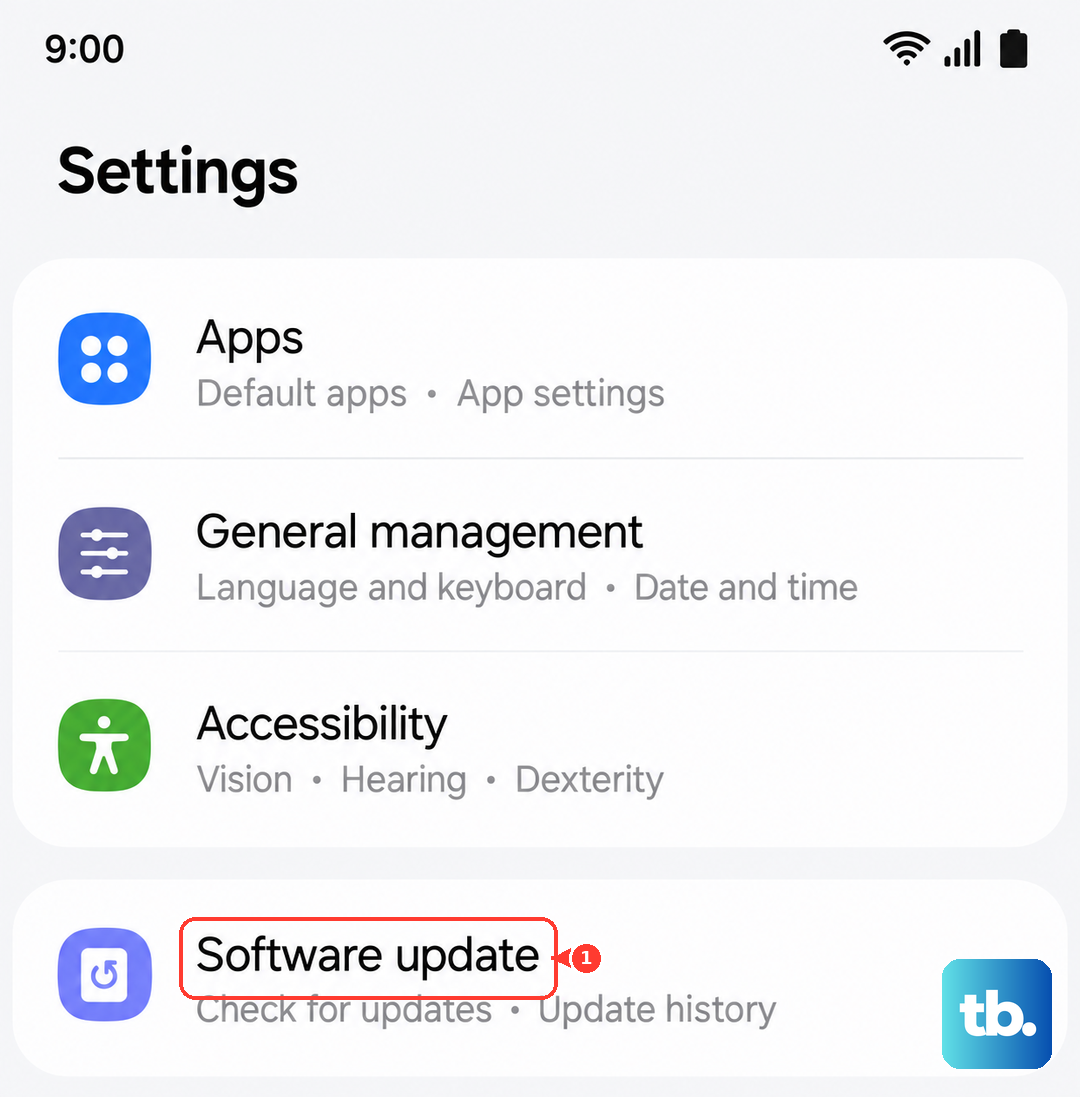
Outdated software can cause sensor instability. Go to Settings > Software update > Download and install. If an update is available, install it and restart. Samsung regularly pushes fixes for biometric issues in One UI updates.
Screen Protector Interference
The Z Fold 7's foldable screen uses a special inner display protector, but the side-mounted sensor can still be affected by thick cases or misaligned protectors near the power button. If you've added any extra film or cover around the button, remove it temporarily and test the scanner. A clean, unobstructed sensor surface makes a big difference.
Use the Right Technique
Finger placement matters more than you'd think. Rest your finger flat on the power button, covering the entire sensor area. Don't tap too quickly or at a sharp angle. If you're using the same finger repeatedly and it fails, try a different finger to rule out a cut or dry skin on that one.
I've seen people press too lightly or only with the fingertip. Give it firm, even contact for about a second.
Disable Finger Sensor Gestures
One UI includes gestures that use the fingerprint sensor, like swiping down for notifications. These can sometimes interfere with proper scanning. Go to Settings > Advanced features > Motions and gestures, then toggle off Finger sensor gestures. Restart your phone and see if the scanner behaves better.
Clear the System Cache
A cluttered cache partition can cause sensor slowdowns. Turn off your phone completely. Then press and hold Volume Up and the Side button together until the Samsung logo appears. Use Volume Down to highlight Wipe cache partition, press the Side button to select it, then confirm. Once done, select Reboot system now. This won't delete any personal data.
Register Multiple Fingers
Add at least two different fingers to your fingerprint list. If one finger is wet, dirty, or slightly injured, you've got a backup ready. Go to Settings > Biometrics and security > Fingerprints and add a few more prints. This is a simple preventive step that saves frustration later.
Reset All Settings (Not a Full Wipe)
If nothing else works, you can reset all settings without losing apps or data. This restores network, display, and biometric settings to default. Go to Settings > General management > Reset > Reset all settings. Confirm with your PIN. You'll need to re-register your fingerprints afterward, but it often clears persistent software conflicts.