
When your Samsung Galaxy Tab S11 Ultra charges slower than it should, it can throw off your whole routine. This tablet supports up to 45W wired charging and 15W wireless, so you should see a serious speed boost over standard USB charging. If you're not getting that fast charge, the issue usually comes down to one of these things.
Start With a Proper Power Source
Plug the Tab S11 Ultra directly into a wall outlet, not a power strip or extension cord. Those can reduce the amount of power available, especially if other devices are drawing from the same strip. A good wall outlet gives stable 45W delivery if your charger can provide it.
Use a 45W USB-C PD Charger
Fast charging on the Tab S11 Ultra requires a USB-C Power Delivery charger rated at 45W or higher. Lower-watt adapters will still charge the tablet, but much slower. Check the wattage printed on your adapter, anything under 45W won't trigger full speed charging. Samsung's own 45W charger works, as do any third-party USB-C PD chargers that support the standard.
Check the Cable
Not all USB-C cables can handle 45W. You need a cable that supports USB-C PD with at least 5A current rating, preferably the one that came in the box. Some older or poorly made cables max out at 15W or 18W. Try a different high-quality USB-C cable and see if your charging speed improves.
Give It Time After a Full Drain
The Tab S11 Ultra has a known quirk when its battery goes completely flat: the charging indicator can take up to 10 minutes to appear. Don't panic if you plug it in and nothing happens right away. Leave it connected to the charger for at least 15 minutes before assuming something's wrong. If it still doesn't respond, try a force restart (hold the Power and Volume Down buttons for 10-15 seconds), this can wake a comatose battery.
Clean the Charging Port
Dust and pocket lint are common culprits for slow charging on USB-C devices. The Tab S11 Ultra's port can collect debris that interferes with the connection. Use a wooden toothpick or a soft, dry brush to gently clear out the port. Avoid metal tools, they can damage the pins. A clean port ensures maximum power delivery.
Remove Thick Cases While Charging
Wireless charging at 15W generates heat, and the tablet's thermal management slows down charging to protect the battery. A bulky case or folio traps heat even worse. When you're fast charging wired or wirelessly, take the case off, especially if the tablet feels warm to the touch.
Don't Use the Tablet While It Charges
Running heavy apps like games, video streaming, or GPS navigation while charging creates extra heat. Android 16's battery management throttles charging speed to keep temperatures safe. For the fastest charge, set the tablet aside and let it charge undisturbed. Better yet, put it in Airplane Mode to stop background activity.
Restart the Tablet
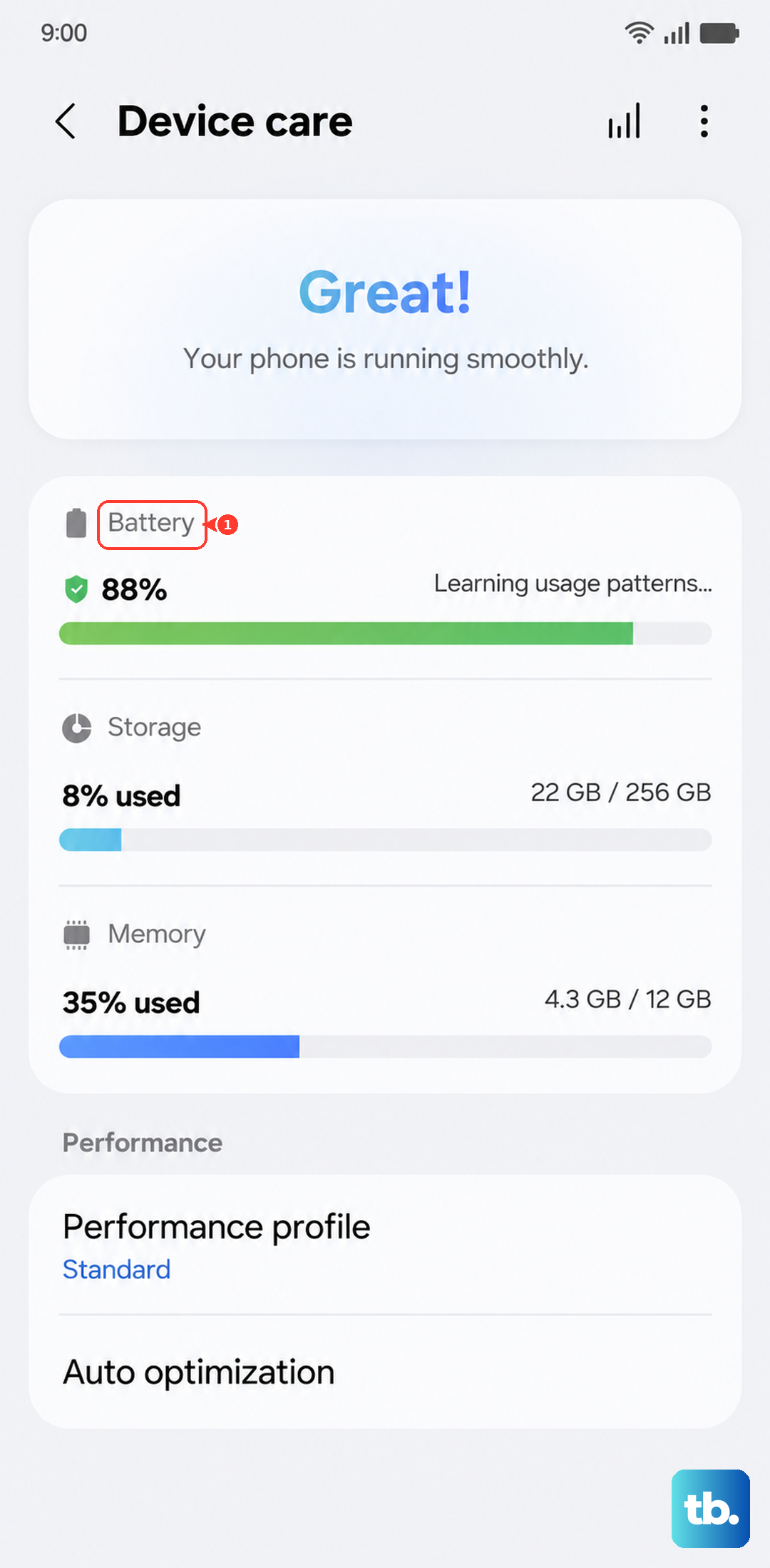
Software glitches can mess with charging speed management. Try a force restart first: press and hold the Power button and Volume Down button simultaneously for 10-15 seconds until the device restarts. If you prefer a standard restart, go to Settings > Device care > Battery > More battery settings and look for any battery-related toggles. A simple restart often clears up temporary issues that slow charging.
Disable Battery Protection Features Temporarily
On Android 16, Samsung offers a setting called Battery protection that stops charging at 85% to extend battery life. If you're charging from a low percentage and want full speed, this feature isn't the bottleneck, it only kicks in near 85%. But if your charge is hovering around that threshold and slowing down, you can toggle it off in Settings > Battery > Battery protection. Just remember to turn it back on later for long-term health.
Update the Software
Go to Settings > Software update > Download and install. Samsung occasionally tweaks charging behavior through system updates. Running Android 16 with the latest security patch ensures your tablet has the most optimized charging algorithms. A quick update might be all you need.
Try an Outlet in Another Room
Before you assume the tablet is at fault, test a different wall outlet. Some outlets in older homes deliver inconsistent voltage, which can prevent fast charging. If the tablet charges slowly on one outlet but faster on another, call an electrician, the issue is the wiring, not your Tab S11 Ultra.