
Seeing "Call Failed" on your Samsung Galaxy Tab S11 Ultra can be a real pain, especially when you're relying on it for an important conversation. The error usually means your tablet can't connect to the cellular or Wi-Fi calling network properly. A weak signal, a minor software glitch, or an incorrect setting is often the culprit.
Here are 10 fixes to get your calls working again, starting with the quickest ones.
Toggle Airplane Mode On and Off
This is the fastest way to reset your tablet's radio connections. Open the Quick Settings panel by swiping down twice from the top of the screen. Tap the Airplane mode icon to turn it on, wait about 10 seconds, then tap it again to turn it off. This clears temporary network glitches that can cause call failures.
Check Your Signal Strength
Weak cellular signal is the most common reason calls fail. Look at the signal bars in the top-right corner. If you're seeing just one bar or "No service," try moving to a different spot near a window or outside. For Wi-Fi Calling (if your carrier supports it), make sure you have a strong Wi-Fi connection instead.
Force Restart the Tablet
A force restart can shake loose stubborn software hiccups. Press and hold the Power button and the Volume Down button at the same time for about 10 to 15 seconds. The screen will go black and the tablet will restart. This is also useful if the device has become unresponsive after a full battery drain, a known issue on some units.
Check Wi‑Fi Calling and Call Settings
If you use Wi‑Fi Calling, it might be turned off or misconfigured. Go to Settings > Connections > Wi‑Fi Calling and make sure it's enabled. You can also try switching between "Wi‑Fi Preferred" and "Cellular Preferred" to see which works better. While you're there, verify that Call forwarding and Call barring aren't accidentally blocking your calls.
Set Date and Time to Automatic
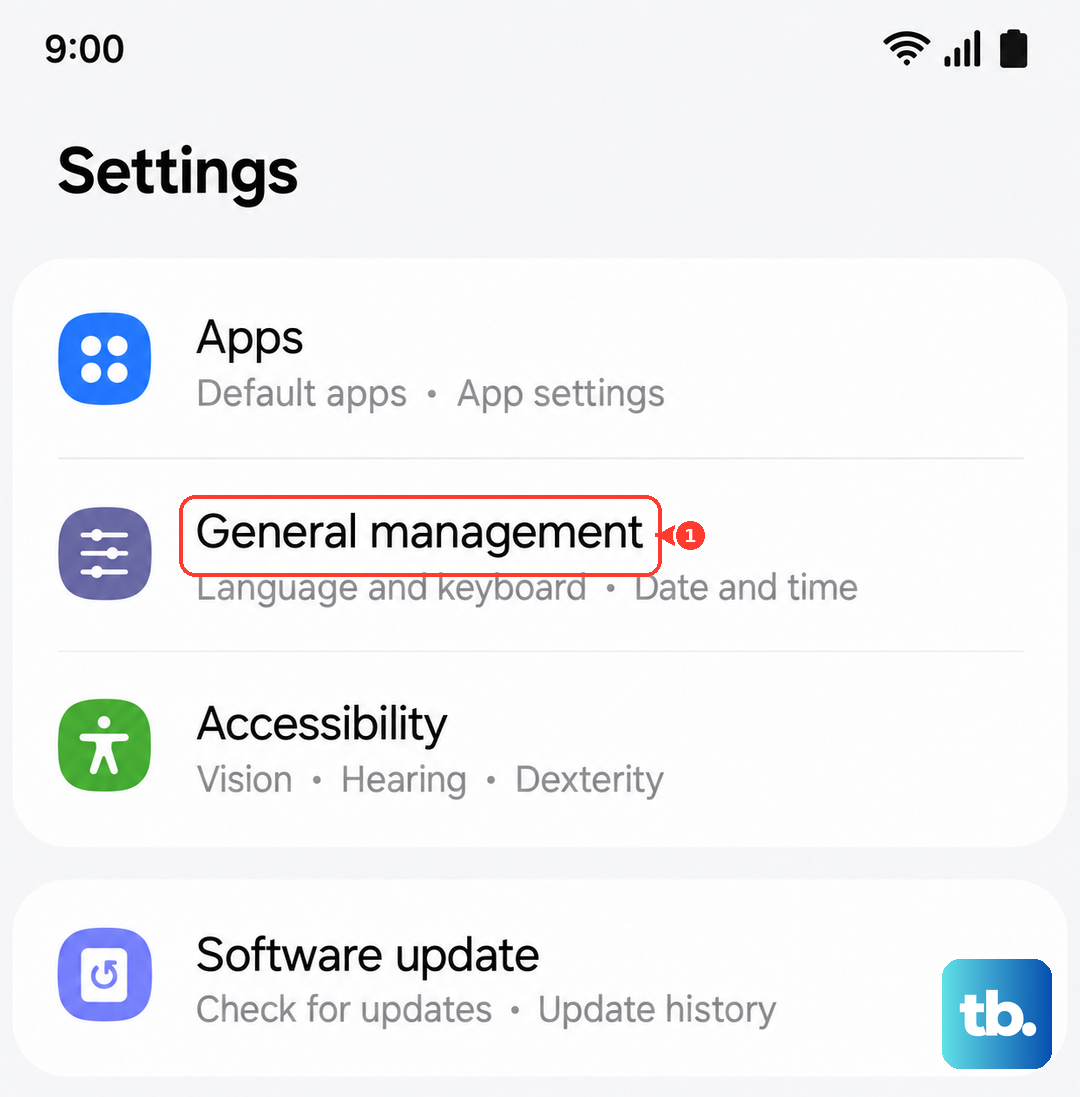
Incorrect date or time can mess with network authentication and cause calls to fail. Head to Settings > General management > Date and time. Toggle on "Automatic date and time" and "Automatic time zone." That's usually enough to fix clock‑related issues.
Review Blocked Numbers
Make sure you haven't accidentally blocked the person you're trying to call. Open the Phone app, tap the three‑dot menu (⋮) in the top‑right corner, then select Settings > Blocked numbers. If the number is listed, tap the X next to it to unblock.
Reset Network Settings
This clears all saved Wi‑Fi networks, Bluetooth pairings, and cellular settings without deleting your personal data. Go to Settings > General management > Reset > Reset network settings. You'll need to enter your PIN or password and confirm. After the reset, you'll have to reconnect to Wi‑Fi, but it often resolves stubborn network problems.
Update the Software
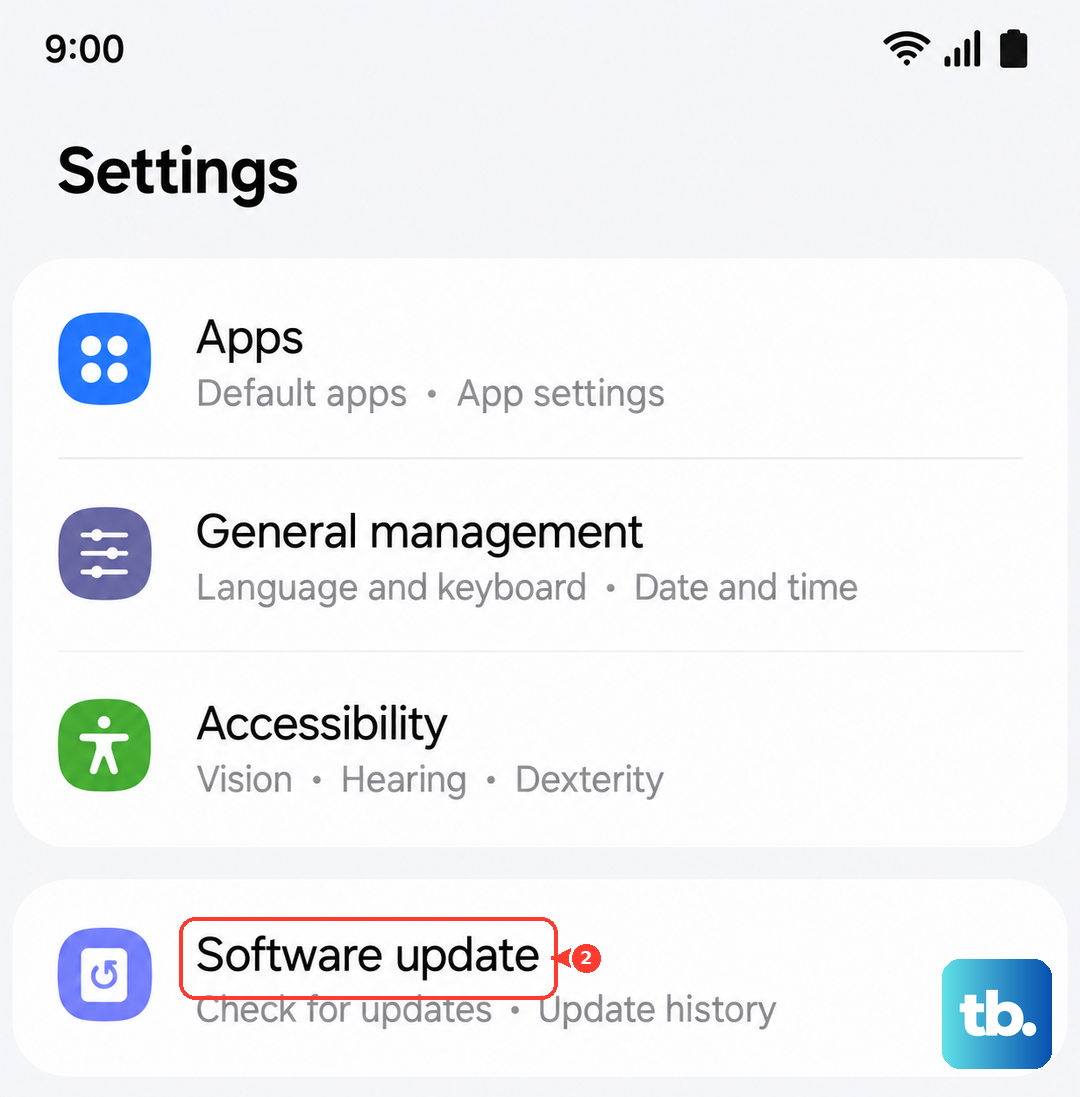
Samsung regularly pushes updates that include bug fixes for calling issues. Go to Settings > Software update > Download and install. Make sure you're on a stable Wi‑Fi connection and have at least 50% battery before starting the update.
Inspect and Re‑seat the SIM Card
A loose or damaged SIM card can cause call failures. Locate the SIM tray on the bottom or side of the Tab S11 Ultra, you'll need the SIM eject tool that came with the box (or a paper clip). Gently push the tool into the tiny hole to pop open the tray. Remove the SIM, inspect the contacts for dirt or damage, then reinsert it firmly. If the problem persists, try the SIM in another phone, or contact your carrier for a replacement.
Contact Your Carrier
If you've tried everything above and calls still fail, the issue might be on your carrier's end. Give them a call (using another phone) and ask about network outages in your area or any account restrictions. They can also refresh your line's settings remotely, which sometimes clears stubborn problems.











