
You tilt your Samsung Galaxy Tab S11 Ultra expecting that gorgeous 14.6-inch screen to swing into landscape, but it stays stuck in portrait. It's a jarring glitch on a 2025 flagship tablet, especially one designed for movies and multitasking. The good news is auto-rotate on the Tab S11 Ultra usually fails due to a simple settings conflict or a low-power state, and you can fix it in a few minutes.
Start With the Quick Toggle
Swipe down from the top of the screen twice to open the full Quick Settings panel. Look for the Auto Rotate icon and tap it until it's highlighted. If it reads "Portrait" instead, that's the whole problem right there.
A lot of people accidentally toggle this off when they're pulling down the panel to change volume or brightness. It's the fastest fix and the one I'd check first before anything else.
Let the Home Screen Rotate Too
The Tab S11 Ultra runs Samsung's One UI, which keeps the home screen locked to portrait by default even when auto-rotate is on. You might see apps flip just fine while the launcher stays frozen. This trips up a lot of users because they think rotation is broken everywhere.
Press and hold an empty spot on the home screen, tap Home Settings, and toggle Rotate to Landscape mode. Now your app drawer and wallpaper will flip with the tablet.
Force Restart the Tablet
If a normal restart didn't clear the glitch, a force restart will. Press and hold the Power button and Volume Down button together for 10 to 15 seconds. The screen goes black, the Samsung logo pops up, and the device boots fresh. This won't delete anything on your tablet.
I've seen this fix rotation bugs on the Tab S11 Ultra that a simple reboot misses, especially after a long uptime or a big file transfer.
Test the Rotation Sensors
Auto-rotate depends on the accelerometer and gyroscope inside the tablet. If those sensors are stuck or failing, no amount of toggling will help. Open the Phone app and dial *#0*#, then tap Sensor. Move the tablet around and watch the values change.
If they don't move at all, or if they show a constant number, the sensors may have a hardware issue or a deep software lock. A recent drop or impact is usually the culprit here.
Watch Out for App Limits and Screen Contact
Not every app on Android 16 supports both orientations. If a specific app stays stuck, that's the developer's choice, not a tablet problem. But if system menus won't rotate, something else is going on.
The Tab S11 Ultra is massive, so it's easy to rest your palm on the edge of the screen while tilting it. That contact confuses the touch controller and suppresses rotation. Keep your hands off the display when you test it.
Update to Android 16
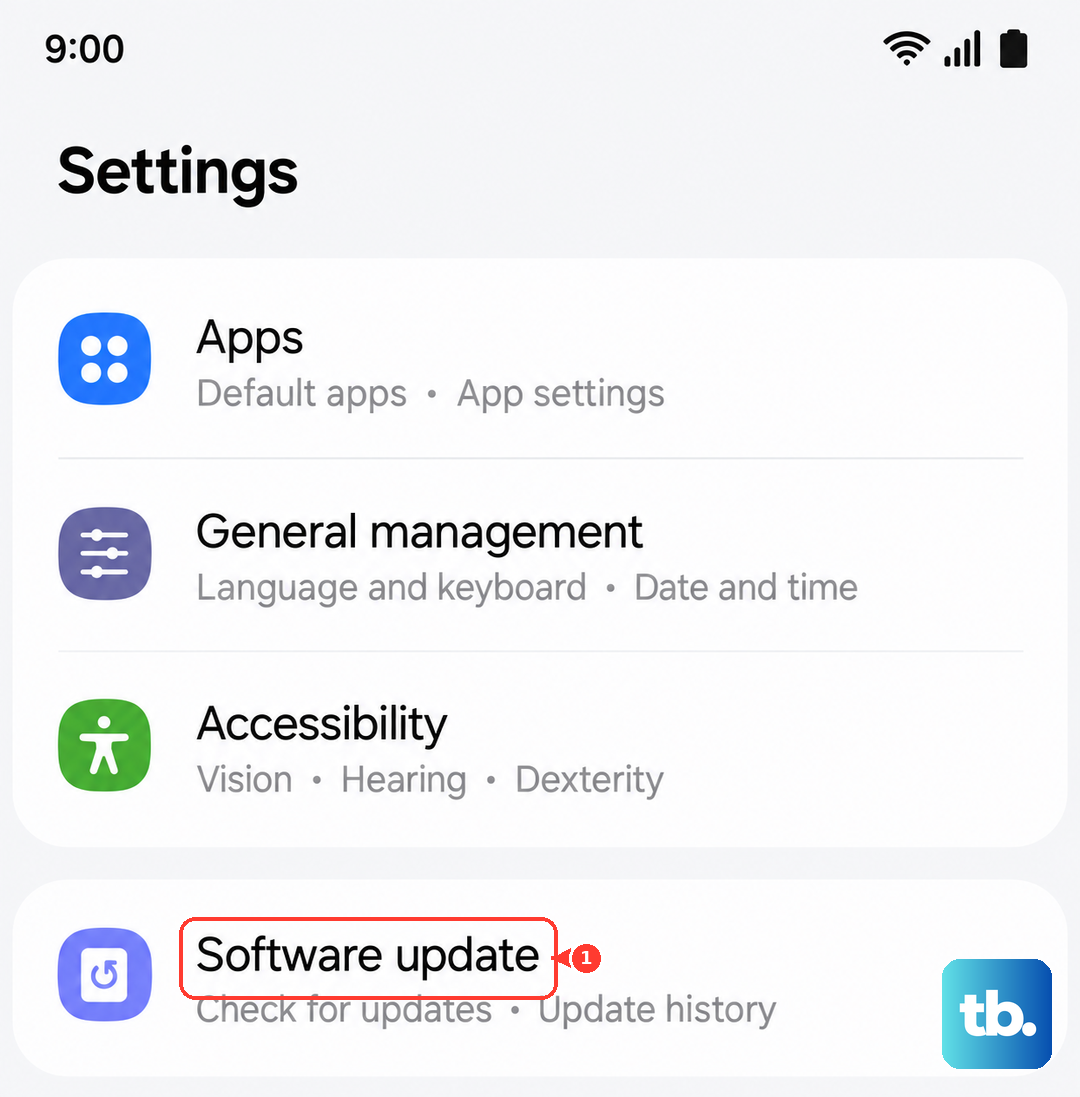
Samsung has shipped several software patches for the Tab S11 Ultra that address sensor calibration and rotation logic. Go to Settings > Software Update > Download and Install. If an update is waiting, it might resolve the issue immediately.
These updates also fix quirks in the charging system that can indirectly mess with orientation sensors.
Deep Discharge Recovery
The Tab S11 Ultra has a known issue where the battery drains completely when the device is switched off. Once it hits zero, the tablet can become unresponsive, and the sensors can lock up. If your tablet recently died and stopped rotating, this is probably why.
Plug it into a wall outlet directly (skip the power strip) using the USB-C cable. Give it up to 10 minutes for the charging indicator to appear. Samsung hides the icon during deep discharge to protect the battery. Once you see it, perform the force restart again to wake everything up.
Clean the USB-C Port
A dirty or damaged charging port can cause power delivery issues that affect the logic board. If the tablet isn't getting stable power, sensor behavior gets erratic. Check the USB-C port for lint, pocket fuzz, or corrosion.
Use a dry toothpick or a SIM ejector tool to gently clear it out. Plug in a known good cable and see if rotation starts working again. A clean port means clean power, and clean power keeps the gyroscope happy.