When your Samsung Galaxy Tab S10+ won't send pictures, it's usually a quick fix. The most common culprit is a simple setting or a temporary app glitch. I'd start by checking your mobile data and the specific app you're using.
Check Your Mobile Data for MMS
If you're trying to send a picture via text message (MMS), you need mobile data turned on, even if you're connected to Wi-Fi. Go to Settings > Connections > Data usage and make sure "Mobile data" is enabled.
Some carriers also require the correct Access Point Name (APN) settings for MMS to work. You can find these in Settings > Connections > Mobile networks > Access Point Names. If you're unsure, contacting your carrier for the right settings is the easiest path.
Verify Your Internet Connection
A weak or unstable connection will stop any picture in its tracks. Look at the status bar icons. If the Wi-Fi signal looks low, try moving closer to your router.
For cellular data, check you have decent signal bars. You can also try toggling Airplane mode on and off from the quick settings panel. This resets all the radios and often clears up a spotty connection.
Clear the App's Cache and Data
The app you're using to send pictures, like Messages or Google Messages, can get bogged down with temporary files. Clearing its cache is a safe first step that won't delete your conversations.
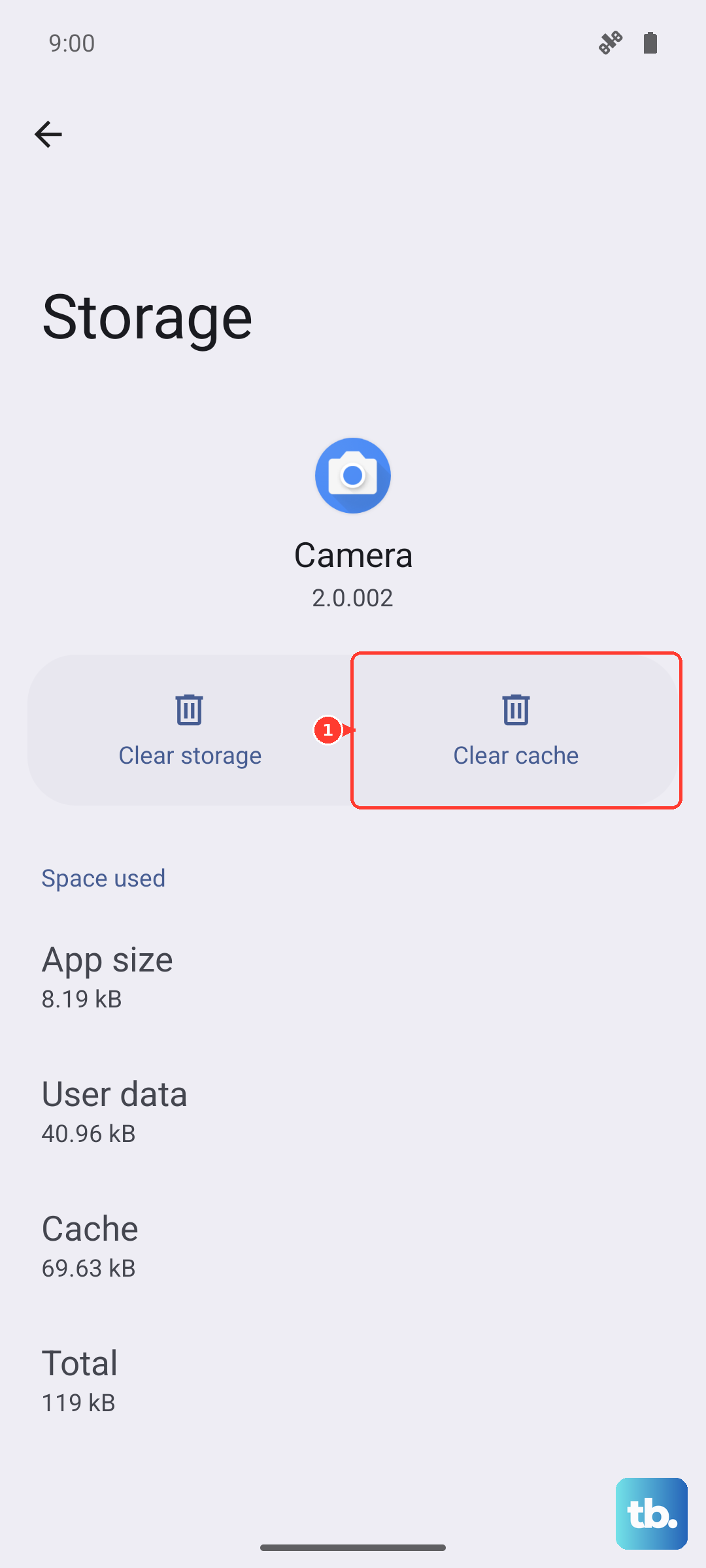
Go to Settings > Apps, select your messaging app, then tap Storage. Choose "Clear cache." If that doesn't work, you can try "Clear data," but be aware this will reset the app to its default state and may erase your message history within that app.
Check the File Size and Format
Most carriers have a strict size limit for MMS messages, often around 1MB. If your photo is a high-resolution file straight from the Tab S10+'s excellent camera, it might be too large. The messaging app should compress it, but sometimes it fails.
Try sending a different, smaller picture first to test. For larger files, using a data-based service like WhatsApp, Telegram, or email is a better bet. Also, check if the file format is supported, though JPEGs and PNGs are almost always fine.
Update the Messaging App
An outdated app can have bugs that break media sending. Open the Google Play Store, tap your profile icon, and go to Manage apps & device. Look for updates available for your messaging app, Samsung Messages, or Google Messages and install them.
This is a common fix for issues that pop up after an OS update, as the app needs to be compatible with Android 14 and One UI 6.1.1.
Restart Your Galaxy Tab S10+
A simple restart clears out temporary software hiccups and refreshes all connections. Press and hold the Volume Down button and the Power button together for about 10 seconds until you see the Samsung logo.
This force restart method is handy if the tablet feels sluggish or unresponsive, which can sometimes happen if the Dimensity chip has been working hard and gets warm.
Disable Power Saving Modes
Power saving modes, like the ones found in Settings > Battery, can restrict background data. This is a common reason pictures get stuck "sending."
Turn off any power saving mode and try sending the picture again. You can also check if your messaging app is being put to sleep. Go to Battery > Background usage limits and make sure it's not in the "Sleeping" or "Deep sleeping" apps list.
Try a Different Messaging App
This is a great way to figure out if the problem is with a specific app or with the tablet itself. Download Google Messages from the Play Store and set it as your default. Try sending a picture.
If it works in the new app, the issue is with your previous messaging app's settings or installation. You can stick with the new app or use this info to further troubleshoot the original one.
Reset Network Settings
This will wipe all your saved Wi-Fi networks, Bluetooth pairings, and mobile network settings back to default. It's a strong fix for persistent connection issues.
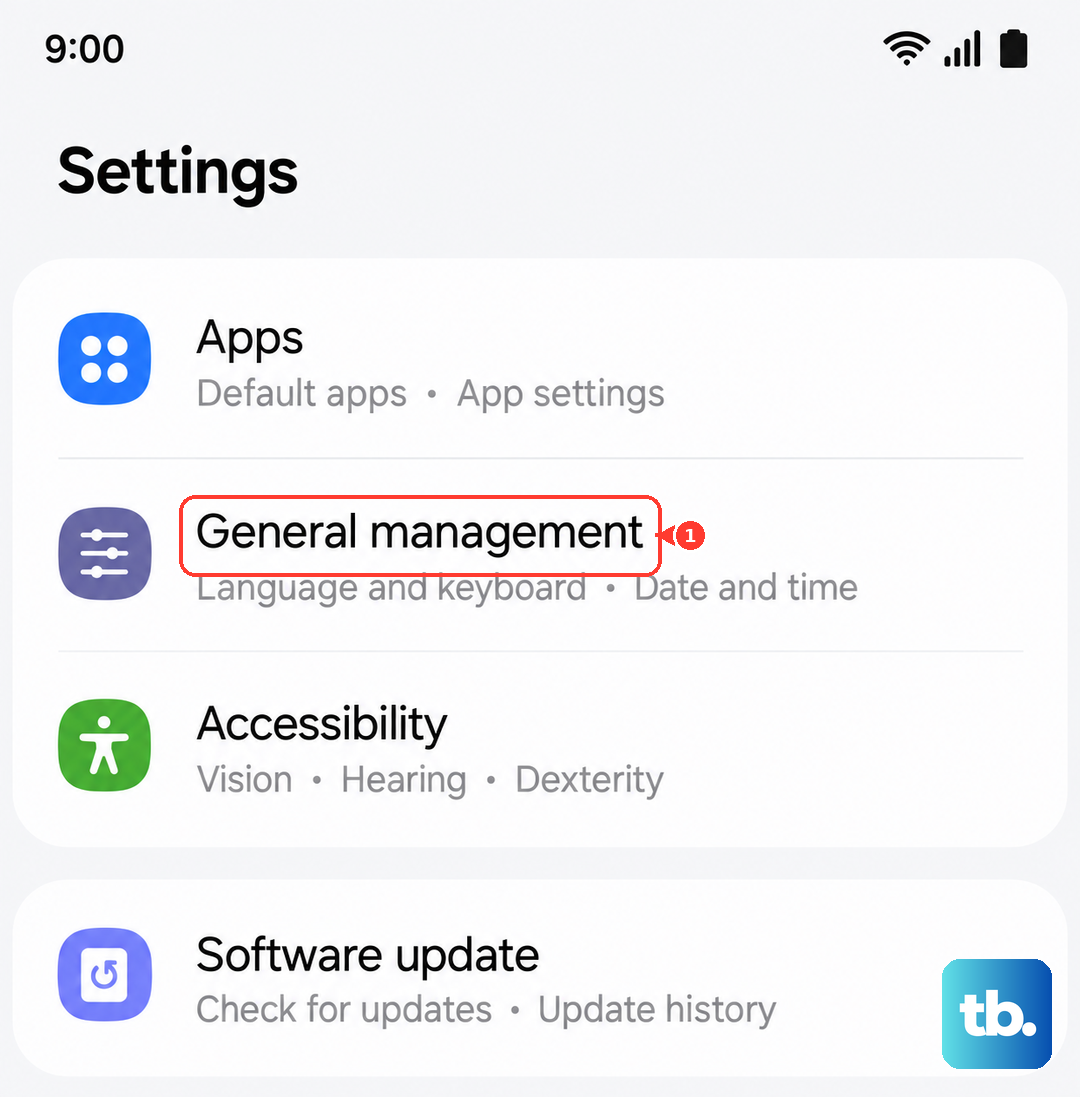
Go to Settings > General management > Reset > Reset network settings. Tap reset and confirm. After the tablet reboots, you'll need to reconnect to Wi-Fi and re-pair Bluetooth devices, but it often resolves stubborn MMS and data problems.
Check for Software Updates
Samsung regularly releases updates that fix bugs, including ones related to connectivity and messaging. Make sure your tablet is on the latest software.
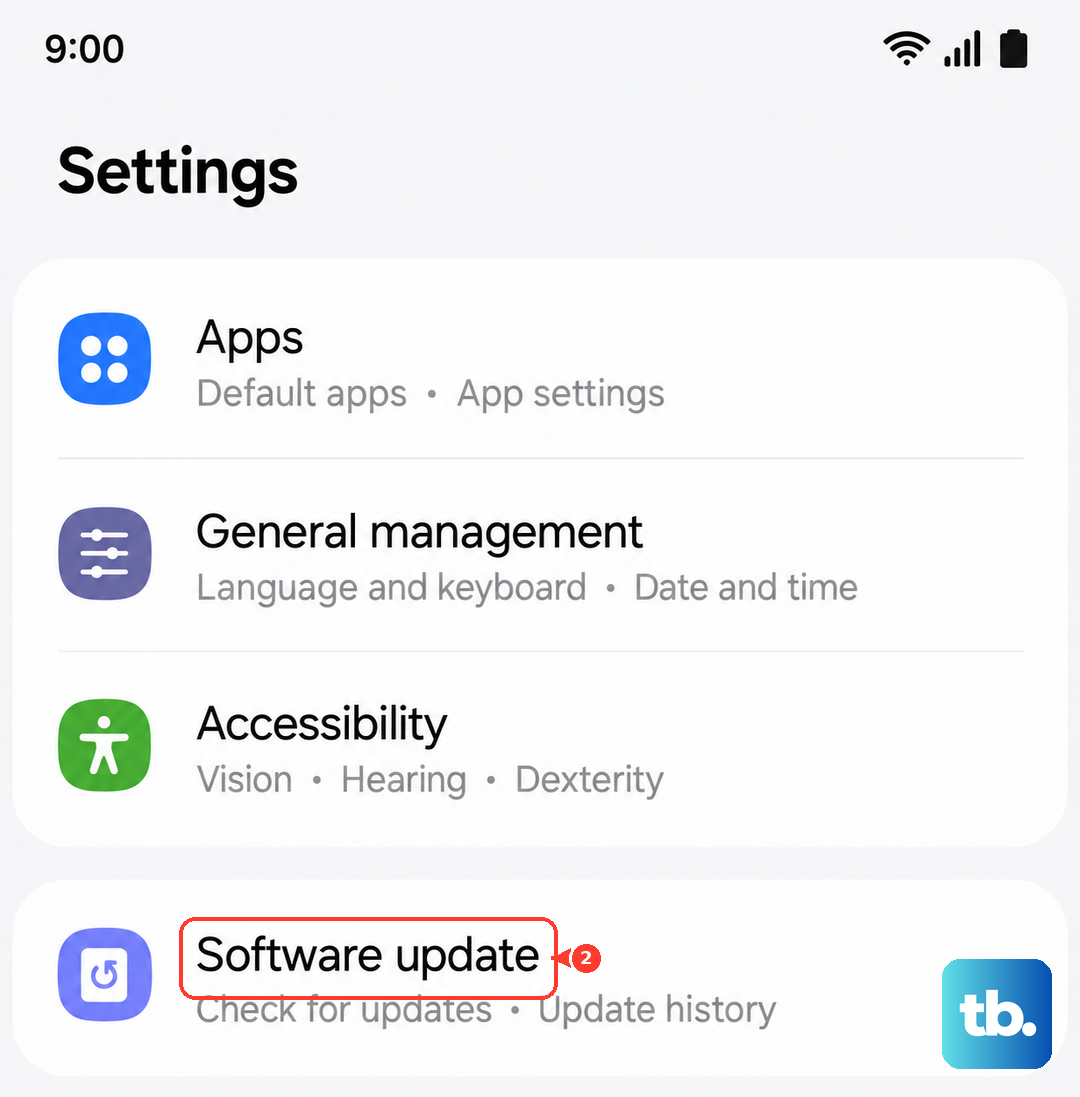
Go to Settings > Software update > Download and install. If an update is available, connect to Wi-Fi and let it install. Keeping your Tab S10+ updated is one of the best ways to ensure everything runs smoothly.