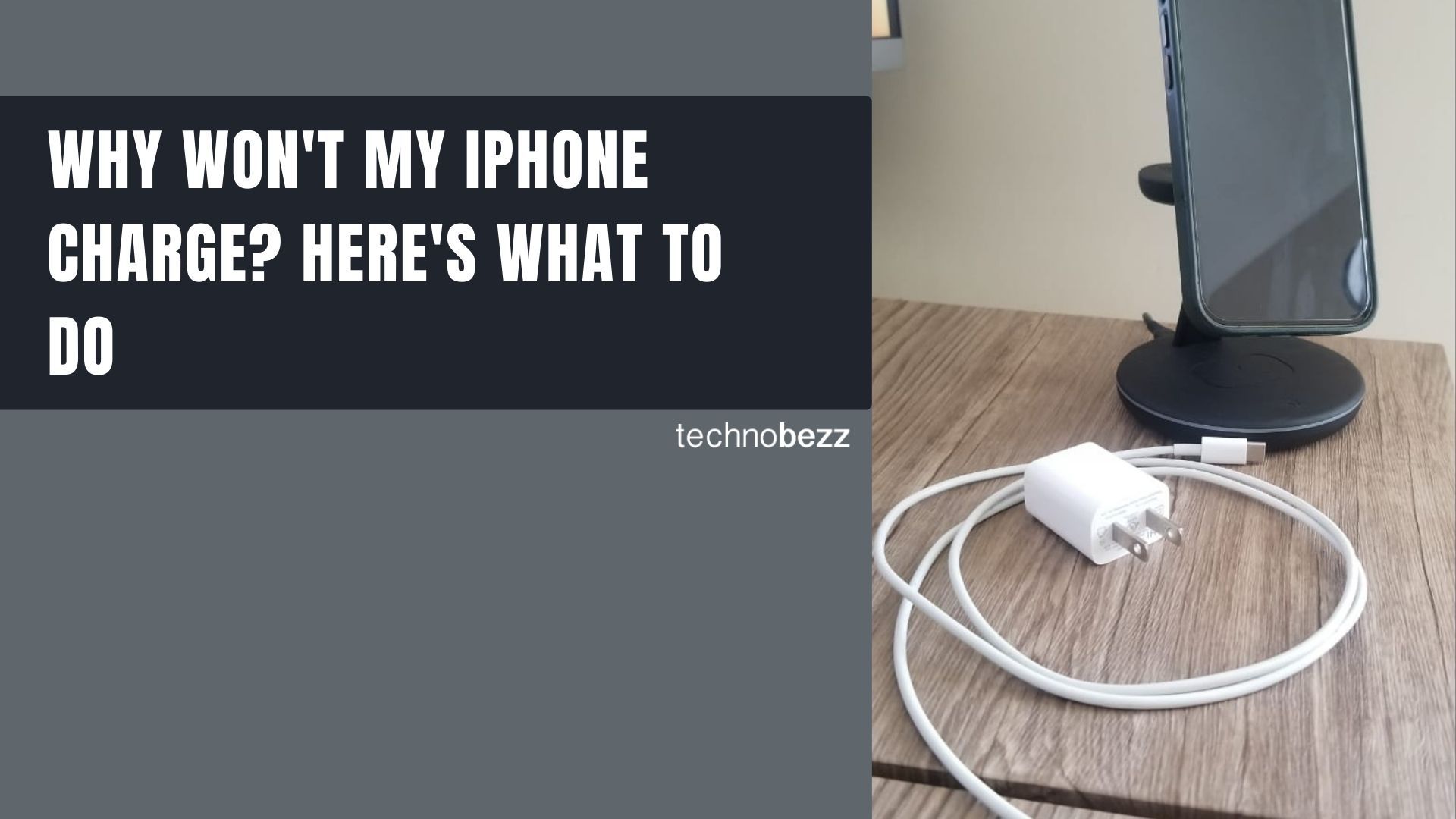
If your Samsung Galaxy Tab S10+ isn't charging, the first thing to check is your cable and power adapter. The tablet doesn't support wireless charging, so all power comes through the USB-C port. Grab the cable and adapter you're using and inspect them closely.
Use the Right Charger and Cable
The Galaxy Tab S10+ supports fast charging up to 45W, but it doesn't come with a charger in the box. You need a compatible USB-PD (Power Delivery) adapter. A low-wattage phone charger, like a 5W or 10W block, will charge it extremely slowly or not at all under use.
For the fastest charge, look for a 45W USB-PD charger. The cable matters too. Use the one that came with your tablet or a high-quality USB-C cable rated for high-speed data and power. A damaged or low-quality cable can be the sole culprit.
Inspect and Clean the USB-C Port
Over time, pocket lint and dust can get packed into the charging port. This prevents the cable from seating fully and can block the electrical contacts. Power off your tablet first for safety.
Shine a light into the port and look for any debris. Use a can of compressed air to blow it out gently. You can also carefully use a dry, soft-bristled toothpick or plastic dental pick to dislodge any compacted lint. Be very gentle to avoid damaging the delicate pins inside.
Force Restart Your Tablet
A temporary software glitch can sometimes stop the system from recognizing a connected charger. A force restart can clear this. Press and hold the Volume Down and Power buttons together for about 10 seconds.
Keep holding until you see the Samsung logo appear on the screen, then release. This performs a hard reboot without deleting any of your data. Once it's back on, plug in the charger again and see if the charging icon appears.
Check for Overheating
The Dimensity 9300+ chip in the Tab S10+ is powerful but can get warm during intensive tasks like gaming or video editing. If the tablet gets too hot, it will stop charging to protect the battery. This is a safety feature.
If it feels warm to the touch, take it off any case, stop using it, and move it to a cooler spot out of direct sunlight. Let it cool down completely before attempting to charge it again. Charging will resume automatically once the temperature drops to a safe level.
Update Your Software
Outdated software can have bugs that affect power management. Go to Settings > Software update and tap Download and install. Make sure your tablet is connected to Wi-Fi and has sufficient battery to complete the update, or plug it in during the process.
Installing the latest version of Android and One UI can resolve charging-related issues that a simple restart won't fix. I've seen updates specifically address power delivery problems on past models.
Try a Different Outlet and Power Source
The problem might not be your tablet at all. Plug your charger into a different wall outlet. Try bypassing any power strips or extension cords by plugging directly into the wall.
You can also test by plugging the tablet directly into a different USB power source, like a computer's USB-C port or a different adapter. If it starts charging from another source, you've identified your original charger or outlet as the issue.
Check for Physical Damage
Look at the USB-C port on your tablet. Are any of the tiny gold pins bent, missing, or discolored? Inspect the end of your charging cable for bent or damaged pins as well.
Also check the tablet's screen and body for any cracks, especially near the edges. While less common, physical damage from a drop can sometimes disconnect internal components related to charging.
Monitor Battery Usage
If the tablet charges but drains unusually fast, an app might be causing the problem. Go to Settings > Battery and device care > Battery. Here you can see which apps are using the most power.
If you see an app with abnormally high background usage, you can restrict its background activity. Tap on the app in the list and select Restrict background activity. This can help if a misbehaving app is preventing the device from entering a proper low-power charging state.
Reset All Settings
If you're still having trouble and you've ruled out hardware, a settings reset can help. This won't delete your photos, apps, or personal files. It resets all your system preferences like Wi-Fi passwords, Bluetooth connections, and display settings back to default.
Go to Settings > General management > Reset > Reset all settings. Enter your PIN if prompted and confirm. After the tablet reboots, you'll need to reconfigure some preferences, but it can eliminate a software conflict causing the charging issue.