
When the volume buttons on your Samsung Galaxy Tab S10+ stop responding, it can be a real nuisance. You press them to adjust media or a call, and nothing happens. The good news is that most of the time, this is a software hiccup or a simple obstruction that you can fix yourself without needing a trip to a repair shop.
Let's start with the quickest and most common solutions that often get those buttons working again.
Remove Your Tablet Case
First, take your Tab S10+ out of its case. Some cases, especially rugged or ill-fitting ones, can press against the buttons or block their travel just enough to make them feel unresponsive. It's a simple check that rules out an external cause immediately.
Perform a Force Restart
A force restart is the go-to fix for many Android glitches, including unresponsive hardware buttons. It clears the device's temporary memory without touching your personal data or settings.
For the Galaxy Tab S10+, press and hold the Volume Down button and the Power button at the same time. Keep holding them for about 10 to 15 seconds until you see the Samsung logo appear on the screen, then release. The tablet will boot up normally. Test the volume buttons as soon as you're back at your home screen.
Clean Around the Buttons
Dust, lint, or pocket debris can easily get packed around the small crevices of the volume rocker. This physical blockage is a surprisingly common reason the buttons feel stuck or don't click.
Gently use a can of compressed air to blow around the button. For any sticky residue, you can dampen a cotton swab with a tiny amount of isopropyl alcohol (90% or higher is best) and carefully clean around the edges. Just be sure the tablet is off and you avoid getting liquid inside the ports.
Check for App-Specific Issues
Sometimes the problem isn't with the tablet, but with a single app. Open a few different applications like YouTube, Spotify, or the native Samsung Music player and try the volume buttons in each.
If the buttons work perfectly in some apps but are dead in others, you've found the culprit. Try force-stopping the problematic app or checking for its updates in the Galaxy Store or Google Play Store.
Test in Safe Mode
Booting into Safe Mode temporarily disables all third-party apps you've downloaded. This tells you if a recently installed app is causing a conflict that's interfering with the hardware buttons.
To enter Safe Mode on your Tab S10+, press and hold the Power button until the power menu appears. Then, tap and hold the "Power off" option on the screen. You'll get a prompt to reboot into Safe Mode. Tap "OK". If the volume buttons work fine in Safe Mode, you'll need to uninstall recent apps one by one to find the bad one.
Update Your Software
Software bugs in Android or Samsung's One UI can occasionally cause hardware communication problems. Making sure your tablet is up-to-date is a critical step.
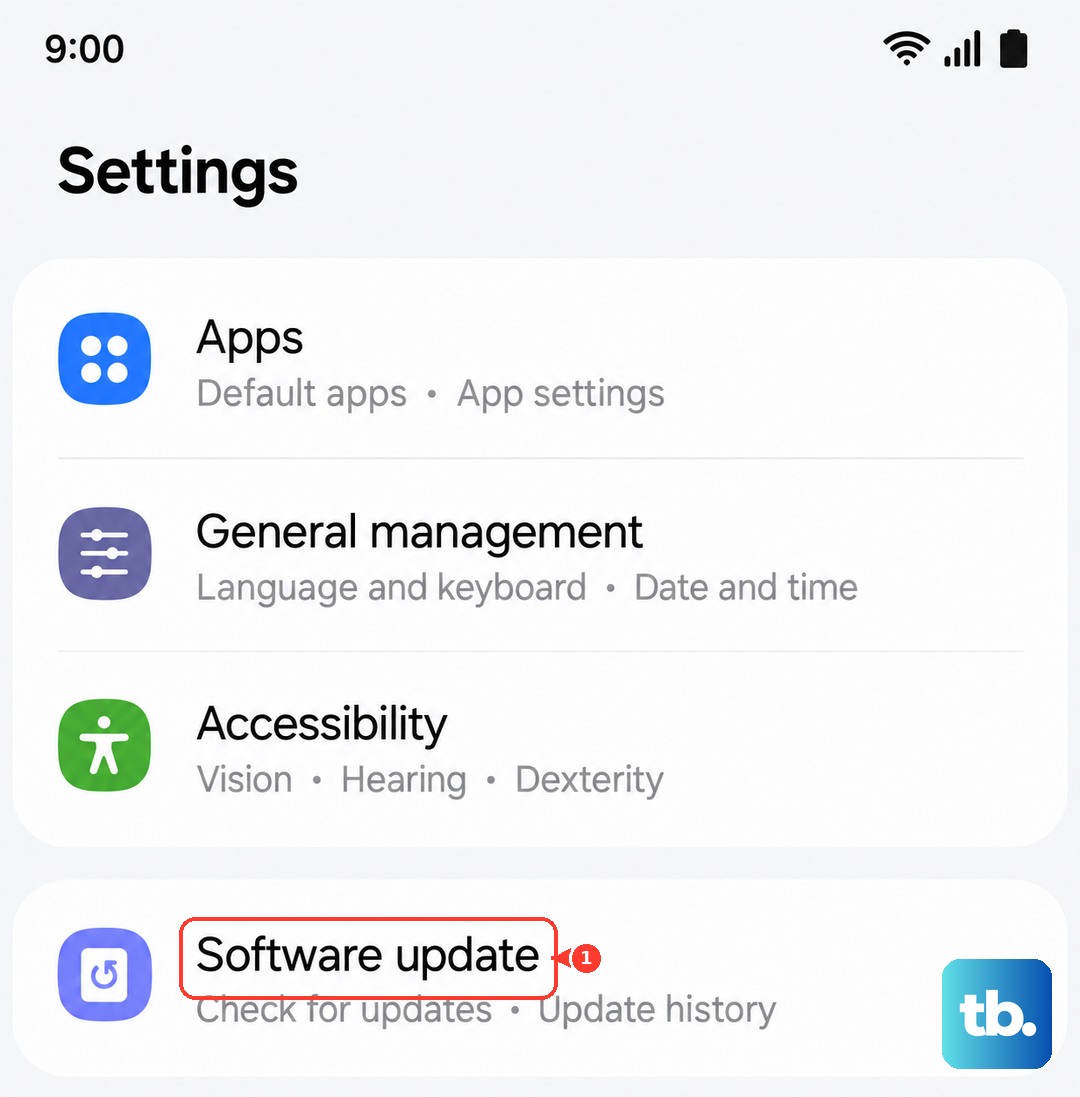
Go to Settings > Software update > Download and install. Connect to Wi-Fi and plug in your 45W USB-PD charger if the battery is low. Install any available updates, as they often contain patches for known issues.
Check Accessibility Settings
Samsung's Accessibility menu has features that can remap or alter button behavior. It's worth a quick look to make sure nothing is turned on by accident.
Navigate to Settings > Accessibility > Interaction and dexterity. Look at options like "Assistant menu" or "Universal switch" to ensure they are toggled off. These features can sometimes override the default function of the physical buttons.
Try the On-Screen Volume Slider
While you're figuring out the physical buttons, remember you can always adjust volume from the screen. Swipe down from the top with two fingers to open the Quick Settings panel, and you'll see a volume slider there.
You can also press a volume button once to bring up the on-screen volume panel, then drag the slider with your finger. This is a good way to confirm the system itself is receiving volume commands.
Reset All Settings
This is a more significant step, but it doesn't erase your photos, apps, or personal files. It will reset all your system settings, like Wi-Fi passwords, Bluetooth pairings, and display preferences, back to their defaults, which can clear out any corrupted settings causing the issue.
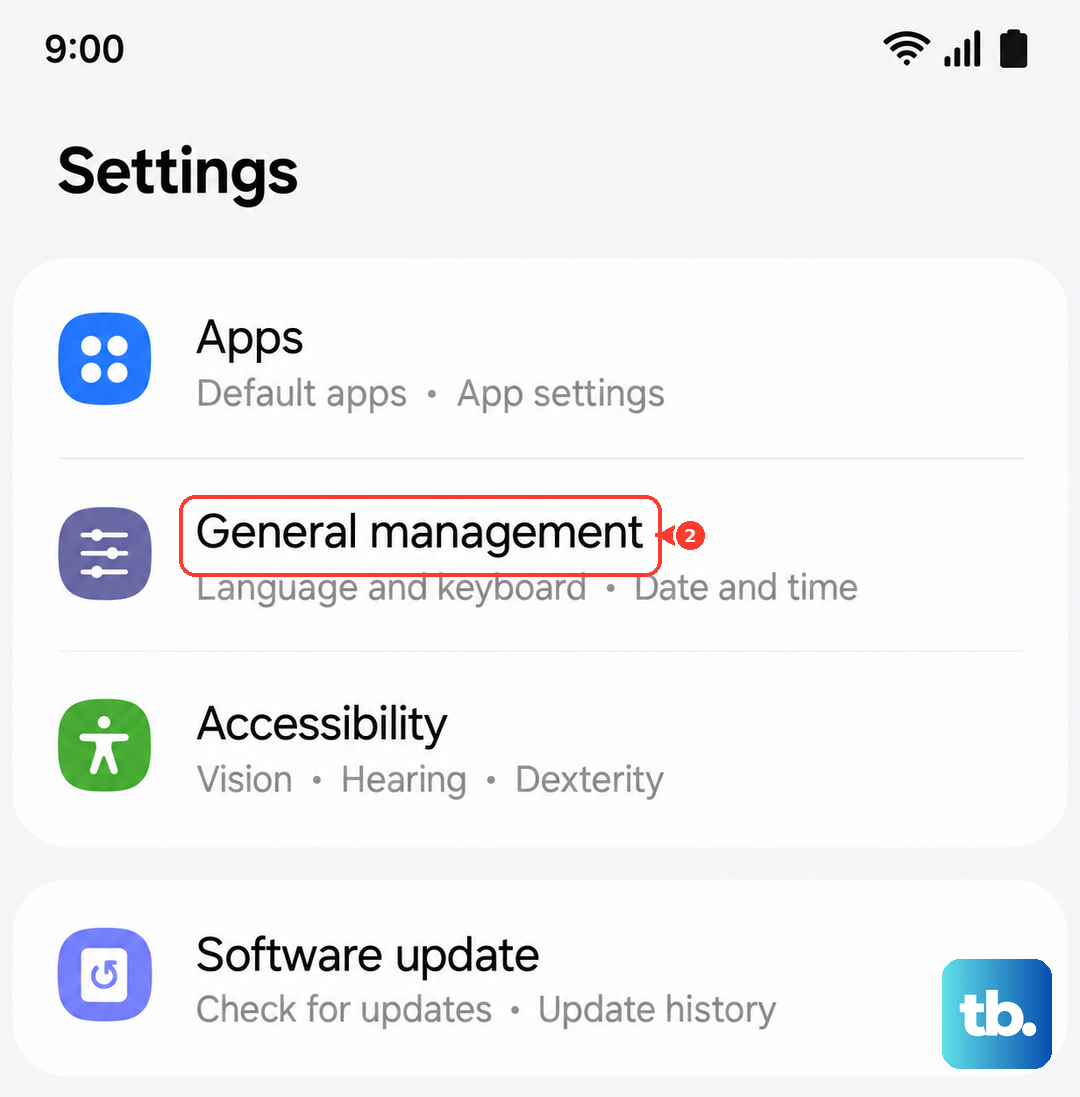
Go to Settings > General management > Reset > Reset all settings. Enter your PIN if prompted and confirm. After the tablet reboots, you'll need to reconfigure your preferences, but it often resolves persistent glitches.
Consider a Factory Reset
If every other step has failed, a factory reset is the final software fix. This will erase everything on your tablet and return it to its original out-of-the-box state. This is a last resort, so you must back up your important data first. Use Samsung Cloud or a computer to save your photos, documents, and app data.
To perform the reset, go to Settings > General management > Reset > Factory data reset. Tap "Reset" and follow the prompts. After the process completes, set up the tablet as new and test the volume buttons immediately before restoring your data.