
When your Galaxy Tab S10+ stops responding to "Hey Google" or Bixby, it can feel like you've lost a helpful sidekick. The voice assistant that's supposed to handle quick tasks and searches just goes quiet. Let's walk through the steps to get it listening and talking again.
Start With a Quick Restart
Before diving into settings, give your tablet a fresh start. This clears out temporary glitches that can affect the microphone and voice services. Press and hold the Volume Down and Power button together for about 10 seconds until you see the Samsung logo appear. It's the simplest fix and often the most effective.
Verify Your Voice Assistant is Enabled
First, confirm which assistant you're trying to use and that it's actually turned on. Your Tab S10+ can use Google Assistant or Samsung's Bixby, and they have separate settings.
For Google Assistant, open the Google app and tap your profile picture in the top right. Go to Settings > Google Assistant. Make sure "Hey Google" is toggled on. You might need to retrain your voice model here if it's having trouble recognizing you.
For Bixby, swipe right from your home screen to open the Bixby panel, or press and hold the Power button. Tap the three-dot menu and go to Settings. Ensure "Voice wake-up" is enabled so it listens for "Hi Bixby."
Check for Microphone Blockages
The Tab S10+ has multiple microphones for noise cancellation and voice pickup. If they're covered, your assistant can't hear you. Check around the edges of the tablet, especially near the top and bottom of the frame. A thick case or a screen protector that wraps over the edge can sometimes muffle the mics.
Gently clean any visible microphone ports with a soft, dry brush. Avoid using compressed air or liquids, as you could push debris further in or cause damage. Also, if you're using the tablet in DeX mode connected to a monitor, try speaking directly to the tablet itself, as the external microphones are the primary listeners.
Review App Permissions and Battery Settings
Voice assistants need ongoing permission to use the microphone. Go to Settings > Apps, select either "Google" or "Bixby Voice," and then tap Permissions. Make sure the Microphone permission is set to "Allow."
Also, check that the app isn't being put to sleep by aggressive battery optimization. In the same app info screen, go to Battery. If it's set to "Restricted," change it to "Unrestricted" to ensure it can run in the background and listen for the wake word.
Disable Conflicting Accessibility Features
Certain accessibility services can interfere with the always-listening function. Go to Settings > Accessibility and look at the features under "Installed services." If you have any sound detection or switch access services enabled, try turning them off temporarily to test if your voice assistant starts working again.
Also, check Settings > Accessibility > Advanced settings > Notification reminders. If this is on, it can sometimes occupy the audio system in a way that blocks the wake word detection.
Update Your Software
Software bugs can break voice features, and Samsung regularly releases patches. Go to Settings > Software update and tap "Download and install." Make sure your Tab S10+ is running the latest version of Android 14 and One UI 6.1.1.
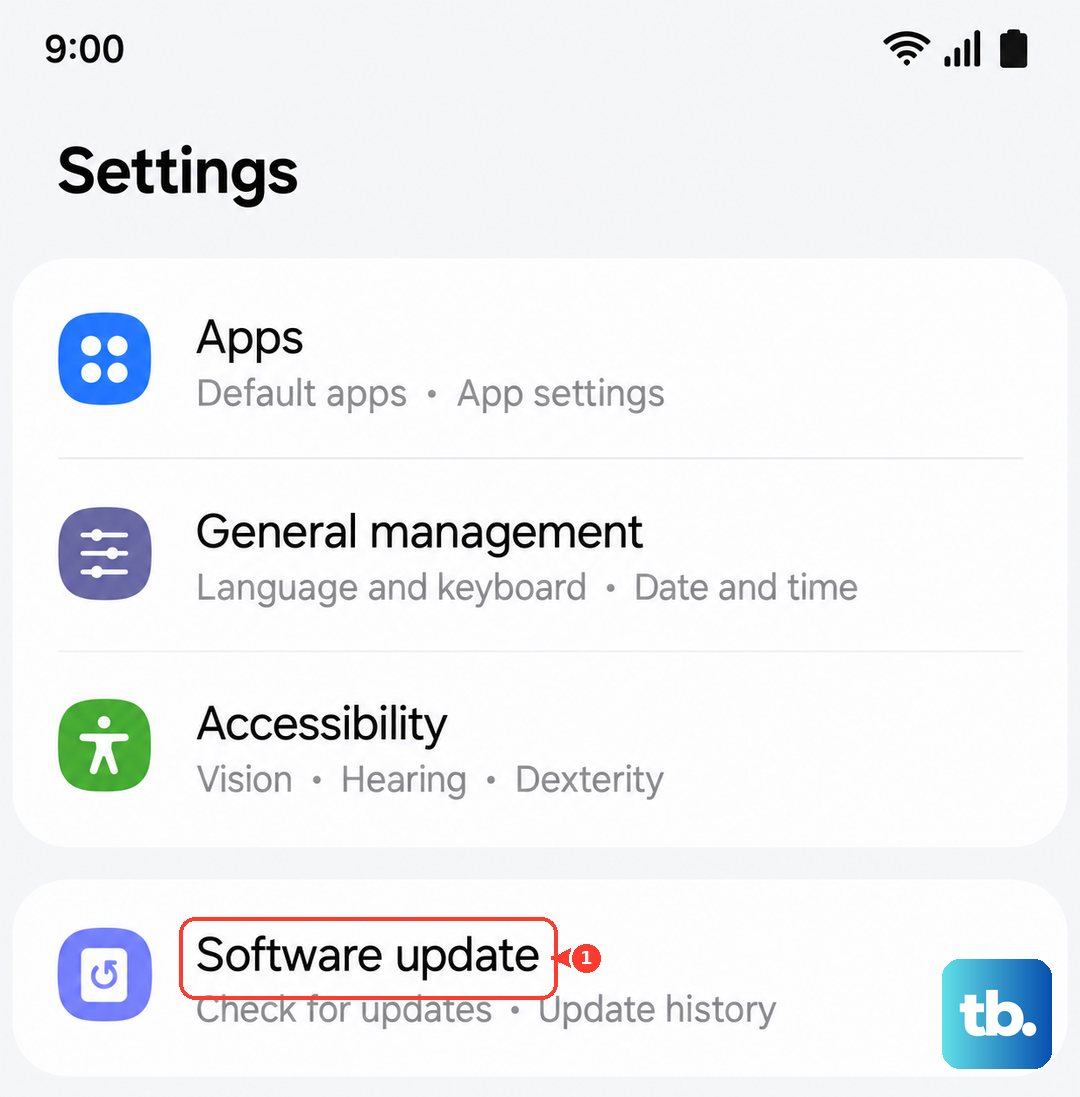
I've seen updates specifically address issues with the Dimensity 9300+ chipset's performance management, which can affect background processes like voice listening if the tablet is getting warm.
Clear the Assistant App's Cache
Corrupted temporary data can cause all sorts of strange behavior. For Google Assistant, you'll need to clear the cache of the main Google app. Go to Settings > Apps, find "Google" in the list, and tap on it. Select Storage, then tap "Clear cache." This won't delete any personal data.
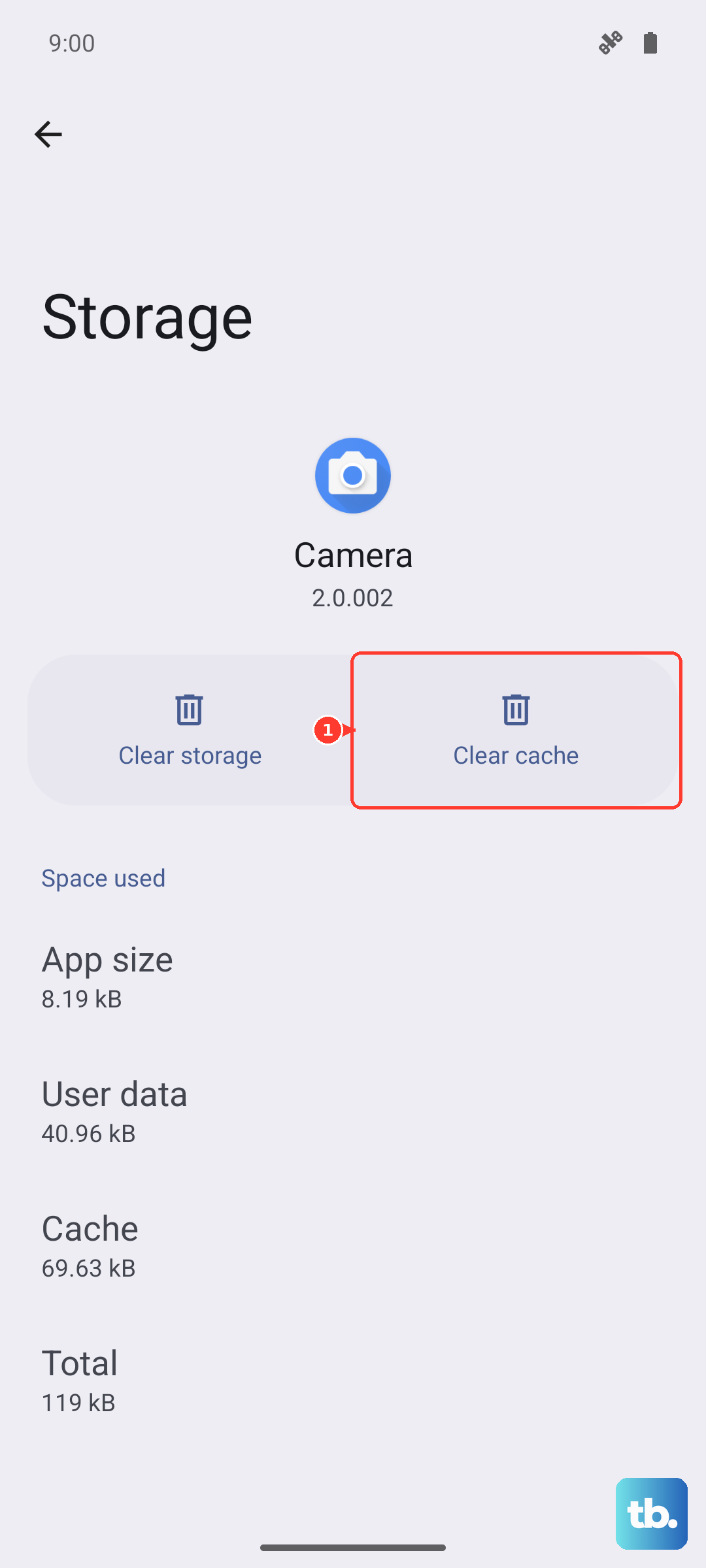
For Bixby, find "Bixby Voice" in your Apps list and follow the same steps to clear its cache. After doing this, restart your tablet once more for good measure.
Check Your Network Connection
While basic commands can be processed on-device, many voice assistant requests need an internet connection to fetch answers, control smart home devices, or fetch the latest information. Make sure you're connected to Wi-Fi or have a mobile data signal.
Try opening a webpage in Samsung Internet to confirm your connection is active. If you're on a public or corporate network with a captive portal (a login page), the assistant might not have full network access until you've logged in through a browser.
Reset All Settings
If you're still having trouble, a deeper reset can help. This will revert all your system settings (like Wi-Fi passwords, Bluetooth pairings, and display preferences) back to default without touching your personal files or apps.
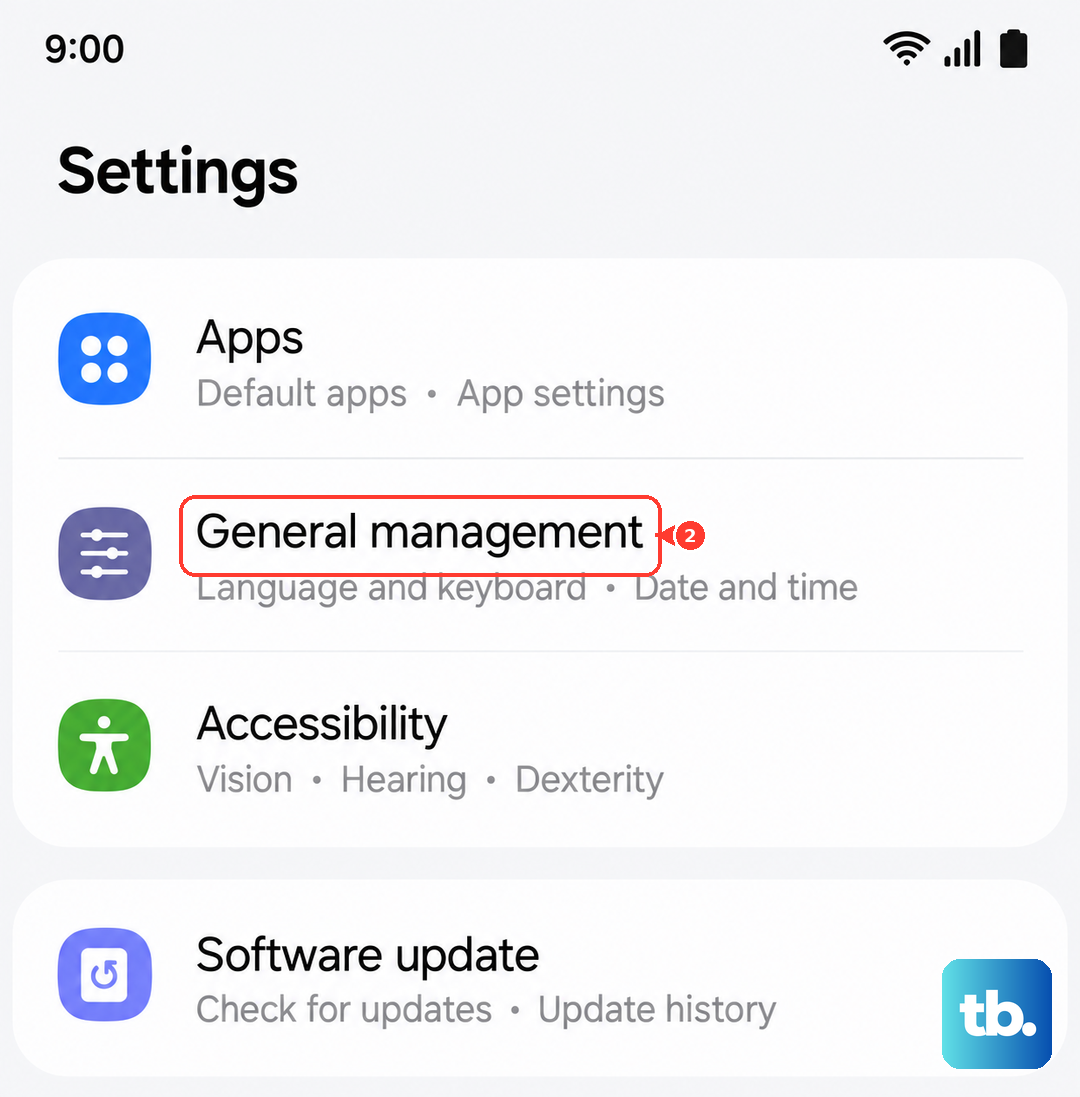
Go to Settings > General management > Reset > Reset all settings. Enter your PIN if prompted and confirm. You'll need to reconfigure things like your sound modes and connections afterward, but it can resolve a stubborn software conflict causing the microphone or voice service to fail.
Test in Safe Mode
This step checks if a third-party app you've installed is causing the problem. To boot into Safe Mode, press and hold the Power button until the power off menu appears. Then, press and hold the "Power off" option on your screen. You'll get a prompt to reboot into Safe Mode; tap "OK."
In Safe Mode, all downloaded apps are disabled. Try using "Hey Google" or "Hi Bixby" again. If it works perfectly here, you know an app you installed is the culprit. Restart normally to exit Safe Mode, and try uninstalling recent apps one by one to find the offender.