
When your Samsung Galaxy Tab S10+ starts crawling through websites or buffering videos, it can really kill your productivity or entertainment. That large, beautiful screen is meant for fast, fluid browsing, not waiting.
The good news is that a slow connection on your Tab S10+ is usually caused by a few common things you can fix yourself. I'd start with the network settings, as that's often the quickest win.
Reset Your Network Settings
If your internet is consistently slow across all apps, a network settings reset is a great first step. This clears all your saved WiFi networks, Bluetooth pairings, and mobile data preferences, which can resolve underlying glitches.
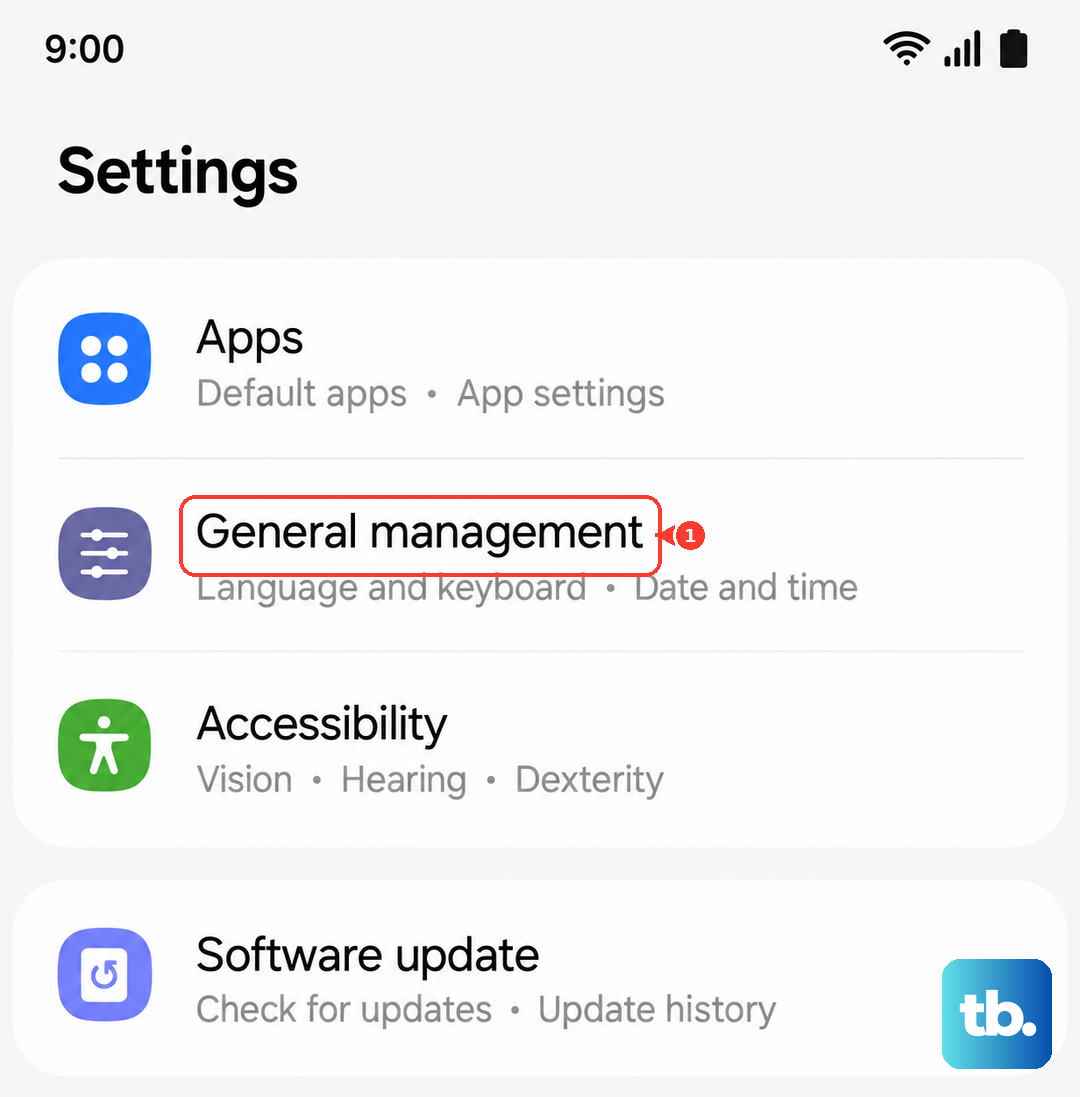
Go to Settings > General Management > Reset. Tap on "Reset network settings" and confirm. Your tablet will reboot, and you'll need to reconnect to your WiFi network. This takes about a minute and often solves stubborn connection issues.
Manage Your WiFi Connection
Your Tab S10+ has a feature called Adaptive WiFi that can sometimes help. It monitors your connection and can automatically switch to mobile data if the WiFi becomes too slow or unstable. You can find it in Settings > Connections > WiFi.
Tap the three-dot menu, go to Advanced, and look for "Intelligent WiFi." Toggle on "Switch to mobile data." Just be mindful of your data plan if you use this. Also, try forgetting your current network and reconnecting. Go to your WiFi list, long-press the network name, and tap "Forget network," then reconnect with the password.
Clear Your Browser's Cache and Data
Whether you use Samsung Internet or Chrome, cached files build up over time and can slow things down. Clearing them gives your browser a fresh start. For Samsung Internet, open the app, tap the three-line menu, go to Settings > Privacy and security.
Tap "Delete browsing data." I'd recommend selecting "Browsing history," "Cookies and site data," and "Cached images and files." Then hit delete. In Chrome, tap the three-dot menu, go to History > Clear browsing data, select the same options, and clear the data.
Enable Data Saver and Restrict Background Data
One UI's Data Saver is excellent for preventing apps from using data in the background without your permission, which can free up bandwidth. Go to Settings > Connections > Data Usage and tap on "Data Saver" to toggle it on.
For more control, you can restrict background data for specific apps. Go to Settings > Apps, select an app, tap Mobile data, and toggle off "Allow background data usage." Do this for apps that you know don't need to update constantly.
Check for System and App Updates
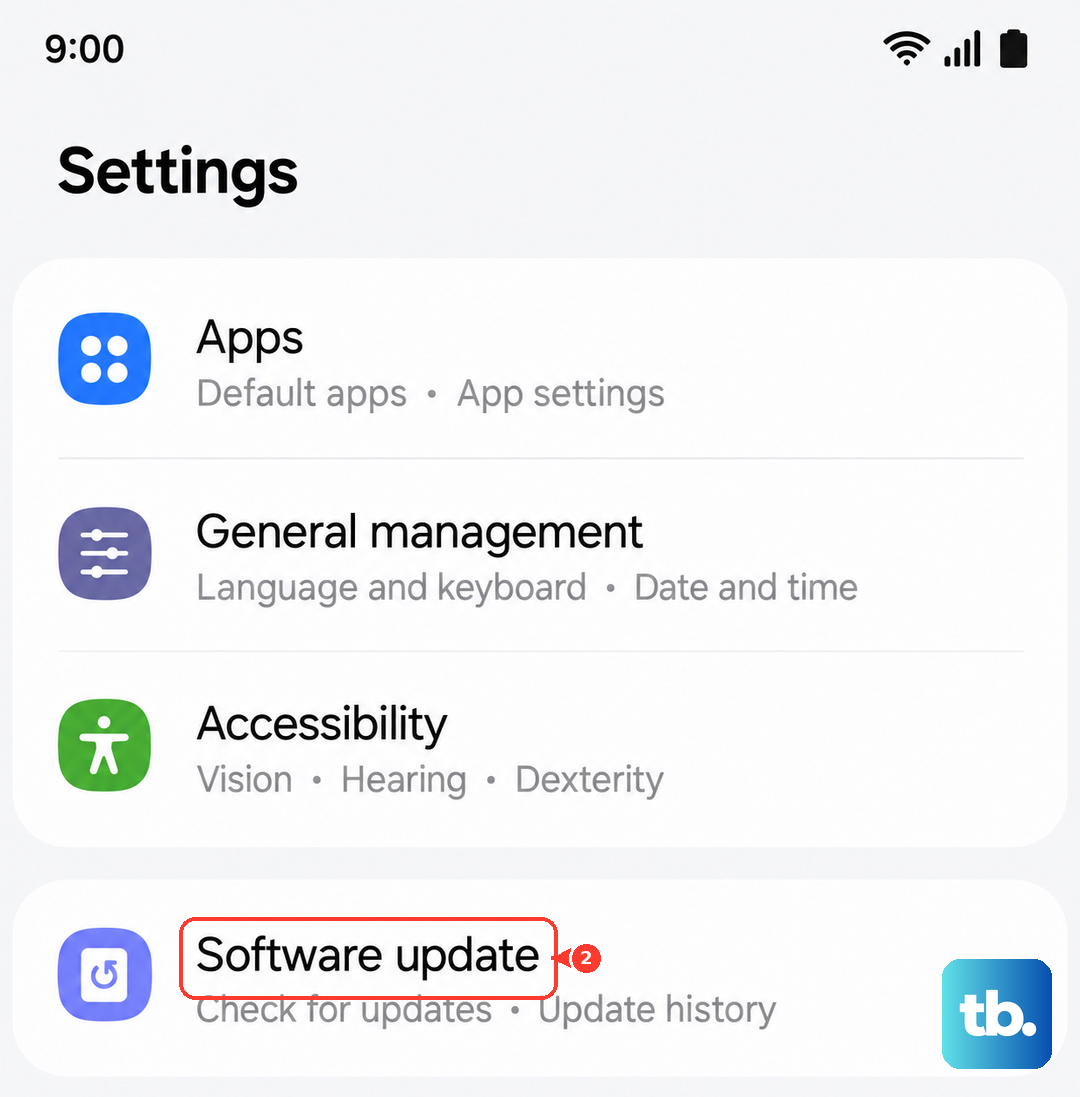
Outdated software can cause performance hiccups. Samsung regularly releases updates that include connectivity improvements and bug fixes. Go to Settings > Software update and tap "Download and install."
Also, check the Galaxy Store and Google Play Store for app updates. Developers often release patches that improve performance and compatibility, especially for newer tablets like the S10+.
Close Unused Apps and Manage Performance
The Dimensity 9300+ chip in the Tab S10+ is powerful, but having dozens of apps running can still eat up RAM. Swipe up from the bottom and hold to enter the recent apps view, then swipe away apps you're not using.
For a deeper clean, you can clear the system cache partition. Turn off the tablet, then press and hold the Volume Up and Power buttons together. When the Samsung logo appears, release only the Power button. Use the volume keys to navigate to "Wipe cache partition" and select it with the power button. This clears temporary system files without touching your data.
Disable VPN and Check for Interference
If you're using a VPN, try disabling it temporarily. VPNs route your traffic through another server, which almost always adds some latency and can significantly slow your connection speed. Just turn it off in the VPN app itself or in your quick settings panel.
Physical interference can also be a factor. Try moving closer to your WiFi router, or ensure there aren't large metal objects between your tablet and the router. Other electronics like cordless phones or microwaves can also interfere with the 2.4GHz WiFi band.
Try a Different Browser or Use Reading Mode
Sometimes the issue is with the browser itself. If Samsung Internet feels slow, try installing Chrome or Firefox from the Play Store to see if performance improves. It's a quick way to rule out a problem with a specific app.
For a faster reading experience on article-heavy sites, use the reader mode. In Samsung Internet, a little page icon appears in the address bar on supported sites. Tap it to strip away ads, videos, and complex layouts, loading just the text and key images much faster.
Perform a Force Restart
When all else fails, a force restart can clear out temporary software glitches that might be affecting network performance. It's different from a normal restart. Press and hold the Volume Down button and the Power button together for about 10 seconds.
Keep holding until you see the Samsung logo appear on the screen, then release. The tablet will boot up normally. This is a harmless reset that doesn't delete any of your files or settings, but it can often kick-start a sluggish connection.