
When your Galaxy Tab S10+ screen stops responding, the first thing to try is a force restart. Press and hold the Volume Down button and the Power button together for about 10 seconds. Keep holding until you see the Samsung logo appear, then release. This simple reboot clears out temporary glitches in the touch controller and is often all you need.
I'd start with this one, as it's the quickest fix for random touch freezes. If the screen is completely black and unresponsive, you might just feel the device vibrate to indicate it's restarting.
Clean the Screen and Remove Any Protector
Take a soft, slightly damp microfiber cloth and thoroughly wipe down the entire display. Oils from your fingers, lotion, or any moisture can create phantom touches or dead zones. Pay special attention to the edges where your palms might rest.
If you're using a tempered glass screen protector or a thick plastic one, try removing it temporarily. Some third-party protectors, especially cheap or poorly aligned ones, can severely interfere with the Tab S10+'s touch sensitivity. The tablet's glass is plenty durable on its own for testing.
Check for Software Conflicts in Safe Mode
Boot your tablet into Safe Mode to see if a recently downloaded app is causing the problem. First, press and hold the Power button until the power menu appears. Then, tap and hold the "Power off" icon on the screen until you see a prompt to reboot to Safe Mode.
Tap "Safe Mode" to confirm. If the touchscreen works perfectly in this mode, you've got a problematic app. Start uninstalling your most recent downloads one by one, rebooting normally after each, until the touch function returns.
Update Your Software and Apps
Outdated system software or apps can have bugs that break touch functionality. Go to Settings > Software update > Download and install to check for the latest Android and One UI patch from Samsung.
While you're there, head to the Galaxy Store and Google Play Store to update all your apps. Samsung frequently releases updates that specifically address touch performance and S Pen latency, which can be related.
Calibrate the Touchscreen Digitizer
While Android doesn't have a built-in public calibration tool like some older systems, you can effectively recalibrate the touchscreen by clearing its service data. Go to Settings > Apps, tap the filter menu (usually three dots), and select Show system apps.
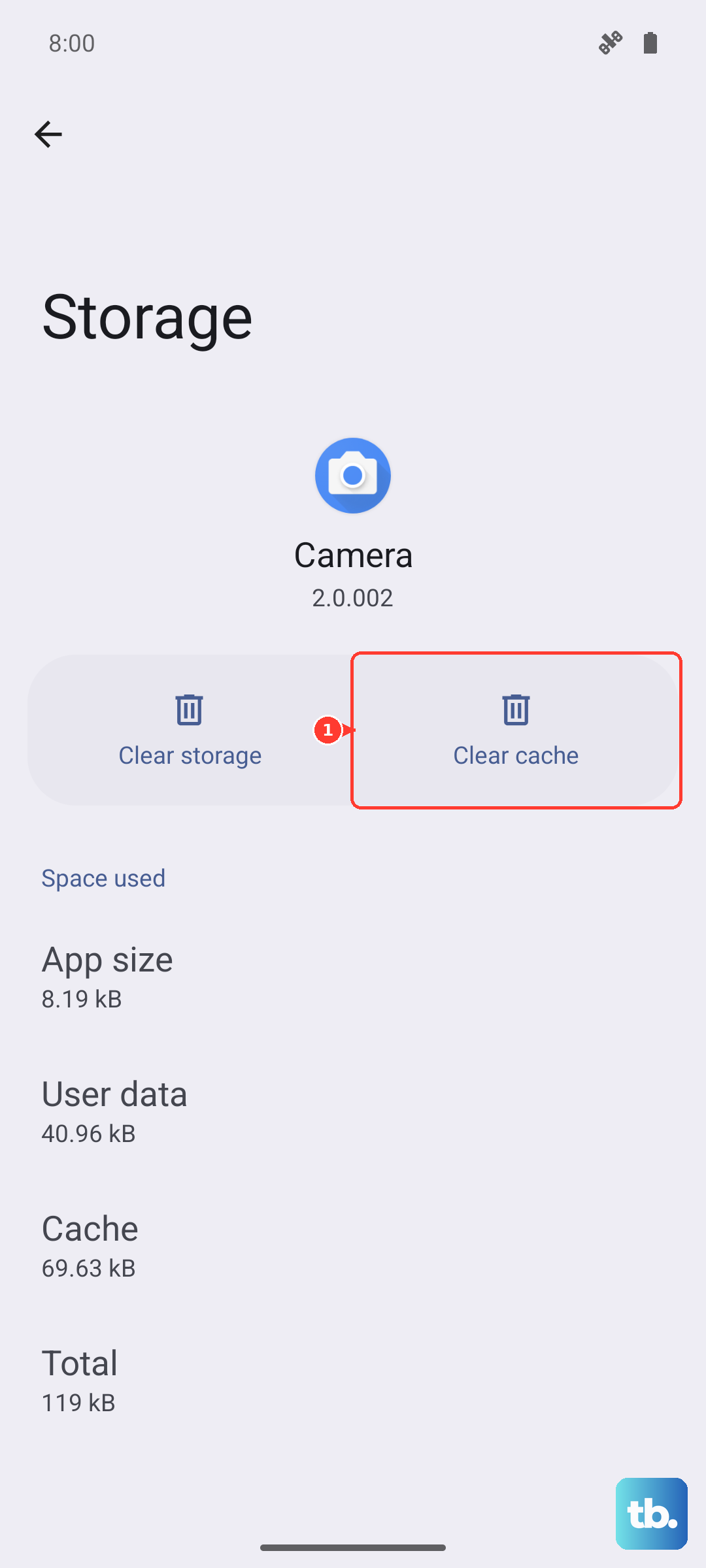
Find and select "Touchscreen" or "Android System" in the list. Go into Storage and tap Clear cache and Clear data. This resets the touchscreen's calibration data. You'll need to restart your tablet for the changes to take full effect.
Check for Overheating Issues
The Tab S10+ uses a powerful Dimensity 9300+ chipset that can get warm during intensive tasks like gaming or video editing. If the device is hot to the touch, set it down in a cool place and let it rest for 15-20 minutes.
Extreme thermal throttling can sometimes cause system components, including the touch controller, to behave erratically. Avoid using demanding apps while the tablet is charging, as this generates additional heat.
Perform a Factory Reset
If all else fails, a factory reset can eliminate deep-seated software corruption. Important: This will erase all your personal data, apps, and settings. Make sure you have a recent backup first.
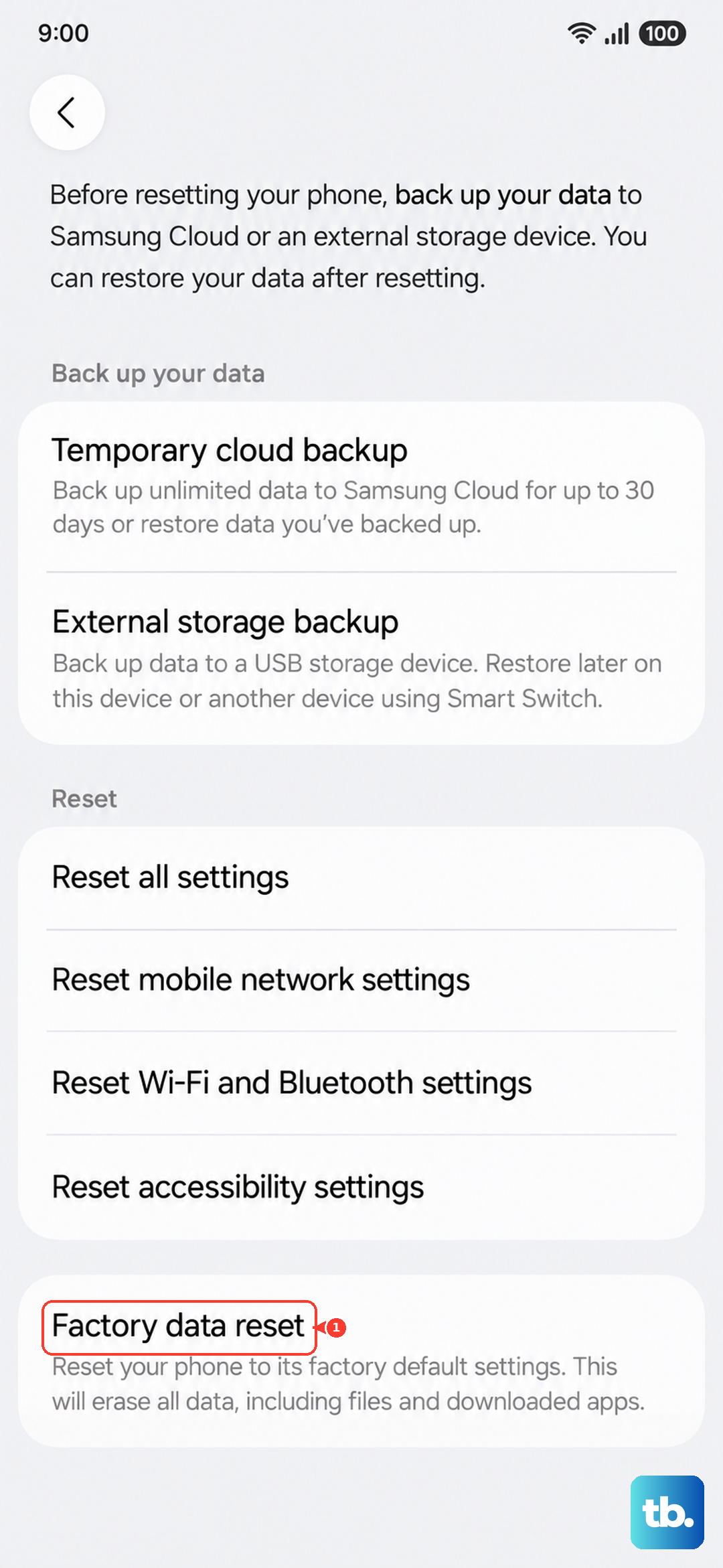
You can initiate it from the settings menu if your touchscreen is partially working: go to Settings > General management > Reset > Factory data reset. If the screen is totally dead, you can use the hardware buttons: power off the tablet, then press and hold Volume Up and Power to boot into Recovery Mode, and use the volume keys to navigate to the "Wipe data/factory reset" option.
Consider a Hardware Inspection
If the touchscreen is still unresponsive after a factory reset, the issue is likely physical. The large screen on the Tab S10+ is more susceptible to pressure points or internal connector issues if the tablet has been flexed or sat on.
Look very closely at the display for any new, subtle cracks or areas that look different under light. Even a small point of impact can damage the digitizer layer beneath the glass. At this point, contacting Samsung Support or a certified repair center is the next step to diagnose a potential screen or motherboard fault.