
Missing calls on your Galaxy Tab S10+ because it won't ring can be a real headache. You might see the notification pop up, but there's no sound to alert you. The issue is often a simple setting that got toggled or a minor software hiccup, especially on a new device running Android 14 and One UI 6.1.1.
Let's run through the fixes, starting with the most common ones you should check first.
Check Your Sound Mode and Volume
First, look at the right side of your tablet. Press the volume up button a few times while the screen is on. You should see a volume slider appear. Make sure it's set to a high level for media and notifications, not just for calls.
Also, swipe down twice from the top of the screen to open your Quick Settings panel. Look for an icon that looks like a speaker with a slash through it or the word "Silent." If you see it, tap it to turn silent mode off. Your tablet should now be in sound mode.
For more control, head into Settings > Sounds and vibration. Here, you can adjust the volume sliders for Ringtone, Media, Notifications, and System. Crank that Ringtone volume all the way up.
Review Do Not Disturb and Modes
One UI has a powerful Do Not Disturb feature and Modes that can silence everything. Swipe down to open Quick Settings and check for a moon icon. If it's highlighted, tap it to turn Do Not Disturb off.
You should also check your Modes. Go to Settings > Modes and routines. See if any mode like "Sleep" or "Work" is currently active. These can automatically mute notifications and calls based on your schedule or location.
If one is on, tap it and select "Turn off" to exit the mode. I'd also recommend checking the routines to see if one is set to activate automatically at a certain time.
Disconnect Bluetooth Accessories
If your Tab S10+ is connected to Bluetooth headphones, a speaker, or even a Samsung DeX station, incoming call audio might be routed there instead of the tablet's speakers. This is a very common reason for missing rings.
Go to Settings > Connections > Bluetooth. You'll see a list of paired devices. Simply tap the toggle next to "Bluetooth" at the top to turn the entire connection off. Try a test call now to see if the ringtone plays through the tablet.
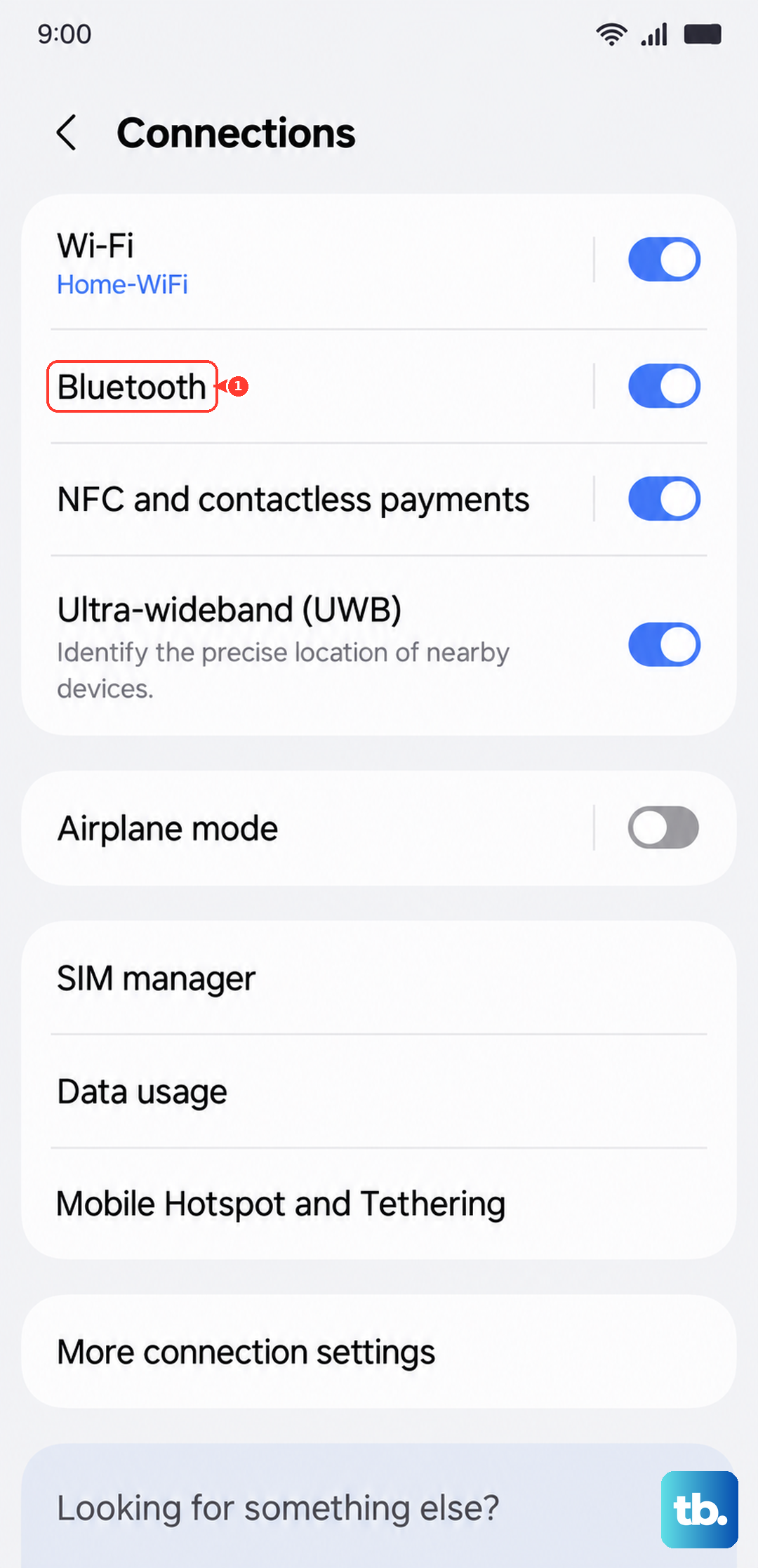
If you want to keep Bluetooth on but control the audio output, you can go into the Bluetooth settings for the specific connected device and turn off the option for "Calls."
Verify Your Ringtone and Notification Settings
Sometimes the specific sound file chosen for your ringtone can become corrupted or simply not play. It's easy to test by changing it. Open Settings > Sounds and vibration > Ringtone.
Pick a different default Samsung tone and tap "OK." Have a friend call you or use a second device to test it immediately. While you're here, also check Settings > Sounds and vibration > Notification sound to ensure those alerts are set correctly.
Also, dive into Settings > Notifications > App notifications. Find your phone app (it might be called "Phone" or "Google Phone") and make sure notifications are turned on and set to "Sound."
Check for Blocked Numbers and Call Settings
You might have accidentally blocked the person trying to reach you. Open your Phone app and tap the three-dot menu in the top right. Select "Settings" and then look for "Block numbers."
Review the list to see if the number is there. If it is, you can unblock it from this menu. Blocked calls typically go straight to voicemail without ever causing your tablet to ring.
Another setting to check is call forwarding. In the same Phone app settings, look for "Call forwarding" or "Supplementary services." Make sure all forwarding options are turned off unless you intentionally set them up.
Restart Your Galaxy Tab S10+
A simple restart clears out temporary glitches in the system memory that can affect sound services. Press and hold the power button until the power menu appears, then tap "Restart."
If the tablet is unresponsive, you can perform a force restart. Press and hold the Volume Down button and the Power button simultaneously for about 10 to 12 seconds. The screen will go black and the Samsung logo will reappear as it boots up.
This force restart method is handy for more stubborn software freezes. After it reboots, test the ringer again with a quick call.
Update Your Software
Samsung regularly releases updates that fix bugs, including audio issues. Since the Tab S10+ is a 2024 model, early software builds can have minor quirks. Connect to Wi-Fi and go to Settings > Software update > Download and install.
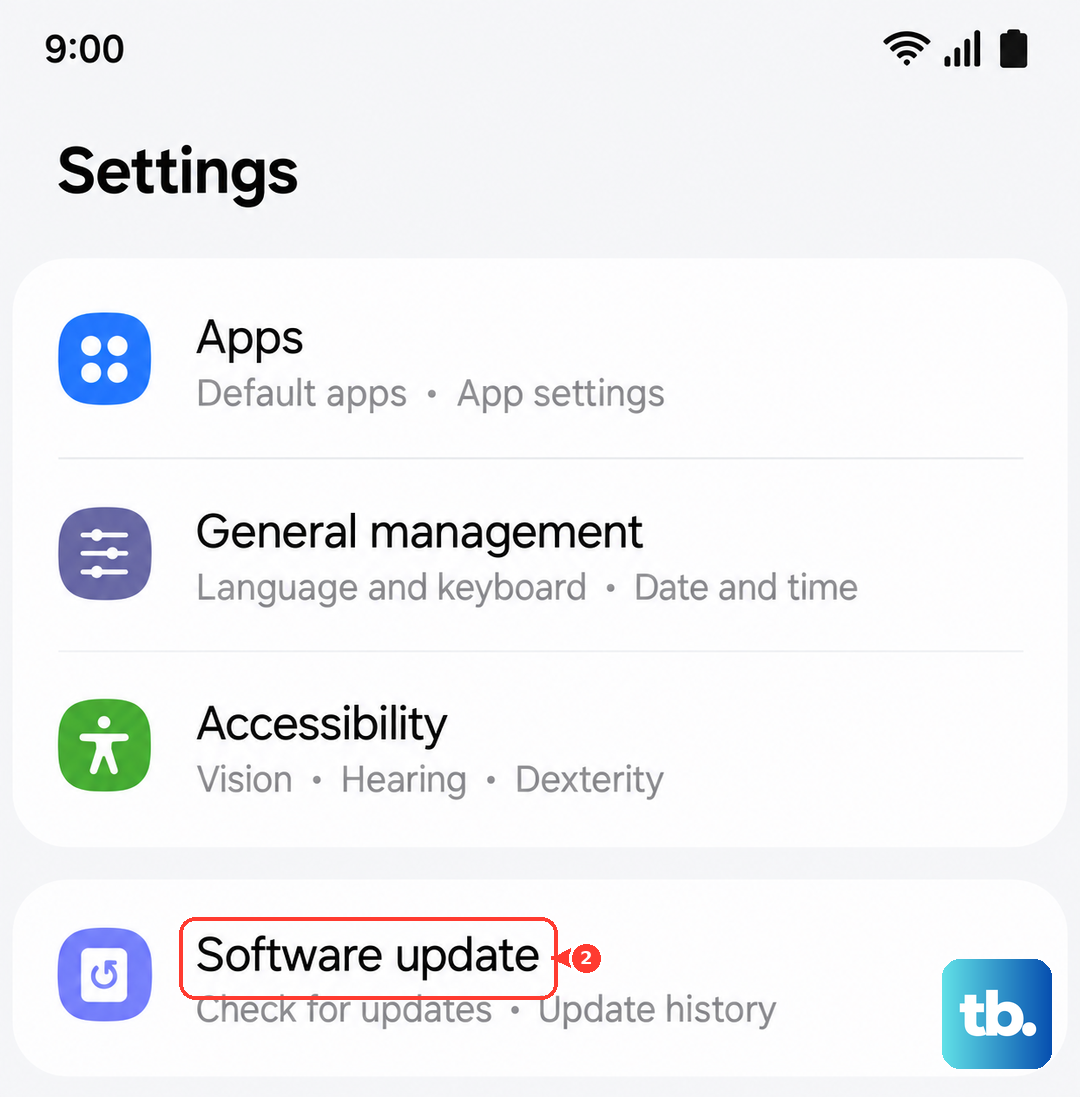
If an update is available, let it install. The tablet will restart. It's a good practice to keep your device updated, not just for fixes but also for security. The Dimensity 9300+ chipset is powerful, and updates help optimize its performance.
Reset App Preferences or the Phone App
If the issue seems tied to the phone app itself, you can reset its preferences without losing your call history or contacts. Go to Settings > Apps, then find and select your phone app.
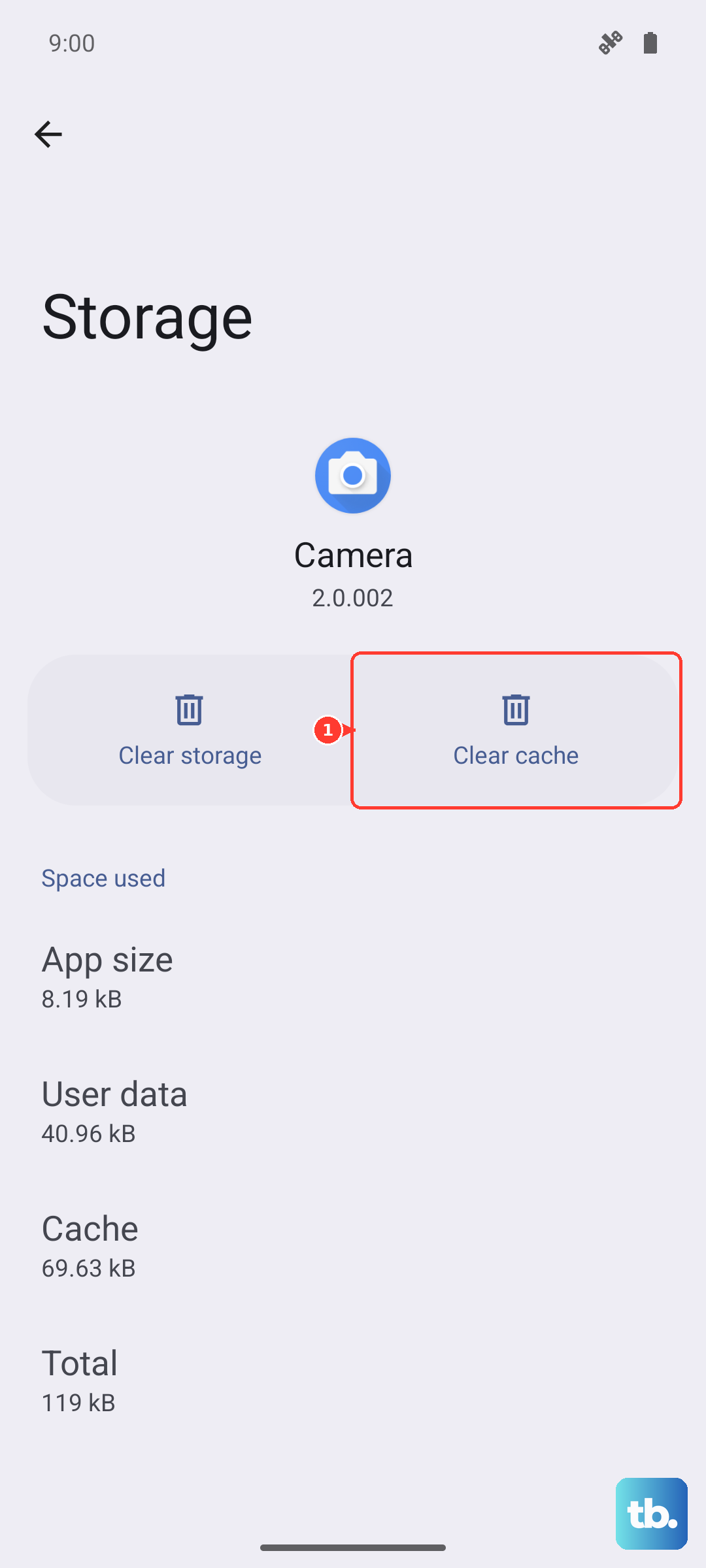
Tap "Force stop" if the option is available, then tap "Storage." Finally, tap "Clear cache." This removes temporary data that might be causing a problem. Do not tap "Clear data" as that will erase your call log and app settings.
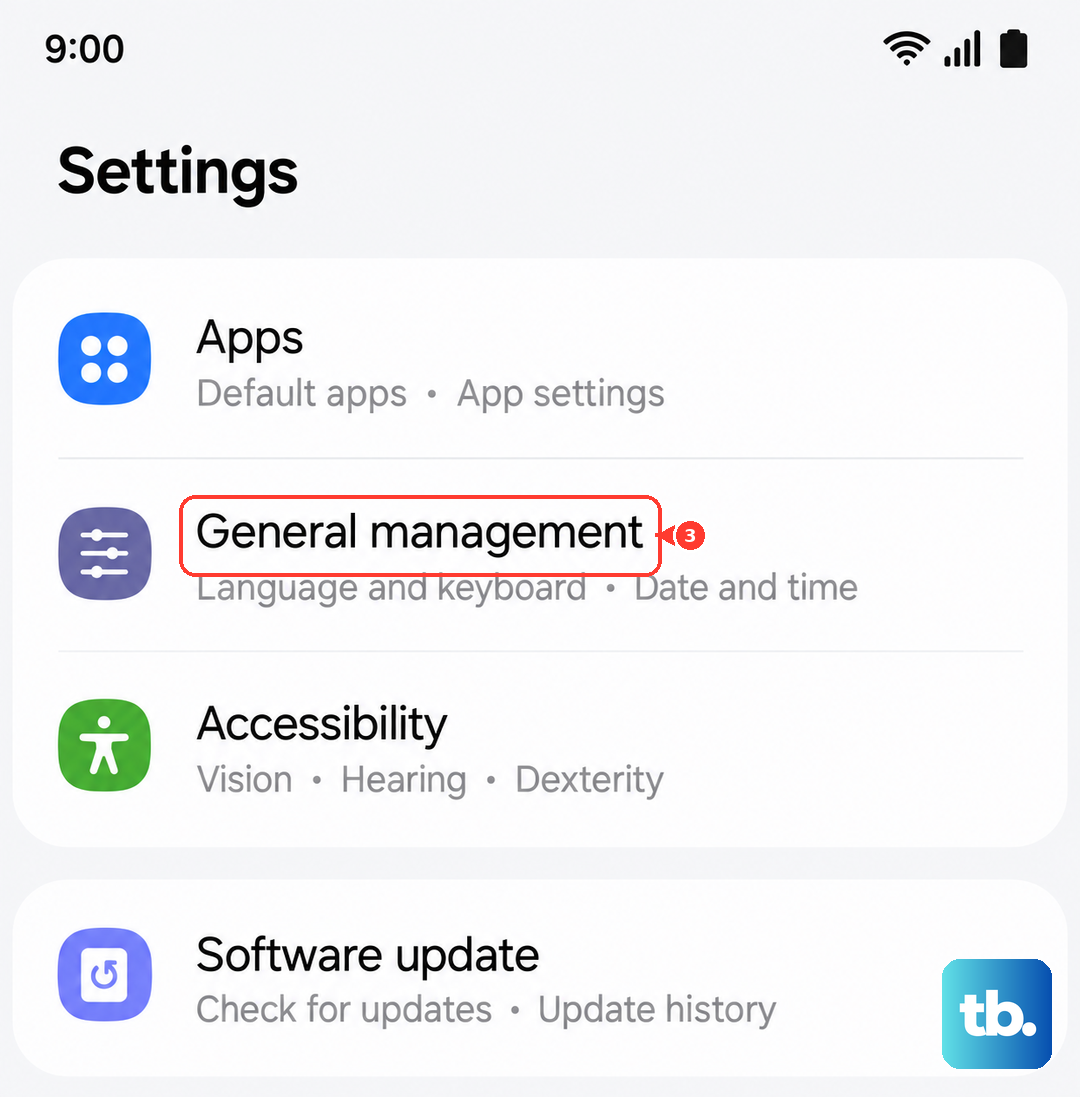
For a broader reset, go to Settings > General management > Reset > Reset app preferences. This resets notification settings and permissions for all apps back to their defaults, which can resolve conflicts.
Check for Interference from Other Apps
Some third-party apps, especially cleaner apps or those that claim to boost performance, can interfere with system sounds. Think about any new apps you installed around the time the ringing stopped.
You can boot the tablet into Safe Mode to test. Press and hold the power button, then tap and hold the "Power off" option on the screen until you see a Safe Mode prompt. Tap to confirm.
In Safe Mode, all third-party apps are disabled. If the ringer works normally here, a recently installed app is likely the culprit. Restart normally to exit Safe Mode and try uninstalling apps one by one.
Reset All Settings
This is a more thorough step that will reset all your system settings, like Wi-Fi passwords, Bluetooth pairings, and display preferences, back to factory defaults. Your personal data, photos, and apps remain untouched.
Go to Settings > General management > Reset > Reset all settings. You'll need to enter your PIN or password. After it completes, you'll have to reconfigure your connections and preferences, but it often clears deep-seated configuration errors.
Ensure the Speakers Are Not Blocked or Damaged
Physically inspect your tablet. The Tab S10+ has speaker grilles, typically on the top and bottom edges when held in landscape mode. Make sure they aren't clogged with dust or lint.
You can gently use a soft, dry brush to clean them. Play a YouTube video or a song at high volume to test if the speakers work for media. If media plays fine but calls don't ring, the issue is almost certainly software-based.
Review SIM Card and Network Status
If you're using your Tab S10+ with cellular data, ensure your SIM card is properly seated. You can try removing it and reinserting it using the SIM eject tool. Also, check your network signal strength.
In areas with very poor reception, calls might not come through properly. Try moving to a different location. You can also go to Settings > Connections > Mobile networks and make sure your network mode is set correctly (like 5G/LTE/3G).
Reset Network Settings
This step is particularly useful if you're having issues with cellular calls or VoIP apps like WhatsApp. It will erase all Wi-Fi networks, Bluetooth pairings, and mobile network settings.
Navigate to Settings > General management > Reset > Reset network settings. Tap to confirm. After the reset, you'll need to reconnect to your Wi-Fi and re-pair Bluetooth devices, but it can resolve call routing problems.
Consider a Factory Reset
If you've tried everything else and the ringer still refuses to work, a factory reset is the final software step. This will erase everything on your tablet, so you must back up your important data first using Samsung Cloud or a computer.
Once backed up, go to Settings > General management > Reset > Factory data reset. Follow the prompts to erase the device. After it restarts, set it up as new and test the ringer immediately before restoring your apps.