
When the microphone on your Samsung Galaxy Tab S10+ stops picking up your voice, it can be incredibly frustrating. You might find people on calls can't hear you, your voice notes are silent, or Google Assistant just ignores you. The good news is, it's often a simple software or settings glitch you can fix yourself.
Let's start by confirming the problem. Open the Voice Recorder app that came with your tablet. Tap the red record button and speak for a few seconds. Play it back. If you hear nothing or your voice is muffled, the mic is definitely having issues.
You can also test it in a video call app like Google Meet or by asking "Hey Google" a question. If the problem is only in one app, like Zoom or Discord, that points to a permission issue. If it's across the board, we need to look deeper.
Remove Any Case or Cover
This is the easiest thing to check. Some folio cases or bulky covers can accidentally block the microphone ports on your Tab S10+. The primary mic is usually a tiny pinhole along the top or bottom edge.
Take the case off completely and run the voice recorder test again. I've seen this fix more tablet mic issues than you'd think, especially with third-party accessories that weren't designed perfectly for the microphone's location.
Disconnect Bluetooth Audio Devices
If you have Galaxy Buds, headphones, or a Bluetooth speaker connected, your tablet will route all audio, including the microphone input, through that device. If those buds don't have a working mic, or are out of battery, no one will hear you.
Swipe down from the top of your screen to open the Quick Settings panel. Tap the Bluetooth icon to turn it off, or tap and hold it to see a list of connected devices and disconnect them. Test your tablet's built-in mic immediately after.
Force Restart Your Tablet
A simple reboot clears out temporary software bugs that can cause hardware like the microphone to act up. For the Galaxy Tab S10+, press and hold the Volume Down button and the Power button at the same time.
Keep holding them for about 10 seconds, until you see the Samsung logo appear on the screen. This forces a fresh start without deleting any of your data or settings. It's a great first step for any odd behavior.
Check App Permissions in Settings
Android requires apps to ask for permission to use the microphone. If you accidentally denied it, or a recent app update reset it, the app won't be able to hear you. Go to Settings > Apps.
Find the app that's having trouble (like Google Meet, WhatsApp, or Voice Recorder) and tap on it. Go to Permissions. Look for the Microphone permission and make sure it's set to "Allow" instead of "Deny."
Close and Reopen Problem Apps
If it's just one app acting up, force stopping it can clear its cache and reset its connection to the microphone. Go back to Settings > Apps, select the app, and tap Force Stop.
Then, open the app again from your home screen. This is different from just swiping it away in the recent apps view and often fixes glitches that a simple app switch doesn't.
Clean the Microphone Opening
Over time, pocket lint, dust, or other debris can get packed into the tiny microphone hole. This physically blocks sound from reaching the internal mic. Grab a can of compressed air and give the port a few short bursts.
You can also use a dry, soft-bristled toothbrush or a plastic toothpick to gently dislodge any visible gunk. Be very careful not to push anything further in or damage the delicate mesh inside the hole.
Update Your Tablet's Software
Samsung regularly releases updates that fix bugs, including audio and microphone issues. Go to Settings > Software update and tap Download and install.
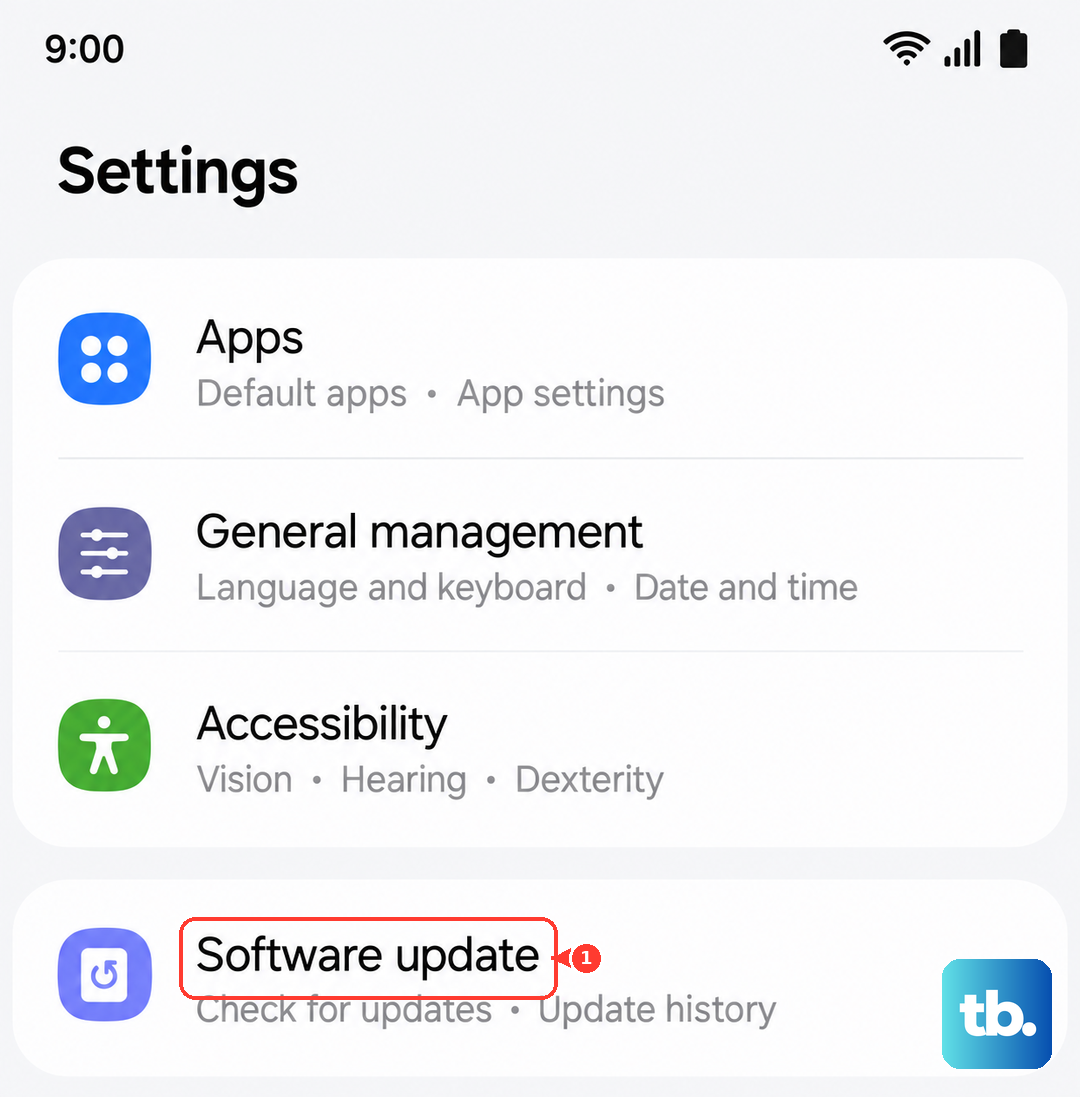
Make sure your tablet is connected to Wi-Fi and has at least a 50% charge. If an update is available, installing it could resolve the microphone problem if it was caused by a software conflict in One UI or Android.
Check for Interference in Safe Mode
Booting into Safe Mode temporarily disables all third-party apps you've downloaded. If the microphone works perfectly in Safe Mode, you know a recently installed app is causing the conflict. To enter Safe Mode, press and hold the power button until the power menu appears.
Then, tap and hold the "Power off" option on your screen. You'll get a prompt to reboot into Safe Mode. Tap OK. Test the microphone here. To exit, just restart your tablet normally.
Reset App Preferences
This is a less drastic reset that won't delete your app data. It resets all your permission decisions, notification settings, and background data restrictions back to their defaults. Go to Settings > Apps.
Tap the three-dot menu in the top right and select Reset app preferences. Confirm. Afterward, you'll need to re-grant microphone access to apps when they ask, but it can clear up any corrupted permission settings.
Perform a Factory Reset
This is your last resort before considering a hardware repair. A factory reset will erase everything on your tablet and return it to its original out-of-the-box state. You must back up your important files, photos, and app data first.
Go to Settings > General management > Reset > Factory data reset. Read the warning carefully, then tap "Reset" and "Delete all." If the microphone still doesn't work after this clean installation, the issue is likely physical.