
When your Samsung Galaxy Tab S10+ starts restarting on its own, it's more than just annoying, it can interrupt your work or media. This kind of random reboot can be caused by a misbehaving app, a software bug, or even the tablet getting too hot. I'd start with a simple force restart, as that clears out temporary glitches without touching your data.
Before you dive into the fixes, it's a good idea to make sure your important files are backed up. You can use Samsung Cloud, Google Drive, or just copy everything to a computer via USB-C. This way, if you need to do a more drastic reset, your photos, documents, and settings are safe.
Perform a Force Restart
This is the equivalent of pulling the plug on a frozen computer. It forces the tablet to shut down and boot up fresh, which can clear out whatever temporary software hiccup is causing the restarts. For the Tab S10+, press and hold the Volume Down button and the Power button at the same time.
Keep holding them for about 10 to 15 seconds. You'll see the screen go black and then the Samsung logo will appear. Once it boots back up, see if the random restarts have stopped. This fix works for most sudden software freezes.
Check for Overheating
The Tab S10+ uses a powerful Dimensity 9300+ chip, which can get warm during intense gaming or video editing. If the tablet gets too hot, it will protect itself by shutting down or restarting. Feel the back of the device, especially near the camera module. If it's uncomfortably hot to the touch, that's likely the culprit.
Let it cool down completely. Move it to a cooler surface, away from direct sunlight or blankets. Avoid using demanding apps while it's charging, as that generates extra heat. For long sessions, I've found that using the tablet in a well-ventilated area or with a stand can help keep temperatures in check.
Update Your Apps and Software
An outdated app or an old version of Android can have bugs that cause system instability. Start by updating all your apps through the Google Play Store. Open the Play Store, tap your profile icon in the top right, and go to Manage apps & device. Under "Updates available," tap Update all.
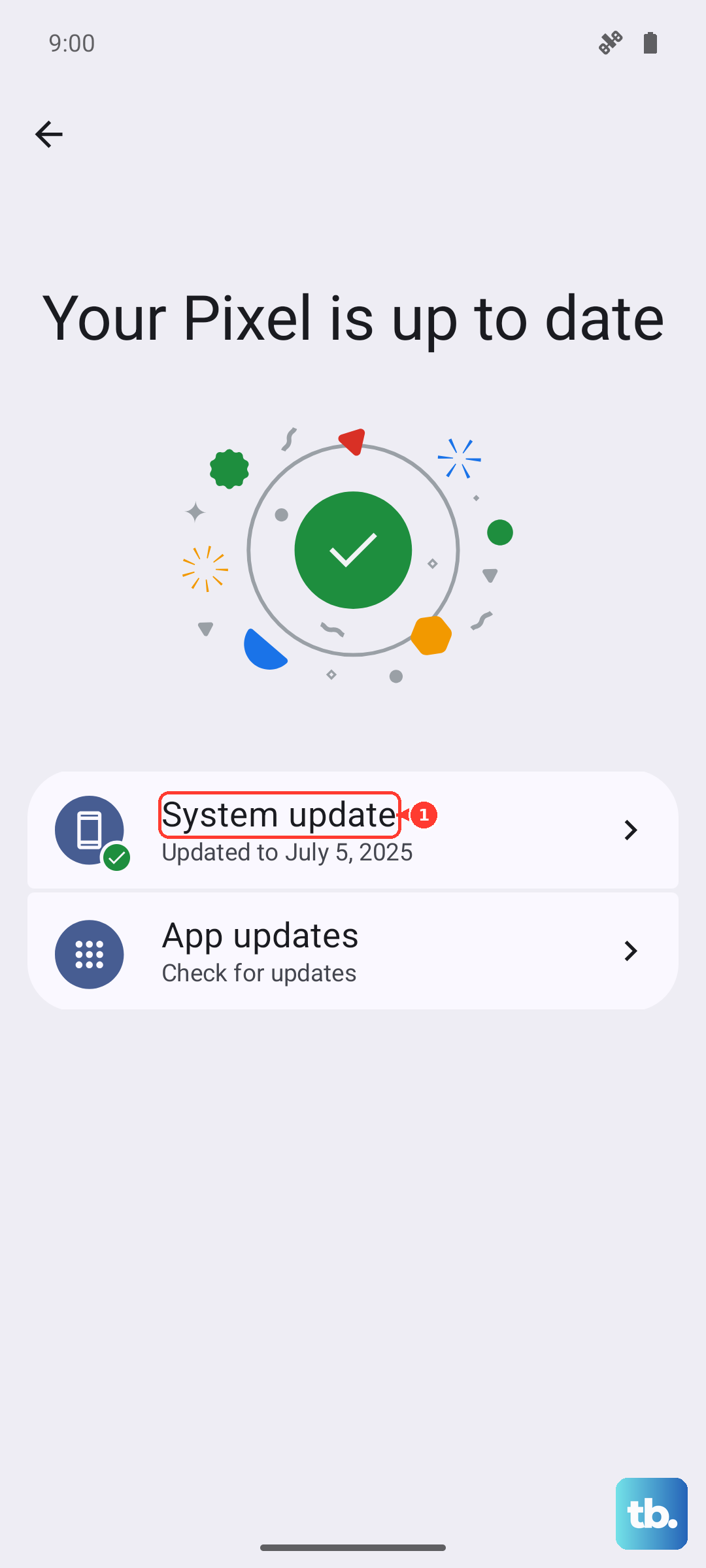
Next, check for a system update. Go to Settings > Software update > Download and install. Samsung regularly releases updates that fix known bugs and improve stability. Installing the latest One UI update can often resolve random restart issues.
Boot Into Safe Mode
Safe Mode temporarily disables all third-party apps. If the tablet stops restarting in Safe Mode, you know for sure that a downloaded app is causing the problem. To enter Safe Mode, first press and hold the Power button until the power menu appears.
Then, tap and hold the "Power off" option on your screen. You'll see a prompt to reboot to Safe Mode. Tap it. Once booted, you'll see "Safe Mode" in the bottom corner. Use the tablet normally for a while. If it's stable, you need to find the problematic app.
Identify and Remove Problematic Apps
Since Safe Mode pointed to an app, you need to find the culprit. Think about what you installed or updated just before the restarts began. Common offenders are battery savers, cleaning tools, or apps that have deep system access.
You can uninstall apps one by one, starting with the most recent. Go to Settings > Apps, select an app, and choose Uninstall. After removing each one, use the tablet for a bit to see if the restarting stops. This process takes time, but it's the most direct way to solve an app-related issue.
Clear the System Cache
The cache partition stores temporary system files that help your tablet run faster. Sometimes these files get corrupted and can cause all sorts of weird behavior, including reboots. Clearing them is safe and won't delete your personal data.
First, power off your tablet completely. Then, connect it to a computer or charger with a USB-C cable. While it's connected, press and hold the Volume Up and Power buttons together. When you feel a vibration, release the Power button but keep holding Volume Up until you see the Android recovery menu.
Use the volume buttons to navigate to "Wipe cache partition" and select it with the Power button. Confirm, and once it's done, select "Reboot system now."
Free Up Storage Space
When your tablet's internal storage is completely full, the operating system doesn't have room to work properly, which can lead to crashes. Check your available space by going to Settings > Device care > Storage.
If you're below 10% free space, start cleaning up. Delete old downloads, clear app caches (especially for apps like YouTube or Chrome), and offload videos and photos to cloud storage or an SD card. This gives the system the breathing room it needs.
Reset All Settings
This will revert all your system settings back to factory defaults without touching your photos, apps, or personal files. You'll have to reconfigure things like Wi-Fi passwords, Bluetooth connections, and display preferences, but it can fix conflicts causing instability.
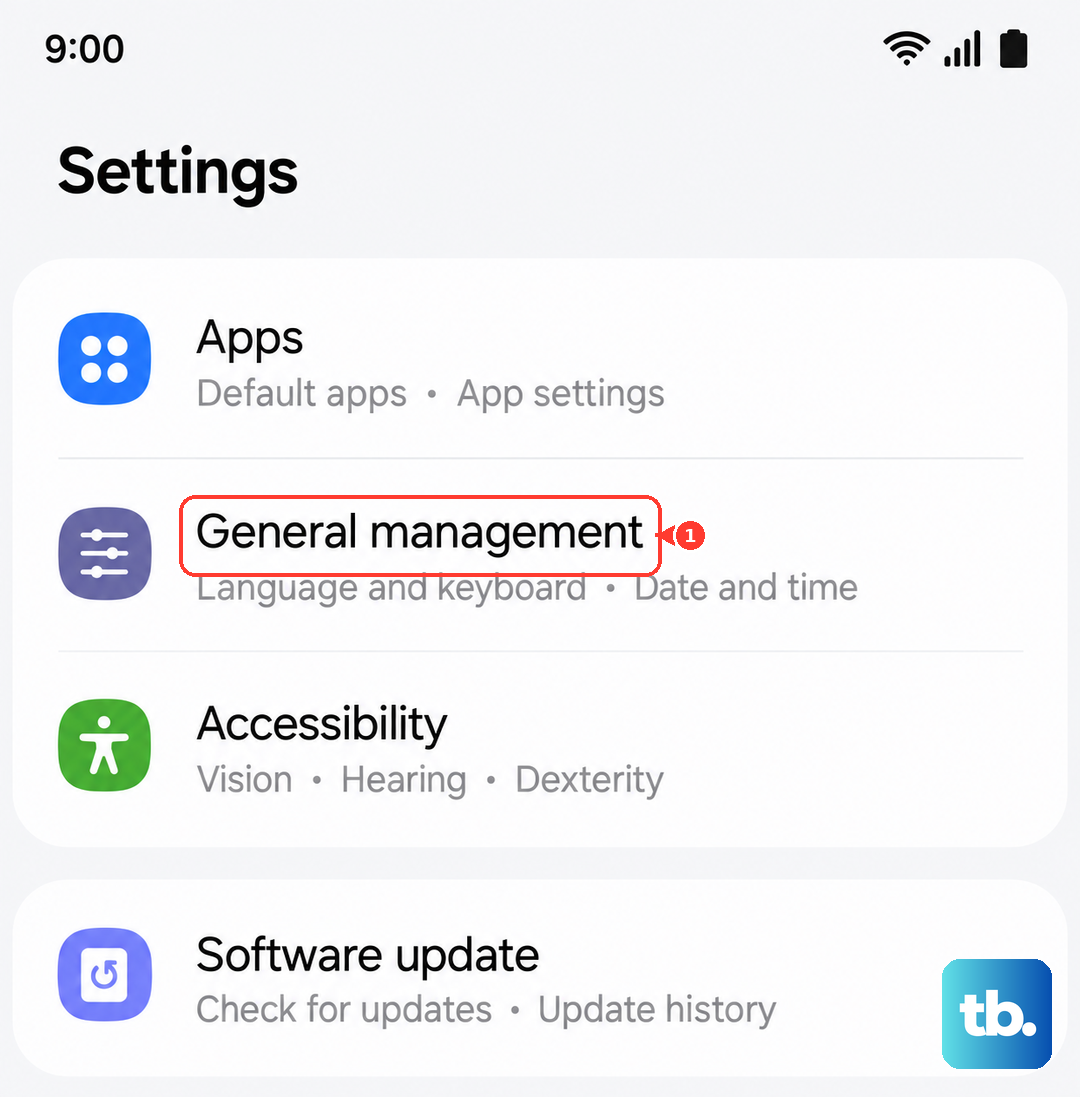
Go to Settings > General management > Reset > Reset all settings. Enter your PIN or password if prompted and confirm. After the tablet reboots, test to see if the problem is resolved before you start customizing everything again.
Perform a Factory Reset
This is the last software step and will erase everything on your tablet, returning it to its out-of-the-box state. Absolutely ensure your data is backed up before proceeding. A factory reset removes any deep-seated software corruption.
You can do this from the settings menu. Go to Settings > General management > Reset > Factory data reset. Tap "Reset" and then "Delete all." The tablet will erase itself and reboot. After setup, monitor it closely before restoring your apps; sometimes restoring a backup can bring the problem back.