
When your Samsung Galaxy Tab S10+ won't share its mobile data, it leaves your laptop or other gadgets stranded without the internet. Whether the hotspot disappears, other devices can't connect, or the connection keeps dropping, getting your tablet's tethering back online is usually straightforward.
The quickest fix is to simply turn the hotspot off and on again. Swipe down twice for the Quick Settings panel and long-press the Mobile Hotspot icon, or go to Settings > Connections > Mobile Hotspot and Tethering. Tap the switch to turn it off, wait about 10 seconds, then turn it back on. This resets the tethering service and often solves the problem right away.
Restart Your Galaxy Tab S10+
Press and hold the Volume Down and Power buttons together for about 10 seconds until you see the Samsung logo. This force restart clears out any temporary software glitches that might be interfering with the hotspot function. It's a good first step if toggling the hotspot didn't help.
Verify Your Mobile Data Connection
Your tablet's hotspot needs a solid cellular data connection to work. Pull down the notification shade and make sure mobile data is enabled. You can also check in Settings > Connections > Data usage. If you're in an area with a weak signal, tethering will be unreliable or won't work at all.
It's also crucial to confirm your mobile plan includes tethering. Some carriers restrict hotspot use on certain plans or require you to add a tethering feature. A quick call to your carrier can clear this up.
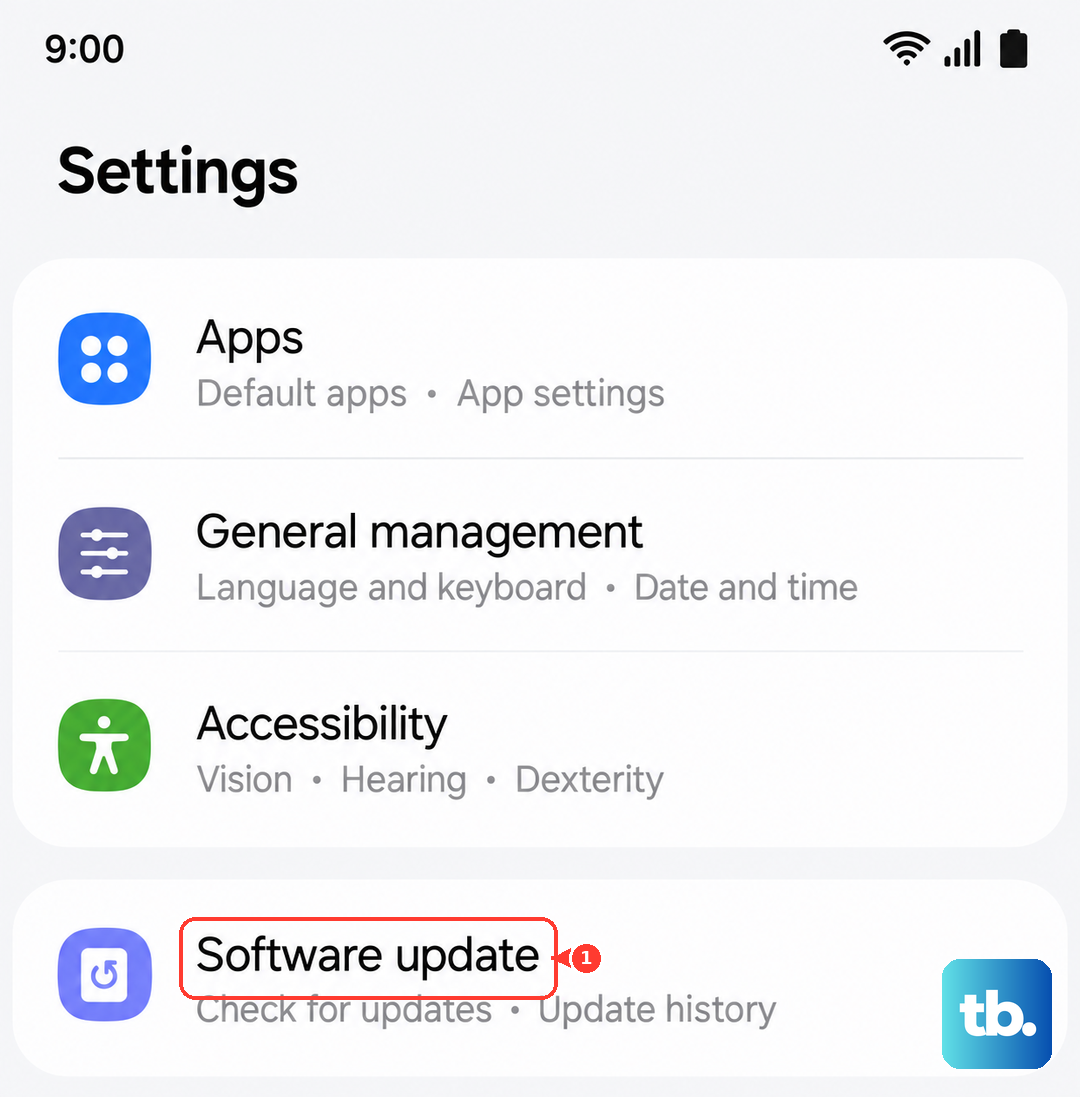
Check for Software Updates
Go to Settings > Software update > Download and install. Samsung and Google frequently release updates that patch connectivity bugs, including issues with Mobile Hotspot. Installing the latest Android and One UI updates is one of the most effective ways to fix persistent tethering problems.
Forget and Reconnect on the Client Device
On the laptop or phone you're trying to connect, go into its Wi-Fi settings and find your tablet's hotspot network. Choose to forget or remove the network. Then, scan for Wi-Fi networks again, select your tablet's hotspot, and enter the password fresh. A corrupted saved network profile on the connecting device is a common culprit.
Change Your Hotspot Name and Password
On your Tab S10+, go to Settings > Connections > Mobile Hotspot and Tethering > Mobile Hotspot. Tap on the network name (SSID) or password to change them. I'd recommend setting a new password. This forces a completely new connection handshake with your other devices and can bypass authentication errors.
Reset the Network Settings on Your Tablet
If the issue persists, resetting network settings can help. Navigate to Settings > General management > Reset > Reset network settings. This will erase all Wi-Fi networks, paired Bluetooth devices, and cellular network settings. You'll need to reconnect to Wi-Fi and re-pair Bluetooth accessories afterward, but it resolves deep-seated network configuration conflicts.
Try USB or Bluetooth Tethering Instead
If the Wi-Fi hotspot is being stubborn, use a different tethering method. For USB tethering, connect your Tab S10+ to your computer with a USB-C cable, then go to Settings > Connections > Mobile Hotspot and Tethering and enable USB tethering.
For Bluetooth, pair your tablet with the other device first in the Bluetooth settings. Once paired, go back to the tethering menu on your tablet and enable Bluetooth tethering. These are great workarounds, though they're generally slower than a Wi-Fi hotspot.
Consider Thermal Throttling
The Galaxy Tab S10+ uses a powerful Dimensity 9300+ chipset that can get warm during heavy use. If the tablet is hot to the touch, it may be thermally throttling, which can affect all radio performance, including the hotspot. Let the tablet cool down for a few minutes, preferably out of direct sunlight, and try enabling the hotspot again.
Contact Your Mobile Carrier
If you've tried everything and the hotspot still won't work, the issue might be on your carrier's end. There could be a provisioning error on your account, a temporary network issue in your area, or a plan restriction you're not aware of. A call to their customer support can verify your tethering permissions and check for any service alerts.