
If your Samsung Galaxy Tab S10+ fingerprint scanner is acting up, it can lock you out of your device or secure apps. The good news is that most of the time, this is a software hiccup or a simple fix you can handle yourself.
Let's start with the quickest solution. A simple restart can clear out temporary glitches that confuse the sensor. Press and hold the Volume Down and Power button together for about 10 seconds until you see the Samsung logo. Once it boots back up, try the scanner again.
Clean the Sensor and Your Finger
The optical fingerprint sensor under your Tab S10+ screen needs a clear view. Gently wipe the entire lower portion of your screen with a soft, dry microfiber cloth. Any smudges, grease, or moisture can block the scan.
Also, make sure your finger is clean and dry. If your hands are wet, sweaty, or have lotion on them, the sensor will struggle to read your print accurately. I've seen this fix the issue more often than not.
Check Your Screen Protector
This is a very common culprit. Not all screen protectors play nicely with in-display fingerprint sensors. If you recently applied a new protector, that's likely the cause.
Try removing the screen protector temporarily to see if the scanner starts working. If it does, you'll need to find a protector specifically marketed as compatible with ultrasonic or in-display fingerprint sensors. After installing a compatible one, you should re-register your fingerprints.
Re-register Your Fingerprint
Sometimes the stored fingerprint data gets corrupted. Removing and re-adding your print often solves the problem. Head to Settings > Biometrics and security > Fingerprints.
Enter your PIN, password, or pattern. Tap on the fingerprint giving you trouble and select Remove. Now, tap Add fingerprint and follow the prompts. Press firmly and rotate your finger slowly to capture the edges during enrollment.
Update Your Software
Outdated software can have bugs that affect hardware like the fingerprint sensor. Samsung regularly releases updates with fixes. Go to Settings > Software update > Download and install.
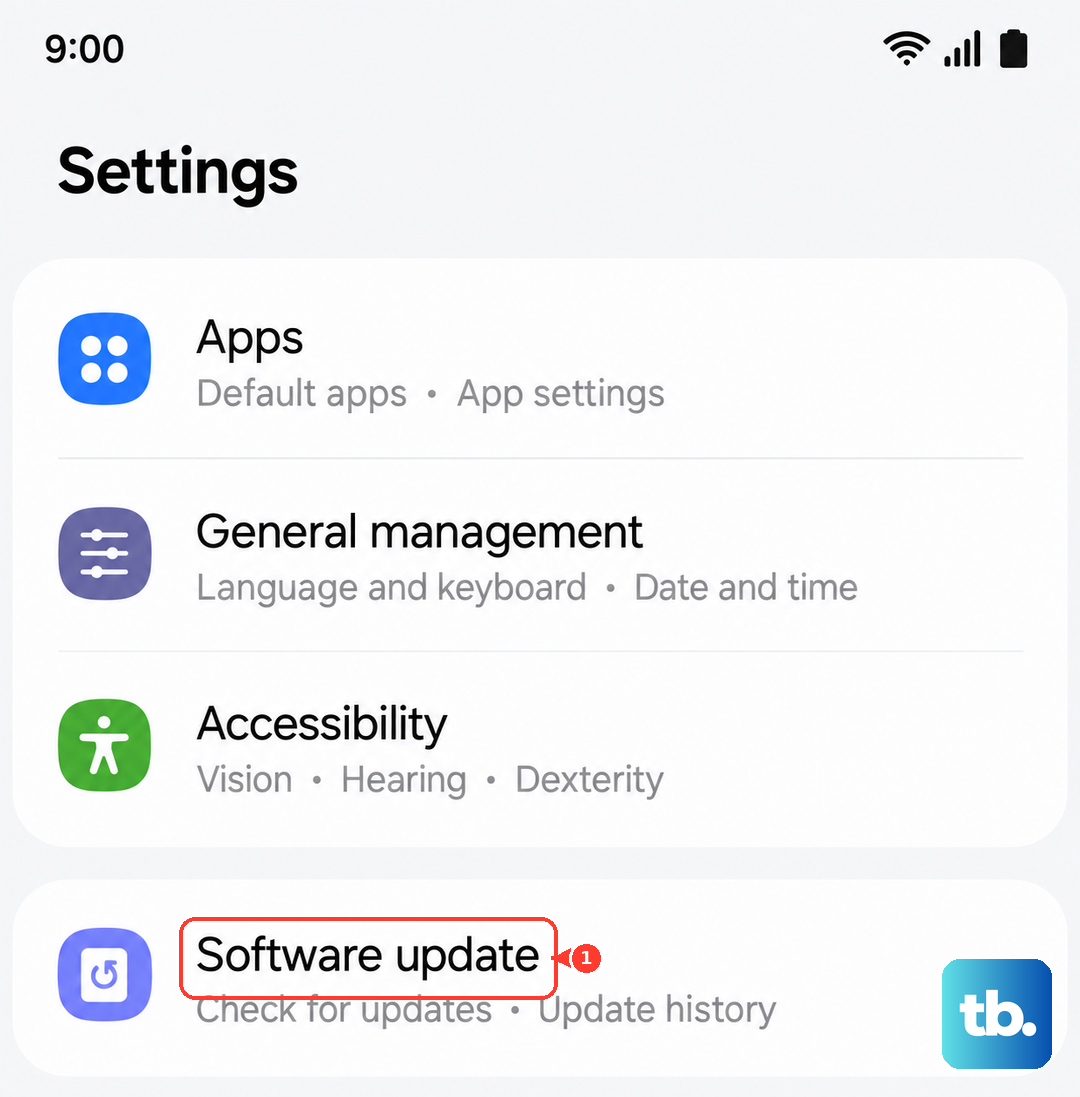
If an update is available, install it and restart your tablet. This keeps your Tab S10+ running smoothly and can resolve sensor issues that popped up after a previous update.
Boot Into Safe Mode
A third-party app you installed could be interfering with the biometric system. Booting into Safe Mode temporarily disables all downloaded apps. Press and hold the Power button until the power menu appears.
Then, tap and hold the Power off option until you see the Safe Mode prompt. Tap it to restart. If the fingerprint scanner works in Safe Mode, you know a downloaded app is the problem. You'll need to uninstall apps one by one to find the culprit.
Clear the System Cache
Corrupted cache files in the system partition can cause all sorts of glitches. Clearing them is safe and won't delete your personal data. First, turn off your tablet completely.
Now, press and hold the Volume Up and Power buttons simultaneously. Release them when you see the Android recovery menu. Use the volume buttons to highlight Wipe cache partition and press the power button to select it. Confirm, then select Reboot system now.
Check for Fingerprint Sensor Settings
There are a couple of settings in One UI that can affect performance. First, make sure the screen touch sensitivity isn't set too low for use with a protector if you have one. Go to Settings > Display and ensure Touch sensitivity is toggled on.
Also, navigate to Settings > Biometrics and security > Fingerprints. Tap More fingerprint settings and check that Screen transition effect is turned off, as some users report this can improve recognition speed and reliability.
Register Multiple Fingerprints
For better reliability, register the same finger multiple times. When you go to add a fingerprint, you can add a second or even third entry for your primary thumb or index finger. This gives the sensor more data points to work with.
Also, register fingerprints from different angles and different fingers you use often. This gives you a backup if one finger is dirty or if the sensor is having trouble with a specific angle of your primary finger.
Consider a Factory Reset
If you've tried everything else and the scanner is still unresponsive, a deeper software issue might be at play. A factory reset will wipe your tablet back to its original state, so this is a last resort.
Warning: This will erase all your data, apps, and settings. Make sure everything is backed up to Samsung Cloud or your Google account first. You can initiate the reset from Settings > General management > Reset > Factory data reset.
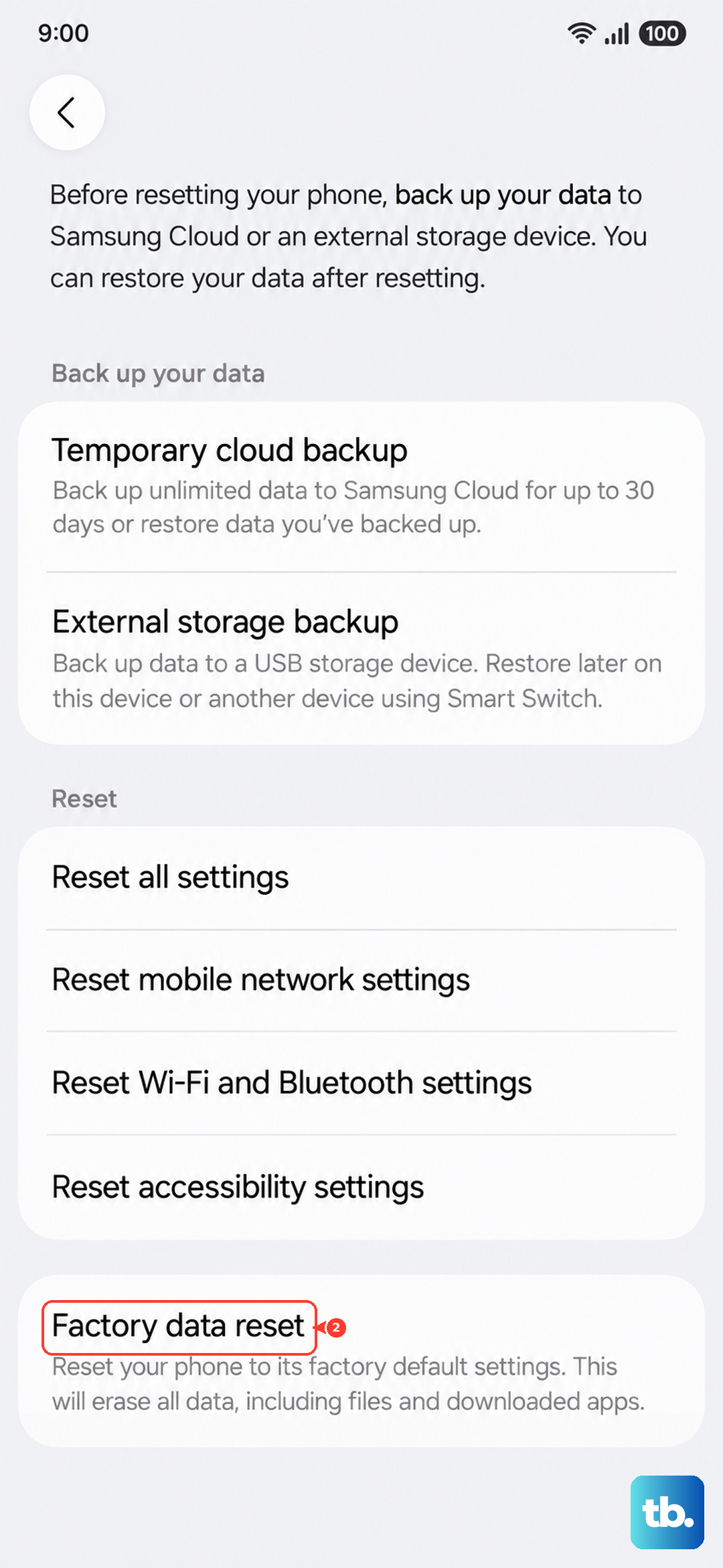
If the fingerprint scanner still fails after a factory reset, the problem is likely hardware-related. The sensor itself or its connection to the motherboard may be faulty. At this point, contacting Samsung Support or visiting an authorized service center would be the next step.