
If your Samsung Galaxy Tab S10+ camera app is crashing, freezing, or just showing a black screen, start with a simple restart. Press and hold the Volume Down and Power buttons together for about ten seconds until you see the Samsung logo. I've seen this fix work for most temporary software glitches that cause the camera to stop responding.
Before digging into settings, open a quick online camera test in your browser. If the preview shows a live picture, the camera hardware works and the issue is with app permissions or configuration.
Key Points
- Restart Your Tablet: A force restart can clear temporary software glitches affecting the camera.
- Check for App and System Updates: Outdated software is a common cause of camera failures.
- Clear the Camera App's Cache: Corrupted temporary data can cause the camera to freeze or crash.
- Check App Permissions: The camera app needs permission to access your camera and microphone.
- Boot in Safe Mode: This helps determine if a third-party app is interfering with the camera.
- Reset App Preferences: This reverts all app settings to default without deleting your data.
- Check for Physical Obstructions: Ensure nothing is blocking the camera lenses.
- Try a Third-Party Camera App: This can help diagnose if the problem is with the Samsung camera app itself.
- Perform a Factory Reset: A last resort to eliminate deep-seated software conflicts.
Give the tablet a moment to fully boot up, then try opening the camera again. This basic step resolves a surprising number of issues.
Check for App and System Updates
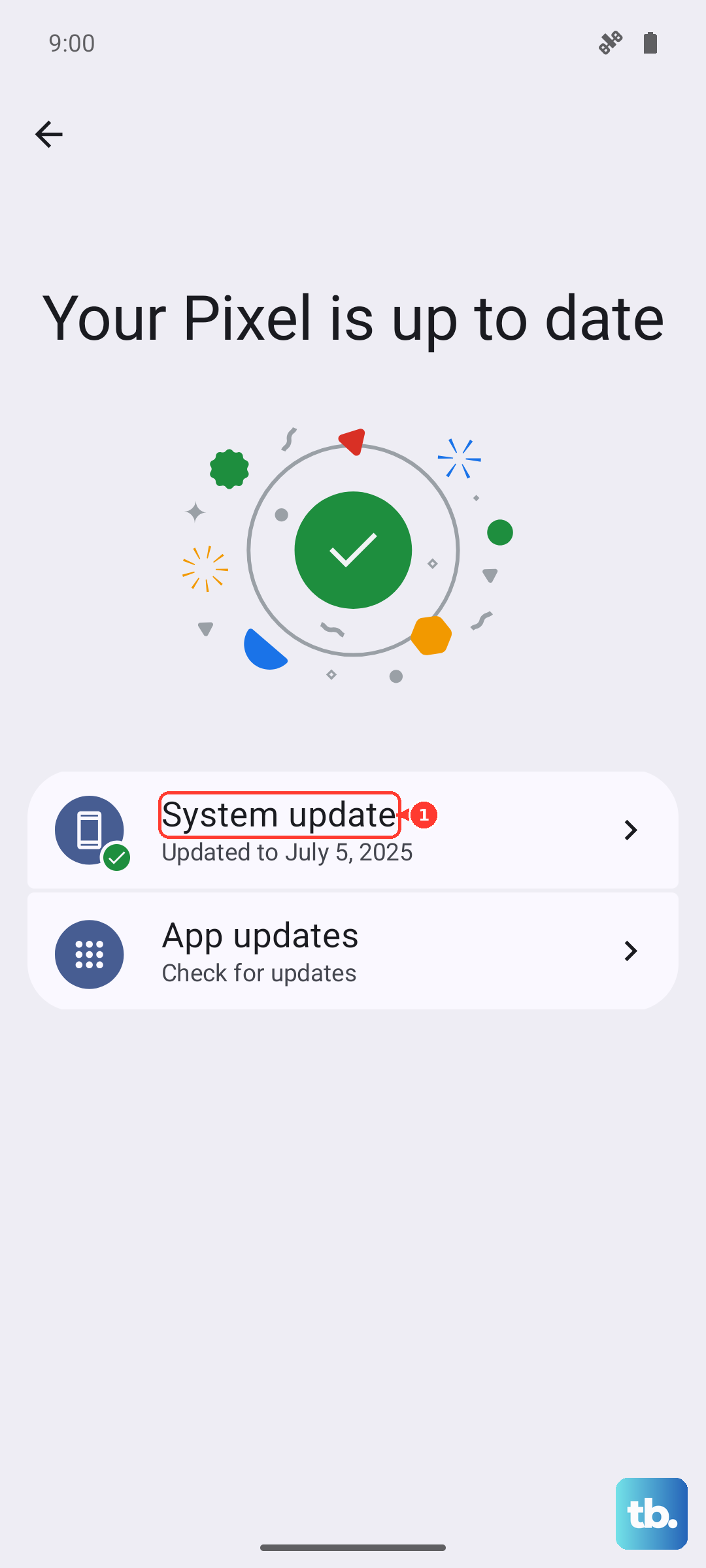
Outdated software is one of the most common reasons a camera stops working. First, check if the Samsung Camera app itself has an update. Open the Google Play Store, tap your profile icon, and go to Manage apps & device. Look for updates, specifically for the Camera app, and install any that are available.
Next, check for a full system update. Samsung frequently releases patches that fix bugs, including camera issues. Go to Settings > Software update and tap Download and install. If an update is available, install it and restart your tablet. I'd start with this one, as a system update often addresses core performance problems.
Clear the Camera App's Cache and Data
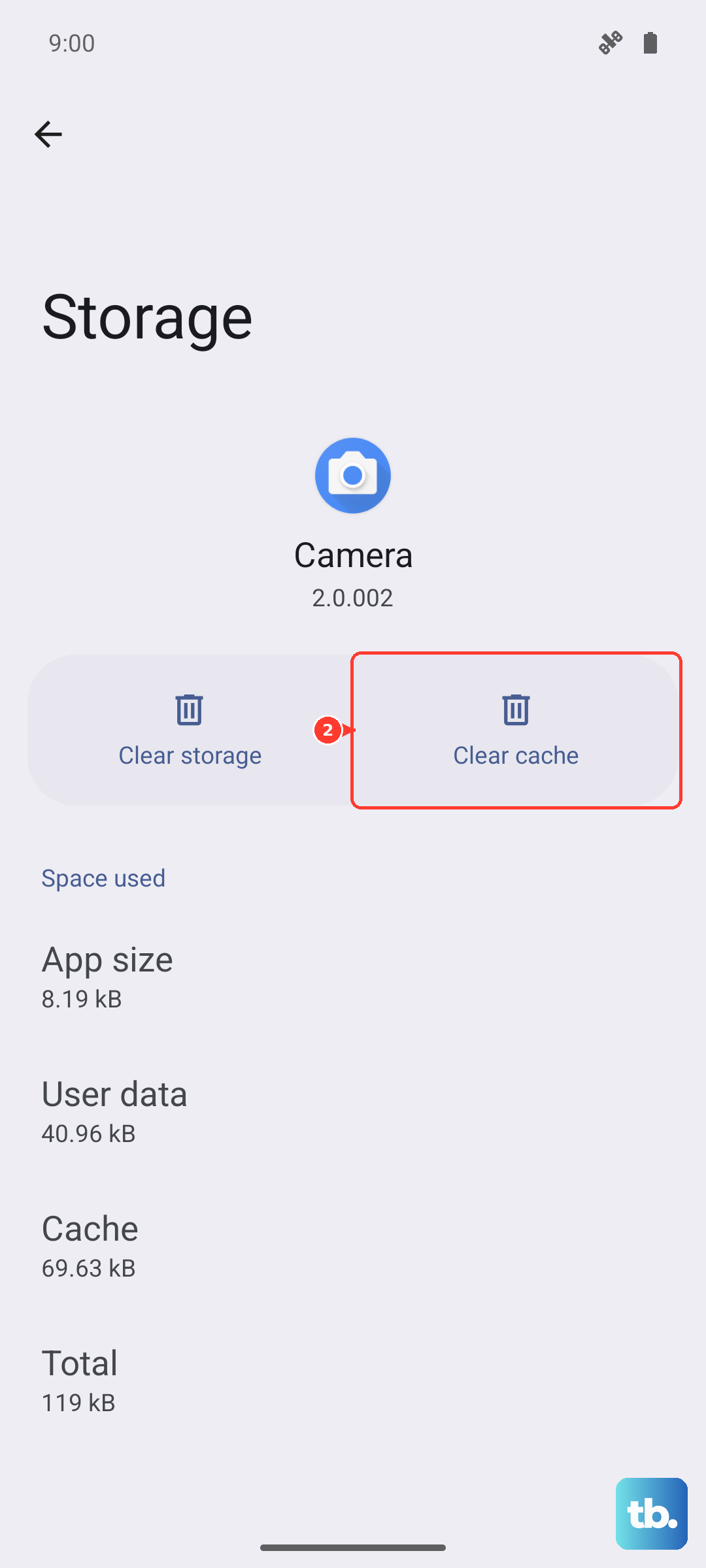
Sometimes the camera app's temporary files get corrupted. Clearing the cache is a safe first step that won't delete your photos. Go to Settings > Apps, then find and select Camera from the list.
Tap Storage, then tap Clear cache. Try the camera again. If it still fails, you can go back and tap Clear data. A quick warning, this will reset the camera app to its default settings, so you'll lose any custom modes or settings within the app, but your photos and videos in the Gallery are safe.
Verify Camera Permissions
The camera app needs explicit permission to access your tablet's camera and microphone. If these were accidentally revoked, the app might crash or show a black screen. Go to Settings > Apps > Camera > Permissions.
Make sure both the Camera and Microphone permissions are set to "Allow." While you're there, also check that the app has not been put to sleep or restricted in the background, as this can sometimes cause problems when launching.
Boot in Safe Mode to Isolate Third-Party Apps
If a recently installed app is conflicting with the camera, Safe Mode will tell you. Press and hold the power button until the power menu appears, then tap and hold the Power off option. You'll see a prompt to reboot into Safe Mode, tap OK.
In Safe Mode, all third-party apps are temporarily disabled. Try opening the camera. If it works perfectly here, then a downloaded app is the culprit. Restart your tablet normally to exit Safe Mode, then uninstall apps one by one, starting with the most recent, testing the camera after each removal.
Reset All App Preferences
This is a broader fix that resets permissions, notifications, and default apps without deleting any of your personal data. It can resolve conflicts you might not even be aware of. Go to Settings > Apps, then tap the three-dot menu in the top right and select Reset app preferences.
Tap Reset to confirm. Afterward, you'll need to re-grant permissions to apps when you use them next, including the camera. This takes about 30 seconds and often clears up persistent app-related issues.
Inspect for Physical Obstructions
It sounds simple, but check the camera module on the back of your Tab S10+. Make sure there's no protective film, case, or dirt covering the lenses. Use a soft, dry microfiber cloth to gently clean the camera glass.
Also, check if you're accidentally covering the lens with your finger when holding the tablet in landscape mode. The large size of the Tab S10+ means your grip might naturally fall over the camera array.
Try an Alternative Camera App
Download a free camera app from the Play Store, like Open Camera. If the third-party app works without issue, then the problem is almost certainly with the Samsung camera app's software. You can continue using the alternative app, or this knowledge points you toward needing to clear data or wait for an update for the stock app.
If the third-party app also shows a black screen or crashes, the issue is deeper, potentially at the system or hardware level.
Perform a Factory Reset
This is your last resort software fix. A factory reset will erase all data and settings on your tablet, returning it to its original out-of-the-box state. Before you do this, it is critical to back up everything important. Use Samsung Cloud or Google One to back up your data.
Once backed up, go to Settings > General management > Reset > Factory data reset. Follow the prompts to reset the device. After the reset is complete, set up the tablet as new without restoring a backup immediately, and test the camera. If it works, you can then restore your data, but be mindful that restoring a backup could potentially bring back the problematic software state.