
Is your Samsung Galaxy Tab S10+ stuck in one orientation and refusing to flip when you turn it? It's a common snag, especially on a large tablet where landscape mode is so useful for videos and multitasking. The auto-rotate feature can stop working for a few different reasons, from a simple toggle to a deeper software hiccup.
Here are the most effective ways to get your screen rotating again on your Tab S10+.
Toggle the Auto-Rotate Quick Setting
The absolute first thing to check is the quick settings panel. It's incredibly easy to tap the auto-rotate icon by accident, locking your screen in place. Swipe down twice from the top of your screen to open the full quick settings menu.
Look for the icon that says "Portrait" or has a circular arrow. Tap it once. When it's enabled and active, the icon should be highlighted, often in blue. If it was grayed out, this single tap will likely fix your problem immediately.
Enable Home Screen Rotation in One UI
By default, Samsung's One UI doesn't rotate the home screen, even if auto-rotate is on for apps. If you want your entire tablet interface to switch to landscape, you need to enable it separately. After swiping down to the quick settings, tap on the text label that says "Portrait" or "Auto rotate" instead of just the icon.
A small menu will pop up. Here, you should see an option like "Rotate to Landscape Mode" or "Home screen." Make sure this switch is turned on. With this enabled, your home screen and app drawer will finally rotate when you turn your Tab S10+ sideways.
Force Restart Your Tablet
If the setting is correct but rotation is still frozen, a quick reboot can clear out any temporary glitch in the system. For the Galaxy Tab S10+, press and hold the Volume Down button and the Power button simultaneously for about 10 seconds.
Keep holding until you see the Samsung logo appear, then release. The tablet will restart. This force restart doesn't delete any data, it just gives the software a fresh start, which often resolves sensor and rotation issues.
Check for App-Specific Rotation Locks
Some apps, particularly video players or games, have their own internal rotation settings that override the system. If rotation works in your browser but not in Netflix, for example, the app itself is likely the culprit. Open the app in question and look for a rotation lock icon within its player or settings menu.
Also, consider if you've recently installed any new utility apps or launchers. Third-party apps that modify system behavior can sometimes interfere with basic functions like auto-rotate. Try booting into Safe Mode to see if the problem persists without any third-party apps running.
Update Your Tablet's Software
Software bugs in Android or One UI can occasionally break sensor functions. Samsung regularly releases updates that fix these kinds of issues. Go to Settings > Software update > Download and install.
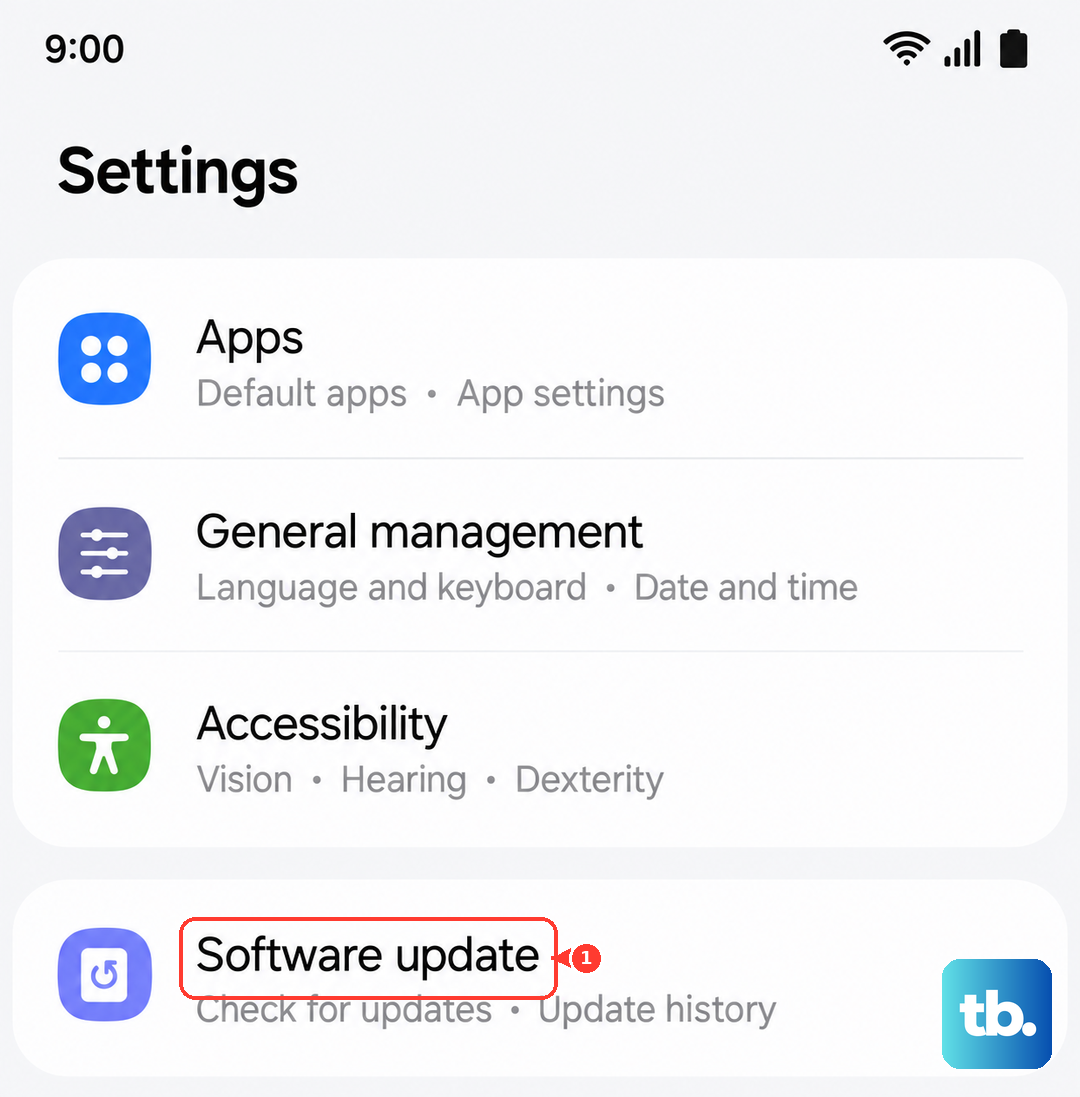
Let the tablet check for updates. If one is available, I'd recommend installing it while connected to Wi-Fi and a charger. Keeping your Tab S10+ on the latest version of Android 14 and One UI 6.1.1 is one of the best ways to ensure stability.
Test the Sensors with Diagnostics
Auto-rotate relies on the accelerometer and gyroscope sensors. You can test these directly using Samsung's secret diagnostic menu. Open the Phone app (yes, even on a Wi-Fi tablet, the app is there) and dial *#0*#.
This will open a hidden test menu. Tap on "Sensor." You'll see a screen with various readings. Gently tilt and rotate your tablet. The values for "X_Angle," "Y_Angle," and "Z_Angle" should change smoothly in response to your movements. If they don't budge at all, it could point to a sensor problem.
Check for Physical Interference
This sounds simple, but it's worth noting. The touchscreen is very sensitive. If your palm or finger is resting on the screen while you're trying to rotate the device, the system might interpret that as an intentional touch and prevent the rotation from happening.
Also, if you're using a very thick or magnetic case, especially one not designed for the Tab S10+, it could potentially interfere with the sensors. Try removing the case briefly and see if rotation starts working normally again.
Consider a Software Reset
If you've tried everything else and the sensors test fine, a deeper software issue might be at play. Before doing anything drastic, try clearing the cache partition. Turn off the tablet, then press and hold Volume Up and Power to boot into Recovery Mode.
Use the volume keys to navigate to "Wipe cache partition" and select it with the power button. This clears temporary system files without touching your personal data. After it completes, select "Reboot system now." If a corrupt cache file was the issue, this can resolve it.