
When your Samsung Galaxy Tab S10+ starts dropping apps left and right, it can really kill your workflow. I've seen this happen for a bunch of reasons, from a simple memory hiccup to a deeper software conflict. The good news is you can almost always get things running smoothly again without too much fuss.
Restart Your Tablet
This is the universal fix for a reason. A quick restart clears out the tablet's working memory and stops any background processes that might be interfering. Just press and hold the Volume Down and Power buttons together for about ten seconds until you see the Samsung logo appear.
If you're in the middle of something, you can do a standard restart from the power menu instead. It's a thirty-second trick that solves more problems than you'd think.
Update the Problem App
App developers are constantly pushing out updates to squash bugs. If one specific app is crashing, head to the Google Play Store and check for an update. Open the Play Store, tap your profile icon in the top right, and go to Manage apps & device.
Look under "Updates available" for the app giving you trouble. If you see it, tap update. Sometimes an app just needs to be brought current with the latest version of Android or One UI to behave properly.
Force Stop and Relaunch the App
When an app freezes and won't close normally, you need to force stop it. This completely shuts down the app's process. Go to Settings > Apps, find the problematic app in the list, and tap on it.
On the app's info page, tap the Force stop button. A warning will pop up, just confirm it. Wait a few seconds, then tap the app's icon on your home screen to launch it fresh. This cuts off any corrupted temporary data that was causing the crash.
Clear the App's Cache
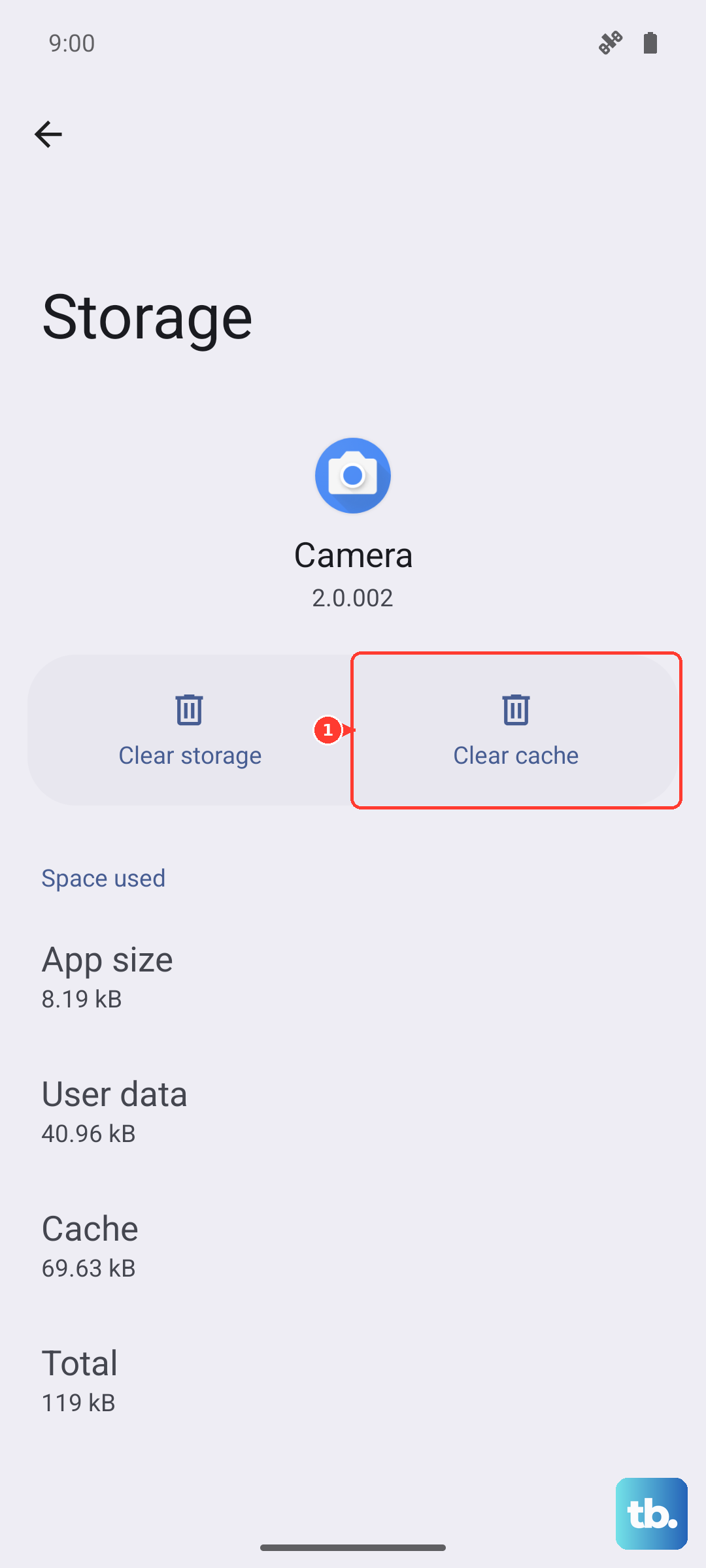
Over time, an app's cache, the temporary files it stores to load faster, can become corrupted. Clearing it gives the app a clean slate without deleting your personal data or login info. Go back to Settings > Apps, select the app, and then tap Storage.
You'll see two options: Clear cache and Clear data. Tap Clear cache first. This is the safe, first-step option. After you do this, open the app again and see if it's more stable.
Check for a System Software Update
Your Galaxy Tab S10+ runs on Android 14 with Samsung's One UI 6.1.1 on top. Updates to this system software often include stability patches and fixes for app compatibility. To check, swipe down twice from the top of the screen and tap the settings gear icon.
Scroll down and tap Software update, then Download and install. If an update is waiting, let it install. I'd recommend plugging in your tablet and using a 45W USB-PD charger for this, as it can take a little while.
Free Up Storage Space
If your tablet's internal storage is completely full, apps have nowhere to write their temporary working data, which can lead to crashes. Open Settings and go to Device care > Storage.
This screen shows you exactly what's taking up space. Look for large, unused apps, old downloads, or cached data from streaming apps. Freeing up even 5-10 GB can make a noticeable difference in how smoothly everything runs.
Reinstall the App Completely
When clearing the cache doesn't work, the next step is to clear the app's data, which essentially resets it to a fresh install state. Be aware this will erase your login information and any settings saved within that app.
Go to Settings > Apps, select the app, tap Storage, and this time choose Clear data. Confirm the action. Afterward, you might want to uninstall the app completely from this same menu, then reinstall it fresh from the Google Play Store.
Check for Overheating
The Dimensity 9300+ chip in the Tab S10+ is powerful, but it can get warm during intense gaming or video editing sessions. If the tablet feels hot to the touch and apps are crashing, it might be thermally throttling to cool down.
Give it a break. Move it to a cooler surface, away from direct sunlight or blankets. Close any demanding apps and let it sit for ten minutes. Using the tablet while it's overheated can lead to performance issues and crashes.
Boot into Safe Mode
Safe Mode temporarily disables all third-party apps you've downloaded. If your apps stop crashing in Safe Mode, you know the problem is caused by one of those installed apps and not the system itself. To enter Safe Mode, press and hold the power button until the power off menu appears.
Then, press and hold the "Power off" option on the screen. A prompt will ask if you want to reboot to Safe Mode. Tap it. Your tablet will restart with "Safe Mode" in the bottom corner. Test the apps that were crashing. To exit, just restart the tablet normally.