
When your Galaxy Tab A9+ won't send pictures, it's usually a quick network or app setting that needs adjusting. The most common fix is to simply restart your tablet, which clears out temporary glitches that can stall messages. I'd start with that one, as it resolves the issue more often than you'd think.
Check Your Internet Connection First
Pictures are sent as data, so a weak or unstable connection is the top culprit. If you're on Wi-Fi, check the status bar to make sure you're connected and the signal is strong. Sometimes, toggling Wi-Fi off and back on in the Quick Settings panel can re-establish a better link.
For cellular models, ensure mobile data is enabled by going to Settings > Connections > Data usage. Make sure the Mobile data switch is on. If your signal is poor, try moving to a different location.
Verify Your Messaging App Settings
Open your messaging app, like Samsung Messages or Google Messages, and check its specific settings. Look for an option labeled "MMS" or "Multimedia messages" and ensure it's turned on. This setting is required for sending pictures over your cellular network instead of just text.
Some apps also have a size limit for attachments. If your photo is very large or high resolution, the app might fail to send it. Try compressing the image first or sending a lower-quality version to see if that's the barrier.
Force Restart Your Tablet
If the screen is frozen or an app is completely unresponsive, a force restart can help. Press and hold the Volume Down button and the Power button simultaneously for about 10 seconds. Release when you see the Samsung logo appear.
This is different from a normal restart and can clear deeper software hiccups that prevent basic functions like sending messages. After it boots up, try sending the picture again.
Clear the Messaging App's Cache
Corrupted temporary data in your messaging app can cause sending failures. Go to Settings > Apps, then select your messaging app from the list. Tap on Storage and then choose Clear cache.
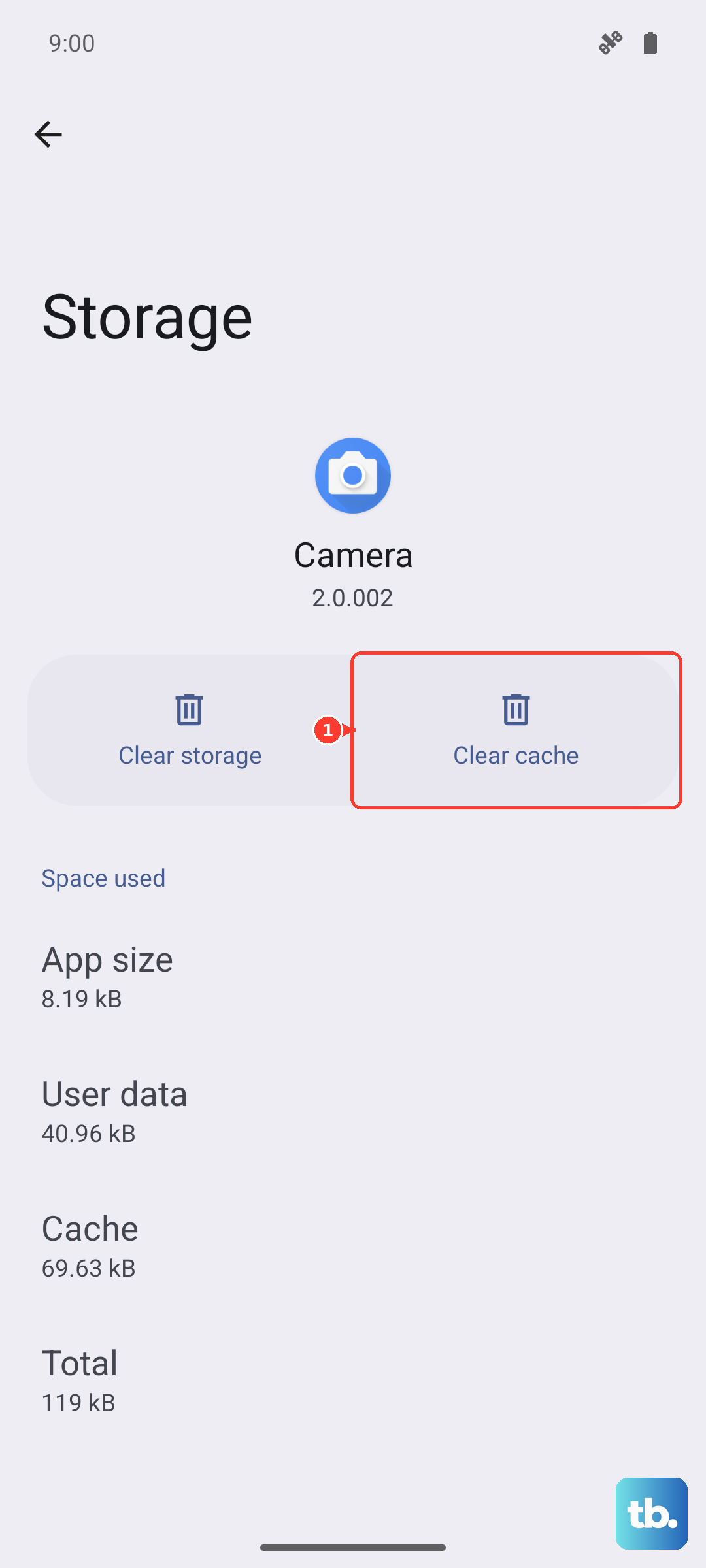
This doesn't delete your messages or personal data, just the temporary files. It's a safe first step before trying more invasive measures. After clearing, open the app and attempt to send your photo.
Check for Software Updates
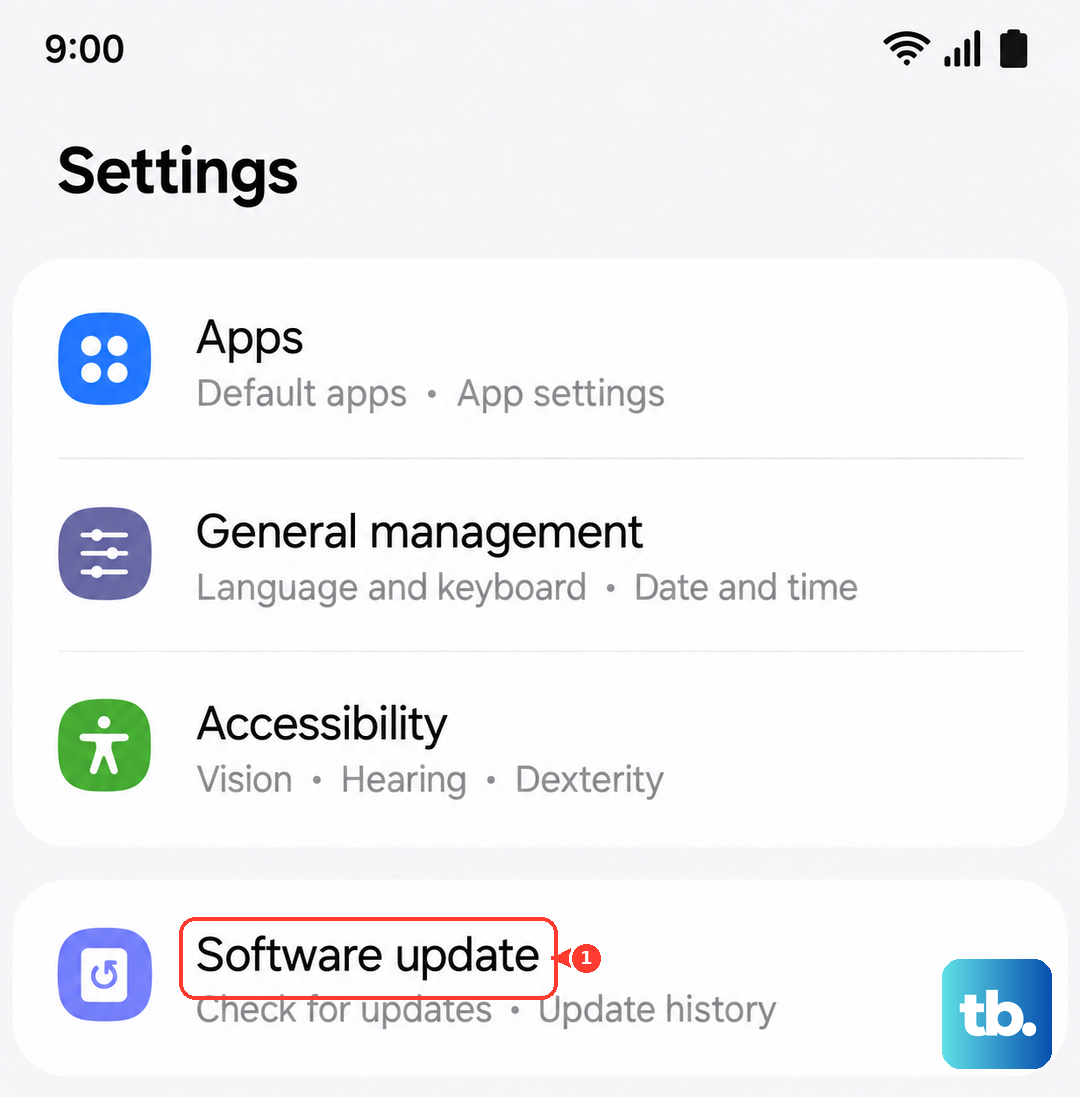
Outdated software can have bugs that affect messaging. Connect to Wi-Fi and go to Settings > Software update > Download and install. If an update is available, installing it can resolve known issues.
Keeping your Tab A9+ updated is a good habit, especially since the Snapdragon 695 chipset benefits from optimized software to keep performance smooth. This also applies to your messaging app updates in the Google Play Store.
Review Your APN Settings
Incorrect Access Point Name (APN) settings can break MMS picture messaging. You'll need to get the correct APN details from your mobile carrier, usually found on their support website. Then, go to Settings > Connections > Mobile networks > Access Point Names.
Compare the settings there with the ones your carrier provides. If you need to edit or add a new APN, tap the "+" icon or the existing APN profile. Saving the correct settings often fixes picture sending problems on cellular networks.
Disable Power Saving Modes
Power saving modes, like Power saving or Adaptive power saving, can restrict background data to save battery. This can prevent your messages app from sending picture data. Swipe down twice from the top of the screen to open the full Quick Settings panel and make sure any battery saver icon is turned off.
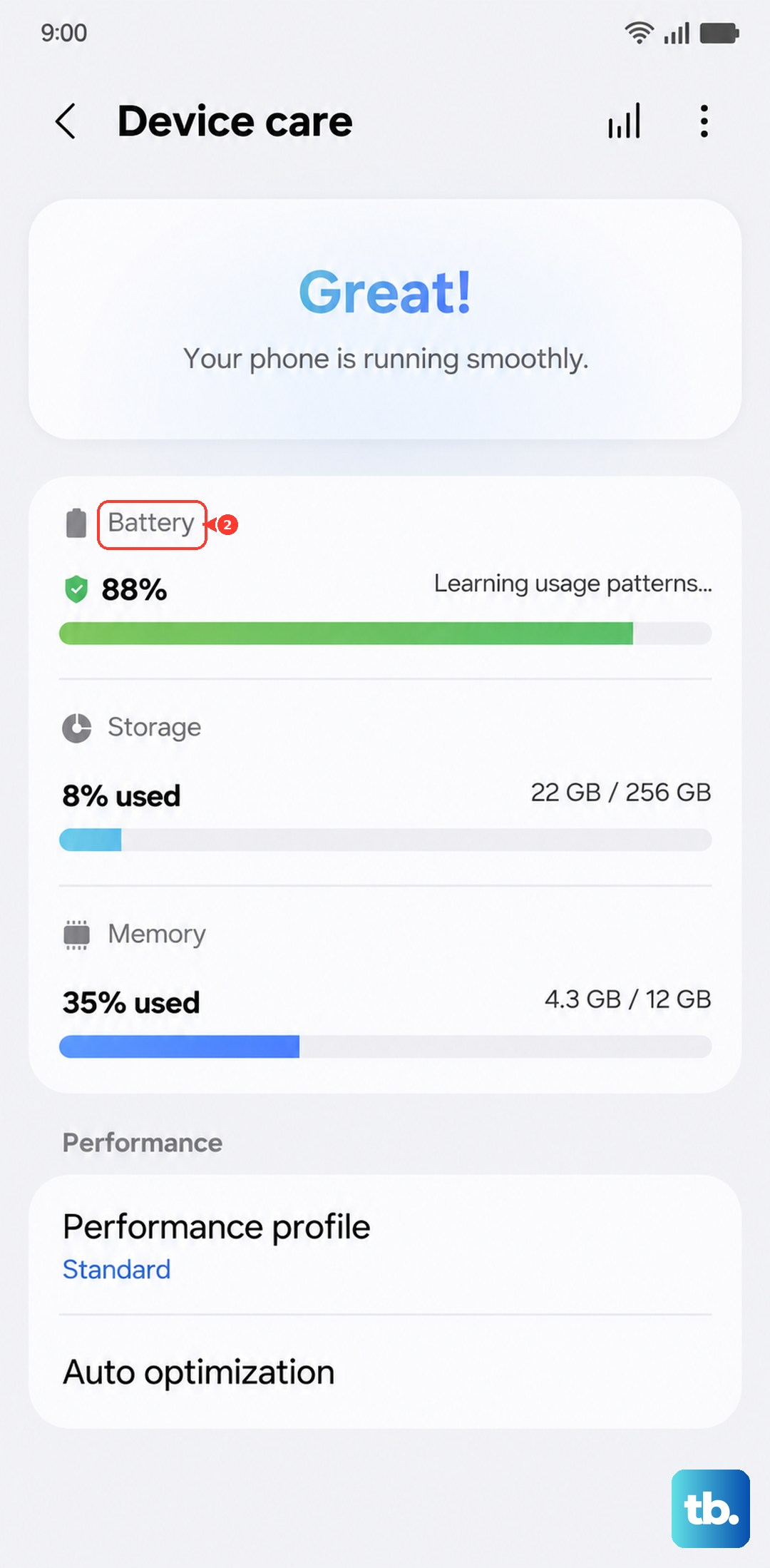
You can also check in Settings > Battery and device care > Battery. Turn off any power saving features there, then try sending your image again with full network access enabled.
Try a Different Messaging App
To rule out a problem with your default app, try sending the picture with an alternative. Download Google Messages from the Play Store and set it as your default app temporarily. If the picture sends successfully, the issue is likely with your previous app's configuration or data.
This is a useful diagnostic step. You can always switch back to your preferred app later after you've isolated the cause of the problem.
Reset Network Settings
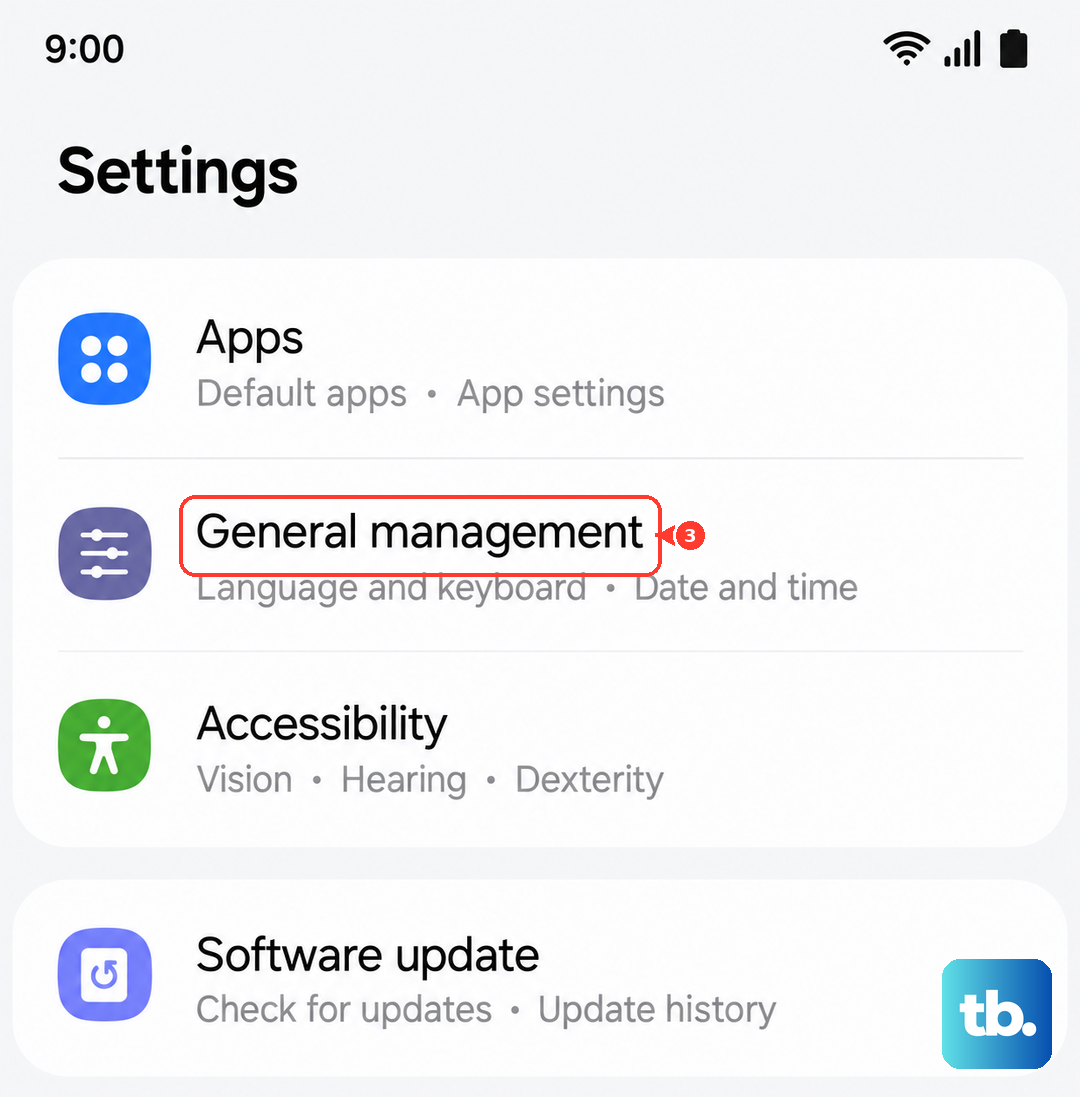
This will reset all Wi-Fi, mobile data, and Bluetooth connections to their default state. Go to Settings > General management > Reset > Reset network settings. Tap to confirm.
Be aware this will erase all saved Wi-Fi passwords and paired Bluetooth devices, so you'll need to reconnect to them afterward. It's a reliable way to wipe any deep network configuration errors that are blocking your MMS messages.
Ensure Date and Time Are Correct
An incorrect system time can sometimes interfere with data services. Go to Settings > General management > Date and time. Make sure the "Use network-provided time" option is enabled.
If it's already on, try turning it off and setting the date and time manually, then toggle the automatic setting back on. This refreshes the connection to the time server and can correct a subtle glitch affecting your connectivity.