
You're trying to watch something on your Samsung Galaxy Tab A9+, but the Wi-Fi just won't cooperate. That spinning icon is frustrating, especially when you just want to browse or stream. I've found that on the Tab A9+, Wi-Fi issues are usually a quick software fix, not a hardware problem.
Toggle Wi-Fi and Restart Your Tablet
Start with the simplest fix. Swipe down from the top of your screen to open the Quick Panel. Tap the Wi-Fi icon to turn it off, wait five seconds, then tap it again to turn it back on. This forces the tablet to drop the connection and search for networks fresh.
If that doesn't work, restart the tablet. Press and hold the Volume Down button and the Power button together for about 10 seconds until you see the Samsung logo. This clears out any temporary glitches in One UI 6 that might be blocking the connection.
Forget the Network and Reconnect
Your tablet might be holding onto old or incorrect login details for your Wi-Fi. Open the Settings app and go to Connections > Wi-Fi. Tap on the name of your network, then select Forget.
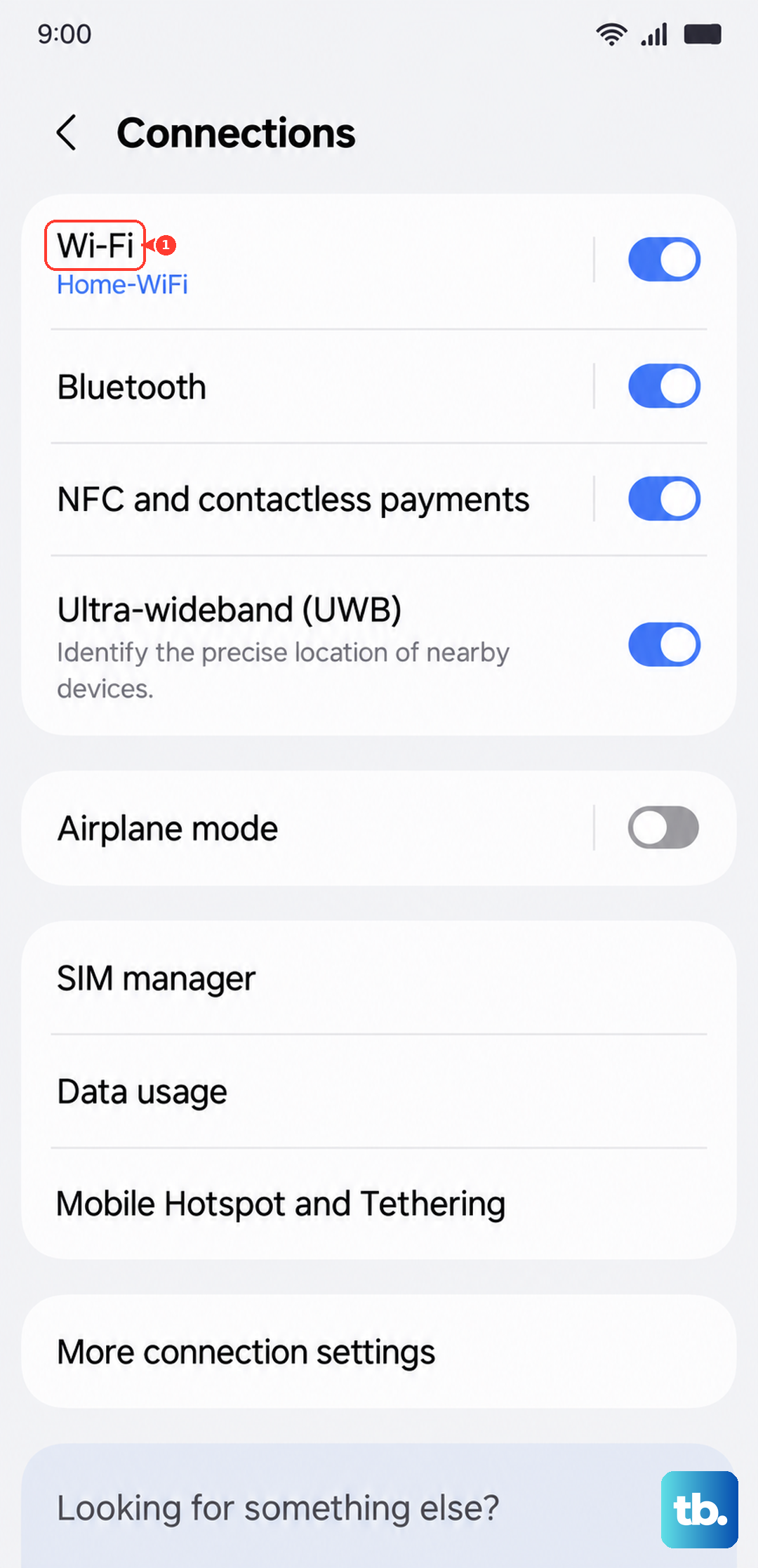
Now, find your network in the list again, tap it, and re-enter the password carefully. This is the most common fix if you've recently changed your Wi-Fi password or gotten a new router.
Check for Router Issues
Before you spend more time on the tablet, make sure the problem isn't with your internet itself. Unplug your router and modem from power, wait a full 60 seconds, and plug them back in. Give them a couple of minutes to boot up completely.
If other devices in your home are also struggling to connect, the router is almost certainly the culprit. It's a good idea to check if there's a firmware update available for your router through its admin settings.
Disable Power Saving and Adaptive Features
The Tab A9+ has a large 7040mAh battery, and the power saving modes can be aggressive to preserve it. These modes can limit background network activity. Go to Settings > Battery and device care > Battery and make sure any power saving mode is turned off.
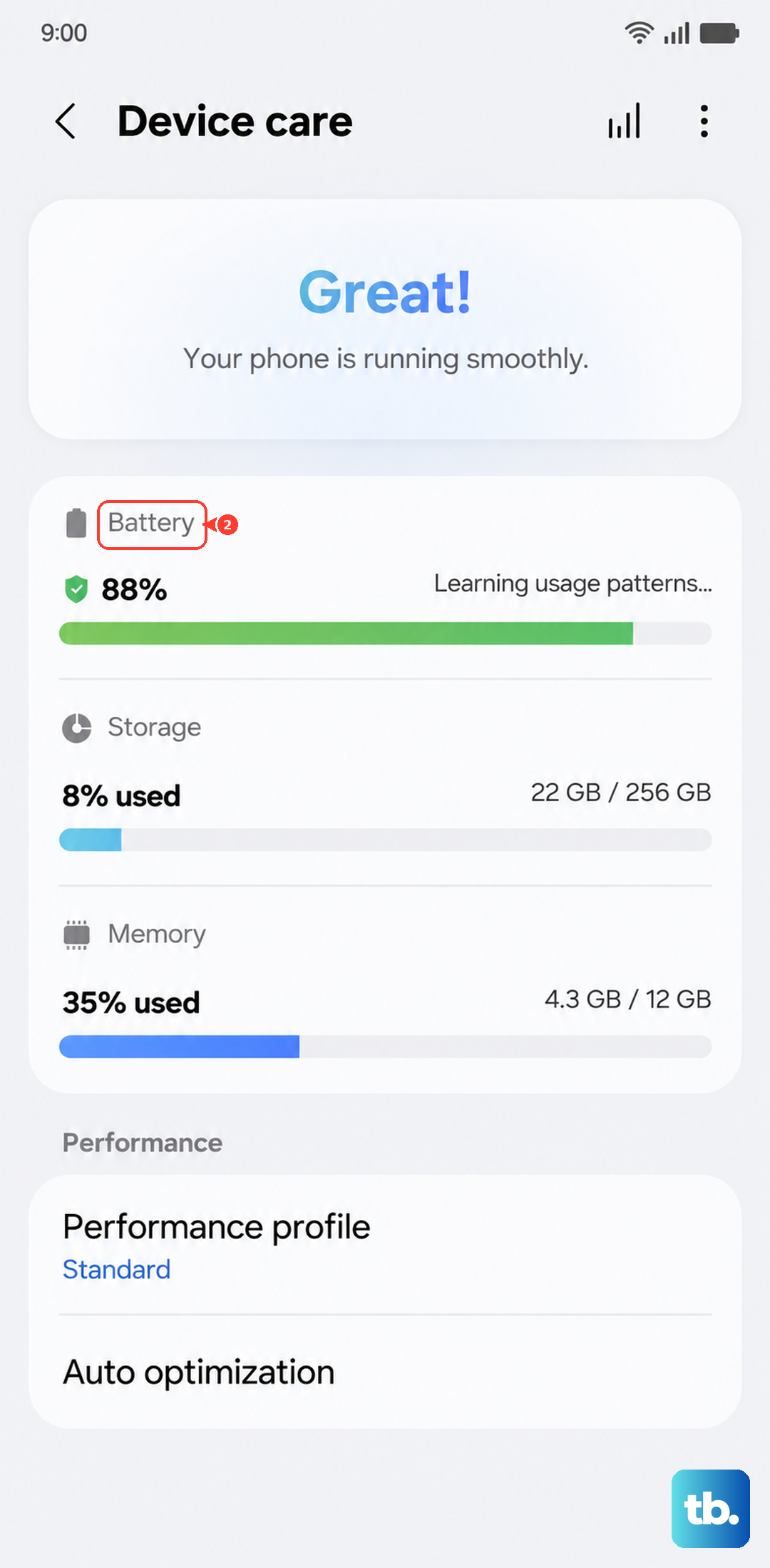
Also, check for a feature called "Switch to mobile data." Go to Settings > Connections > Wi-Fi, tap the three-dot menu, then Intelligent Wi-Fi. Turn off "Switch to mobile data." This feature can sometimes prevent a stable Wi-Fi connection from forming.
Update Your Tablet's Software
Outdated software is a common source of bugs, including Wi-Fi problems. Samsung releases updates that often include connectivity improvements. Go to Settings > Software update > Download and install.
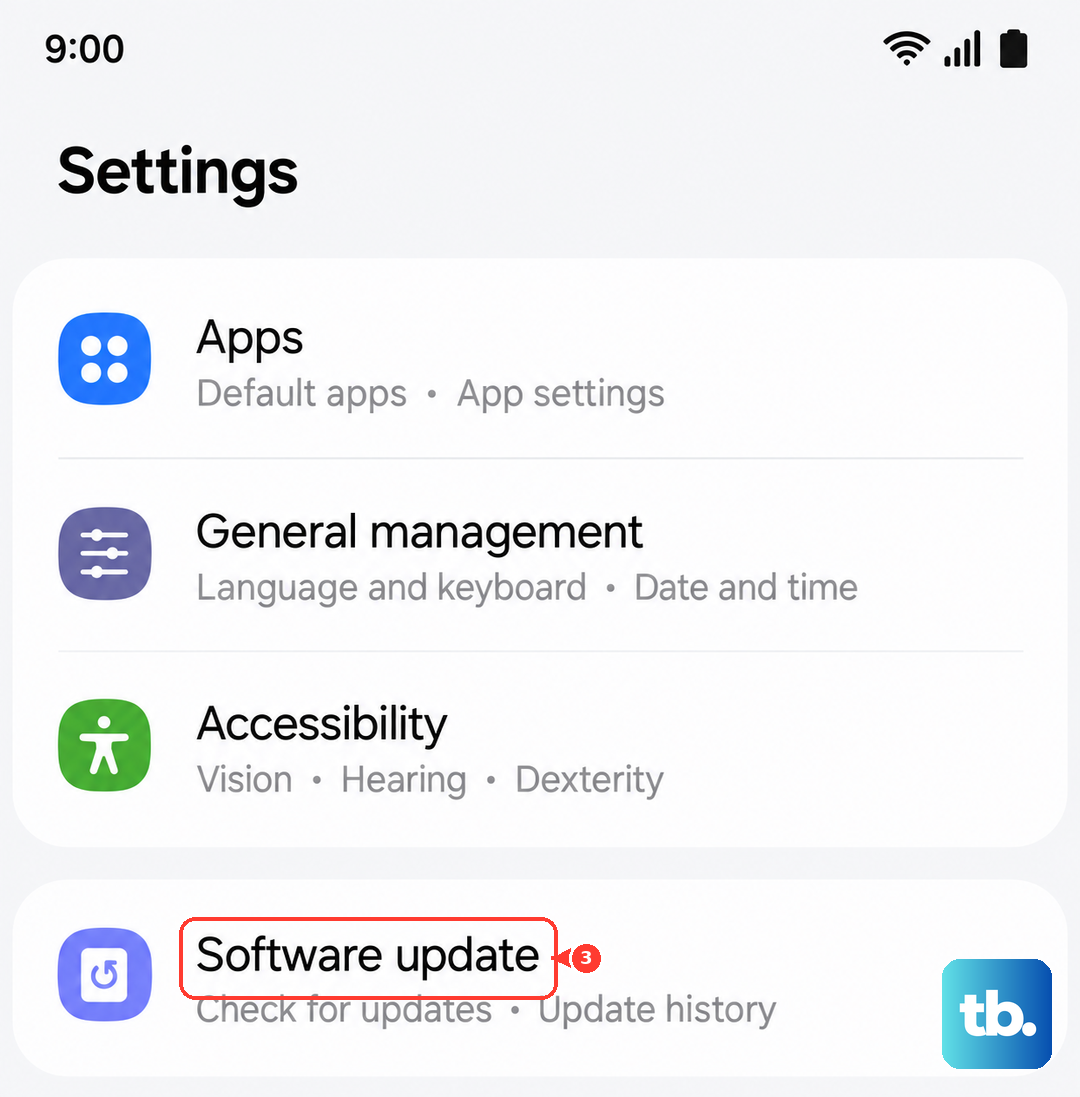
Make sure your tablet is connected to a network (you might need to use mobile data or a different Wi-Fi source for this step) and install any available updates. Keeping your Tab A9+ on the latest available version of Android and One UI is one of the best ways to maintain stability.
Reset Your Network Settings
This step clears all your saved networks, Bluetooth pairings, and cellular settings back to default. It's very effective for stubborn connection issues. First, go to Settings > General management > Reset.
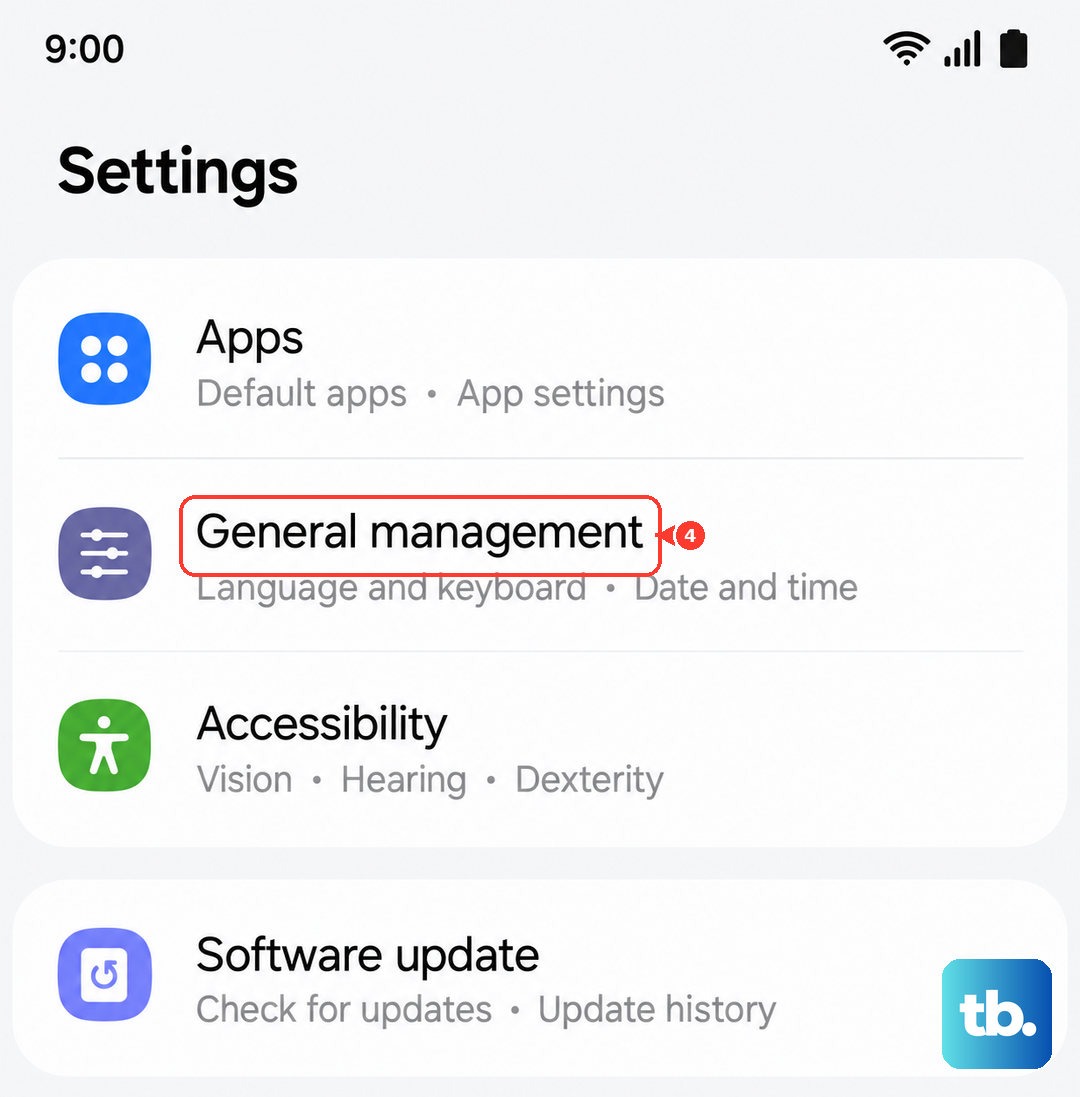
Tap Reset network settings. You'll need to confirm your PIN or password. After the reset, you'll have to reconnect to your Wi-Fi and re-pair any Bluetooth devices, but it often solves deep-seated glitches.
Boot Into Safe Mode
A third-party app you installed could be interfering with the Wi-Fi. To check, you need to boot into Safe Mode, which temporarily disables all downloaded apps. Press and hold the Power button until the power menu appears.
Then, tap and hold the "Power off" option on your screen. You'll see a prompt to reboot into Safe Mode. Tap it. If your Wi-Fi works perfectly in Safe Mode, you know an app is the problem. You'll need to restart your tablet to exit Safe Mode, then uninstall recent apps one by one to find the culprit.
Check Date, Time, and MAC Settings
Incorrect date and time can break the security certificates needed for Wi-Fi. Go to Settings > General management > Date and time. Make sure "Automatic date and time" is enabled.
Also, some networks restrict access based on a device's MAC address. In your Wi-Fi settings, tap on your network name, then tap "Advanced." Look for "MAC address type" and try switching it from "Phone MAC" to "Randomized MAC," or vice versa, to see if it helps you connect.
Consider a Factory Reset
This is your last resort before considering a hardware issue. A factory reset will erase everything on your tablet, so you must back up your photos, files, and app data first. You can use Samsung Cloud or Google One for this.
Once backed up, go to Settings > General management > Reset > Factory data reset. Follow the prompts. If your Wi-Fi still doesn't work after setting up the tablet from scratch, the problem may be with the tablet's internal Wi-Fi antenna.