
When your Galaxy Tab A9+ stops responding to "Hey Google" or the Bixby button, it can feel like you've lost a helpful sidekick. The voice assistant that's supposed to simplify tasks suddenly goes quiet. Here's how to get it working again, whether you're using Google Assistant or Samsung's Bixby.
Start With a Quick Restart
Before diving into settings, give your tablet a fresh start. I've found this resolves a surprising number of temporary glitches, especially on the Snapdragon 695 chipset which can sometimes get bogged down.
Press and hold the Volume Down and Power buttons together for about 10 seconds. Keep holding until you see the Samsung logo appear, then let go. This force restart is often more effective than a standard shutdown.
Verify Your Assistant is Enabled
First, confirm which assistant you're trying to use and that it's actually turned on. Your Tab A9+ can run both Google Assistant and Bixby, and sometimes they can get switched off.
For Google Assistant, open the Google app and tap your profile picture in the top right. Go to Settings > Google Assistant. Scroll down and make sure "Hey Google" is toggled on. You might need to retrain your voice model here.
For Bixby, swipe right from your home screen to open Bixby Home, or press and hold the Bixby button if you've set one up. Tap the three-dot menu, go to Settings, and ensure "Voice wake-up" is enabled under the "Voice" section.
Check for Microphone Blockages
The Tab A9+ has microphones that can easily get covered. Check around the edges of the tablet, particularly near the top and bottom of the frame. If you're using a case, especially a bulky one, it might be obstructing the mic.
Try removing the case temporarily and testing the voice commands. Gently clean any visible microphone ports with a soft, dry brush. Avoid using compressed air directly into the ports, as you could push debris further in.
Review App Permissions
Both assistants need explicit permission to use your microphone. If you recently updated to Android 14 or One UI 6, some permissions might have reset.
Go to Settings > Apps. Find either "Google" or "Bixby Voice" in the list and tap it. Select Permissions and ensure the Microphone permission is set to "Allow." While you're there, also check that the app isn't restricted in the background, as this can prevent it from listening.
Disable Battery Saving Modes
Power saving modes are great for extending battery life on the 7040mAh cell, but they aggressively limit background activity. This includes the processes that listen for "Hey Google" or "Hi Bixby."
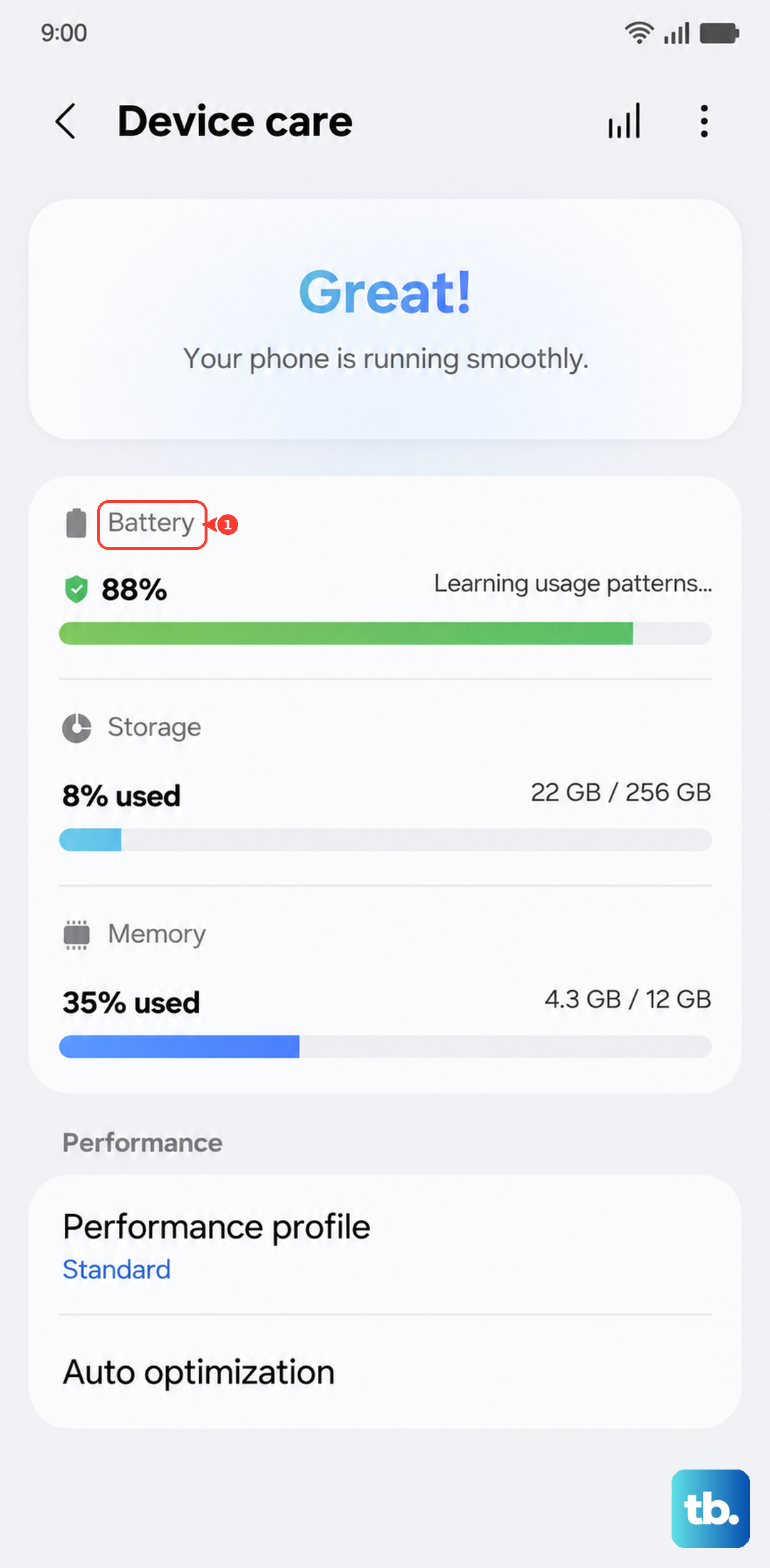
Swipe down twice from the top of your screen to see the full Quick Settings panel. Look for any power saving icons, like "Power saving" or "Medium power saving," and make sure they're turned off. You can also go to Settings > Battery and device care > Battery to check.
Update Your Software
Outdated software can contain bugs that break voice features. Samsung regularly releases updates that can fix these issues.
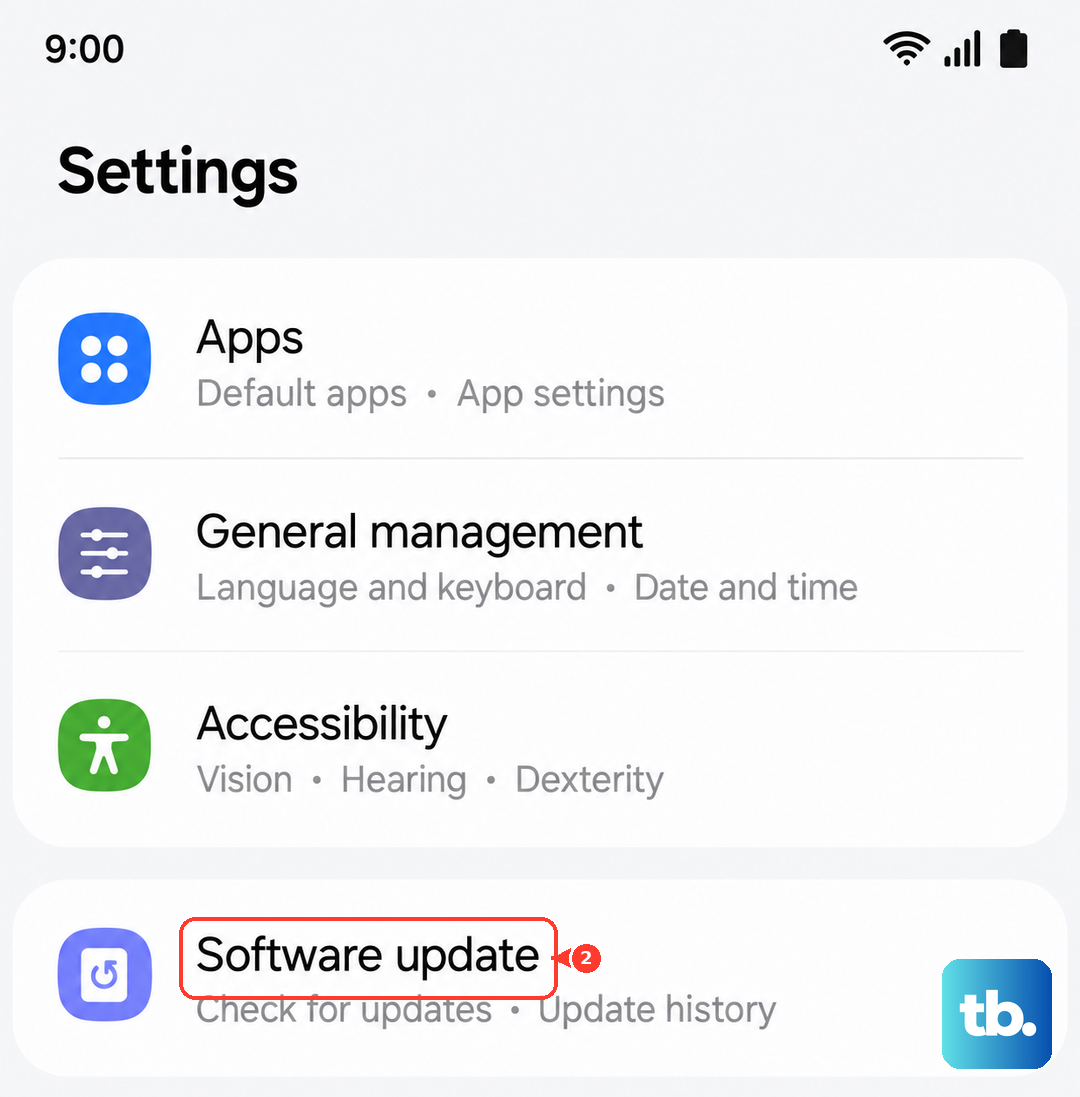
Head to Settings > Software update and tap "Download and install." If an update is available, let it complete. Since the Tab A9+ runs Android 14 with One UI 6, make sure you have the latest security patch. After updating, restart your tablet once more.
Clear the Assistant App's Cache
Corrupted temporary data can cause the assistant to malfunction. Clearing the cache is a safe first step that won't delete your personal data or settings.
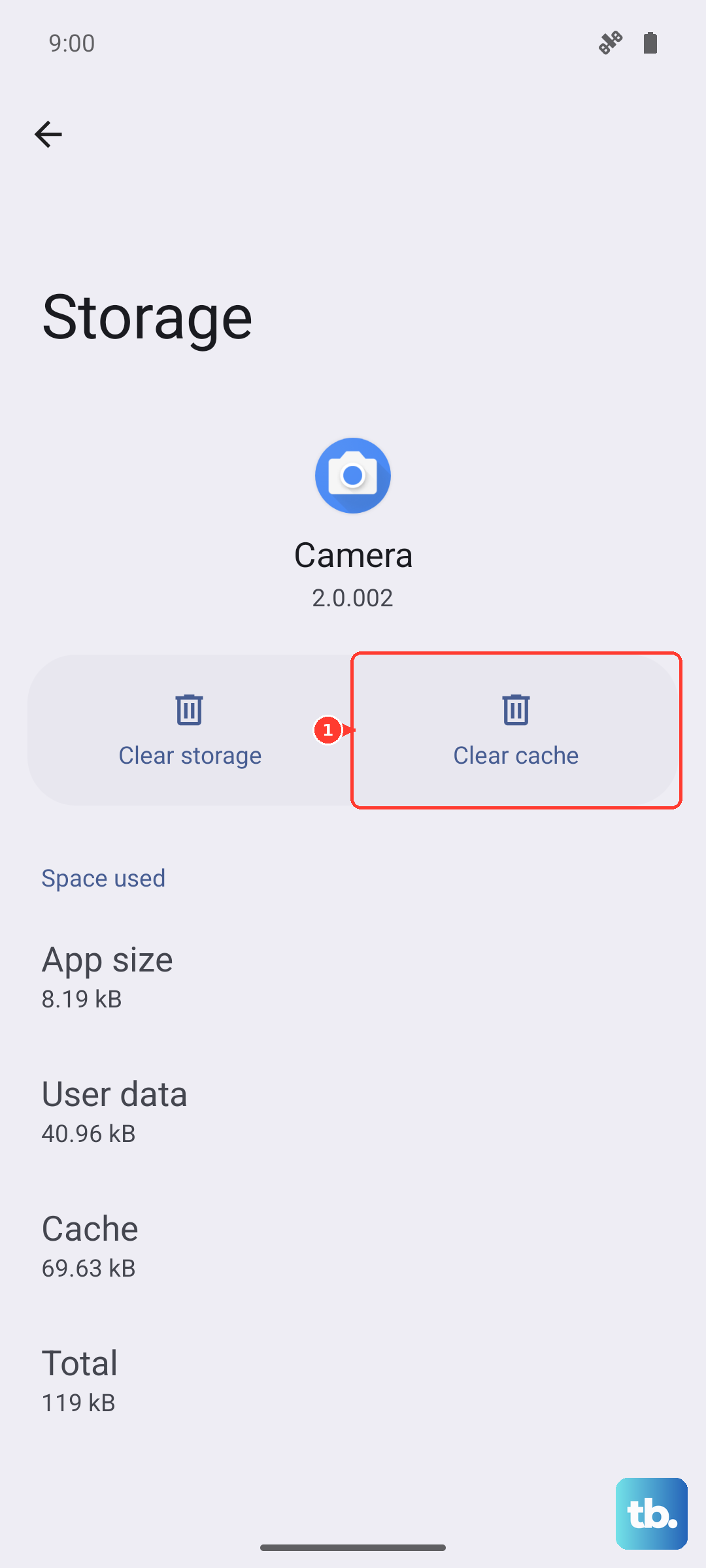
Go to Settings > Apps again. Find the relevant app (Google or Bixby Voice) and tap it. Select Storage and then tap "Clear cache." Do not tap "Clear data" unless you're prepared to set the assistant up again from scratch.
Check for Conflicting Accessibility Features
Certain accessibility tools can interfere with the microphone or voice wake-up functions. It's worth a quick look to rule this out.
Navigate to Settings > Accessibility. Look for features like "Sound detectors" or "Hearing enhancements." Try turning them off temporarily to see if your voice assistant starts working again. You can always turn them back on later.
Reset All Settings
If you're still having trouble, a settings reset can help. This will revert all your system settings (like Wi-Fi passwords, Bluetooth pairings, and display preferences) back to default without touching your personal files, photos, or apps.
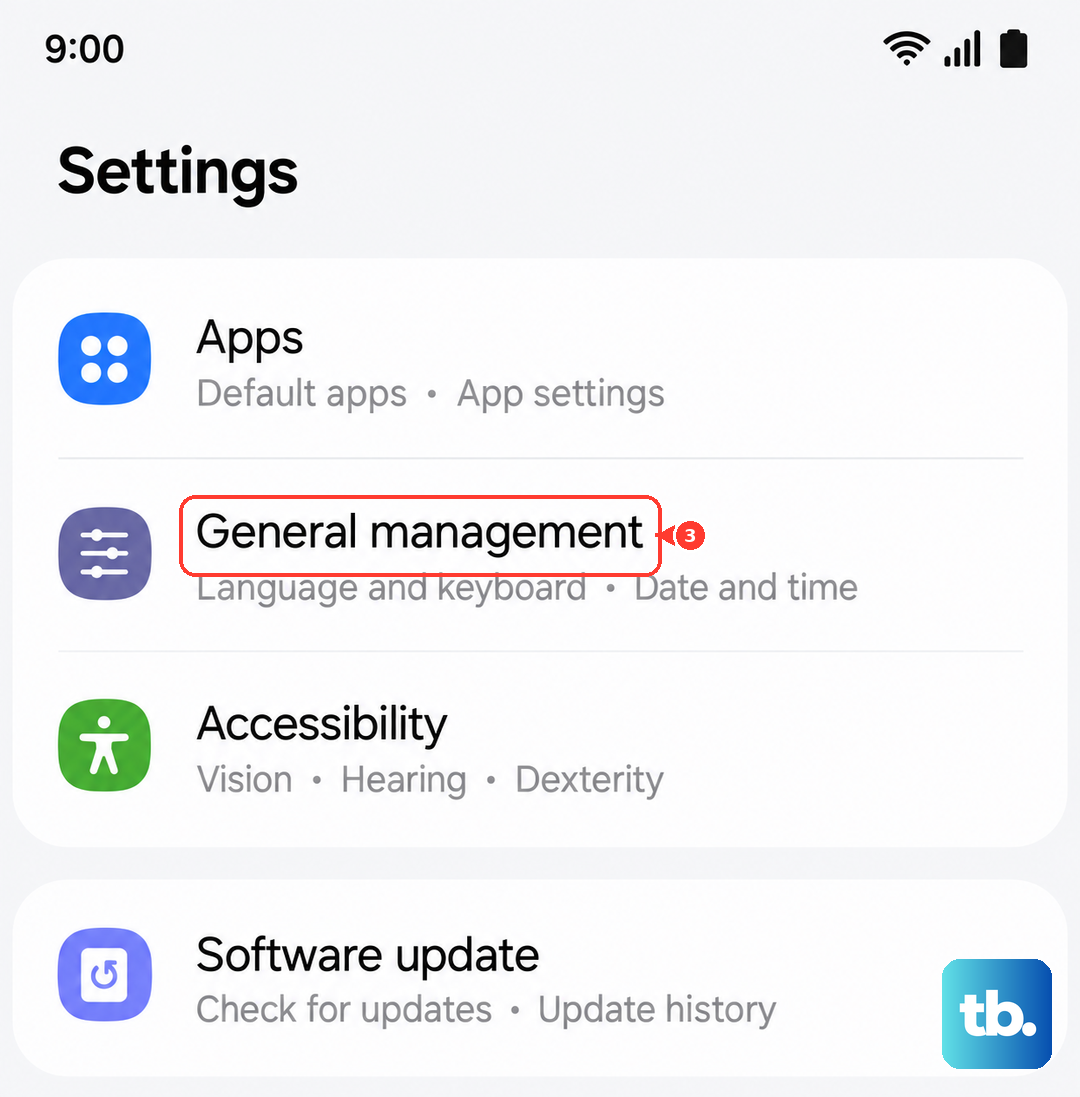
Go to Settings > General management. Tap Reset and then select "Reset all settings." Enter your PIN if prompted and confirm. You'll need to reconnect to Wi-Fi and re-pair Bluetooth devices afterward, but it often clears up stubborn configuration conflicts.
Ensure a Stable Network Connection
While basic commands might process on-device, many voice assistant requests require an internet connection to fetch answers, control smart home devices, or fetch information from the web.
Check that you're connected to Wi-Fi or have mobile data enabled. Try opening a webpage in Chrome to test the connection. If you're on a network with a captive portal (like a hotel or coffee shop), you may need to sign in through a browser before the assistant can work online.