
If your Samsung Galaxy Tab A9+ is constantly buffering, stuttering, or freezing during videos, it can ruin the experience. This is a common headache, but there are quite a few things you can try to get your streaming and playback back to smooth sailing.
Restart Your Tablet
This is always the best first step. A simple restart clears out temporary glitches in the system and refreshes all your apps. Just press and hold the Volume Down button and the Power button together for about 10 seconds until you see the Samsung logo appear and the tablet reboots.
Check Your Wi-Fi Connection
Buffering is most often a network problem. The Tab A9+ has a solid Wi-Fi radio, but it can only work with the signal it gets. Start by running a speed test right next to your router, then again where you usually use the tablet. If there's a big drop, that's likely the culprit.
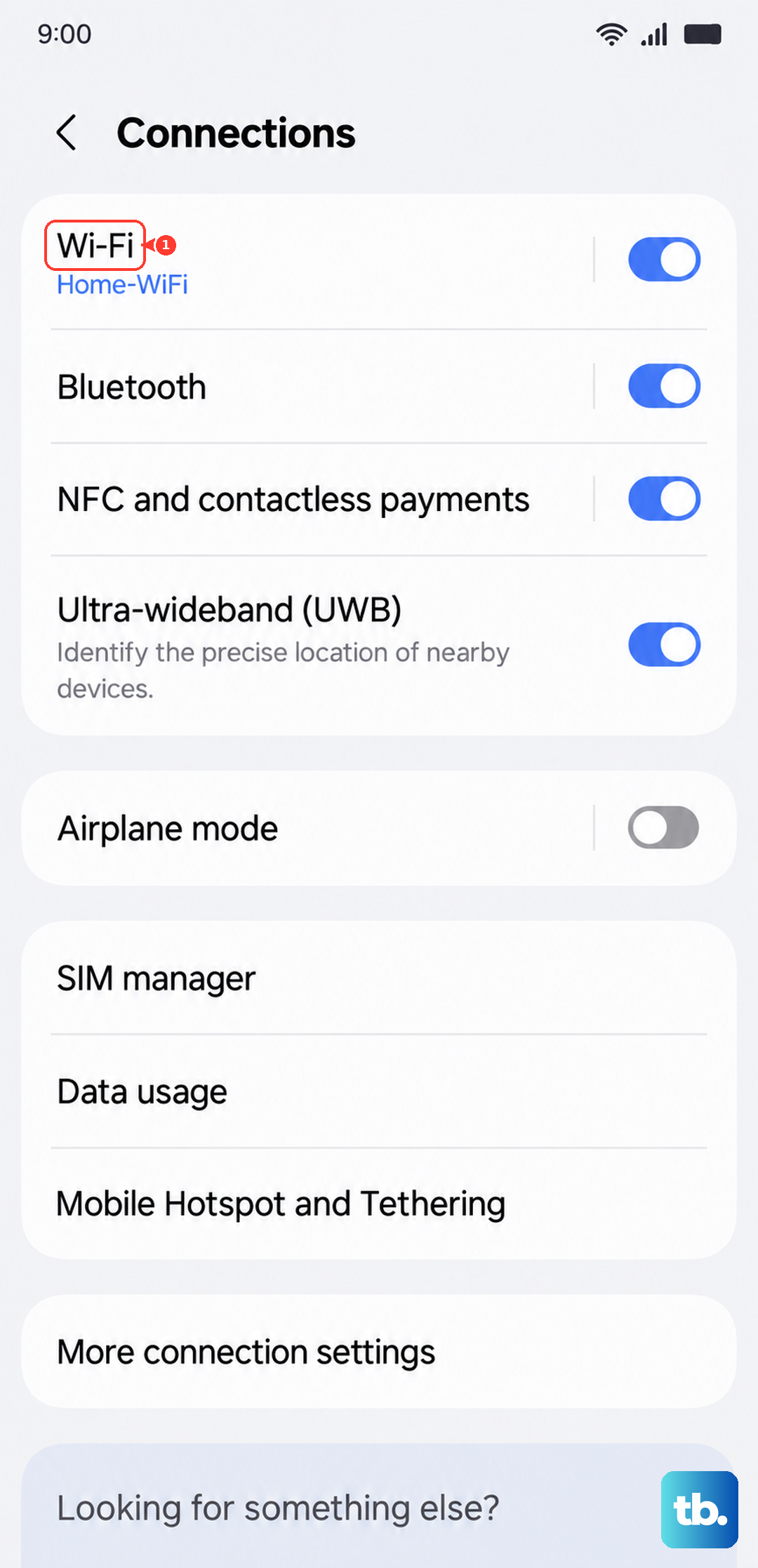
You can also try forgetting your network and reconnecting. Go to Settings > Connections > Wi-Fi, tap on your network name, then select "Forget." Reconnect by entering your password again. This often clears up connection hiccups.
Close Background Apps
The Snapdragon 695 chip in the A9+ is capable, but it can struggle if too many apps are running and eating up RAM. This is especially true for video playback, which needs consistent resources. Swipe up from the bottom of the screen and hold to enter the recent apps view, then close everything you're not actively using.
I'd make a habit of doing this before starting a long streaming session. Keeping background activity minimal is a good tip for maintaining smooth performance on this tablet in general.
Clear the App's Cache and Data
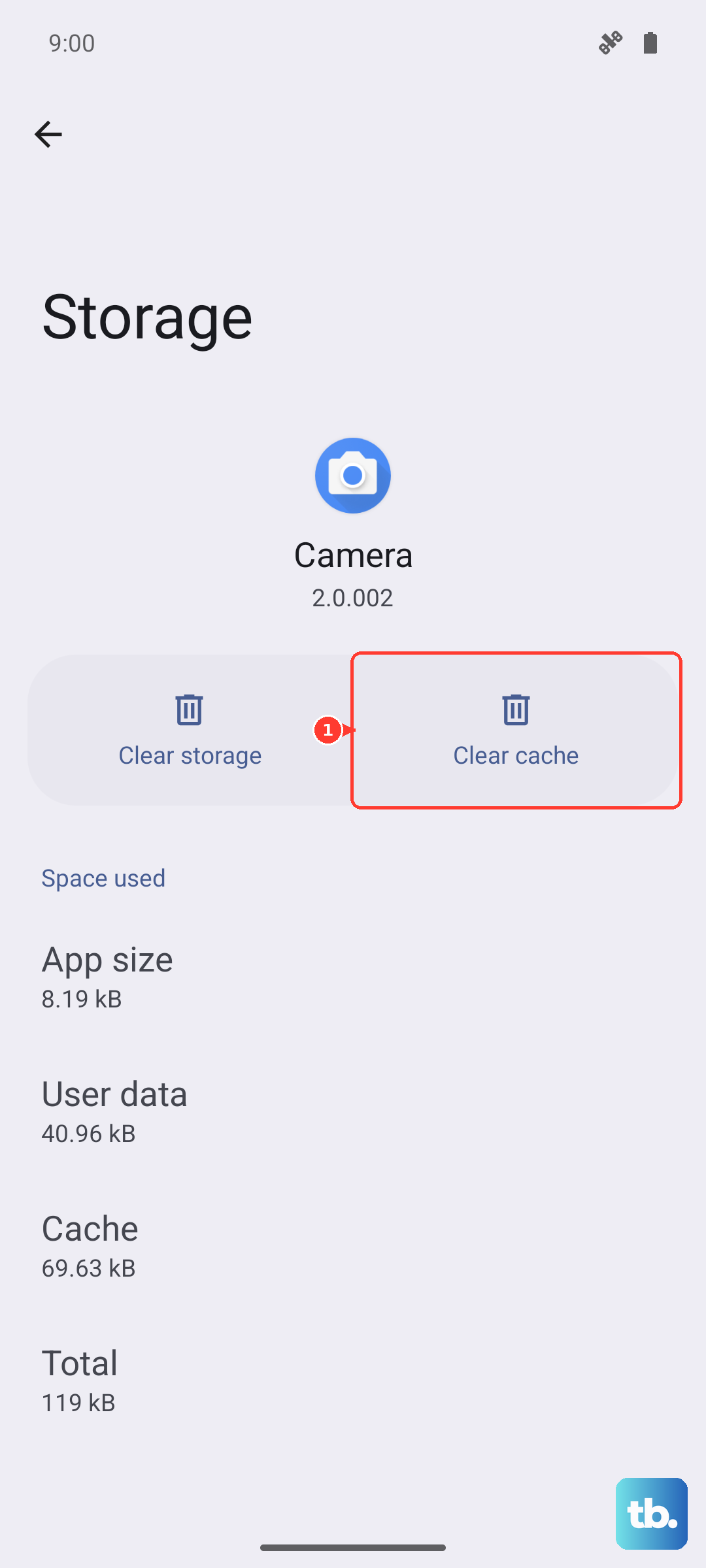
If the problem is specific to one app like YouTube, Netflix, or Disney+, its stored temporary files (cache) might be corrupted. Clearing this can fix playback issues without deleting your login info. Go to Settings > Apps, select the problematic app, then tap on "Storage."
Tap "Clear Cache" first. If that doesn't help, you can try "Clear Data." Just be warned, clearing data will log you out and reset the app's settings, so you'll need to sign back in.
Adjust Video Streaming Quality
Sometimes the simplest fix is to lower the demand on your connection and hardware. If you're trying to stream in 1080p or 4K on a mediocre Wi-Fi signal, buffering is almost guaranteed. In your streaming app's settings, manually set the playback quality to 720p or even 480p to see if the stuttering stops.
This is a practical workaround, especially since the tablet's screen resolution, while good, isn't so high that 720p looks bad. It's better than constant buffering.
Update Your Apps and Software
Outdated apps can have bugs that cause poor playback. Open the Google Play Store, tap your profile icon, and go to "Manage apps & device" to check for updates. Install any pending updates for your streaming apps.
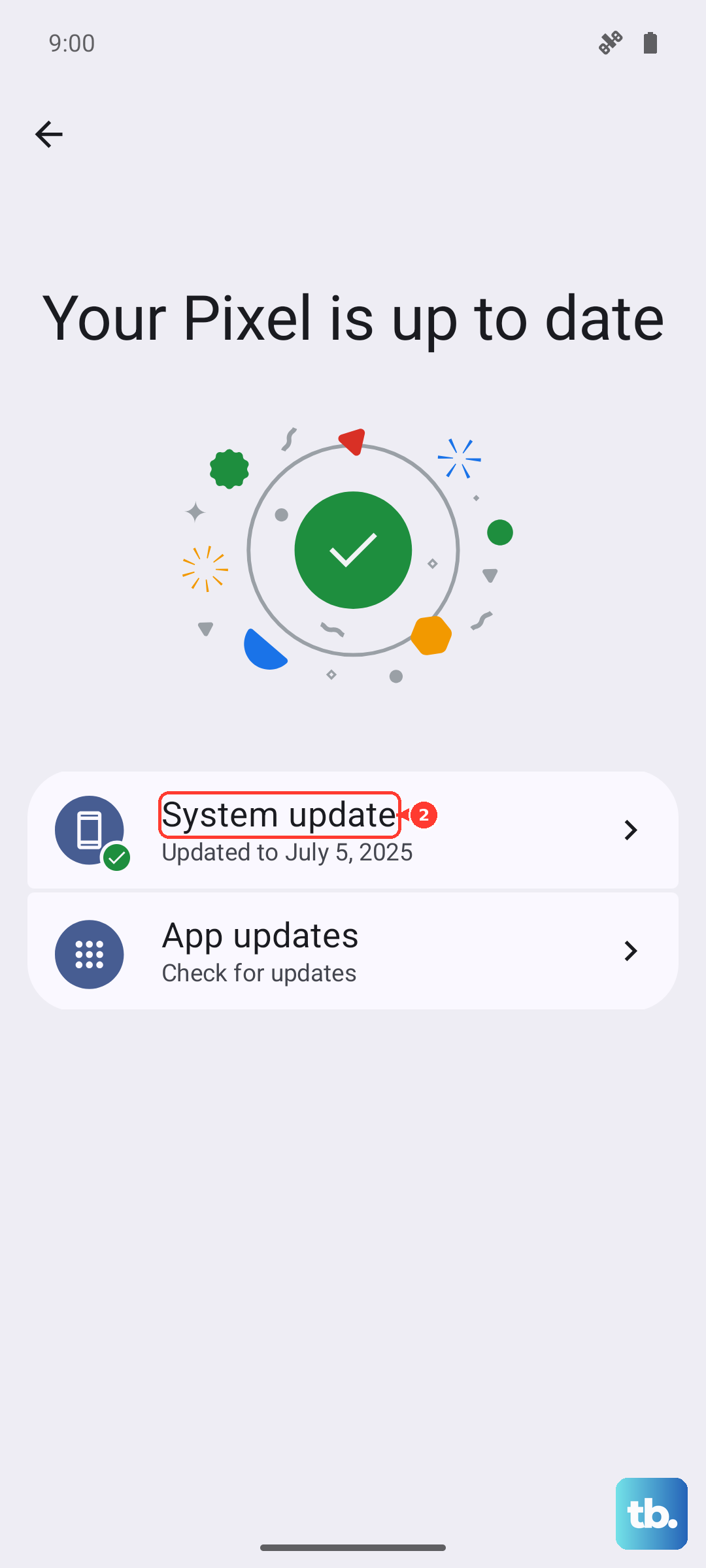
Also, check for a system update. Samsung and Google release patches that can improve performance and connectivity. Go to Settings > Software update > Download and install.
Free Up Storage Space
While less common than a network issue, a nearly full storage can slow down system processes. The tablet needs free space to operate smoothly. Go to Settings > Battery and device care > Storage to see what's using space.
Look for large downloaded video files you no longer need, or clear out app caches across the board from this menu. Try to keep at least 3-4GB free.
Try a Different Power Mode
One UI has power modes that can throttle performance to save battery. If you're in a power-saving mode, it might be limiting the CPU just enough to cause video stutter. Go to Settings > Battery and device care > Battery.
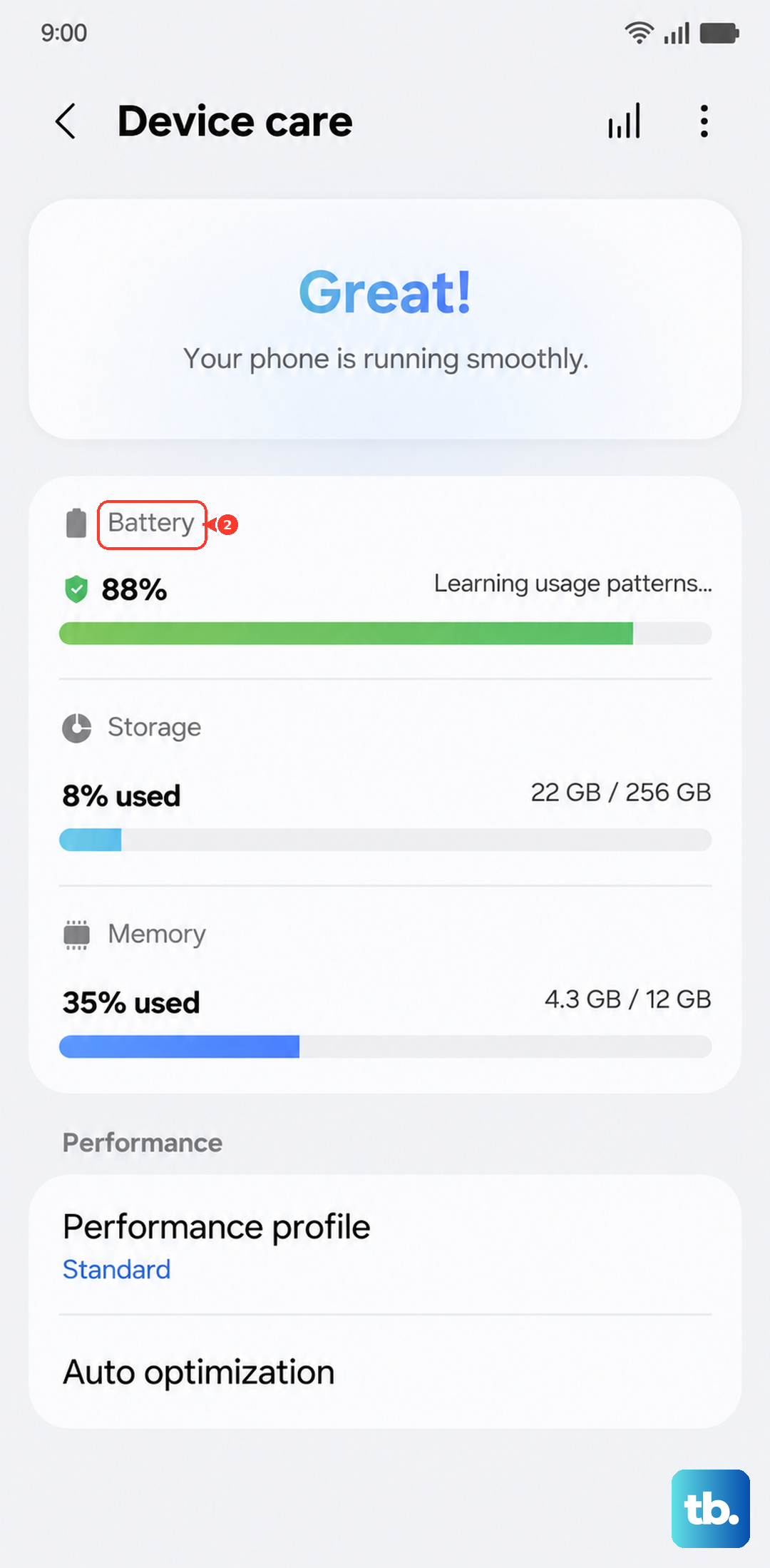
Make sure you're set to "Optimized" or "High performance" mode for the best media experience. The "Light" performance profile is more likely to cause hiccups during video decoding.
Check for Overheating
If your tablet feels unusually warm to the touch, it might be thermally throttling. This means the system is slowing itself down to prevent damage. The processor struggling with a demanding app or a poor signal causing it to work harder can both generate heat.
Take the case off if you're using one, move to a cooler environment, and close all apps to let it cool down. Once the temperature drops, performance should return to normal.
Reset Network Settings
If you've tried everything else and the problem seems network-related, resetting all network settings can be a nuclear option that works. This will erase all saved Wi-Fi networks, Bluetooth pairings, and mobile data settings.
Go to Settings > General management > Reset > Reset network settings. You'll have to reconnect to your Wi-Fi and re-pair Bluetooth devices afterward, but it can resolve deep-seated connectivity glitches.