
If your Samsung Galaxy Tab A9+ has gone silent and stopped vibrating for notifications or taps, it can be easy to miss important alerts. This is usually a quick settings fix, not a sign of a major problem.
I'd start with the simplest solution first. A quick restart can clear out any temporary software glitch that might be telling the vibration motor to stay quiet.
Perform a Quick Restart
Press and hold the Volume Down button and the Power button together for about 10 seconds. Keep holding them until you see the Samsung logo appear on the screen, then let go.
Your tablet will reboot. This takes less than a minute and often resolves minor system hiccups, including vibration issues, right away.
Check Your Sound and Vibration Mode
Your Tab A9+ might be in a mode that disables vibration entirely. Swipe down from the top of the screen to open the Quick Settings panel and look at the sound icon.
If it shows a bell with a slash or a vibration icon, tap it to cycle to the standard "Sound" mode. You can also go into Settings > Sounds and vibration and make sure "Sound mode" is set to "Sound".
In that same menu, verify that the "Vibrate while ringing" toggle is switched on. If it's already on, try turning it off and back on again.
Adjust the Vibration Strength
The vibration motor on the Tab A9+ isn't the most powerful, and sometimes the intensity can get turned down too low to feel, especially if the tablet is on a soft surface.
Head to Settings > Sounds and vibration > Vibration intensity. Here you'll find separate sliders for call vibration, notification vibration, and touch feedback.
Drag each slider to the right to increase the strength. I'd recommend setting notification and call vibration to at least the halfway point to ensure you can feel it.
Review App-Specific Notification Settings
If vibration works for some apps but not others, the problem is likely in that app's individual notification settings. Android and One UI give you a lot of control here.
Go to Settings > Apps, select the app that's not vibrating, and tap "Notifications". Make sure notifications are allowed for the app overall.
Then, look for specific notification categories (like "General" or "Messages") and tap into each one. Ensure the "Vibrate" option is enabled for the alerts you want to feel.
Enable System Haptics and Feedback
There are separate settings for system vibrations, like when you type on the keyboard or press navigation buttons. If these are off, your tablet can feel completely unresponsive to touch.
Navigate to Settings > Sounds and vibration > System sounds and vibration. Look for the "Touch vibration" and "Keyboard vibration" toggles and make sure they are enabled.
This is a common oversight. Many people don't realize system haptics are controlled separately from notification vibrations.
Test for a Problematic App in Safe Mode
If the vibration works fine for system actions but not for your apps, a third-party app you installed could be causing a conflict. Safe Mode temporarily disables all downloaded apps.
To enter Safe Mode, press and hold the Power button until the power menu appears. Then, tap and hold the "Power off" option on your screen. A prompt to reboot into Safe Mode will pop up, tap "OK".
Once in Safe Mode (you'll see "Safe mode" in the bottom corner), test if vibration works normally. If it does, a recently installed app is the culprit. Restart normally to exit Safe Mode and try uninstalling apps one by one.
Check for a Software Update
Samsung occasionally releases updates that fix bugs, including ones related to haptic feedback. It's worth making sure your Tab A9+ is running the latest software.
Open Settings > Software update and tap "Download and install". If an update is available, connect to Wi-Fi and let it install. The Snapdragon 695 chipset handles updates smoothly, so this shouldn't take too long.
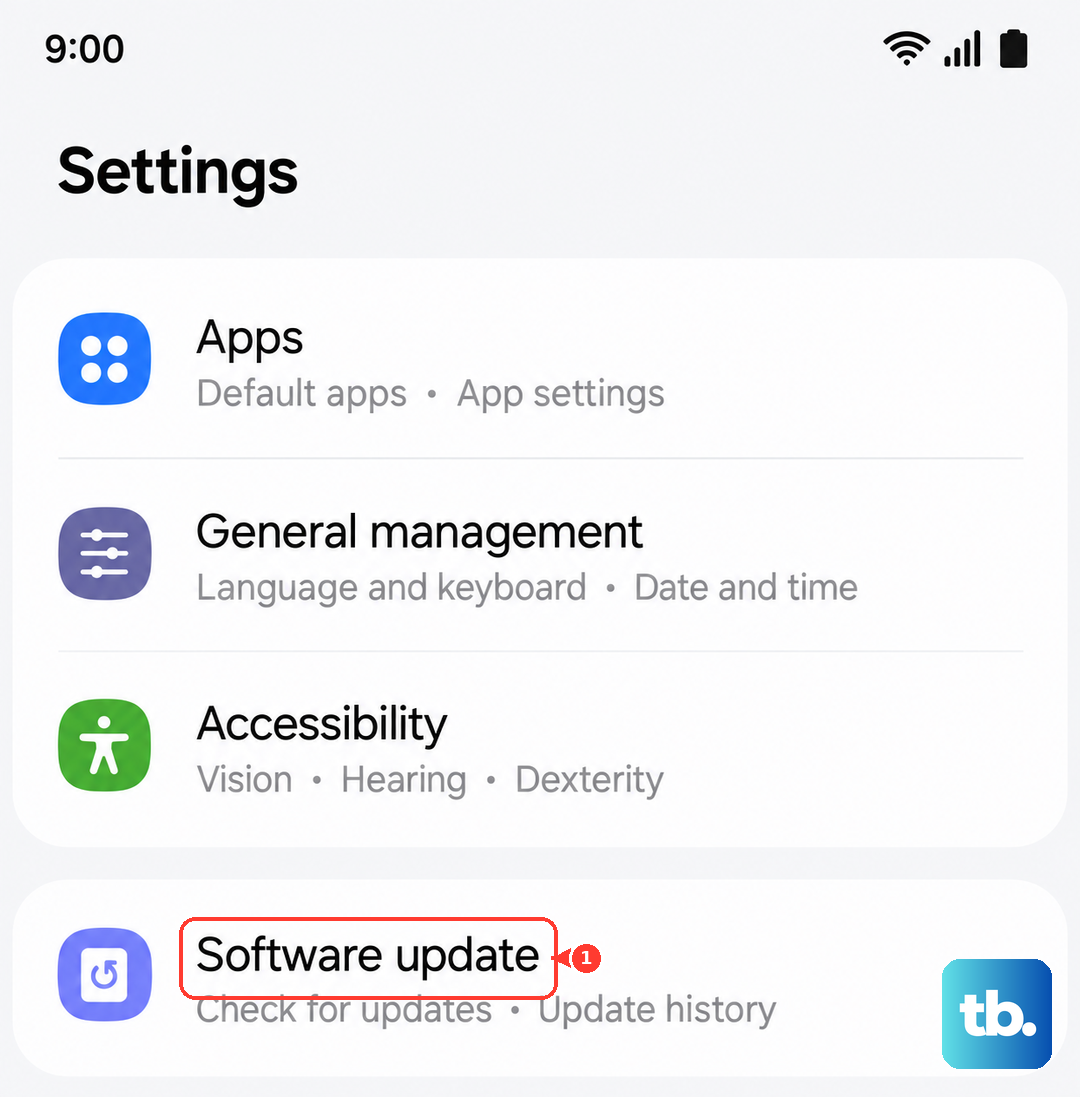
After the update, your tablet will restart. Test the vibration again once it's back up and running.
Remove Any Custom Themes
Sometimes, themes downloaded from the Galaxy Store or other sources can have bugs that interfere with system functions like vibration. It's a good idea to revert to the default theme to rule this out.
Long-press on an empty area of your home screen and tap "Themes". Go to the "Menu" (usually three lines) and select "My stuff". Find your currently applied theme and tap "Default" to remove it.
Apply the standard One UI theme and see if your vibration functionality returns. You can always reapply a custom theme later if this wasn't the issue.
Run a Hardware Diagnostic Test
Before considering anything more drastic, you can use Samsung's built-in diagnostic tool to check if the vibration motor itself is working. This will tell you if it's a software or hardware problem.
Open your Phone app (if you have a cellular model) or your preferred dialer app. Type *#0*# to enter the secret test menu. A grid of colored buttons will appear.
Tap the button labeled "Vibration". If your Tab A9+ vibrates in a distinct pattern, the physical motor is functioning correctly and the issue is purely software-based.
Reset All Settings
If you've tried everything and vibration is still not working, a settings reset can help. This won't delete your personal data like photos or apps, but it will revert all system settings to their factory defaults.
Go to Settings > General management > Reset > Reset settings. Tap "Reset settings" again and enter your PIN if prompted. Your tablet will restart.
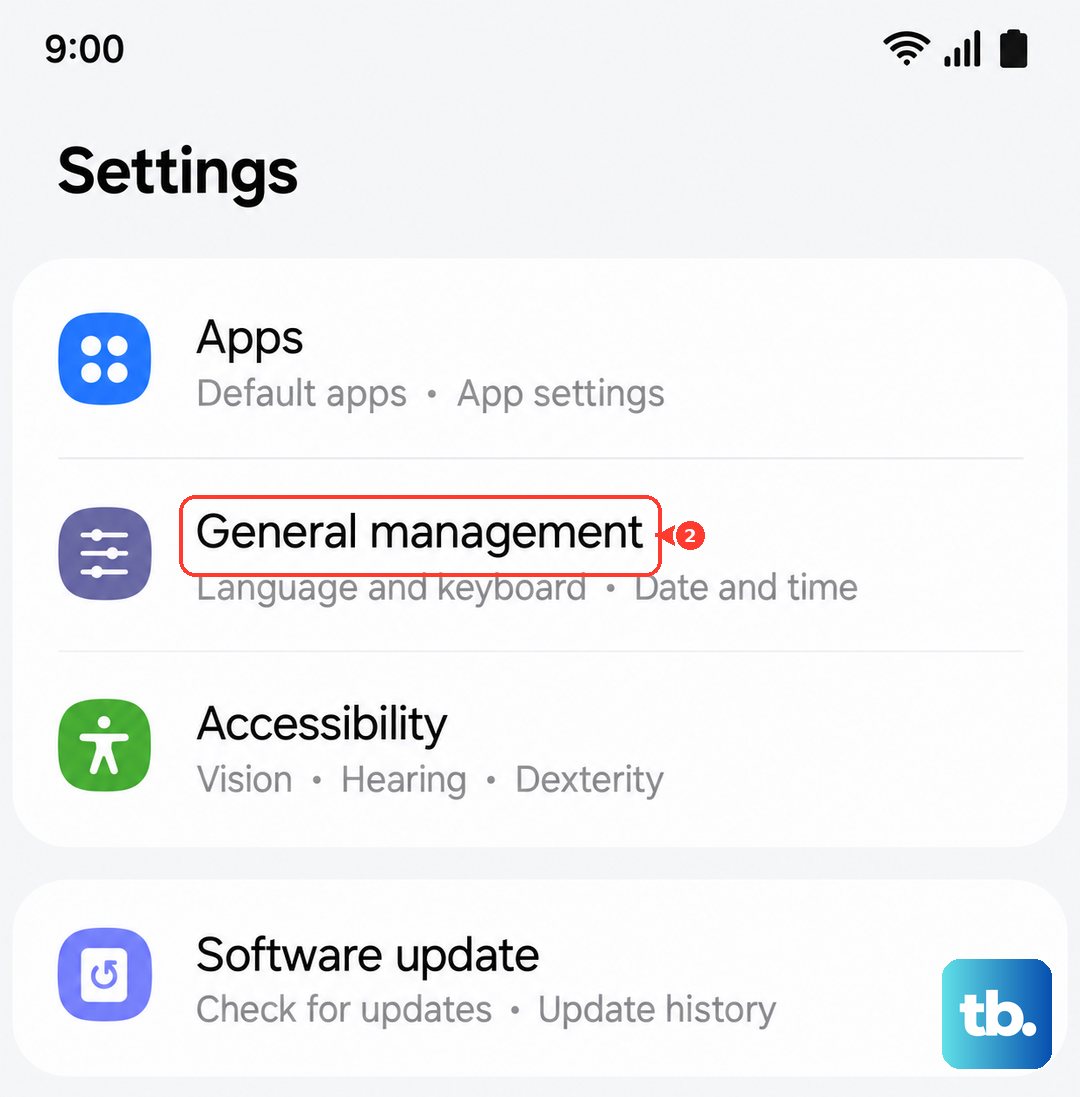
After the reboot, you'll need to reconfigure things like Wi-Fi, wallpaper, and sound modes, but this often clears out any deep-seated configuration error causing the vibration to fail.