
Seeing that "Storage Full" warning on your Samsung Galaxy Tab A9+ can really slow you down, especially when you're trying to download a new app or save a document. The good news is that with a few targeted cleanups, you can often free up several gigabytes of space. Let's walk through the most effective ways to clear things out.
Find Out What's Filling Your Storage
Start by opening Settings > Battery and device care > Storage. This screen gives you a color-coded breakdown of what's using space on your tablet. Wait a moment for it to finish calculating. You'll likely see that Apps, Images, and Videos are the biggest culprits, which is a great place to begin your cleanup.
Clear App Caches and Data
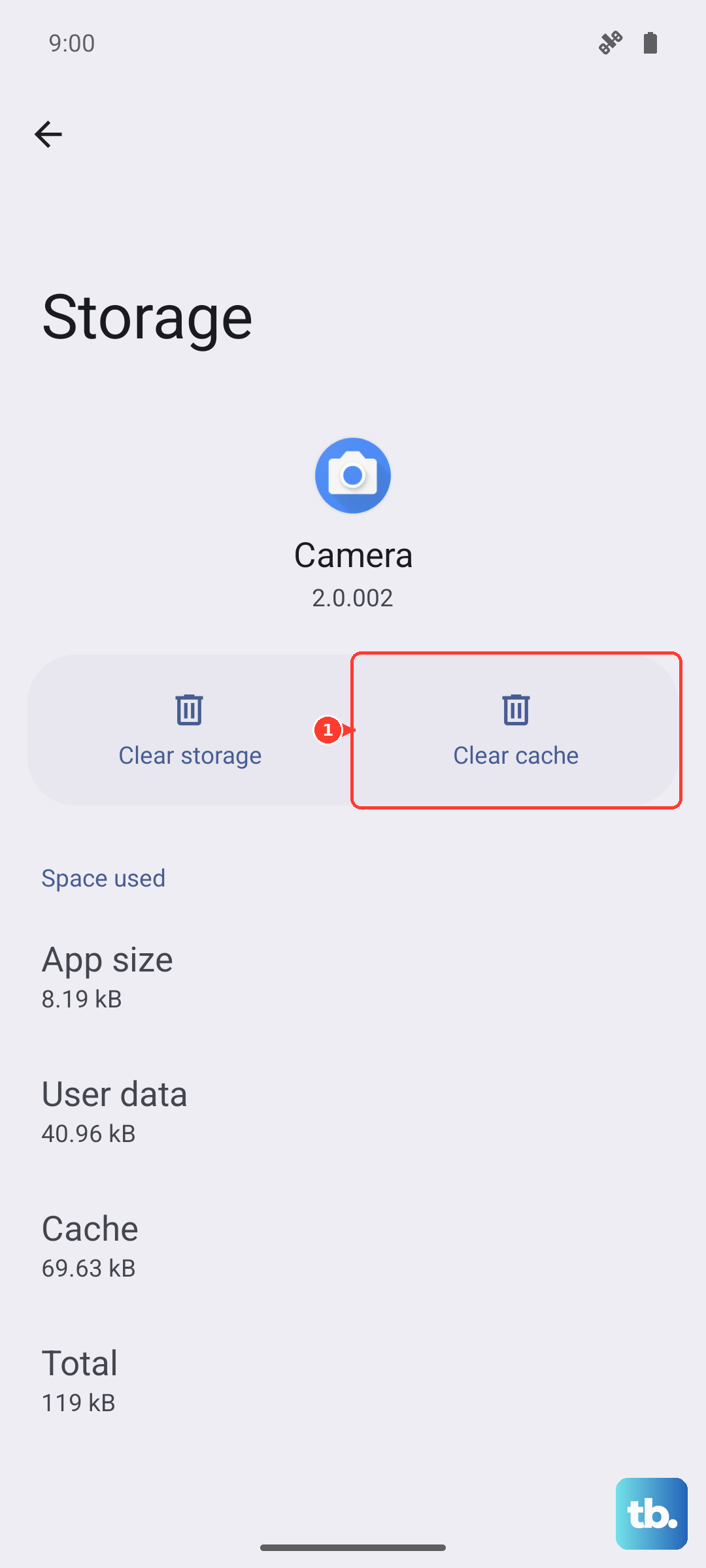
In that same Storage menu, tap on Apps. This shows a list of all your installed applications sorted by size. Tap on any large app, like a social media app or a game. You'll see two buttons: Clear cache and Clear data. Tapping "Clear cache" is safe and removes temporary files. "Clear data" is more drastic, as it resets the app to a fresh state, so use that only if you're sure.
Manage Your Photos and Videos
Go to your Gallery app and use the search function to find categories like "Screenshots" or "Duplicate files." You can safely delete old screenshots you no longer need. Also, take a minute to scroll through your videos, as even a few short clips can take up a lot of space on your Tab A9+. Don't forget to empty the Trash folder in the Gallery afterward to permanently delete them.
Remove Downloaded Files and Documents
Open the My Files app on your tablet. Look in the Downloads folder and the Internal storage section for old PDFs, APK files, or documents you saved once and forgot about. You can also check the "Large files" filter within My Files to quickly spot the biggest space-hogging items that are safe to delete.
Streaming App Cleanup
Apps like Netflix, Spotify, and YouTube Music store content for offline use. Open Netflix, go to Downloads, and remove shows you've already watched. In Spotify, go to Settings > Storage and delete downloaded playlists or podcasts. This is a quick way to reclaim multiple gigabytes without affecting your account.
Use Samsung's Maintenance Suggestions
Back in Settings > Battery and device care, tap the "Optimize now" button. This runs a quick scan and can often suggest things like closing background apps or clearing unnecessary files. I've found this tool is particularly helpful for keeping the Tab A9+ running smoothly, as its Snapdragon 695 chip benefits from having minimal background processes.
Move Files to an SD Card
The Galaxy Tab A9+ has a microSD card slot, which is your best long-term solution. If you have one inserted, go to Settings > Battery and device care > Storage > Advanced > Transfer to SD card. You can move photos, videos, and some app data over to free up the internal storage. Some apps can also be directly moved to the SD card from the Apps list in Settings.
Review System and Other Files
In the Storage analysis screen, you might see a category called "Other" or "System." This can sometimes grow larger than expected. A simple restart of your tablet can help clear some temporary system files. If it remains unusually high, consider backing up your important data and performing a factory reset as a last resort, as this will wipe the slate completely clean.
Prevent Future Storage Issues
To keep storage from filling up again, make a habit of clearing app caches every few weeks. You can also enable automatic cleanup in the Gallery app settings to regularly remove screenshots after a set time. Using cloud services like Google Photos or Samsung Cloud with the "Free up space" feature can automatically remove local copies of photos that are already backed up safely online.