
If your Samsung Galaxy Tab A9+ is taking forever to load web pages or buffer videos, you're not stuck with it. Slow WiFi and mobile data on this tablet is a common headache, but it's usually something you can fix yourself in a few minutes.
The Snapdragon 695 chip inside is decent for everyday tasks, but it can get bogged down if too much is running in the background. I'd start by clearing out some digital clutter and tweaking a few key settings. These steps work for both sluggish home WiFi and slow cellular data connections.
Restart Your Tablet and Router
This is the oldest trick in the book because it works. A simple restart clears out temporary software glitches that can mess with your network connection. For the Galaxy Tab A9+, press and hold the Volume Down and Power buttons together for about 10 seconds until you see the Samsung logo.
While you're at it, unplug your WiFi router from power for 30 seconds and plug it back in. Give both devices a minute to fully boot up, then try your connection again. It's surprising how often this is the only fix you need.
Toggle Airplane Mode On and Off
When your mobile data is crawling, this trick forces your tablet to reconnect to the cellular network from scratch. Swipe down from the top of the screen twice to open the Quick Settings panel and tap the Airplane Mode icon.
Wait about 10 seconds, then tap it again to turn it off. Your tablet will search for the strongest available signal. This can kick you off a congested tower and onto a faster one, giving your data speeds an instant boost.
Forget and Reconnect to Your WiFi Network
If your home WiFi is the problem, your tablet might be holding onto outdated connection data. Go to Settings > Connections > WiFi. Tap on the network name you're connected to, then select "Forget."
This removes the network from your saved list. Just tap on it again from the available networks, re-enter your password, and reconnect. It establishes a fresh connection, which often resolves speed issues caused by corrupted network profiles.
Enable Adaptive WiFi for Smoother Switching
Your Galaxy Tab A9+ has a feature called Adaptive WiFi that helps maintain a stable internet connection. When your WiFi signal gets weak, it can automatically switch to your mobile data to prevent interruptions.
You can find this in Settings > Connections > WiFi. Tap the three-dot menu in the top right, go to "Advanced," and look for "Intelligent WiFi." Make sure "Switch to mobile data" is turned on. It's a good safety net for keeping your browsing smooth.
Activate Data Saver to Limit Background Activity
Background apps constantly checking for updates can eat up bandwidth and slow down your active tasks. The Data Saver feature on your tablet puts a stop to that. Head to Settings > Connections > Data Usage > Data Saver and toggle it on.
With this enabled, apps won't use data in the background unless you specifically allow them. You can tap on "Allow app while Data saver on" to make exceptions for things like your messaging apps.
Clear the Cache for Chrome and Google Services
Over time, your browser and system services store temporary files that can become corrupted and slow things down. Clearing this cache is safe and won't delete your passwords or history.
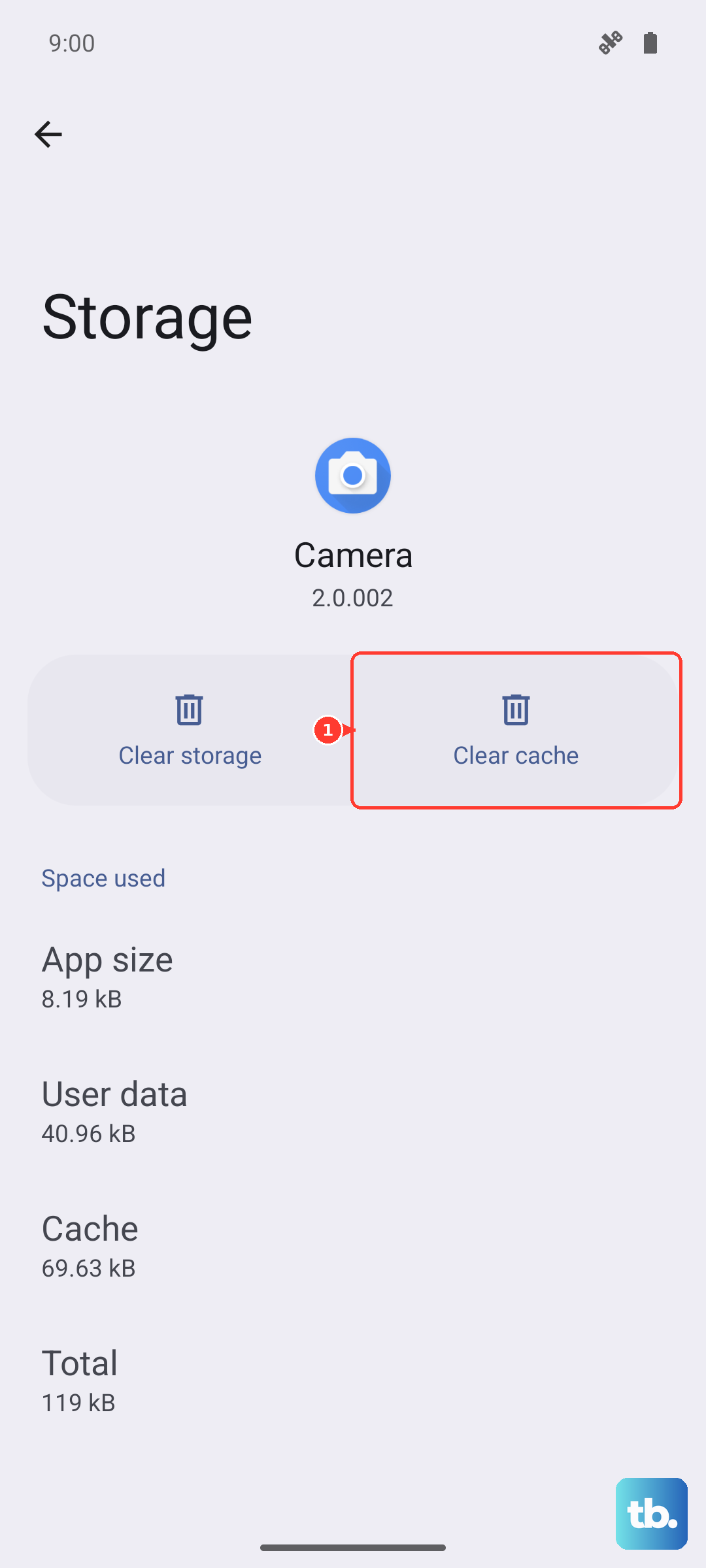
For Chrome, open the app, tap the three dots, go to History > Clear browsing data. Select "Cached images and files" and tap "Clear data." For a deeper clean, go to Settings > Apps, find "Google Play Services," tap "Storage," and then "Clear Cache."
Close Unused Apps Running in the Background
Having too many apps open can strain the Snapdragon 695 processor, leaving fewer resources for your network connection. Tap the recent apps button (the three lines) at the bottom of your screen and swipe away every app you're not actively using.
For a more permanent solution, you can restrict background data for specific apps. Go to Settings > Apps, select an app, tap "Mobile data," and turn off "Allow background data usage." Do this for apps that don't need constant updates.
Check Your Network Signal Strength
Sometimes the issue is simply a weak signal. For WiFi, check how many bars you have in your Quick Settings. If it's low, try moving closer to your router. Thick walls and interference from other electronics like microwaves can significantly weaken the signal.
For mobile data, look at the icon in your status bar. You want to see "4G" or "5G" for the fastest speeds. If you only see "H+" or "3G," you're on a much slower network. Moving to a window or a different location might help you find a stronger signal.
Update Your Tablet's Software
Samsung regularly releases updates that include performance tweaks and connectivity fixes. Running an old version of Android or One UI could be the root of your speed problem.
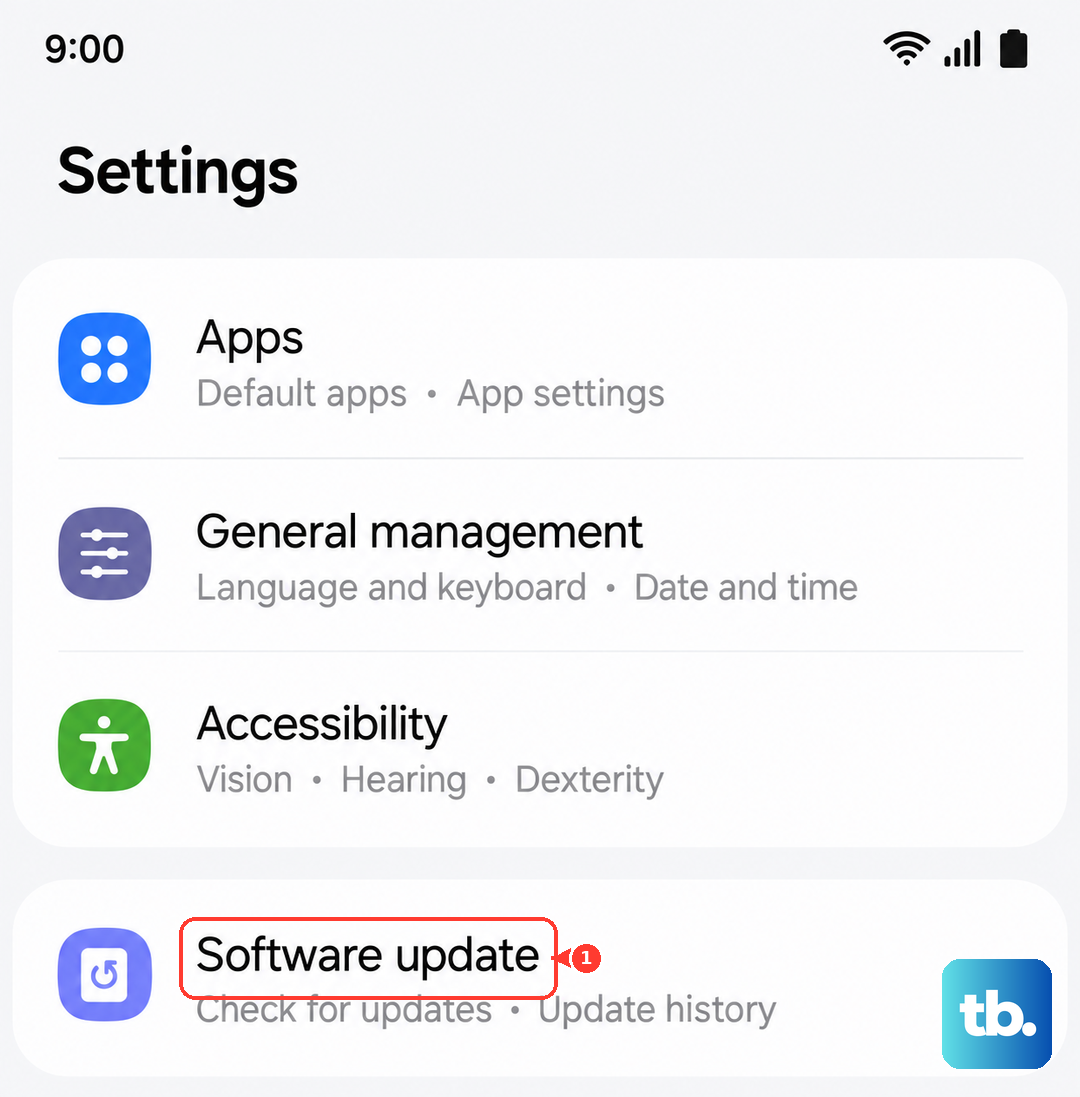
Go to Settings > Software update and tap "Download and install." Make sure your tablet is connected to WiFi and has at least a 50% charge before starting. Installing the latest updates is one of the best ways to keep everything running smoothly.
Reset Your Network Settings as a Last Resort
If you've tried everything and your internet is still slow, this nuclear option will wipe all your network configurations back to factory defaults. You'll lose saved WiFi passwords and paired Bluetooth devices, so it's a last step.
On your Galaxy Tab A9+, navigate to Settings > General management > Reset. Tap "Reset network settings" and confirm. Your tablet will reboot, and you'll need to re-enter your WiFi passwords and re-pair any Bluetooth accessories, but it can clear out deep-seated network glitches.