
If your Samsung Galaxy Tab A9+ keeps kicking you out of the Settings app, it's usually a software hiccup that you can fix yourself. The Snapdragon 695 chip inside can sometimes struggle if too much is happening at once, which might cause system apps to close unexpectedly. Let's get it working again.
Restart Your Tablet
The quickest thing to try is a simple restart. This clears out any temporary glitches in the memory that could be causing the Settings app to crash. Just hold the power button and tap "Restart" from the menu that pops up.
If the Settings app still closes after a normal restart, you might need to do a force restart. Press and hold the Volume Down button and the Power button together for about ten seconds. Keep holding until you see the Samsung logo appear, then let go.
Clear the Settings App Cache
Corrupted cache data is a common culprit for app crashes. Clearing it for the Settings app is a safe first step that won't delete your personal information.
Go to Settings > Apps. Tap the search icon at the top and type "Settings" to find it in the list. Select it, then tap Storage. You'll see two options: Clear Data and Clear Cache. Tap Clear Cache first.
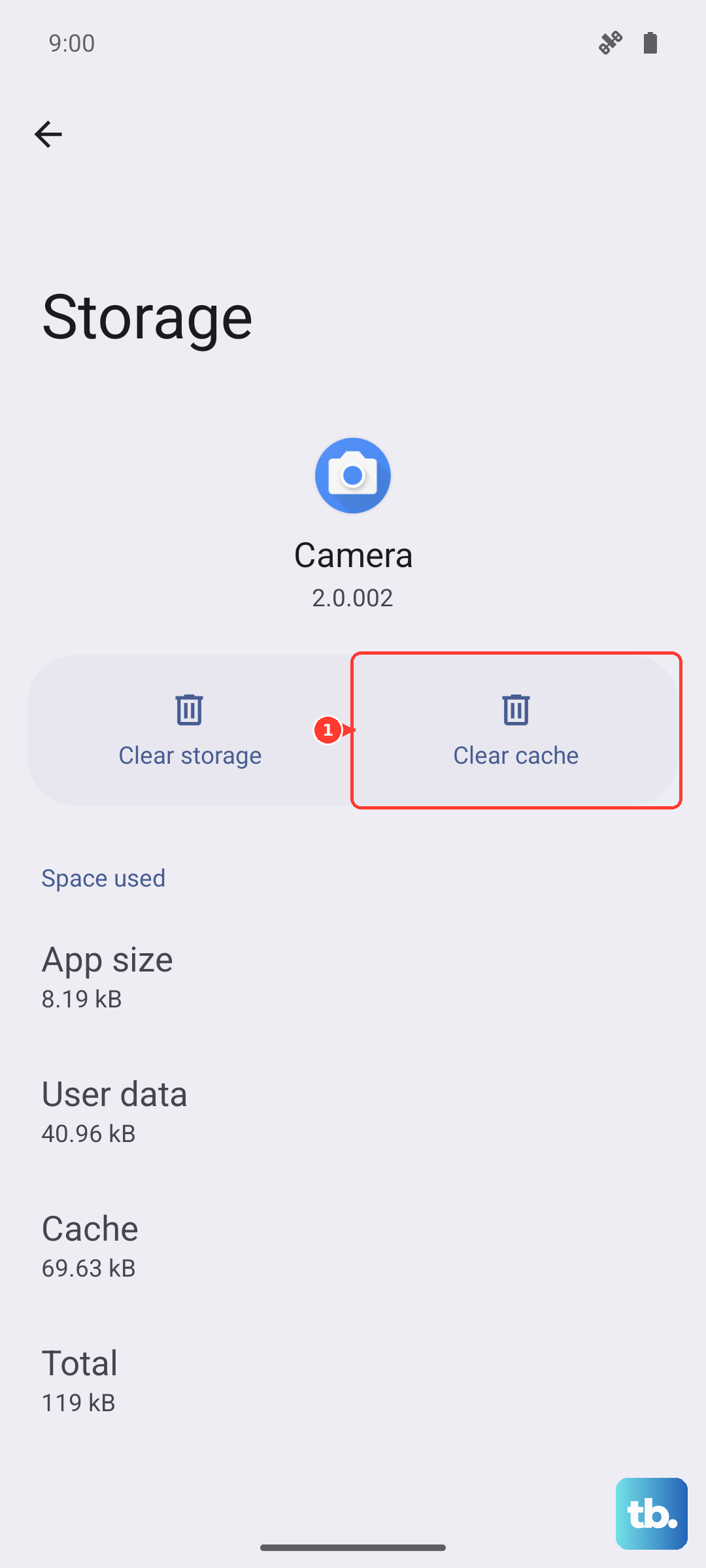
After clearing the cache, go back and try opening the Settings app again. If it still fails, you can come back here and try "Clear Data," but be aware this will reset all your Settings preferences back to default.
Check for a Software Update
Your Galaxy Tab A9+ runs on Android 14 with Samsung's One UI 6. Sometimes, a bug in the current software version can cause system app instability, and Samsung releases patches to fix these issues.
To check, you'll need to get into Settings. If you can't, try using the notification panel shortcut. Swipe down twice from the top of the screen to open the full Quick Settings panel, then tap the gear icon in the top right corner. Once in Settings, go to Software update > Download and install.
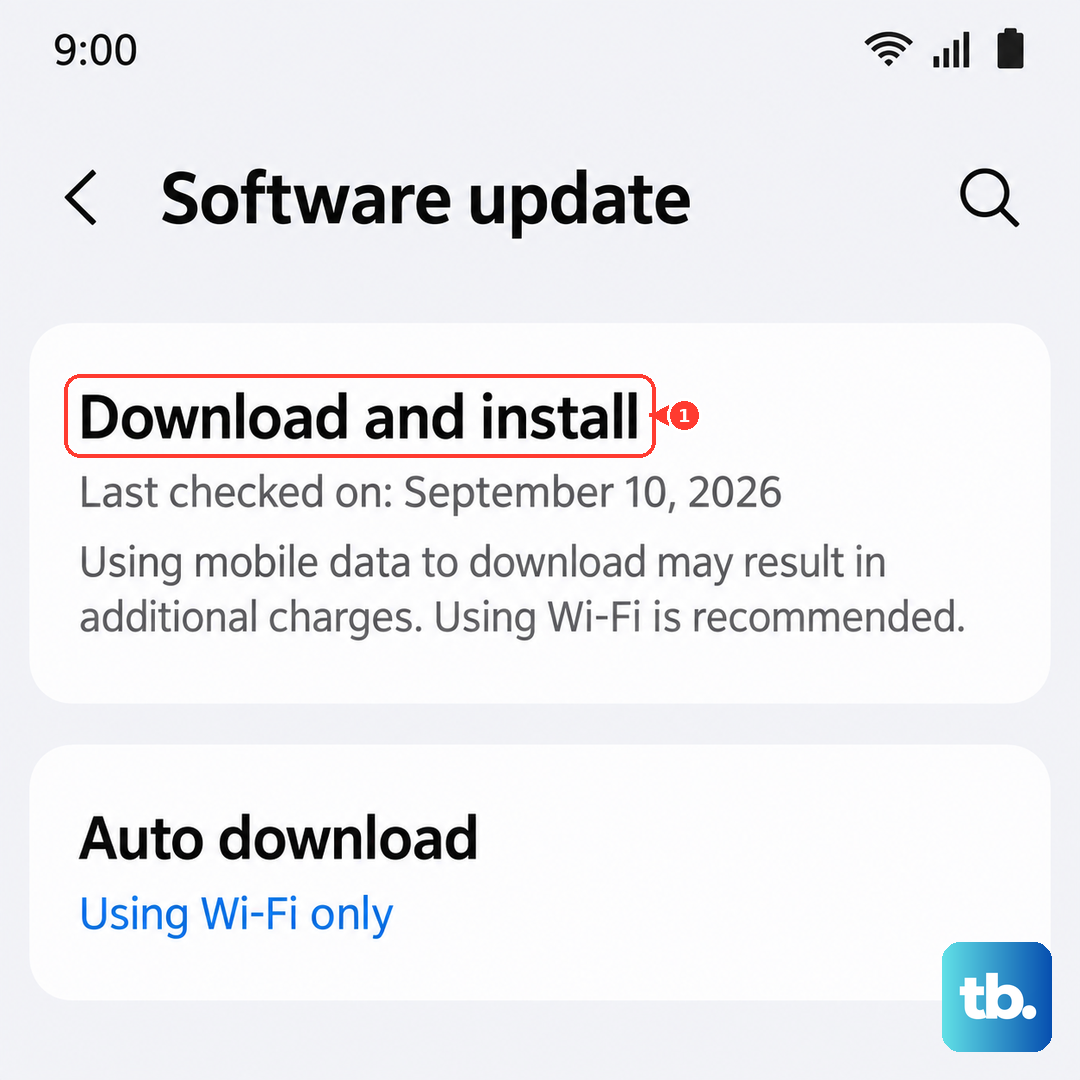
If an update is available, make sure your tablet is plugged into its 15W charger and connected to Wi-Fi before you start the download. Installing the latest update often resolves these kinds of random crashes.
Manage Google Play Services
Google Play Services works in the background to help apps communicate with Android. If it has an issue, it can cause problems for other system apps, including Settings.
Head back to Settings > Apps. Find and select Google Play Services. On its app info page, tap Force stop, then confirm. Next, tap Storage and hit Clear cache.
You can also tap Manage storage here, followed by Clear all data. Don't worry, this won't delete your personal files, but it will reset the service. Your tablet will rebuild this data as needed.
Boot into Safe Mode
This step helps you figure out if a recently downloaded third-party app is causing a conflict. Safe Mode temporarily disables all apps you installed yourself.
First, press and hold the power button until the power off menu appears. Then, press and hold the "Power off" text on the screen. You'll see a prompt to reboot to Safe Mode. Tap it to confirm.
Once your tablet restarts with "Safe Mode" in the bottom corner, try opening the Settings app. If it works perfectly in Safe Mode, you know a downloaded app is the problem. You'll need to restart normally and then uninstall apps one by one, starting with the most recent, to find the culprit.
Reset All App Preferences
This is a broader reset that doesn't erase your data. It will revert all your app permissions, default apps, and background restrictions back to their factory settings. It can fix issues caused by a misconfigured permission.
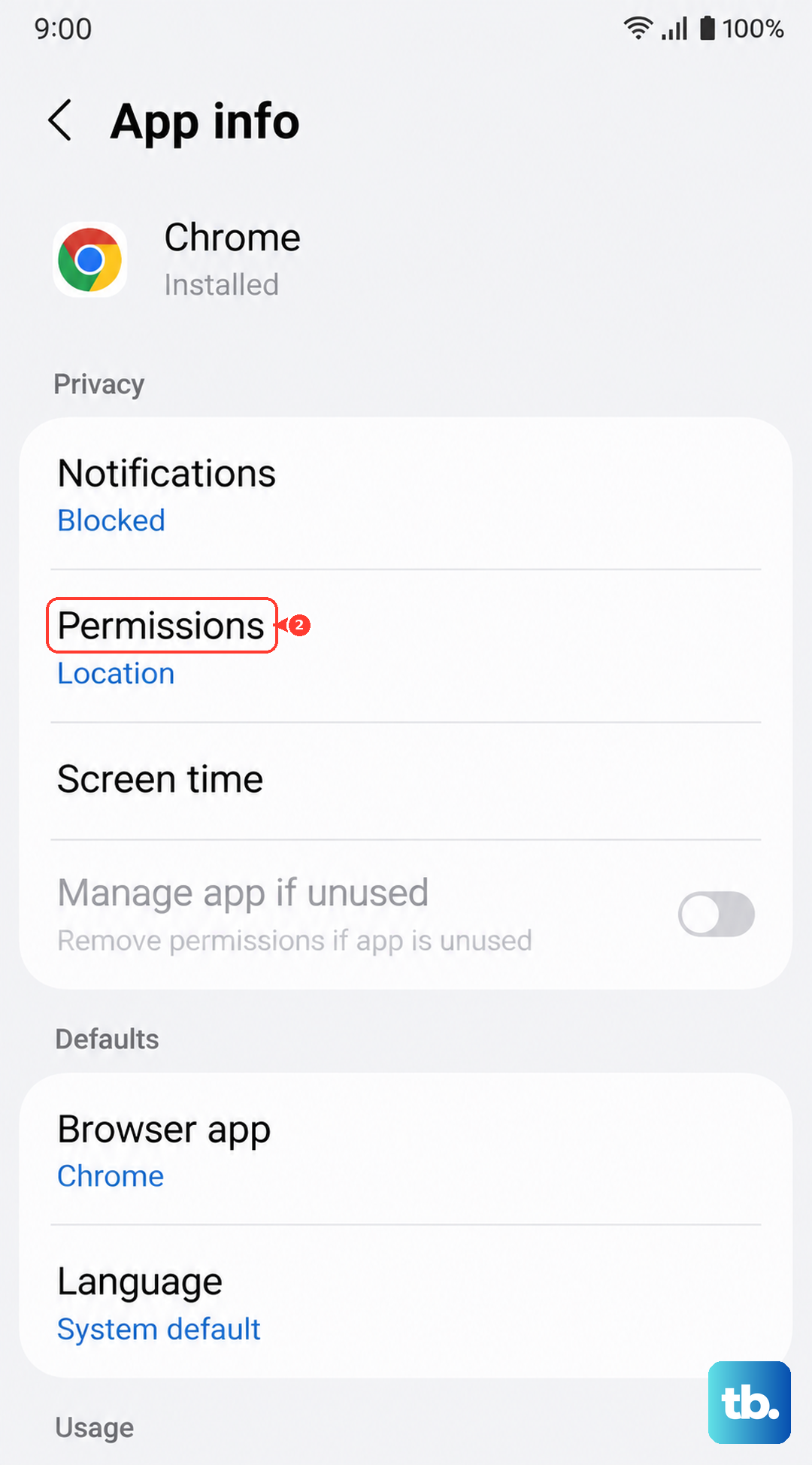
Go to Settings > Apps. Tap the three-dot menu in the top right corner and select Reset app preferences. Confirm your choice on the next screen. After the reset, you'll need to re-grant permissions to apps when you use them next, but it often clears up strange system app behavior.
Consider a Factory Reset
If you've tried everything else and the Settings app is still unusable, a factory reset is the final step. This will erase everything on your tablet and return it to its original out-of-the-box state, so a full backup is absolutely essential first.
Since you can't access Settings, you can perform the reset using the hardware buttons. Turn off your tablet completely. Then, press and hold the Volume Up button and the Power button together. When you feel a vibration and see the Samsung logo, let go of the Power button but keep holding Volume Up until the Android Recovery menu appears.
Use the Volume Down button to highlight "Wipe data/factory reset," then press the Power button to select it. Confirm your choice on the next screen. Once the reset is complete, select "Reboot system now."