
That "Unfortunately, the keyboard has stopped" pop-up on your Galaxy Tab A9+ can really kill your workflow. It's a common Android hiccup, but there are plenty of ways to get your typing back on track without much fuss.
Force Stop and Restart the Keyboard App
This is the quickest fix and often solves the problem right away. It just closes the app and lets it start fresh, clearing any temporary glitch. Head to Settings > Apps.
Tap the three-dot menu in the top right and select Show system apps. Scroll down and find Samsung Keyboard. Tap on it, then hit Force Stop and confirm. If you're using something like Gboard, look for that app instead.
Restart Your Galaxy Tab A9+
If the keyboard is still acting up, a full tablet restart is a great next step. It clears the system's working memory and can fix a surprising number of small issues. Just hold the Power button and tap Restart.
For a more thorough refresh, you can perform a force restart. Press and hold the Volume Down and Power buttons together for about 10 seconds until you see the Samsung logo. This is especially useful if the screen is frozen.
Clear the Keyboard's Cache and Data
Corrupted temporary files can cause all sorts of app problems. Clearing the cache is safe and won't delete your personal info, but it will reset your keyboard's learned words and custom settings.
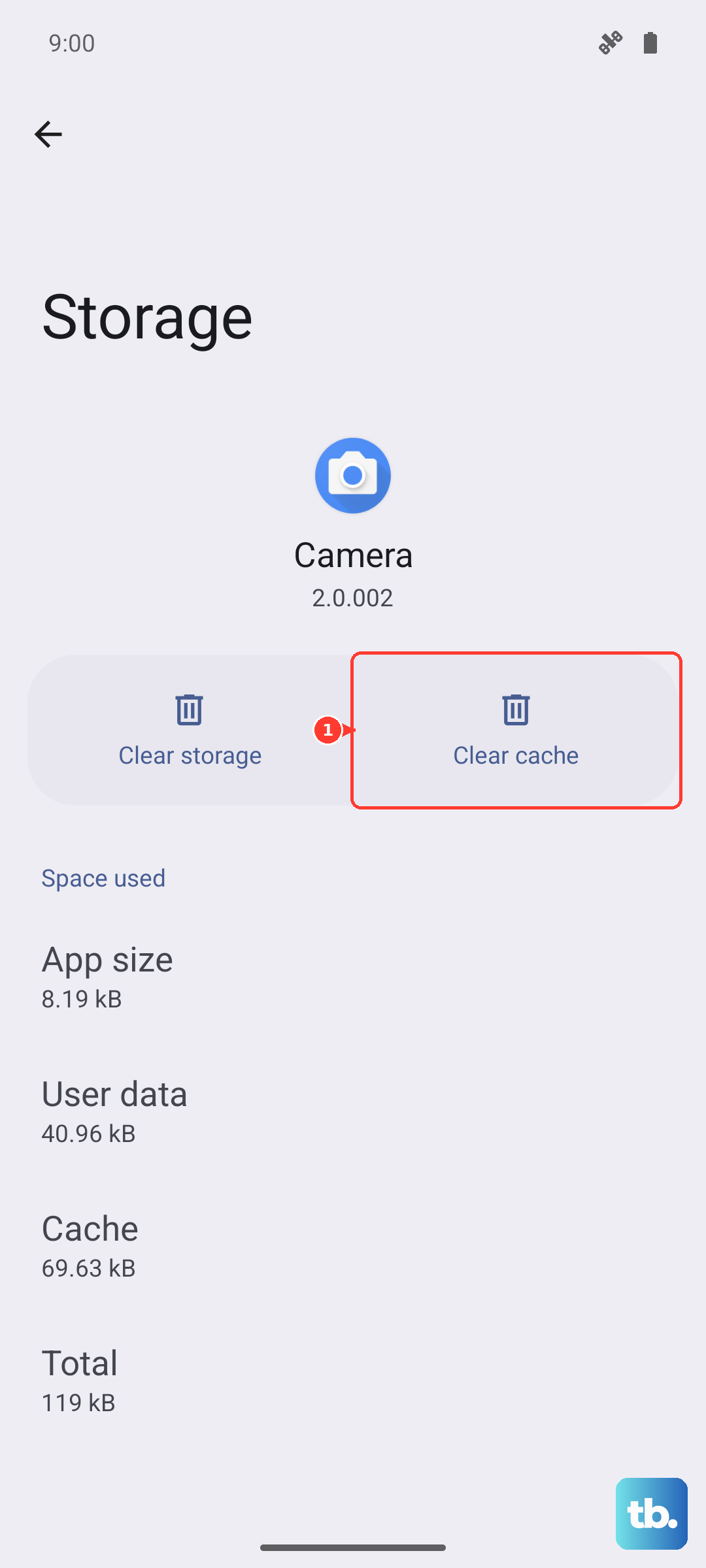
Go back to Settings > Apps, find your keyboard app, and tap Storage. Tap Clear Cache first. If that doesn't work, come back and tap Clear Data. You'll need to grant the keyboard permissions again the next time you use it.
Update Your Keyboard App
An outdated app can have bugs or compatibility issues with newer software. Open the Google Play Store, tap your profile picture, and go to Manage apps & device.
Under "Updates available," see if there's an update for Samsung Keyboard or your third-party keyboard. Tap update if you see one. Keeping apps updated is a good habit for smooth performance on the Tab A9+.
Reset the Keyboard Settings to Default
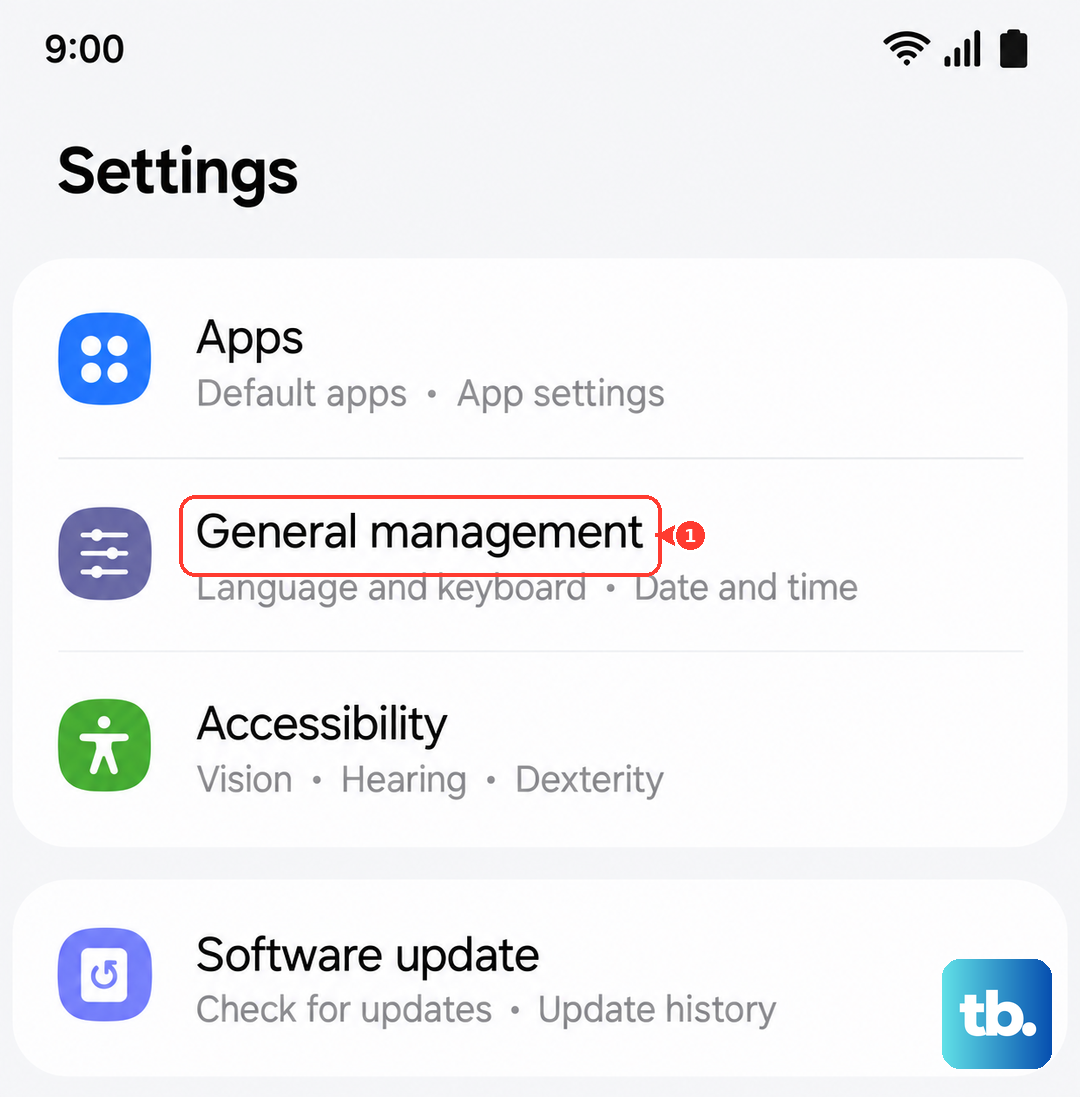
If a setting got changed accidentally, it can cause conflicts. Resetting everything back to factory default often clears this up. Navigate to Settings > General Management > Keyboard list and default.
Tap Samsung Keyboard, then look for the three-dot menu in the top right. Select Reset settings and confirm. This will wipe your personal dictionary and layout preferences, so you'll have to set those up again.
Check for a System Software Update
Sometimes the issue is with the tablet's operating system itself, not the keyboard app. Samsung releases updates that include bug fixes which can resolve these kinds of problems.
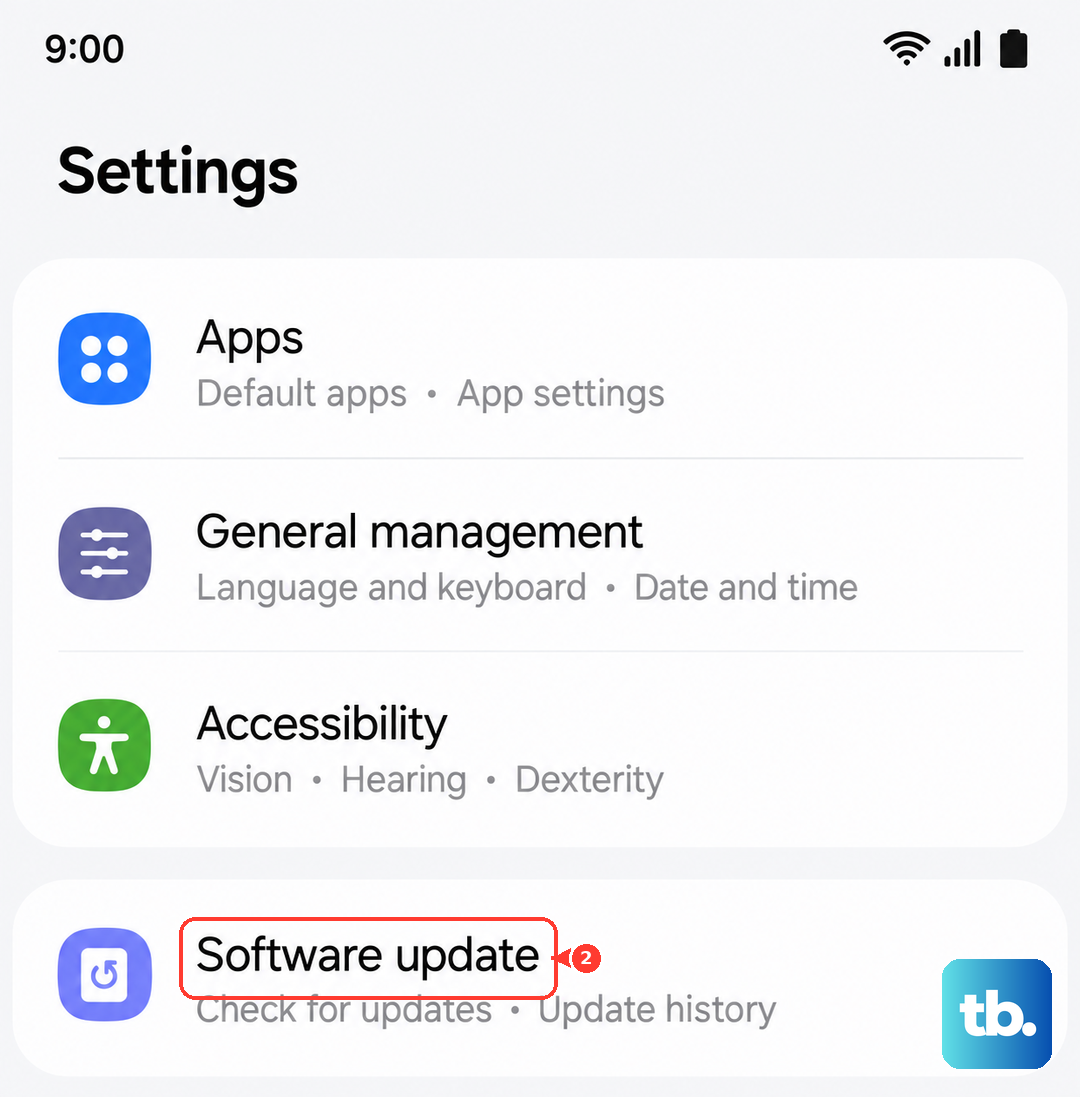
Go to Settings > Software update and tap Download and install. Make sure your tablet is connected to Wi-Fi and has a decent charge, preferably over 50%, before starting. I'd start with this check if the problem appeared out of the blue.
Boot Into Safe Mode
This is a diagnostic step to see if a recently installed third-party app is causing the conflict. Safe mode temporarily disables all apps you downloaded. First, press and hold the Power button until the power menu appears.
Tap and hold the Power off option. You'll get a prompt to reboot to Safe Mode. Tap it. If your keyboard works perfectly in Safe Mode, you know a downloaded app is the culprit. Start by uninstalling apps you added just before the problem began.
Try a Different Keyboard App
While you're troubleshooting the main issue, installing a different keyboard gives you a fully functional workaround. Apps like Gboard (Google Keyboard) or SwiftKey are great alternatives available on the Play Store.
Once installed, go to Settings > General Management > Keyboard list and default and switch your default keyboard. This can immediately solve the problem and might even become your new preferred keyboard.
Reset All Settings on Your Tablet
This is a more significant step but doesn't delete your personal files or apps. It will reset all your system settings, like Wi-Fi passwords, Bluetooth pairings, and display preferences, back to factory default.
Go to Settings > General Management > Reset > Reset all settings. Enter your PIN if prompted and confirm. After the tablet reboots, you'll need to reconfigure your settings, but your keyboard should be back to normal.