
When your Samsung Galaxy Tab A9+ stops syncing email, it can leave you waiting on important messages or unable to send replies. This is especially annoying on a device you might use for work or keeping up with family. The fixes are usually pretty simple, and I'd start with the quick ones first.
Before you dive deep, just do a quick check on the basics. Make sure your tablet is connected to Wi-Fi or has a mobile data signal. Try opening a webpage to confirm the internet itself is working. Also, it's worth a quick check on your email provider's website or social media to see if they're reporting any widespread outages.
Restart the Email App
Start with the simplest fix. A quick restart of the email app can clear out a temporary glitch that's preventing sync. Swipe up from the bottom of the screen and hold to enter the recent apps view. Find your email app, whether it's Gmail, Samsung Email, or Outlook, and swipe it all the way up to close it. Wait a few seconds, then tap the app icon to open it fresh.
Check Your Sync and Fetch Settings
Your tablet's sync settings control how often it checks for new mail. If these are set too infrequently or are turned off, emails won't appear. Open the Samsung Email app, tap the three-line menu icon, and go to Settings. Select your email account and look for Sync settings or Email check frequency.
Make sure sync is turned on. For the frequency, setting it to "Push" is ideal if your provider supports it, as it delivers mail instantly. If not, choose a short interval like every 15 minutes. Also, go into your tablet's main Settings > Accounts and backup > Manage accounts, select your email account, and ensure the sync toggle for "Email" is enabled.
Toggle Airplane Mode
This is a fast way to reset all your tablet's network connections. Swipe down twice from the top of the screen to open the full Quick Settings panel. Tap the Airplane mode icon to turn it on, wait about 15 seconds, then tap it again to turn it off. Your tablet will reconnect to Wi-Fi and mobile data, which can often clear up a stuck connection.
Switch Between Wi-Fi and Mobile Data
Sometimes the problem is with one specific network. If you're on Wi-Fi and emails aren't syncing, try turning Wi-Fi off to force the tablet to use mobile data. You can do this from the Quick Settings panel. If the emails sync on mobile data, you know the issue is with your Wi-Fi network, perhaps a firewall or router setting.
Verify Your Email Account Password
Passwords expire or get changed, and sometimes the tablet doesn't prompt you to update them right away. Try logging into your email account through a web browser on a computer or another device. If you can't log in there either, you'll need to reset your password with your email provider.
Once you have the new password, update it on your Tab A9+. Go to Settings > Accounts and backup > Manage accounts, tap your email account, and select Remove account. Then, add the account back fresh with the new credentials. This often works better than just trying to update the password in place.
Check for App and System Updates
Outdated software can cause sync bugs. First, open the Galaxy Store and check for updates to the Samsung Email app if you use it. Then, open the Google Play Store, tap your profile icon, and go to Manage apps and device > Updates available to update Gmail, Outlook, or any other third-party email app.
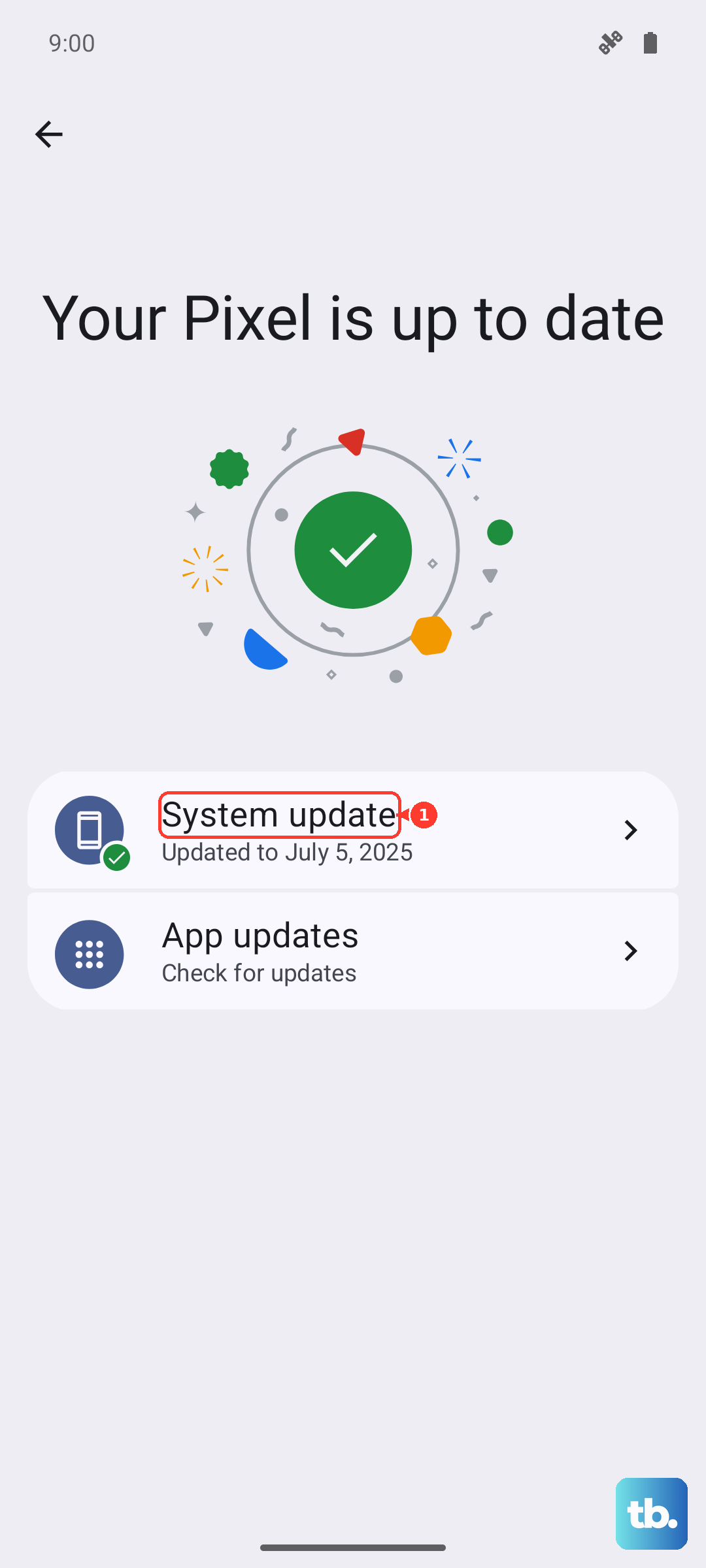
Next, check for a system update. Go to Settings > Software update > Download and install. Installing the latest version of Android and One UI can include important fixes for connectivity and app performance.
Clear the Email App's Cache and Data
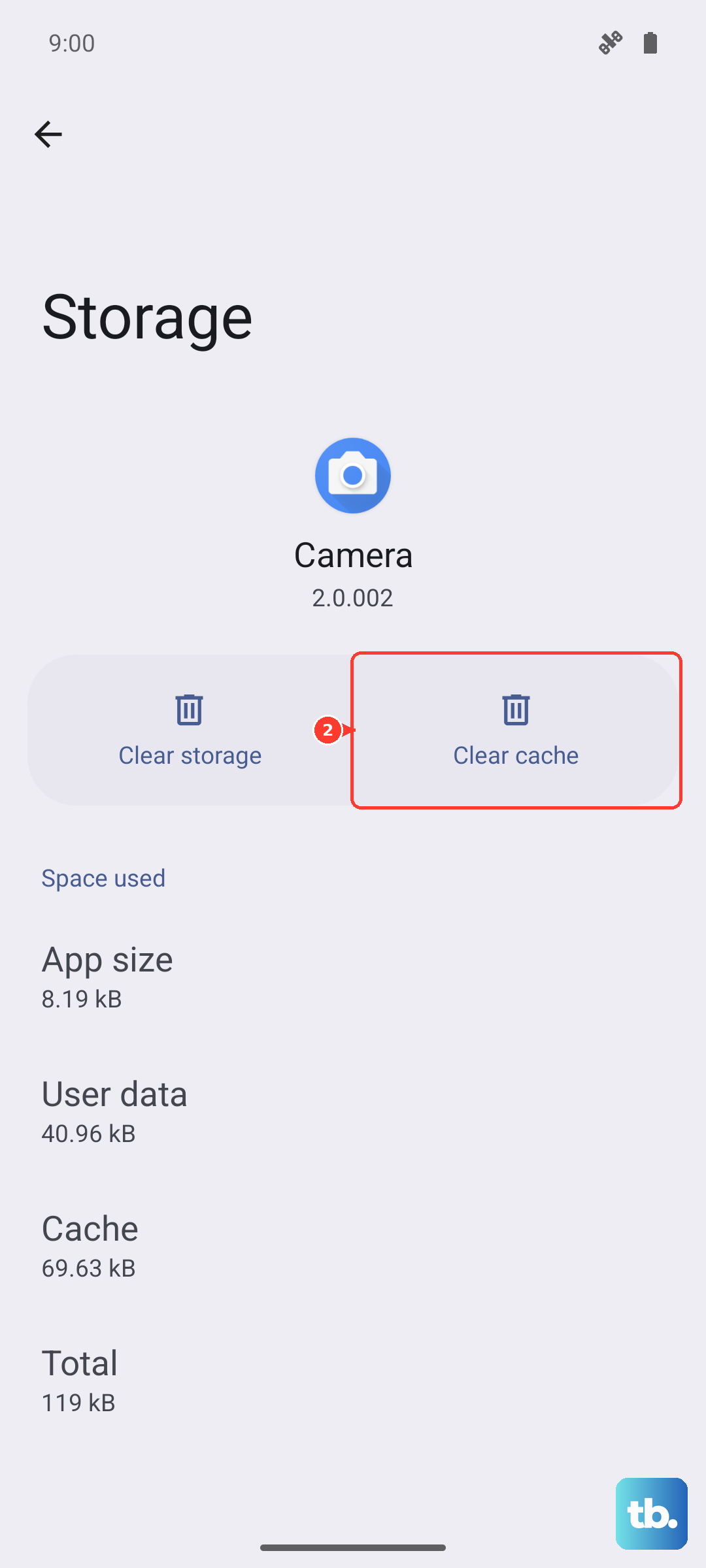
Corrupted temporary files (cache) can break app functions. Go to Settings > Apps, then find and select your email app. Tap Storage. First, tap Clear cache. This won't delete your emails or account. If the problem persists, you can go back and tap Clear data. Be warned, this will remove the account from the app and you'll need to set it up again, but it can resolve deeper glitches.
Disable Battery Optimization for the Email App
Android's battery saving features can sometimes be too aggressive, stopping apps from syncing in the background. To prevent this for your email app, go to Settings > Apps, select your email app, and tap Battery. Change the setting from "Optimized" to Unrestricted. This tells the system to let the app run normally in the background.
Review Your Notification Settings
If emails are syncing but you're just not getting alerts, the notification settings might be off. Go to Settings > Notifications > App notifications. Find your email app in the list and make sure notifications are turned on. You can also tap the app name here to customize the alert sound, vibration, and whether it appears on the lock screen.
Ensure Automatic Date and Time is On
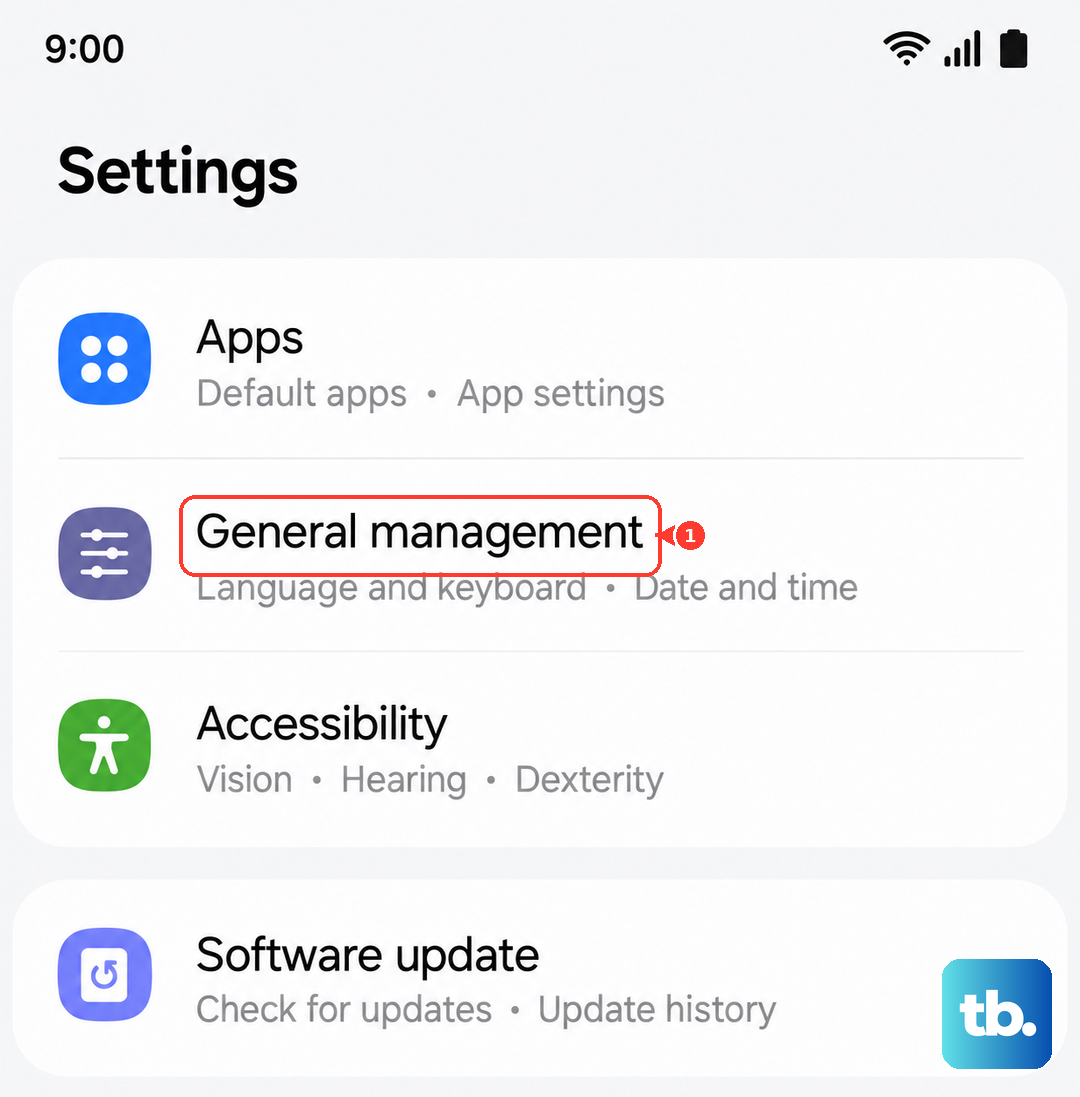
Incorrect date and time settings can interfere with secure connections to email servers. Go to Settings > General management > Date and time. Make sure the switches for Automatic date and time and Automatic time zone are both turned on. This ensures your tablet's clock is always perfectly in sync.
Check for VPN or Private DNS Interference
If you use a VPN for privacy or work, try temporarily disabling it. A VPN can sometimes route your traffic through servers that email providers block. Similarly, a custom Private DNS setting (like for an ad blocker) can cause issues. You can check this in Settings > Connections > More connection settings > Private DNS. Try setting it back to "Automatic" to test.
Force Restart Your Galaxy Tab A9+
A full restart clears the device's memory and can fix stubborn software hiccups. Press and hold the Volume Down button and the Power button simultaneously for about 10 seconds. Release when you see the Samsung logo appear. The tablet will reboot, which takes about a minute. This is different from just turning the screen off and on.
Remove and Re-add the Email Account
This is a more thorough reset for the account connection. Go to Settings > Accounts and backup > Manage accounts. Tap on the problematic email account and select Remove account. Confirm the removal. Then, go back and tap Add account to set it up from scratch. This process often resolves permission errors or corrupted account data that other fixes can't touch.
Reset Your Network Settings
If you suspect a deeper network configuration problem, this will reset all Wi-Fi, mobile data, and Bluetooth connections without deleting your personal data. Go to Settings > General management > Reset > Reset network settings. Tap to confirm. After the reset, you'll need to re-enter Wi-Fi passwords and re-pair Bluetooth devices, but it can clear out network-related sync problems.