When your Samsung Galaxy Tab A9+ won't install apps, it can feel like you've hit a wall. The Play Store might show a spinning circle, an error code, or just do nothing at all. This is especially frustrating on a device where you rely on apps for everything from work to entertainment.
The good news is that most installation problems have straightforward fixes. Let's go through the solutions that work for the Tab A9+, starting with the quickest ones.
Check Your Internet Connection First
This is the most common culprit. The Tab A9+ needs a stable connection to talk to Google's servers. Pull down the notification shade from the top of the screen and make sure your Wi-Fi or mobile data icon is active and has a strong signal.
If you're on Wi-Fi, try turning it off and using mobile data instead, or vice versa. Some public Wi-Fi networks block the ports the Play Store needs. A quick network switch can tell you if that's the issue.
Restart Your Tablet
A simple restart clears out temporary glitches in the system memory. Given the Tab A9+ runs on a Snapdragon 695 chipset, keeping background processes tidy is helpful for smooth performance.
Hold the power button, then tap "Restart" on the screen. If the tablet is completely unresponsive, perform a force restart by pressing and holding the Volume Down and Power buttons together for about 10 seconds until you see the Samsung logo.
Verify Date and Time Settings
Google's servers are very strict about time synchronization. If your tablet's clock is off, downloads will often fail silently.
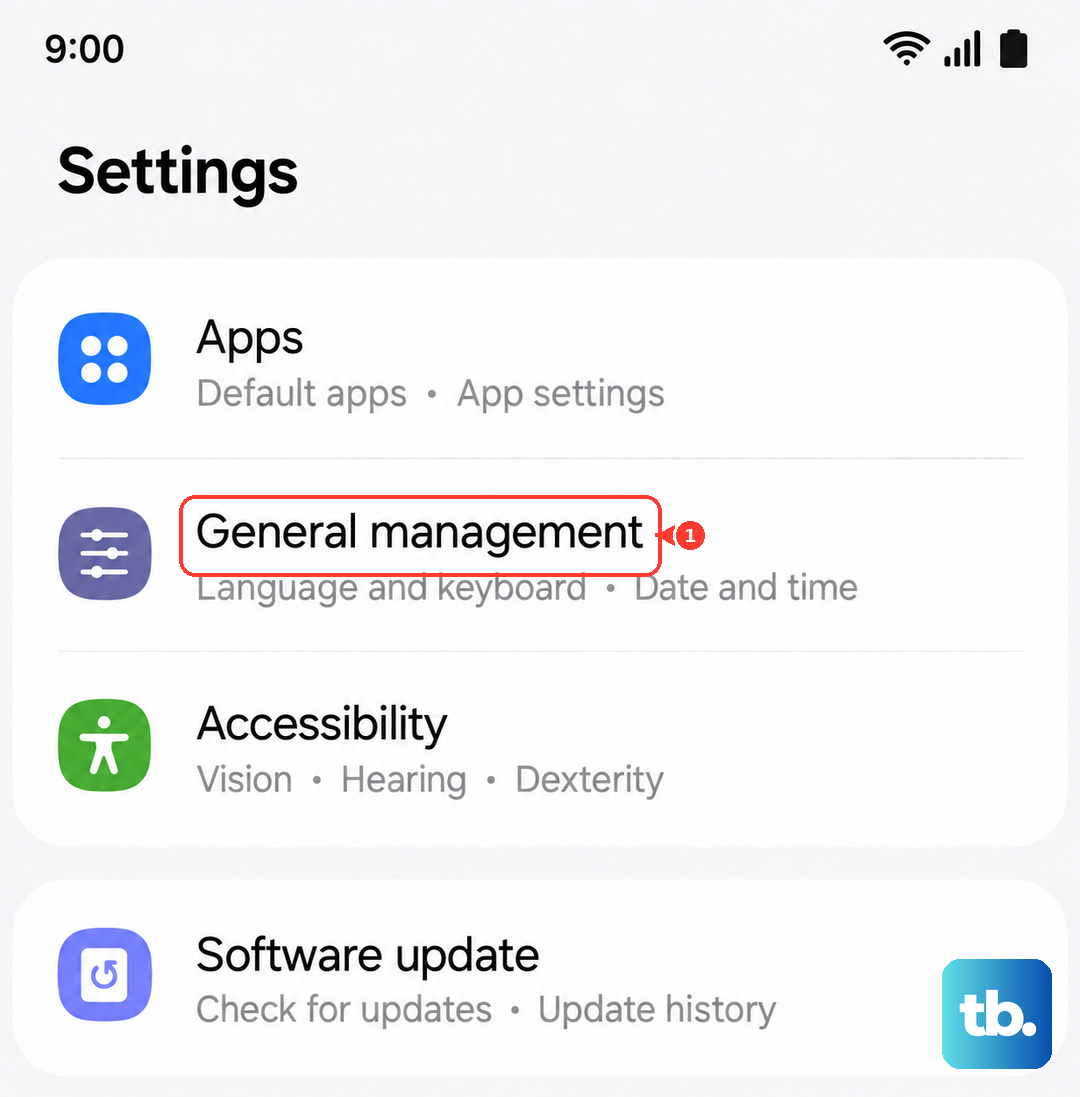
Go to Settings > General management > Date and time. Make sure "Automatic date and time" is switched on. If it's already on and you're having issues, try turning it off, manually setting the correct time, and then turning automatic back on.
Clear the Google Play Store Cache
Corrupted temporary files in the Play Store app can cause all sorts of weird behavior. Clearing the cache is a safe first step that doesn't delete your data.
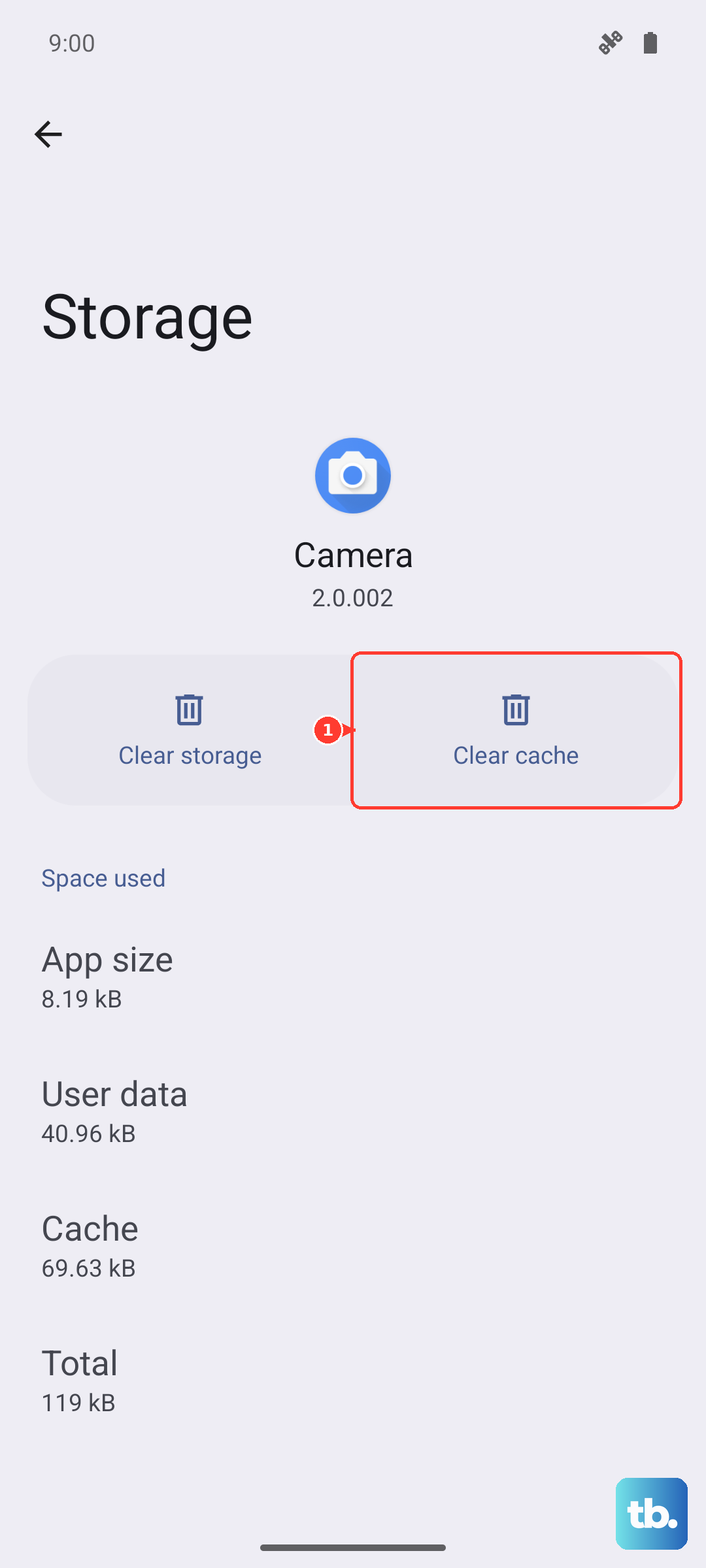
Open Settings > Apps, then find and select "Google Play Store." Tap on Storage, then hit "Clear Cache." Go back and try your download again. If that doesn't work, you can also tap "Clear Data" on the same screen, but be aware this will reset the Play Store to its default state.
Clear Google Play Services Data
This is the engine behind the scenes. If Play Services has a problem, app installations will fail. Go to Settings > Apps again, and find "Google Play Services."
Tap Storage, then "Manage storage." At the bottom, tap "Clear all data." Confirm the action. This will not harm your personal data, but it will reset the service. Your tablet will work for a moment to rebuild its connections.
Check for Software Updates
An outdated version of Android or One UI can have bugs that interfere with the Play Store. Samsung regularly releases updates that fix these kinds of issues.
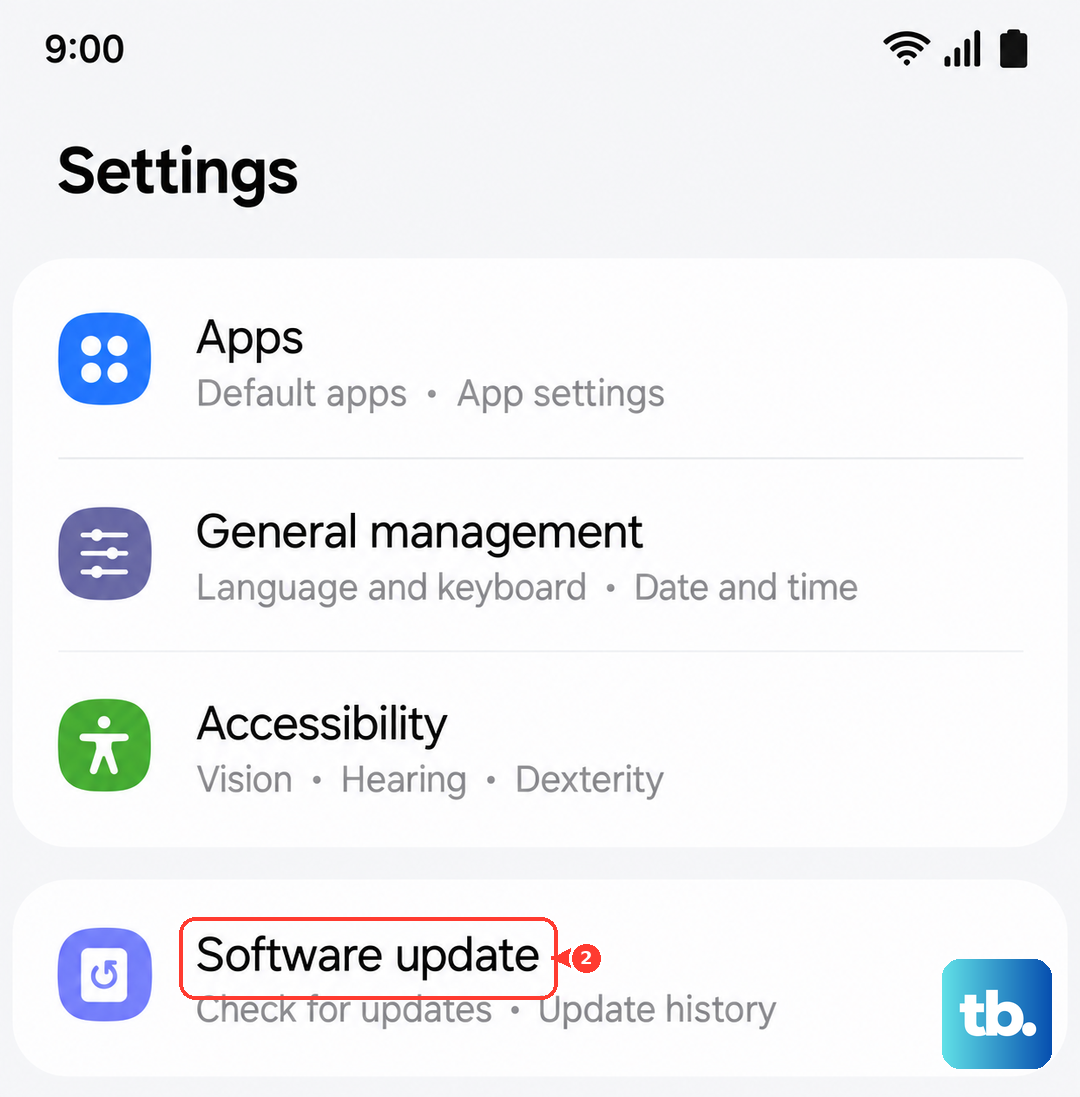
Navigate to Settings > Software update and tap "Download and install." If an update is available, it's a good idea to install it. Make sure your tablet is charged above 50% and connected to Wi-Fi before starting.
Free Up Storage Space on Your Device
The "Insufficient storage" error is straightforward. The Tab A9+ needs free space to download and unpack app files. Go to Settings > Battery and device care > Storage to see what's using space.
Consider removing downloaded movies, old screenshots, or apps you no longer use. I've found that keeping background apps to a minimum on this model helps maintain free space and overall smoother operation.
Remove and Re-add Your Google Account
Sometimes the sync between your tablet and your Google account gets stuck. Removing and re-adding it can refresh this connection.
Go to Settings > Accounts and backup > Manage accounts. Select your Google account, then tap "Remove account." Don't worry, this doesn't delete the account itself. After it's removed, go back and tap "Add account" to sign in again. You'll need your password.
Check App Permissions for Play Services
Google Play Services needs certain permissions to function. Let's make sure they're granted. Head to Settings > Apps, find "Google Play Services," and tap "Permissions."
Ensure that permissions like "Storage" are allowed. Also, tap on "Additional permissions" or look for a setting called "Modify system settings" and make sure it is allowed. This lets the service make necessary adjustments.
Reset All App Preferences (A Soft Reset)
This is a useful step before considering a factory reset. It resets all your permission settings, default apps, and background restrictions without deleting any personal data.
Go to Settings > Apps. Tap the three-dot menu in the top right and select "Reset app preferences." Confirm the action. This will mean you might have to re-grant permissions for some apps, but it can clear up conflicts that are blocking installations.
If You See a Specific Error Code
Error codes can point you to a more specific fix. For error DF-BPA-09, you need to clear data for the Google Services Framework app. Find it in Settings > Apps (you may need to tap "Show system apps" in the menu), select it, go to Storage, and tap "Clear Data."
For generic errors like Error 491 or Error 963, the combination of clearing Play Store and Play Services data, followed by a restart, usually does the trick.
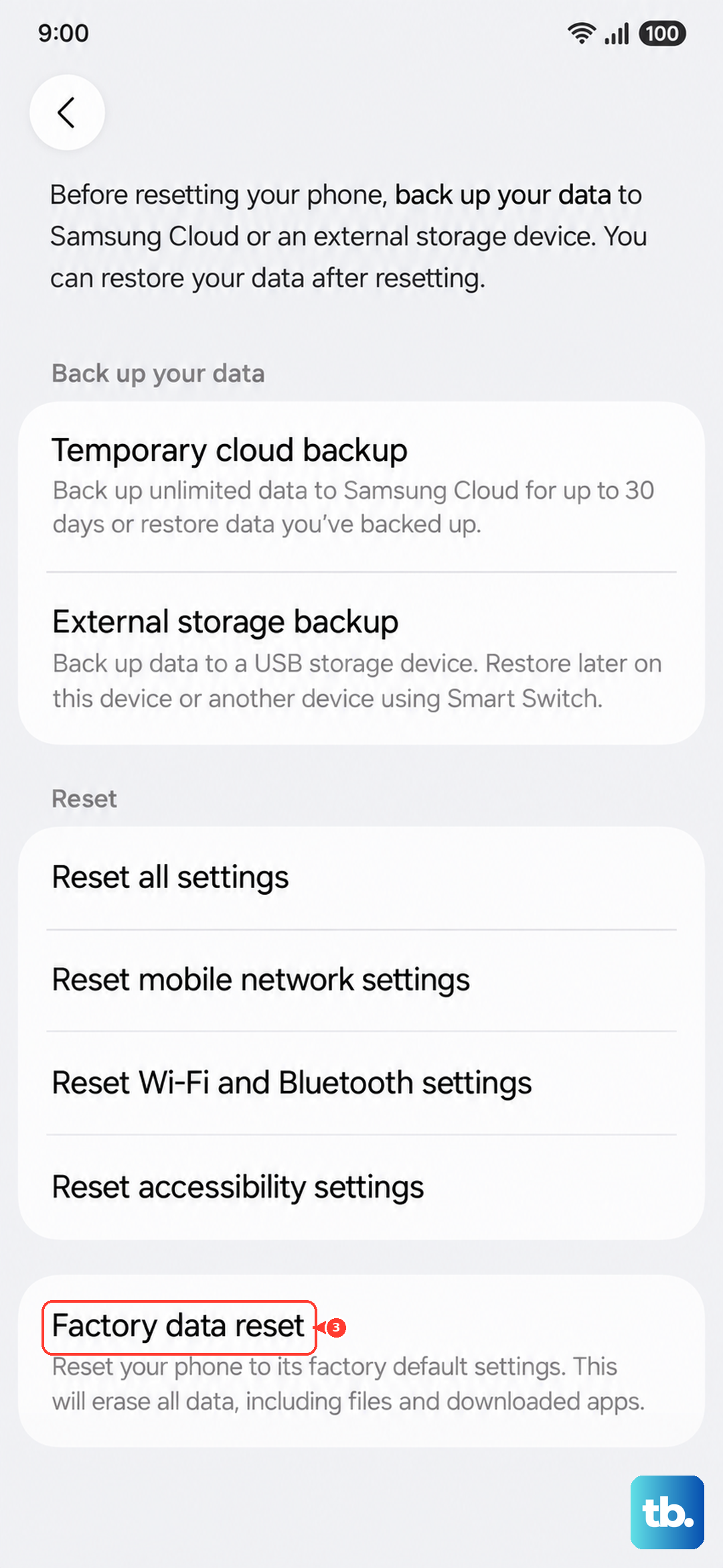
If you've worked through all these steps and your Samsung Galaxy Tab A9+ still won't install apps, the final software step is a factory reset. Before you do this, ensure everything important is backed up to your Samsung or Google account. You can find the reset option under Settings > General management > Reset > Factory data reset.