When your Samsung Galaxy Tab A9+ keeps dropping apps back to the home screen, it's usually a sign the software is hitting a snag. The Snapdragon 695 chip inside is solid for everyday tasks, but it can get overwhelmed if you're pushing it with too many demanding apps at once. I'd start with a quick restart, as that clears out the temporary memory and often gets things running smoothly again.
For the Tab A9+, press and hold the Volume Down button and the Power button together for about ten seconds. Keep holding them until you see the Samsung logo appear on the screen, then let go. This force restart is a bit different from just tapping 'Restart' and can resolve deeper glitches that cause apps to crash.
Update Everything
Outdated software is a prime suspect for app instability. Head over to the Google Play Store first. Tap your profile icon in the top right corner, go to Manage apps & device, and see if there are updates available. App developers constantly push out fixes for bugs that cause crashes.
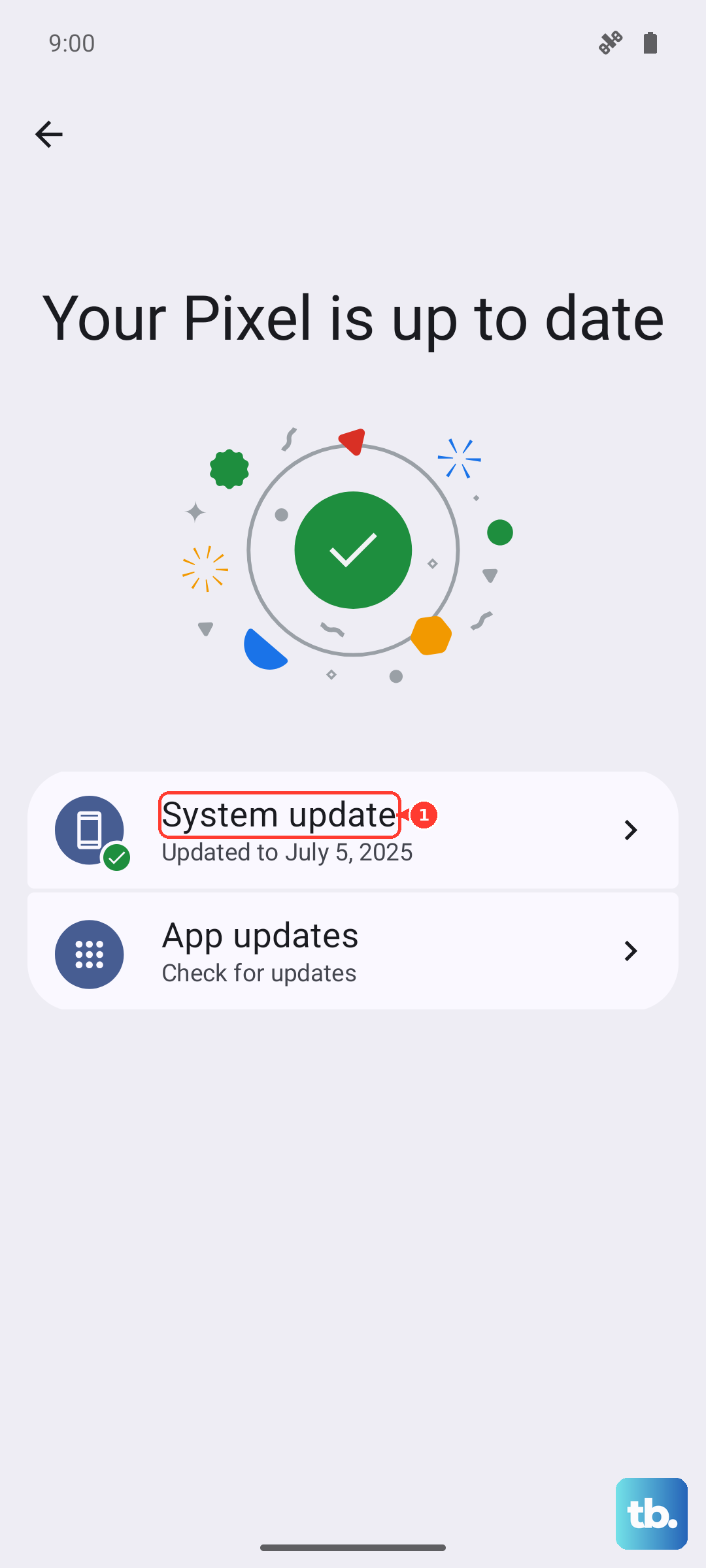
Next, check for a system update. Samsung regularly releases updates for One UI and Android that improve performance and compatibility. Go to Settings > Software update and tap Download and install. Keeping your tablet on the latest version can prevent a lot of headaches.
Manage Your Tablet's Resources
The Tab A9+ has capable hardware, but it's not a powerhouse. To keep it running well, you need to be a bit mindful of its resources. A key tip is to keep background apps to a minimum. If you have ten apps running in the background, the available memory for your current app shrinks, which can lead to crashes.
You can force stop a misbehaving app to give it a completely fresh start. Go to Settings > Apps, select the problematic app, and tap Force stop. Then try opening it again. This is more thorough than just swiping it away from the recent apps view.
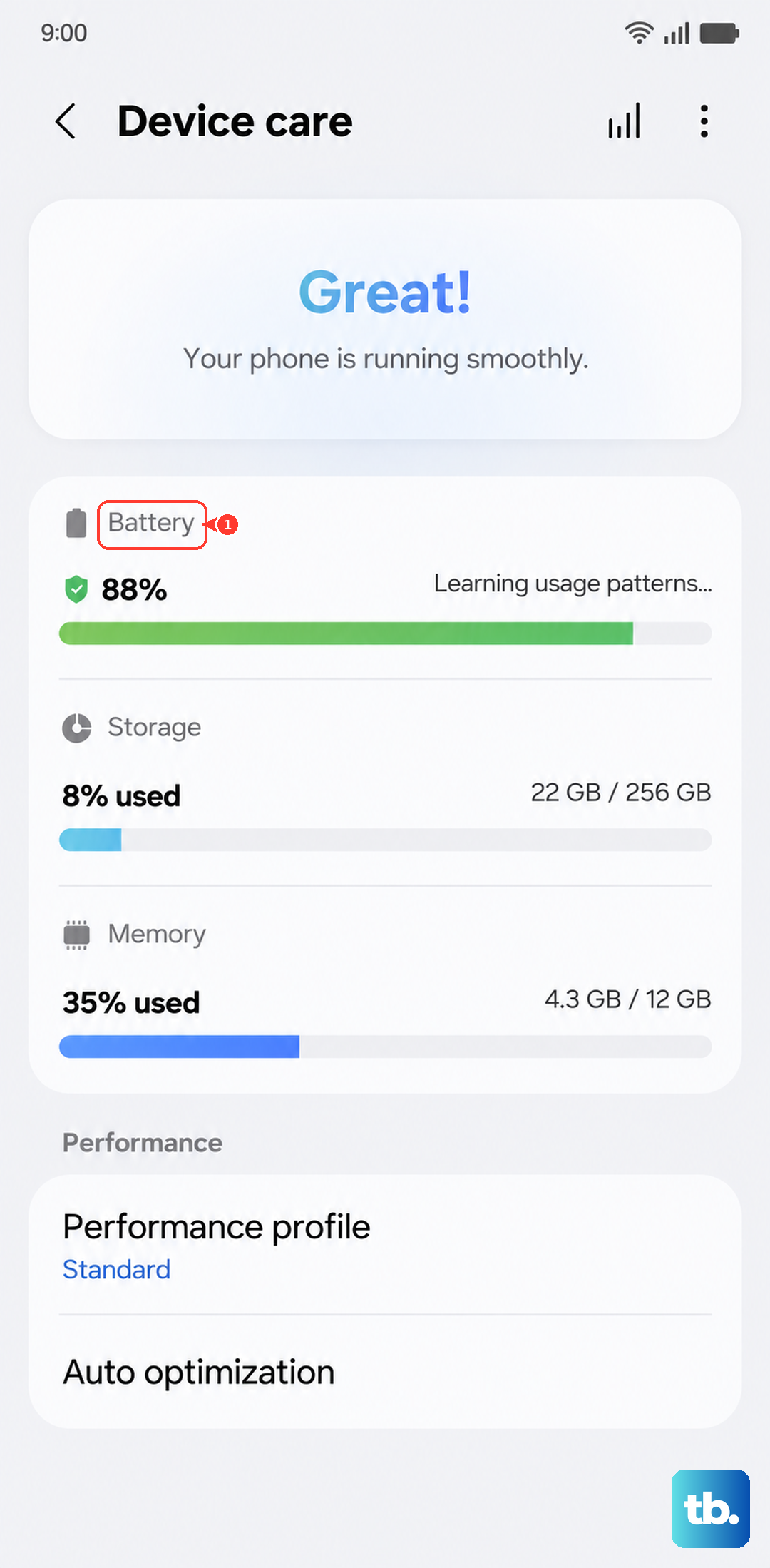
Also, take a look at your available storage. Go to Settings > Battery and device care > Storage. If you're below 10% free space, apps can struggle to create temporary files. Delete old downloads, clear app caches, or move photos to the cloud or an SD card.
Clear an App's Cache and Data
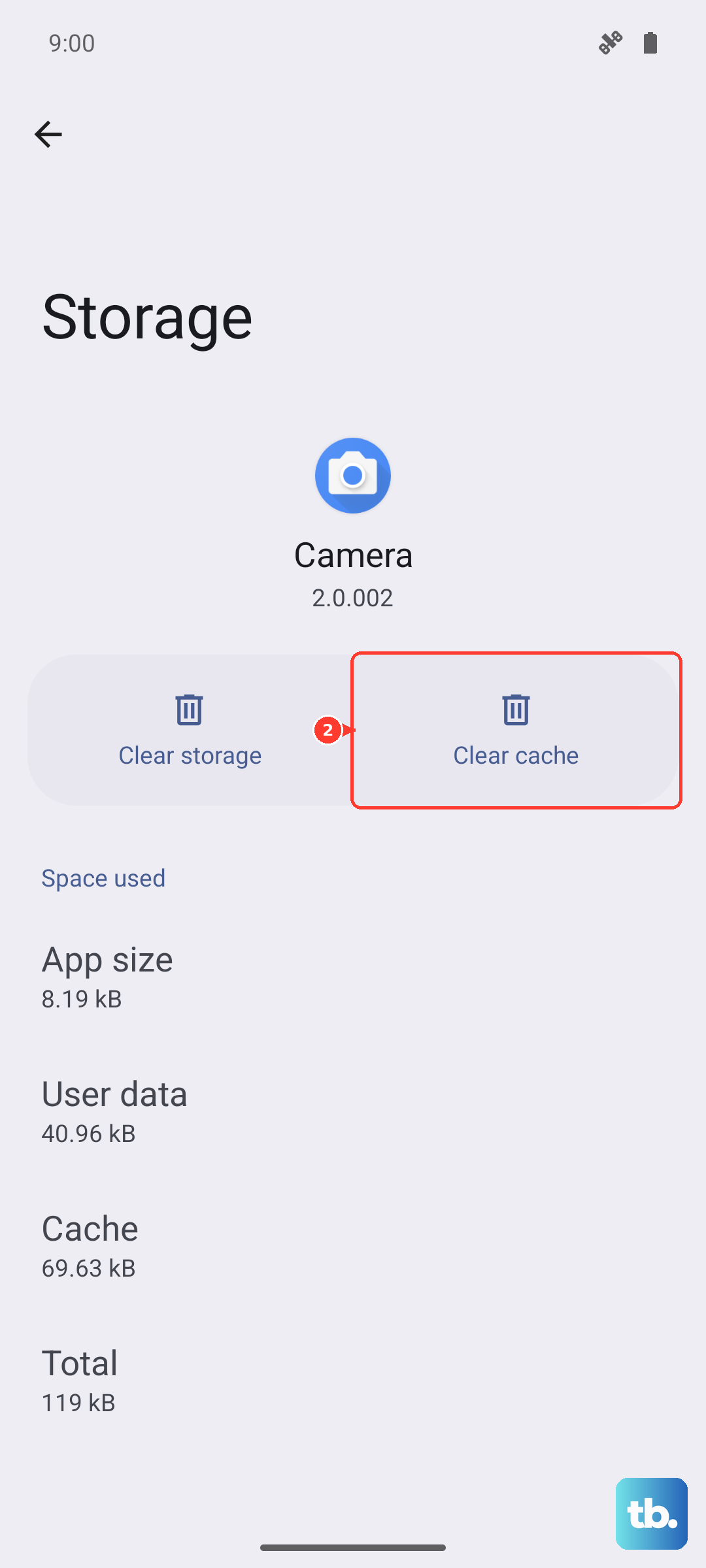
Sometimes, the temporary files an app stores (its cache) get corrupted. Clearing this cache can fix crashes without deleting your personal data within the app, like login info or saved games. For a more drastic fix, clearing the app's data resets it completely, like it's brand new.
To do this, go to Settings > Apps, find the app, and tap on it. Then select Storage. Tap Clear cache first and test the app. If it still crashes, come back and tap Clear data. Just remember, clearing data will log you out and erase any offline content.
Reinstall the Problem App
If one specific app is the only troublemaker, the installation files might be damaged. Uninstalling and reinstalling it from the Play Store gives you a clean slate. Press and hold the app's icon on your home screen or app drawer, then tap Uninstall.
After it's removed, open the Google Play Store, search for the app, and install it again. This process replaces all the app's files and often resolves persistent crashing that other steps can't fix.
Check for Overheating and Connection Issues
The Tab A9+ can get warm during extended use, especially if you're gaming or streaming video for a long time. If the tablet gets too hot, it will throttle the processor to cool down, which can make apps stutter or crash. If you feel it getting very warm, give it a break to cool off.
Also, consider your internet connection. Apps that rely on a constant data stream, like social media or streaming services, can crash if your Wi-Fi signal is weak or unstable. Try switching to a different network or moving closer to your router to see if the crashes stop.
Optimize for Performance
Samsung's One UI includes some settings that can help. In my experience, enabling a lighter performance profile can prevent slowdowns. Go to Settings > Battery and device care > Battery > More battery settings. Here, you can turn on Enhanced processing for a temporary performance boost when needed.
Another useful feature for reading or document apps is Reading Mode. It reduces blue light and optimizes contrast, which is easier on your eyes. You can find it in Settings > Advanced features. While it's for comfort, it also simplifies the graphics processing for those specific apps.
Reset All Settings
If apps are still crashing and you've tried everything else, a settings reset can help. This won't delete your personal files like photos or documents, but it will revert all your system settings back to default. Things like Wi-Fi passwords, wallpaper, and app permissions will be wiped.
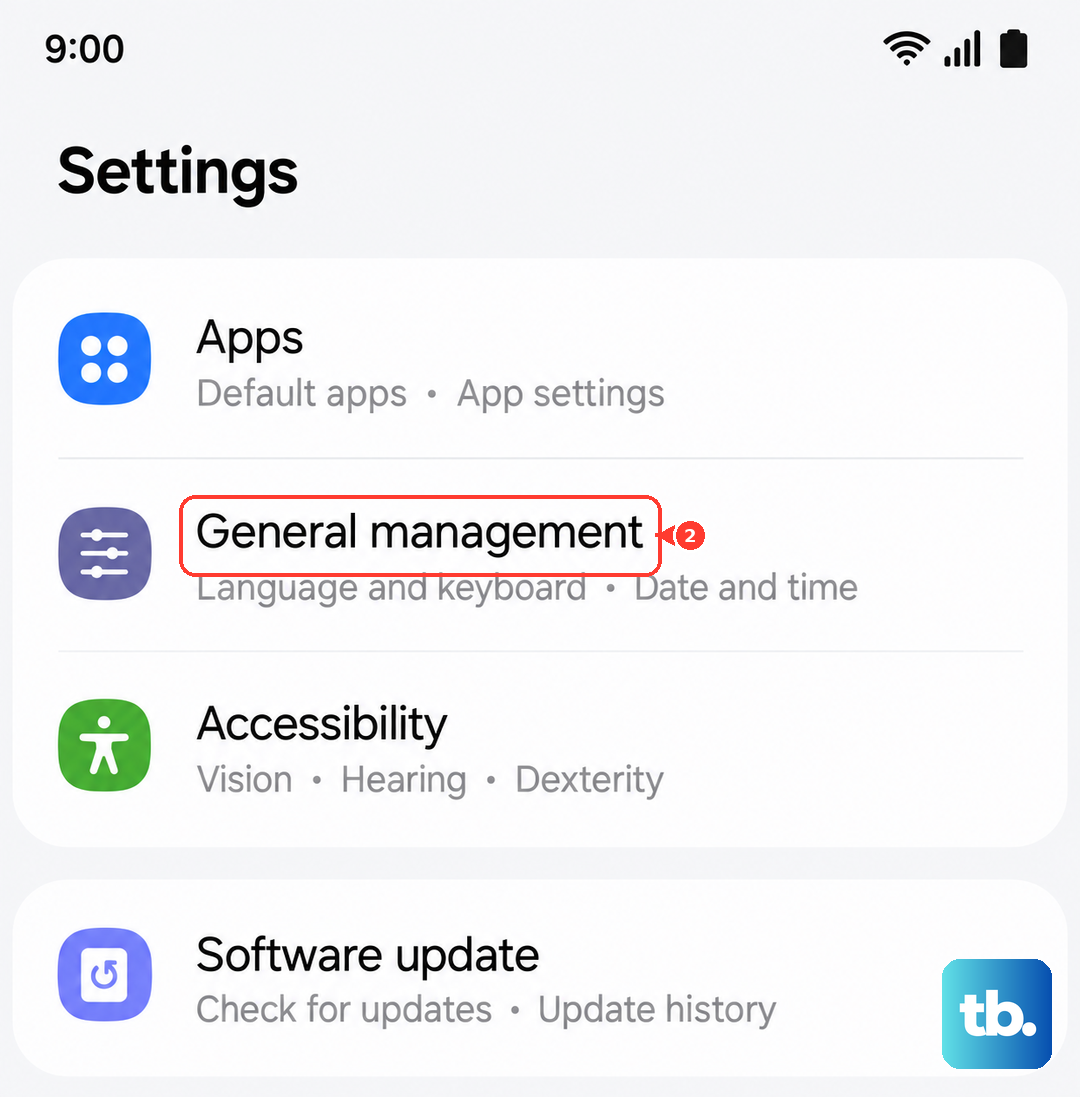
To do this, go to Settings > General management > Reset > Reset all settings. After the tablet reboots, you'll need to reconfigure your preferences, but any software conflicts causing the crashes should be cleared.