Your Galaxy S26 keeps telling you it is up to date when you know a newer build exists, or the download stalls partway and never finishes installing. A stuck software update on One UI 8.5 is usually caused by something small and fixable, like a shaky Wi-Fi connection, low storage, or a temporary system glitch, rather than a fault with the phone itself. The good news is that the Galaxy S26 receives over-the-air system and security updates through Settings, and you have several ways to nudge a failed update back on track.
Work through the fixes below in order. They start with the quickest and safest checks, move on to the deeper system steps, and only reach the wipe-everything option at the very end. Most people get their update flowing again long before the last step.
Start With a Solid Connection and a Charged Battery
Update failures are very often nothing more than a weak connection or a low battery.
Connect your S26 to a stable Wi-Fi network, since some carriers require Wi-Fi before the phone will even check for or install an update.
Put the phone on the charger and leave it there while the update runs.
One important caution. While an update is installing, you cannot use the device, and you will not be able to make calls, including to emergency services.
Set aside enough time to let it finish uninterrupted rather than starting it when you might need the phone right away.
Check for the Update Manually in Settings
Sometimes the phone simply has not registered that a new build is waiting.
Trigger the check yourself rather than waiting for the automatic prompt.
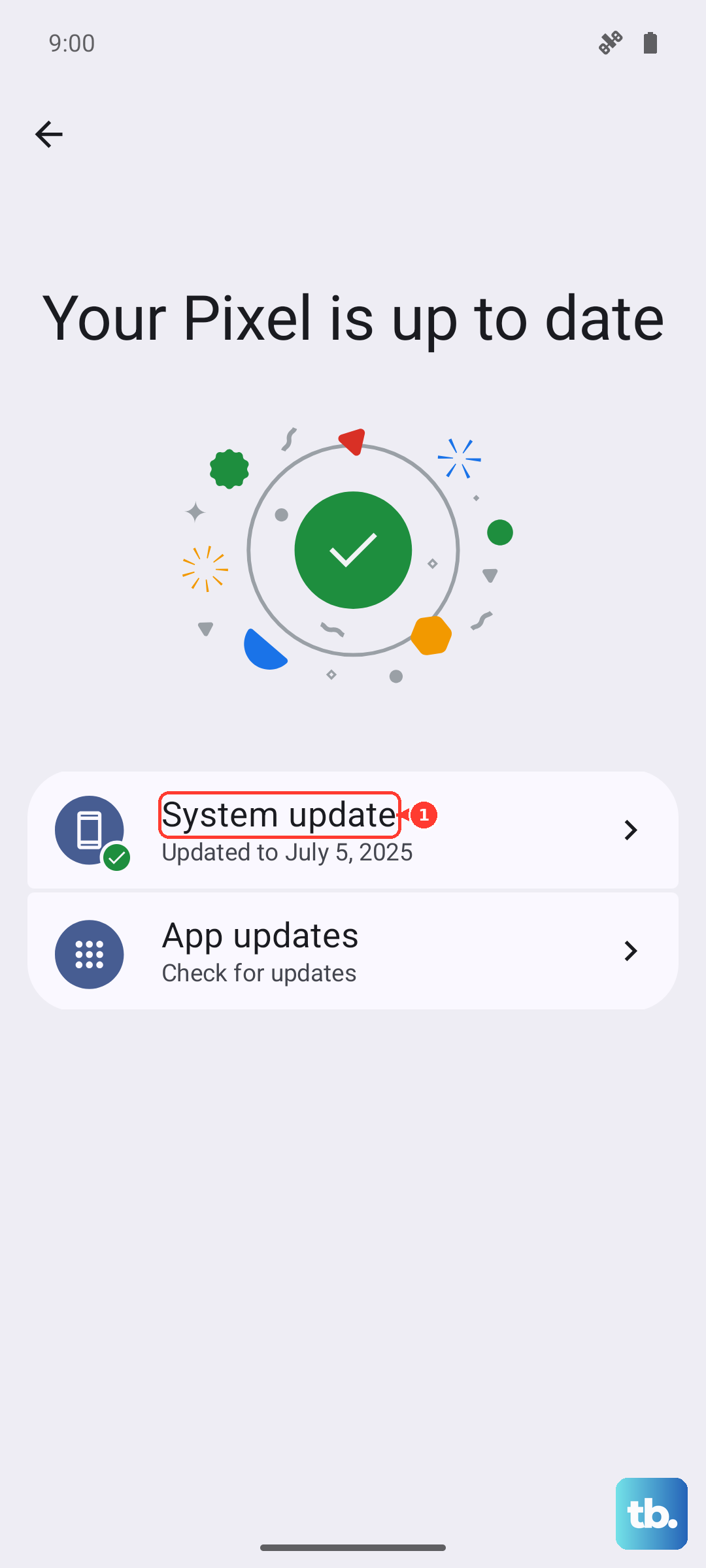
Open Settings.
Tap Software update.
Tap Download and install.
If an update is found, choose Install now (you can also pick Schedule install or Later).
Depending on your carrier, the menu may read Software update or System updates, and the button may say Download and install, Check for system updates, or Check for software updates.
While you are there, turn on Auto download over Wi-Fi under Settings, then Software update, so future updates download automatically and quietly in the background.
Restart the Phone and Try Again
A normal restart clears the temporary glitches that can stop an update from downloading or installing, and it costs you nothing.
Press and hold the Volume down button and the Side button (or Power button) at the same time, then when the power options appear, tap Restart twice.
Once the phone is back up, return to Settings, then Software update, and check again.
It is a small step, but it resolves a surprising number of stuck downloads.
Force a Reboot if the Screen Is Frozen Mid-Update
If the update has locked up and the screen is frozen or completely unresponsive, a normal restart will not be possible.
In that case, force a reboot instead.
Press and hold the Volume down button and the Side button (or Power button) simultaneously until the device turns off and turns back on.
This forces the phone to restart without erasing any of your data, so it is safe to use when the screen is stuck.
Once the S26 reboots, open Settings, then Software update, and retry the installation.
Clear Out Storage So the Update Has Room
Updates fail when the phone does not have enough free space to download and unpack the new build.
Clearing temporary files and freeing memory often gets things moving.
Open Settings.
Tap Battery and device care.
Tap Optimise now (on older devices this may read Fix now).
Tap Done.
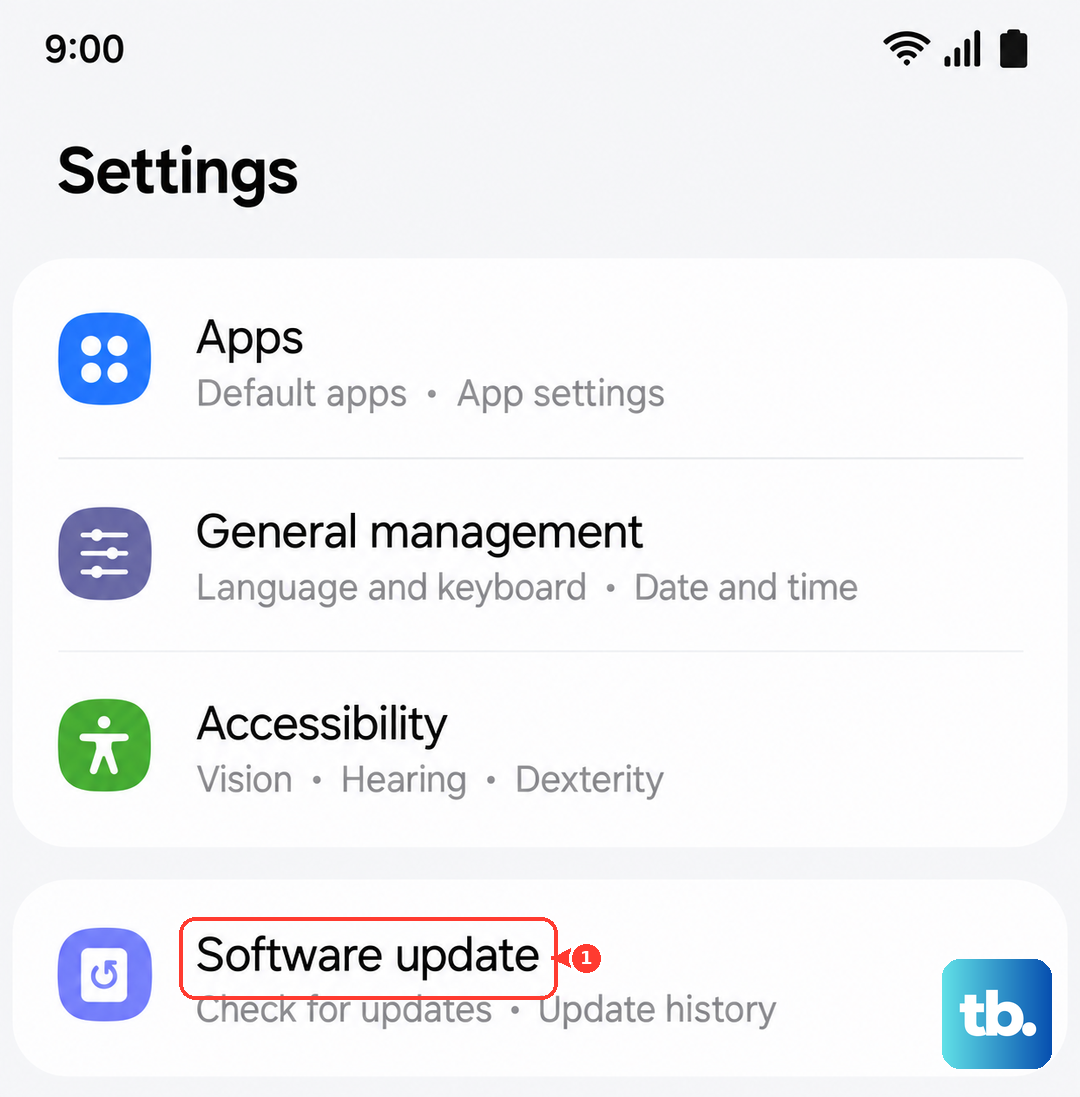
If you need to reclaim more space, you can clear the cache of individual apps.
Go to Settings, then Apps, choose the app, tap Storage, then tap Clear cache.
After freeing up room, head back to the software update screen and try again.
Clear a Moisture Warning if Charging Is Blocked
An update needs a charged phone, so a charging problem can quietly become an update problem.
If a water-drop icon appears and the S26 refuses to charge, that warning can be triggered by humidity even when there is no real water in the port.
Unplug the phone first.
Wipe the charging port with a dry cloth, or gently shake the device 5 to 10 times with the port facing down.
Let it air-dry in a well-ventilated area or in front of a fan, then restart it once it is fully dry.
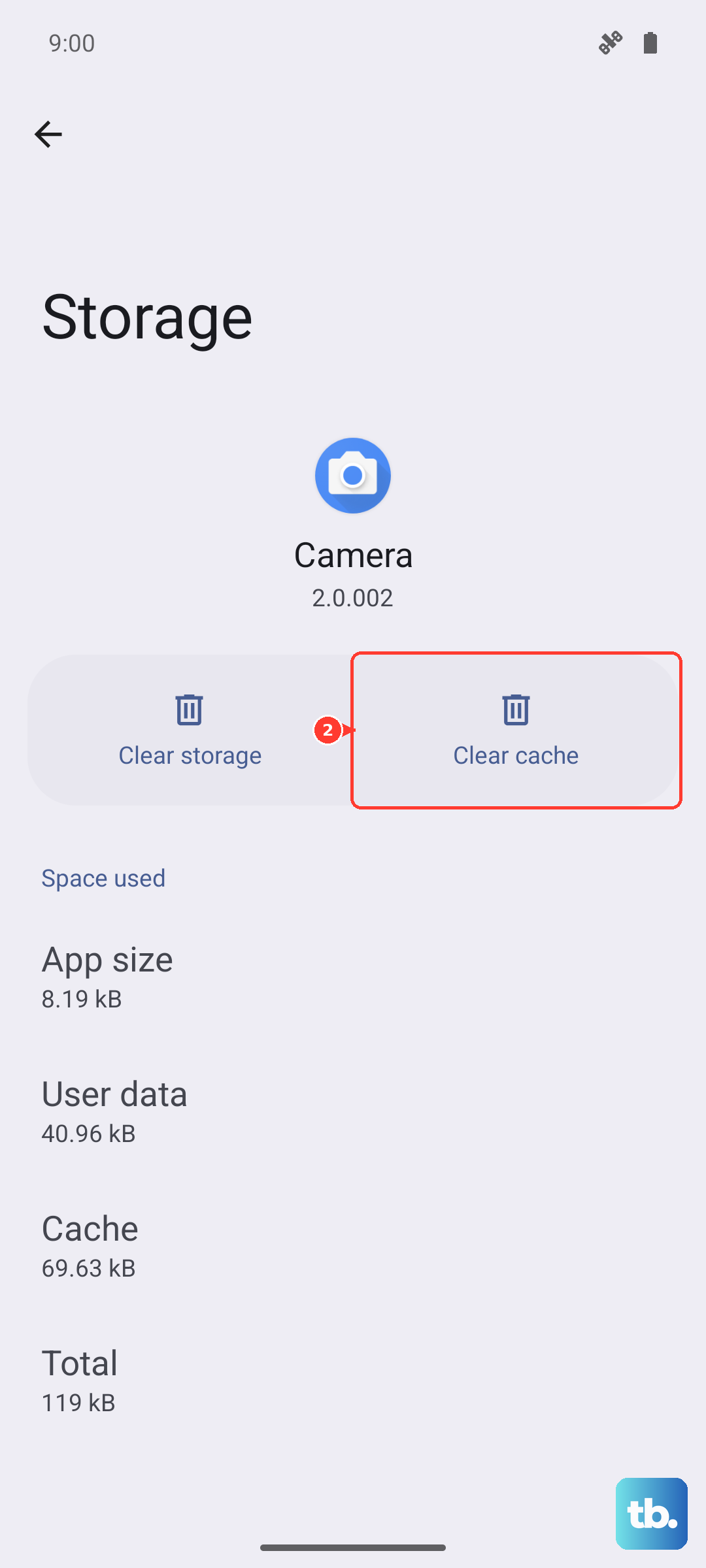
If the warning persists, you can clear the USB cache.
Go to Settings, then Apps, tap Filter and sort, turn on Show system apps, select USB Settings, tap Storage, then tap Clear cache.
As a workaround you can also try a different cable or charge the phone wirelessly until the port behaves.
Boot Into Safe Mode to Rule Out a Rogue App
A downloaded app can interfere with the update process.
Safe mode loads only the original software that came with the phone, which lets you test whether one of your installed apps is the culprit.
Press and hold the Power button until the Power menu appears, then touch and hold Power off until Safe mode displays.
With the phone in Safe mode, try the update again through Settings, then Software update.
If the update succeeds in Safe mode, a third-party app was the problem.
Restart the phone normally, then remove apps you installed recently, starting with the most recent, until updates work without entering Safe mode.
Update From a Computer Using Smart Switch
When the over-the-air update keeps failing no matter what you try on the phone itself, you can run the update from a computer instead.
Samsung's free Smart Switch software is the official tool for updating a Galaxy phone from a Windows PC or Mac.
Install Samsung Smart Switch on your Windows PC or Mac.
Connect your Galaxy S26 to the computer with a USB cable.
Open Smart Switch and use the software-update option, then follow the prompts.
While the update runs, do not disconnect the USB cable and do not use your device until the process is complete.
Interrupting it partway can leave the software in a bad state, so be patient and let the computer finish the job.
Back Up Your Data, Then Factory Reset as a Last Resort
If updates still refuse to install after everything above, a factory data reset is the final do-it-yourself option.
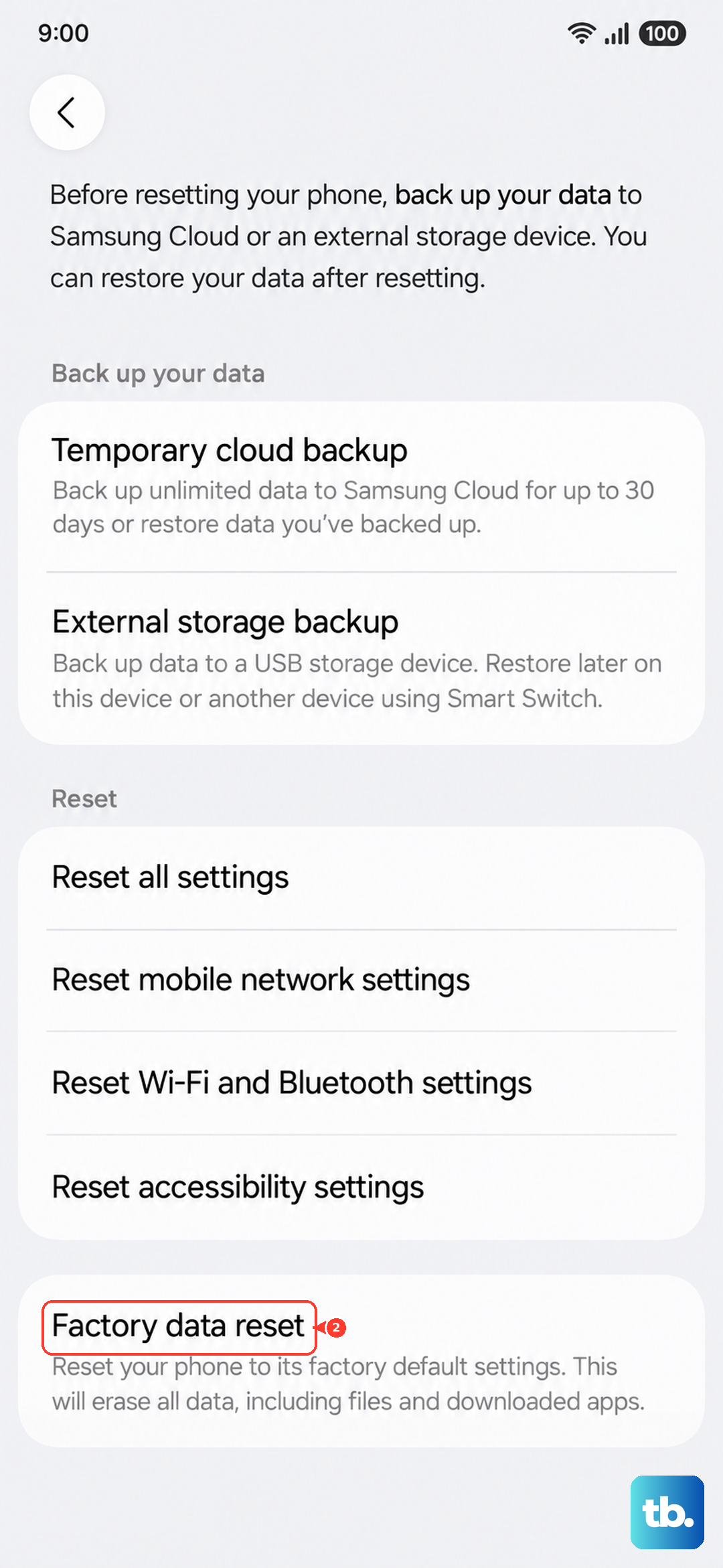
This erases the phone, so treat it as a genuine last resort and back up your data first.
Samsung warns, "Please save any information you need prior to the factory reset because your personal information may not be recovered."
Once you have a current backup, perform the reset.
- 1.Open Settings.
- 2.Tap General management.
- 3.Tap Reset.
- 4.Tap Factory data reset.
- 5.Review the information shown, then tap Reset.
- 6.Tap Delete all (enter your PIN or Samsung account password if prompted).
After the phone restarts and you sign back in, run the update on a fresh setup before restoring your apps.
A clean system gives the update its best chance of installing cleanly.
When to Hand It to Samsung
If your Galaxy S26 still will not update after working through every fix above, the problem may need professional service rather than another round of troubleshooting.
Samsung's official guidance is to visit a Samsung walk-in service center or schedule a repair service online.
Bringing along the details of what you have already tried will help the technician get to the root cause faster.
Frequently Asked Questions
Why does my Galaxy S26 say it is up to date when it is not?
The phone may not have rechecked the update server recently, especially if you have been off Wi-Fi. Connect to a stable Wi-Fi network, then manually trigger a check under Settings, then Software update, then Download and install. Some carriers require Wi-Fi before the phone will check for or install an update at all.
Can I use my phone while the update installs?
No. During an update the device cannot be used, and you will not be able to make calls, including to emergency services. Plan to leave the phone alone on the charger until the installation finishes.
Will updating from a computer erase my data?
Updating through Samsung Smart Switch on a Windows PC or Mac is a software-update method, not a reset, so it is separate from a factory data reset. Just keep the USB cable connected and avoid using the device until the update is complete. Only the factory data reset erases your personal information, which is why it is reserved for last.
What does the water-drop icon have to do with updating?
The water-drop, or moisture detected, warning can block charging, and an update needs a charged phone to install. Humidity alone can trigger it even without real water. Unplug the phone, wipe or gently shake out the port, let it air-dry, then restart and charge again, or use a wireless charger in the meantime.
Should I factory reset before contacting Samsung?
Try the safer steps first, including restarting, freeing up storage, Safe mode, and updating via Smart Switch. A factory reset is a true last resort because it erases everything, so back up your data beforehand. If updates still fail after a reset, that is the point to visit a Samsung walk-in service center or book a repair online.











