
That spinning Wi-Fi icon on your Galaxy S26 Ultra is frustrating, especially on a brand new phone. Since this is a 2026 flagship with early software, it's often a quick software glitch you can fix yourself. I'd start with the basics below.
Toggle Wi-Fi and Restart Your Phone
First, pull down the notification shade twice to open the full Quick Panel. Tap the Wi-Fi icon to turn it off, wait five seconds, and tap it again to turn it back on. This forces the phone to drop and reacquire the network, which solves a lot of momentary hiccups.
If that doesn't work, restart the phone. Press and hold the Side key and Volume Down button together for about 10 seconds until you see the Samsung logo. A fresh boot clears out the temporary bugs that One UI 8.5 can sometimes hold onto.
Use Airplane Mode to Reset Radios
This is a reliable trick for any connectivity issue. Swipe down and tap the Airplane mode icon to enable it, which turns off Wi-Fi, cellular, and Bluetooth. Wait for about 15 seconds, then tap the icon again to disable Airplane mode. This forces all the wireless hardware to reinitialize from scratch.
Forget the Problem Network
Your S26 Ultra might be holding onto corrupted login data for that network. Go to Settings > Connections > Wi-Fi. Tap the gear icon next to your network's name and select Forget.
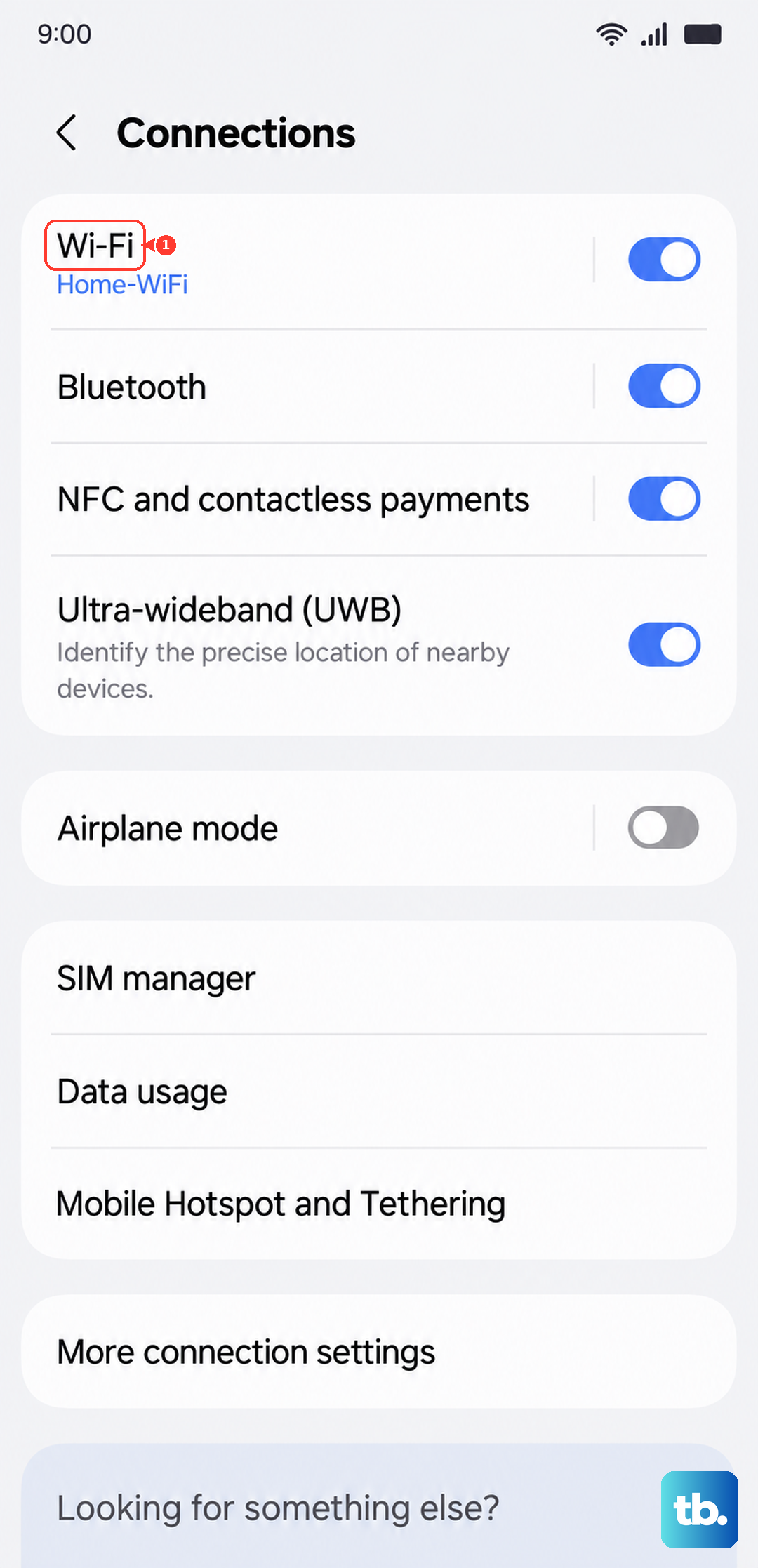
Now, tap on the network name from the list again and re-enter the password carefully. This is crucial if you've recently changed your Wi-Fi password or got a new router.
Check for Router Issues
Before you dig deeper into phone settings, rule out the source. Unplug your router and modem from power for a full minute. Plug the modem back in first, wait for it to fully connect, then plug the router back in.
If other devices in your home are also struggling to connect, the problem is almost certainly with your internet equipment and not your phone.
Disable Bluetooth Temporarily
Bluetooth and Wi-Fi can sometimes interfere on the 2.4GHz band. Swipe down and tap the Bluetooth icon in your Quick Panel to turn it off. Try connecting to Wi-Fi again. If it works, you've found a simple conflict. You can usually turn Bluetooth back on afterward.
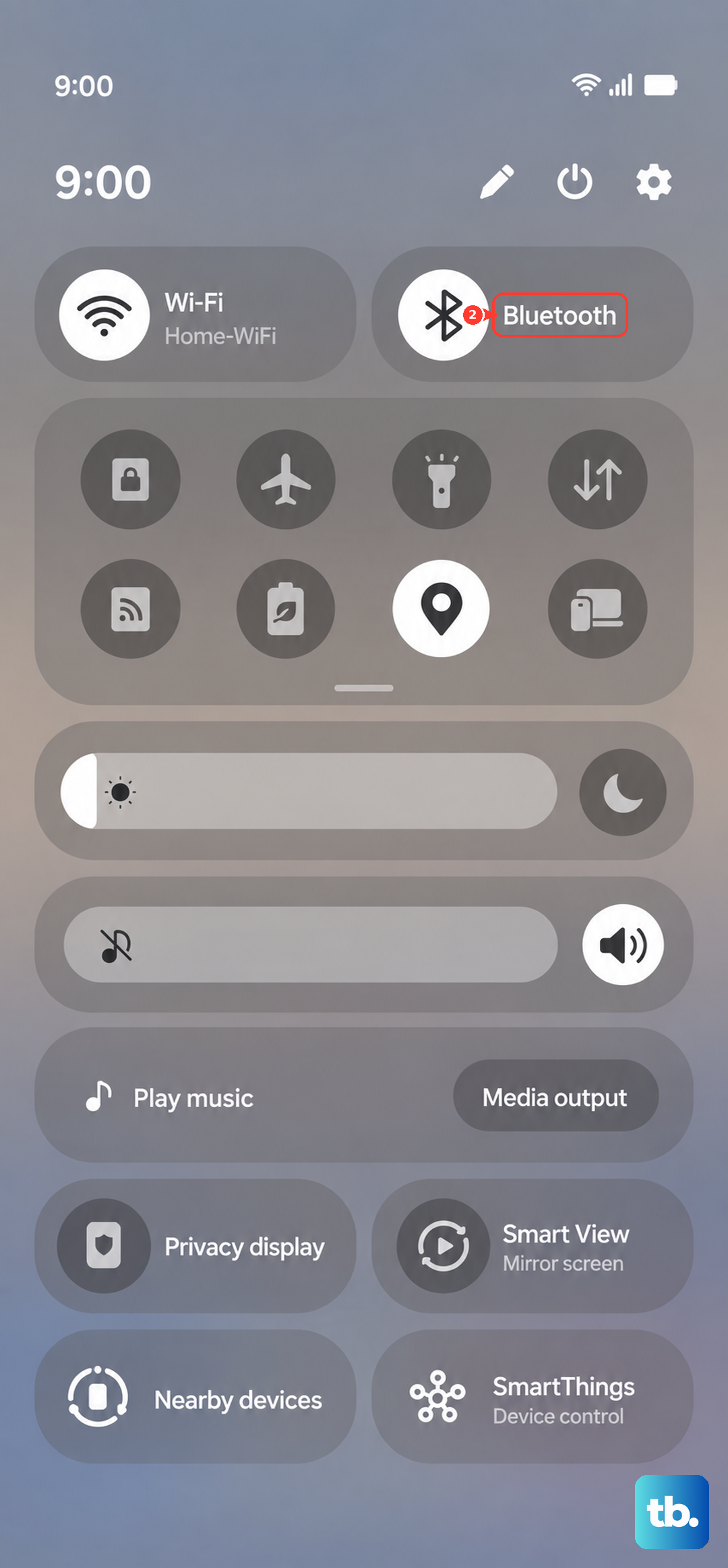
Turn Off Wi-Fi Power Saving Mode
One UI has a feature to reduce Wi-Fi power usage that can be a bit too aggressive. Go to Settings > Connections > Wi-Fi. Tap the three-dot menu in the top right and go to Intelligent Wi-Fi.
Look for an option called "Wi-Fi power saving" or "Suspend Wi-Fi during sleep" and make sure it's turned off. This ensures your connection stays active.
Disable Adaptive Wi-Fi or Smart Switch
Your phone might be trying to be too helpful. In the same Wi-Fi > Intelligent Wi-Fi menu, look for settings like "Adaptive Wi-Fi" or "Switch to mobile data." Turn these features off. They're designed to switch to cellular when Wi-Fi is weak, but they can sometimes prevent a stable connection from being established.
Check Your Phone's Date and Time
Incorrect time settings can break the security certificates needed for Wi-Fi authentication. Go to Settings > General Management > Date and time. Ensure that "Automatic date and time" is switched on. This syncs your phone with network time.
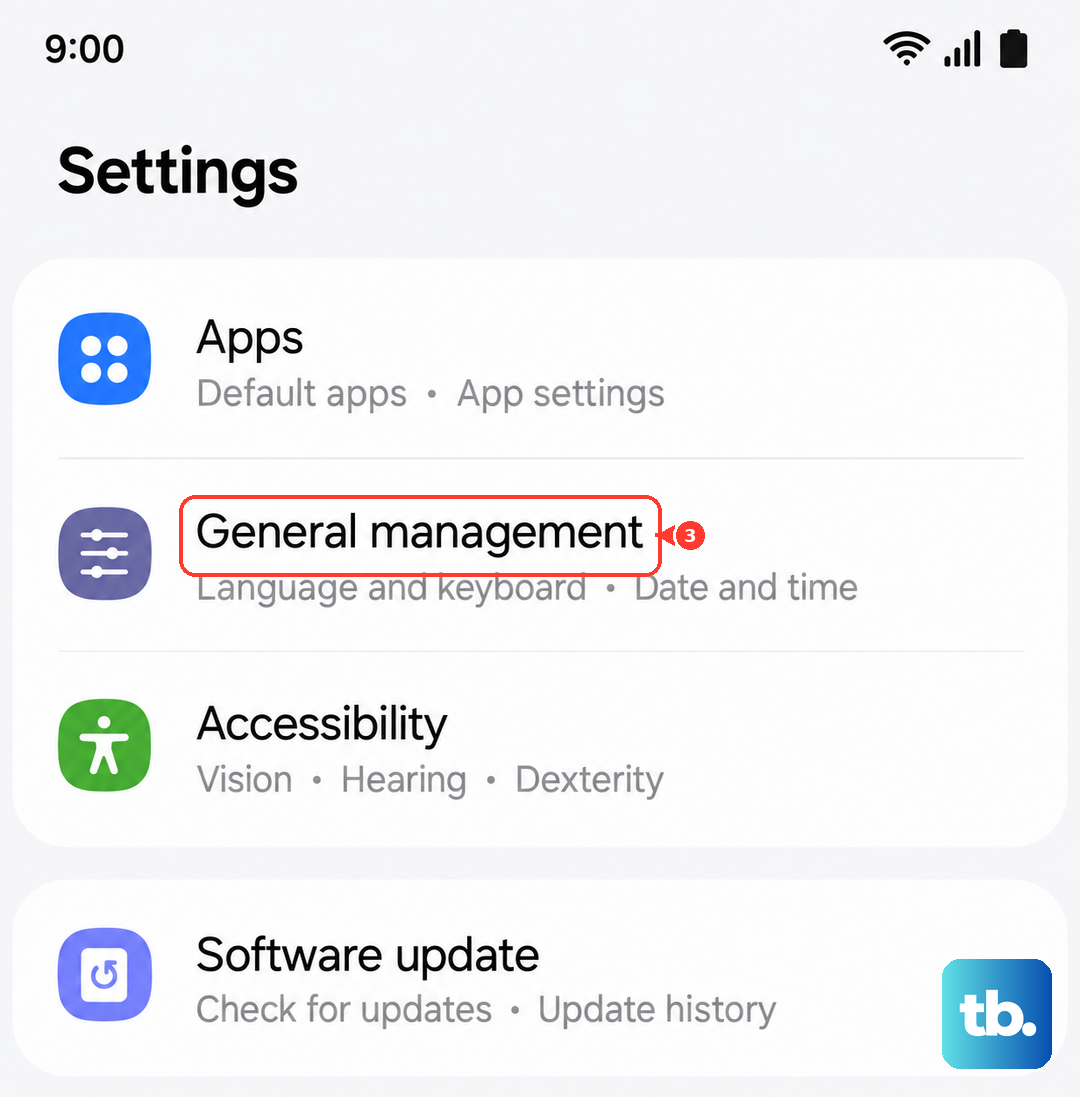
Boot Into Safe Mode
A third-party app you installed could be causing the conflict. To check, press and hold the Side key until the power menu appears. Then, tap and hold the "Power off" option on your screen until you see a prompt to reboot into Safe Mode. Tap it.
If Wi-Fi works perfectly in Safe Mode, a recently downloaded app is the culprit. Start by uninstalling any VPNs, ad blockers, or network tools.
Reset Your Network Settings
This is a bigger step, but it won't delete your personal data. It will erase all saved Wi-Fi networks, Bluetooth pairings, and mobile network preferences. Go to Settings > General Management > Reset > Reset network settings.
Tap reset and confirm. Your phone will reboot. Afterward, you'll need to reconnect to your Wi-Fi and re-pair Bluetooth devices, but it often clears deep-seated network configuration errors.
Update Your Software
As a new 2026 device, early software bugs are a real possibility. Samsung is quick to push stability updates. Go to Settings > Software update > Download and install. If an update is available, install it. These updates frequently include fixes for wireless connectivity.
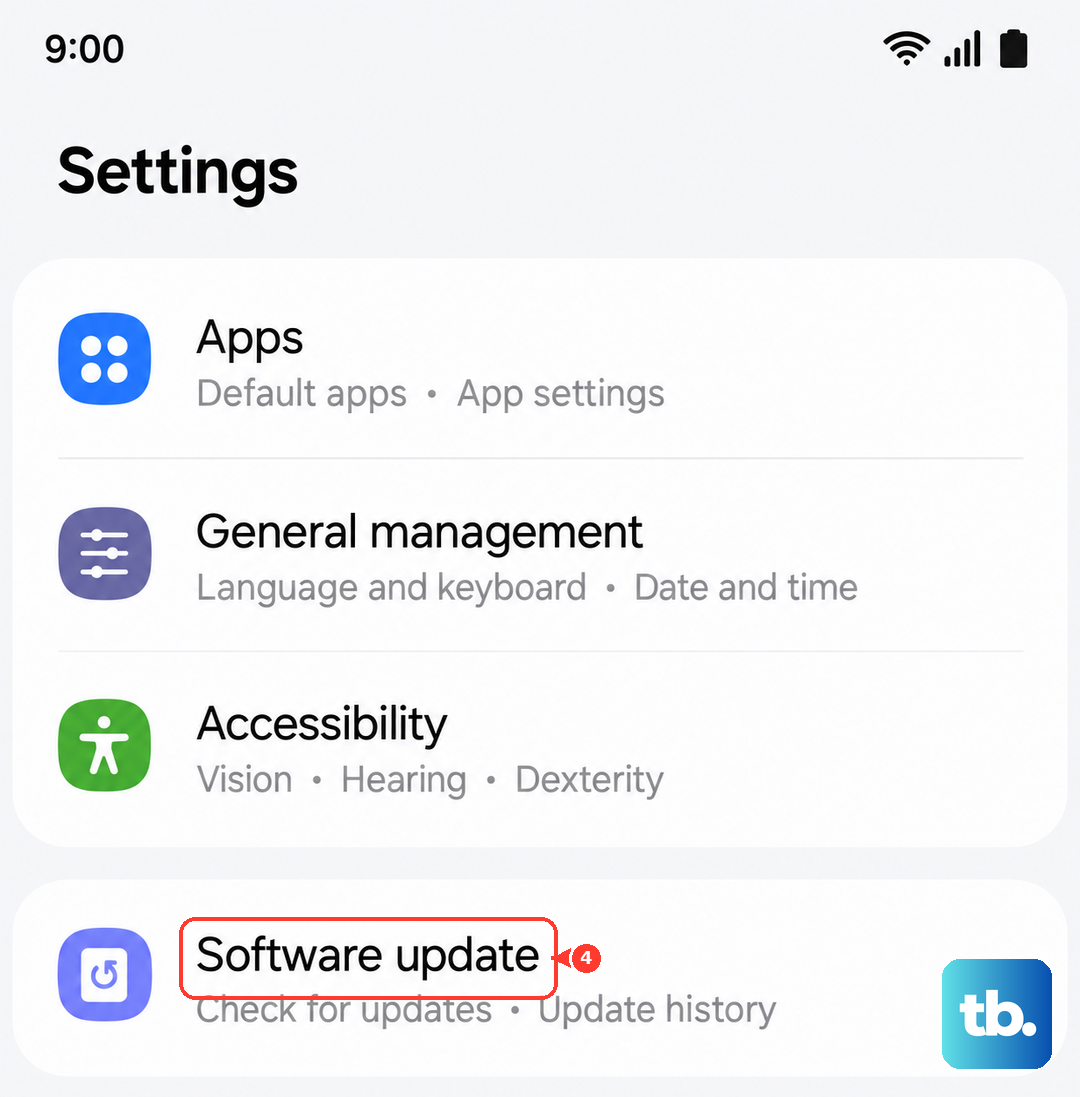
Make sure your phone is connected to a strong cellular signal or use another device's hotspot to download the update if your home Wi-Fi is the problem.
Check for Physical Interference
While rare, a very thick or metal phone case can attenuate the Wi-Fi signal. Try removing your case to see if the connection strength improves. Also, ensure the area around the top of the phone (where the antennas are) isn't being covered by your hand when you hold it.
Since the S26 Ultra's S Pen slot is near the bottom frame, make sure no debris from there has migrated and isn't somehow obstructing the antenna lines. A quick visual check is a good idea.