
When your Galaxy S26 Ultra goes silent, it can throw you off. You might miss calls, have no media playback, or get no sound from notifications. Software glitches are possible, but many audio problems have straightforward fixes.
To separate hardware from software, open a left and right speaker test and play the channel tones. What you hear, or do not hear, tells you which fixes below matter most.
Check Your Volume and Sound Mode
First, press the volume up button on the side of your phone. If you see a volume slider on screen but still hear nothing, the issue might be deeper. It's also worth checking your quick settings panel by swiping down from the top of the screen twice.
Look for a sound mode icon. Make sure it's not set to Vibrate or Mute. If it is, tap it to switch back to Sound mode. You can also open Settings > Sounds and vibration and select Sound under Sound mode without changing your volume levels.
Disconnect Bluetooth and Accessories
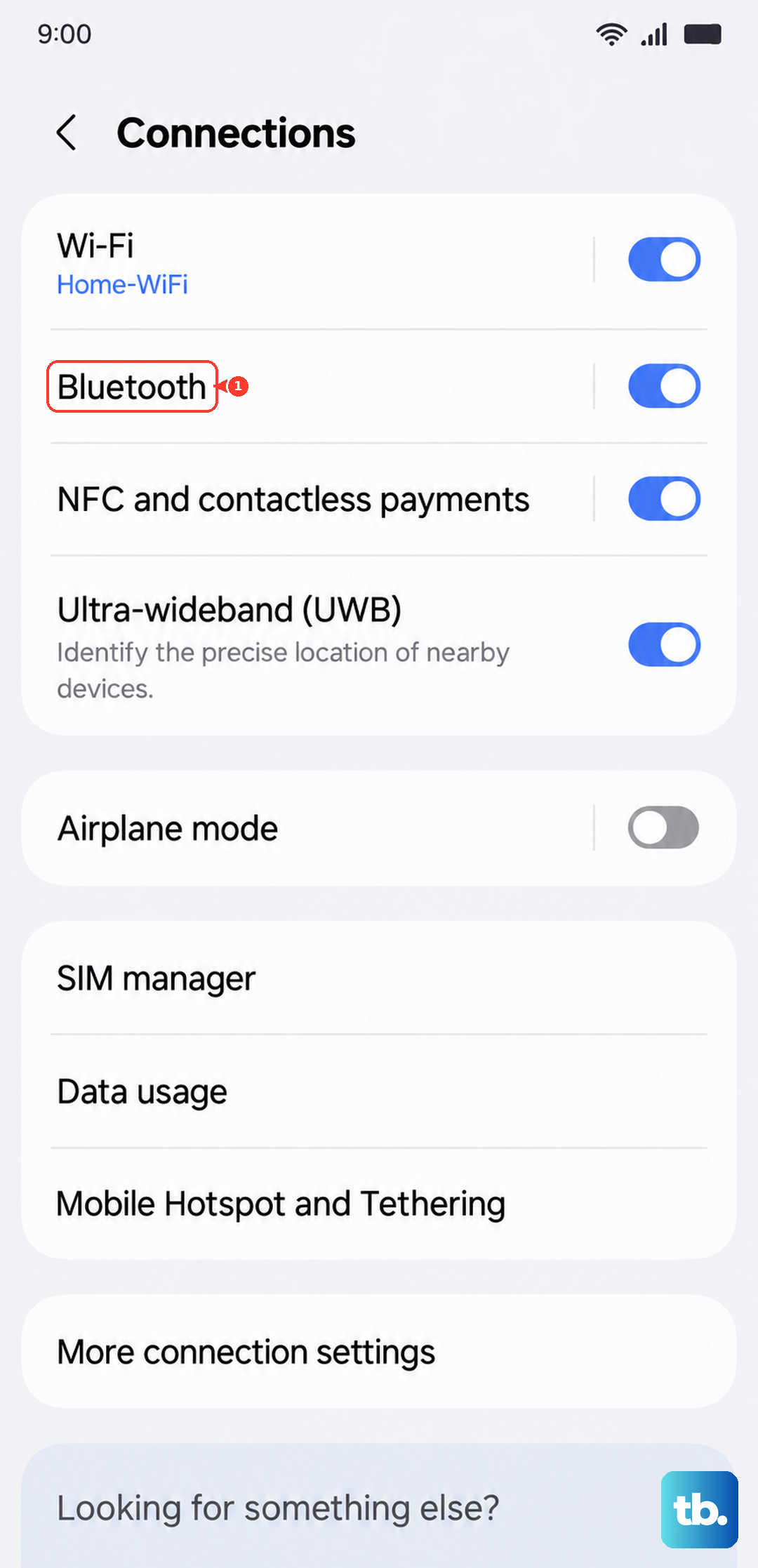
Your S26 Ultra might be routing audio to a paired device. Open Settings > Connections > Bluetooth and turn the toggle off. Also, disconnect any USB-C headphones or accessories and test the phone's speakers again.
If you use a case, especially a rugged one, try removing it temporarily. A poorly designed case can partially block the bottom speaker grill or the top earpiece, muffling sound significantly.
Clean the Speaker Grills
Dust and pocket lint love to collect in the speaker openings. Before cleaning, power off your phone, unplug it, and remove its case or other accessories. Gently brush the speaker grills at the top and bottom of the phone with a soft, dry toothbrush.
Use a soft, dry microfiber cloth to gently wipe the surrounding surfaces without applying too much pressure. Avoid cans of compressed air, which can damage your phone. Never insert anything sharp like a pin into the grill, as you can permanently damage the speaker diaphragm behind it.
Review Advanced Sound Settings
Samsung's software has several layers of audio controls. Go to Settings > Sounds and vibration. First, tap on 'Volume' and make sure all sliders, like Media, Ringtone, and Notifications, are turned up.
Next, go back and look for 'Separate app sound'. If this is enabled, it routes audio from a specific app (like YouTube) to a different output, which can sometimes cause the main speakers to seem dead. Toggle it off to test.
Also check Settings > Accessibility > Hearing enhancements. Ensure that options like 'Mute all sounds' or 'Left/right sound balance' sliders set to one extreme aren't accidentally enabled.
Perform a Force Restart
A simple reboot clears temporary glitches. For the Galaxy S26 Ultra, press and hold the Volume down button and the Side button together for more than 7 seconds until the device restarts.
This forces the phone to shut down and boot fresh, which can resolve minor software hiccups. After it restarts, play some audio and check whether sound has returned.
Check for Software Updates
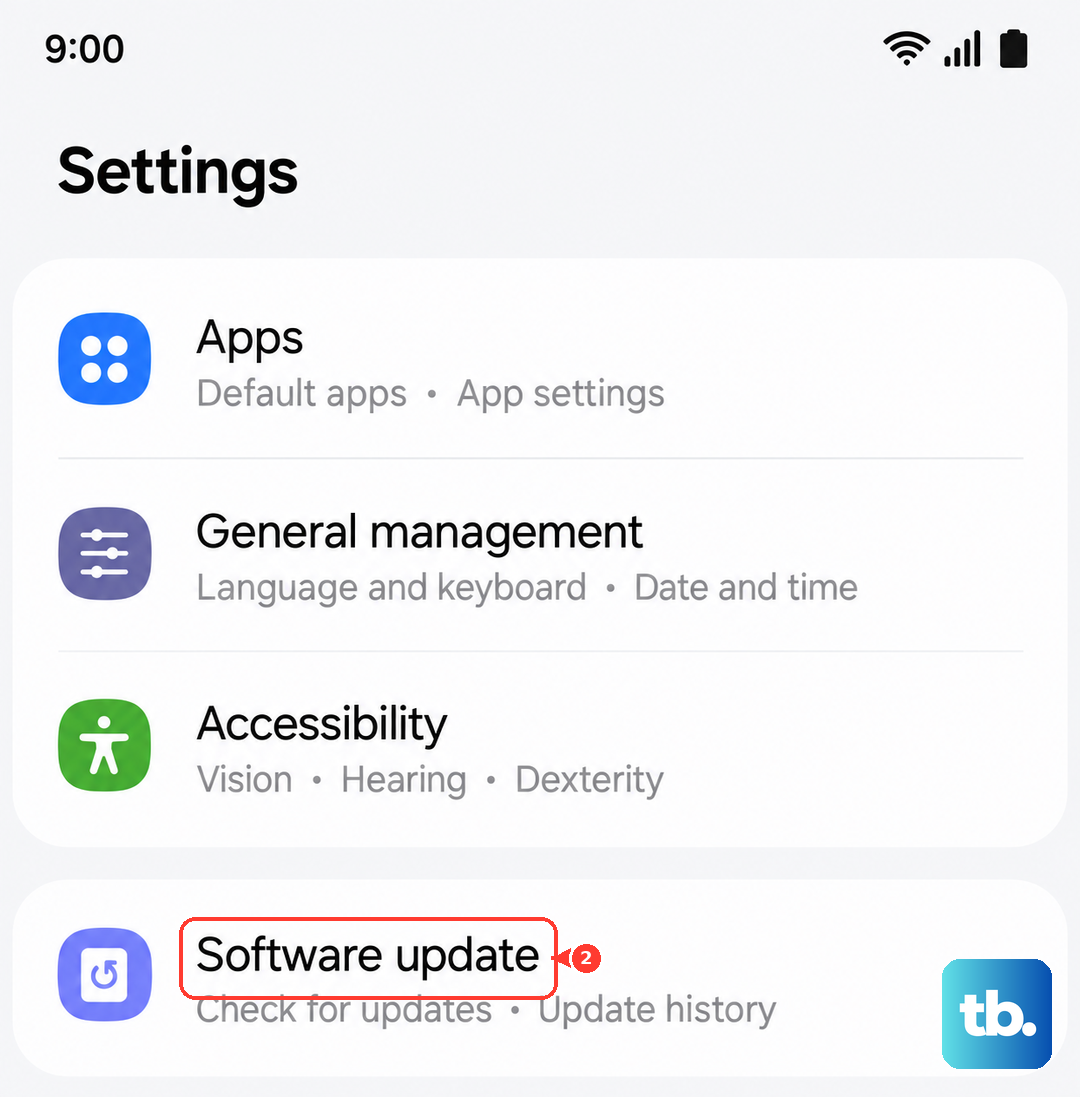
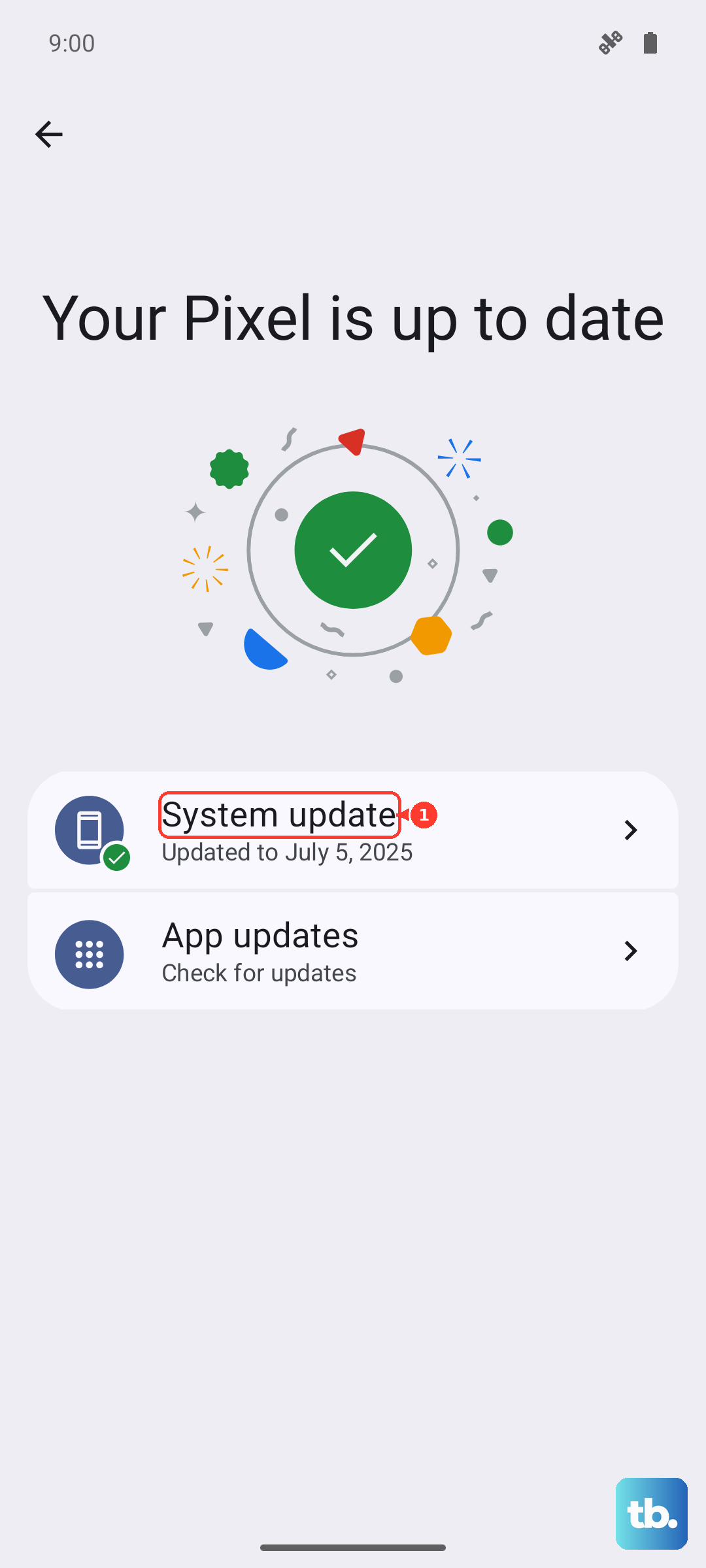
Check for available software updates, which may help with software problems. Go to Settings > Software update > Check for updates. Depending on your software and carrier, the option may be called Download and install, Check for system updates, or Check for software updates.
Make sure your phone is connected to Wi-Fi and has sufficient battery. If an update is available, follow the on-screen instructions to install it, then test your sound again. I'd do this after a force restart, as it's a common fix for new-model gremlins.
Boot Into Safe Mode
This starts your phone with all third-party apps disabled. If sound works in Safe Mode, a downloaded app may be the cause. To enter Safe Mode on the S26 Ultra, press and hold the Side and Volume down buttons together to open the power menu.
Touch and hold Power off, then tap Safe mode. 'Safe mode' appears in the bottom left corner of the screen. Test your sound with a ringtone preview in Settings > Sounds and vibration > Ringtone.
To exit, just restart your phone normally. If sound works here, you'll need to uninstall apps one by one, starting with the most recent, to find the offender.
Clear the System Cache
Check for software updates before trying the system cache step. You'll need to use the Recovery Mode menu. First, power off your S26 Ultra completely.
Connect it to your computer with a USB-C cable. Then, press and hold the Volume Up and Side buttons together.
If the Recovery Mode menu offers 'Wipe cache partition', use the Volume buttons to highlight it and press the Side button to select it. Select 'Yes' to confirm, then select 'Reboot system now'. This doesn't delete any personal data.
Reset All Settings
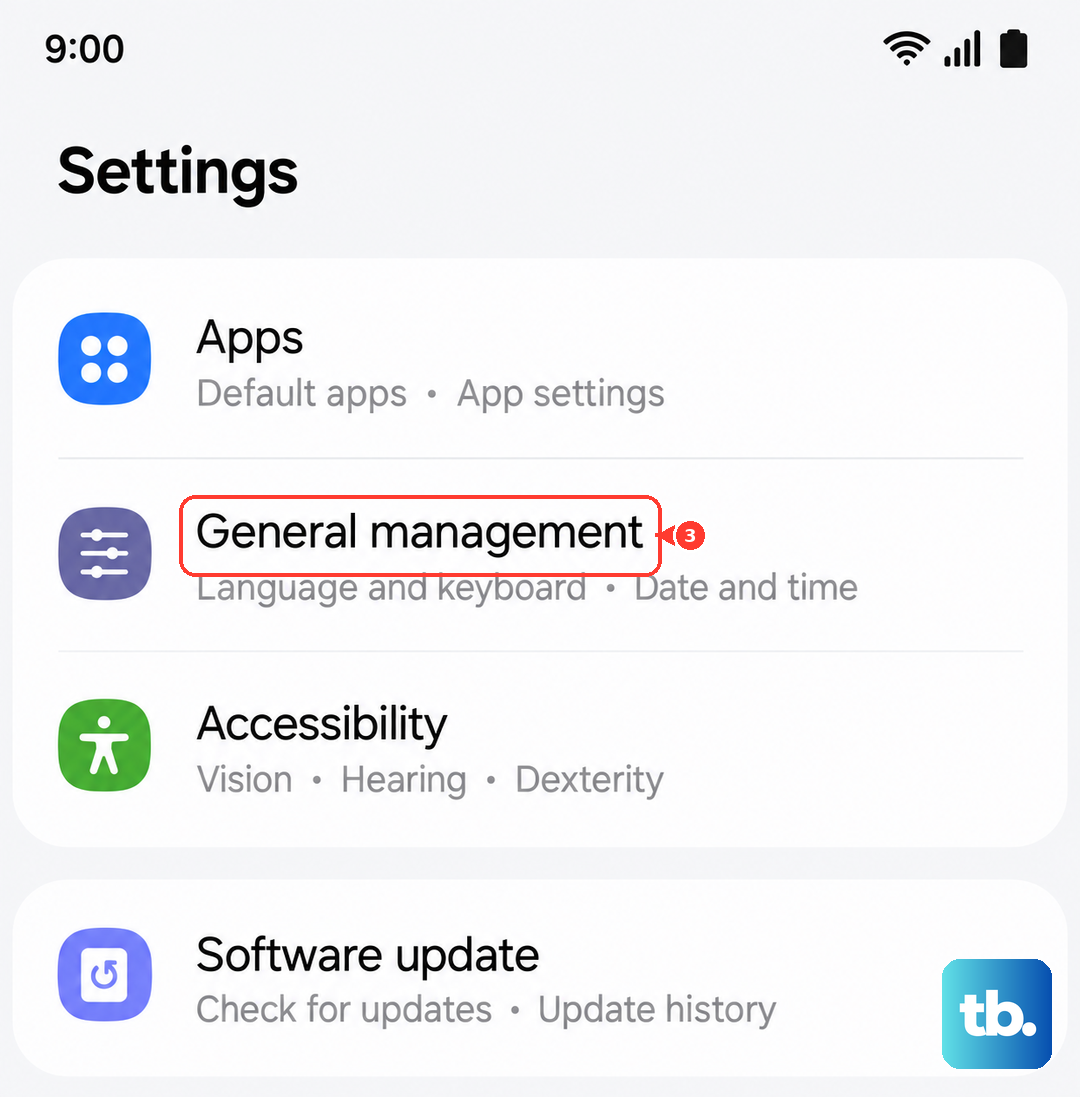
If a specific setting is causing the conflict, this resets settings to their defaults without deleting your photos, messages, or apps. Security and language settings, accounts, and settings for downloaded apps are kept. Go to Settings > General management > Reset > Reset all settings.
You'll need to enter your PIN or password. Tap Reset settings, then Reset to confirm. After the reset, check your sound and volume settings again and test audio playback. You may need to adjust settings that have returned to their defaults.