
Seeing the "Unfortunately, Settings has stopped" error pop up on your new Galaxy S26 Ultra is a real buzzkill, especially when you're trying to tweak something. This crash is usually a software hiccup, often tied to One UI 8.5 on Android 16. Since it's a brand new device, early software bugs are a possibility. Let's get it sorted.
Force Restart Your Phone
This is the quickest thing to try. A force restart clears out temporary glitches in the system memory that can cause apps like Settings to misbehave. It won't delete any of your data.
Just press and hold the Volume Down button and the Side/Power button together for about 10 seconds. Let go when you see the Samsung logo appear on the screen.
Clear the Settings App Cache
Corrupted cache data is a common culprit for app crashes. The Settings app builds up its own cache, and clearing it can often fix the problem instantly.
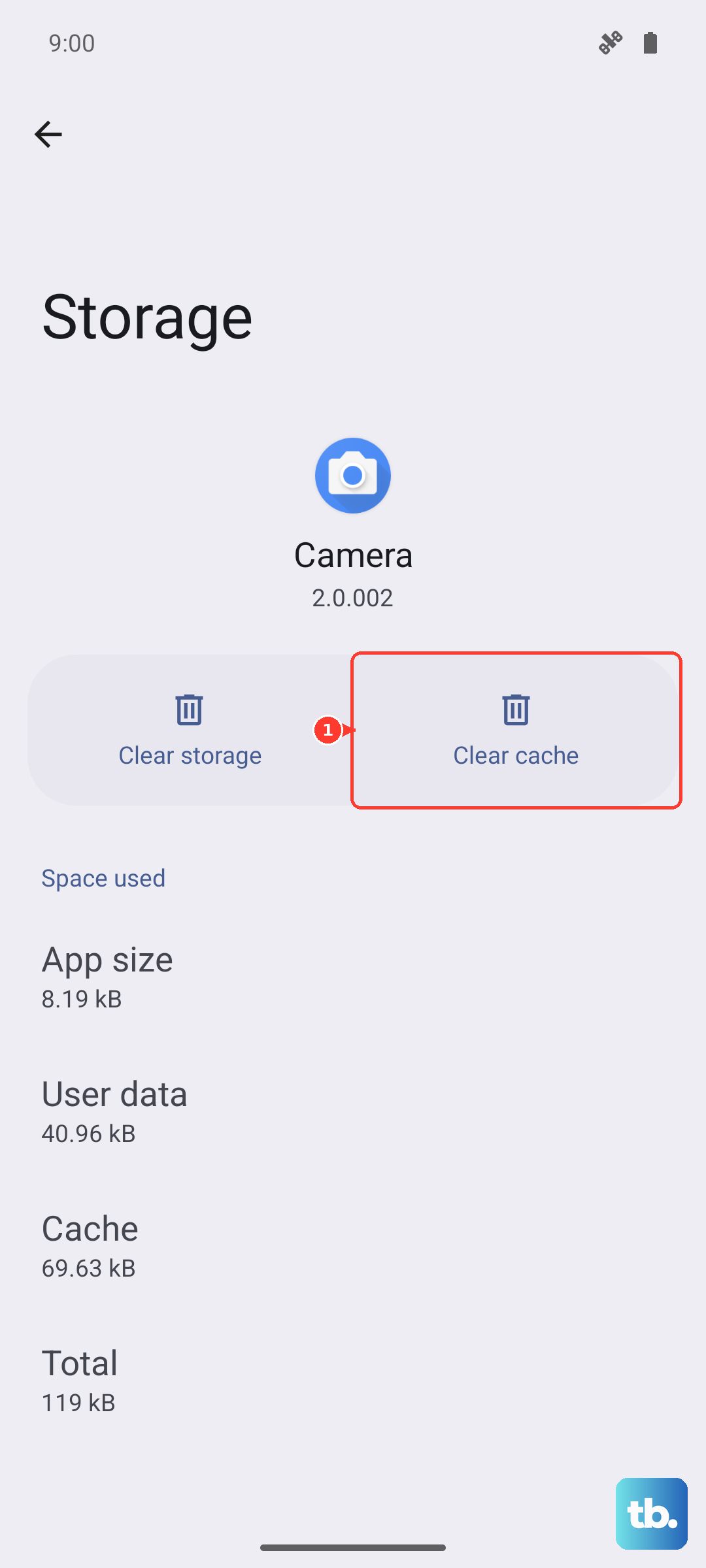
You'll need to get into the Apps menu. If the Settings app crashes immediately, try opening it and quickly tapping the search icon at the top. Type "Apps" and select the result before the crash happens. From there, find "Settings" in the list, tap on it, then go to Storage and tap "Clear Cache."
Force Stop the Settings App
If clearing the cache didn't help, force stopping the app gives it a completely fresh start. This closes the app and any background processes it was stuck on.
Again, navigate to Settings > Apps, find "Settings," and this time tap "Force Stop." Confirm the action. The app will close, and the next time you open it, it should reload cleanly.
Check for a System Update
Given that the S26 Ultra is a new 2026 model, Samsung is likely pushing out early software updates to squash bugs exactly like this. An update could contain a direct fix for the Settings crash.
You can check by going to Settings > Software update and tapping "Download and install." If an update is available, let it install completely. Your phone will restart on its own. I'd make this a priority after a simple restart.
Manage Google Play Services
Google Play Services is the backbone for a lot of core Android functions, and issues here can ripple out and break system apps. There are a couple of things to try with it.
First, try force stopping it. Go to Settings > Apps, find "Google Play Services," and tap "Force Stop." Then, go back into its storage and tap "Clear Cache." For more stubborn issues, you can tap "Manage storage" and then "Clear all data." Don't worry, this will rebuild itself.
Boot into Safe Mode
This step helps you figure out if a recently downloaded third-party app is causing a conflict with the system. Safe mode temporarily disables all apps you installed.
To enter Safe Mode, press and hold the Side/Power button until the power menu appears. Then, tap and hold the "Power off" option on your screen. You'll see a prompt to reboot to Safe Mode. Tap it. If the Settings app works fine in Safe Mode, you know a downloaded app is the problem. You'll need to uninstall apps one by one to find the culprit.
Reset All Settings
This is a strong step before considering a full factory reset. It will revert all your system settings back to default, things like Wi-Fi passwords, Bluetooth pairings, and display preferences, but it won't touch your personal photos, messages, or apps.
Go to Settings > General management > Reset > Reset all settings. You'll need to enter your PIN or password. After it completes, you'll have to set up your connections and preferences again, but it often resolves deep-seated configuration errors causing crashes.
Perform a Factory Reset
If you've tried everything else and the Settings app is still unusable, a factory reset is the final option. This will erase everything on your phone and return it to its out-of-the-box state. You must back up anything important first using Samsung Cloud or Google One.
Since the Settings app may be inaccessible, you can use the hardware buttons. Power off the phone completely. Then, press and hold the Volume Up button and the Side/Power button together. When the Samsung logo appears, release only the Power button but keep holding Volume Up to enter Recovery Mode. Use the volume buttons to navigate to "Wipe data/factory reset" and select it with the Power button.











