
When your Galaxy S26 Ultra stays silent, a software hiccup or notification setting may be the cause. Start by restarting your phone. Press and hold the Volume down button and the Side button together for more than 7 seconds until the device restarts. This simple reboot can clear temporary glitches that stop notifications from coming through.
Check Do Not Disturb and Focus Modes
It's easy to accidentally enable a mode that silences alerts. Swipe down from the top right of your screen to open the Quick settings panel. Look for the "Do not disturb" icon. If it's highlighted, tap it to turn it off.
You should also check your scheduled modes. Search Settings for Do not disturb and open it. Review any schedules or rules you've set that might be blocking alerts automatically.
Review App-Specific Notification Settings
Each app has its own notification controls in One UI. Open Settings > Notifications > App notifications. Find the app that's not alerting you, like Messages or Gmail, and tap on it.
Make sure "Allow notifications" is on. To show categories, go to Settings > Notifications > Advanced settings and turn on "Manage notification categories for each app." Return to App notifications, select the app, and tap Notification categories if available. Open the desired category, enable "Allow notifications," and select "Alert" and a sound.
Ensure Background Data and Battery Optimization Aren't Restricting Apps
To save battery, Android can put apps to sleep. Go to Settings > Apps, select the problematic app, and tap Battery. Set the background usage to "Unrestricted."
Next, go back and check Mobile data. Ensure "Allow background data usage" is enabled. This lets the app fetch new information even when you're not actively using it.
Clear the Cache for the Problem App
Corrupted temporary files can break an app's notification system. Head to Settings > Apps, find the app, and select it. Tap on Storage and then choose "Clear cache."
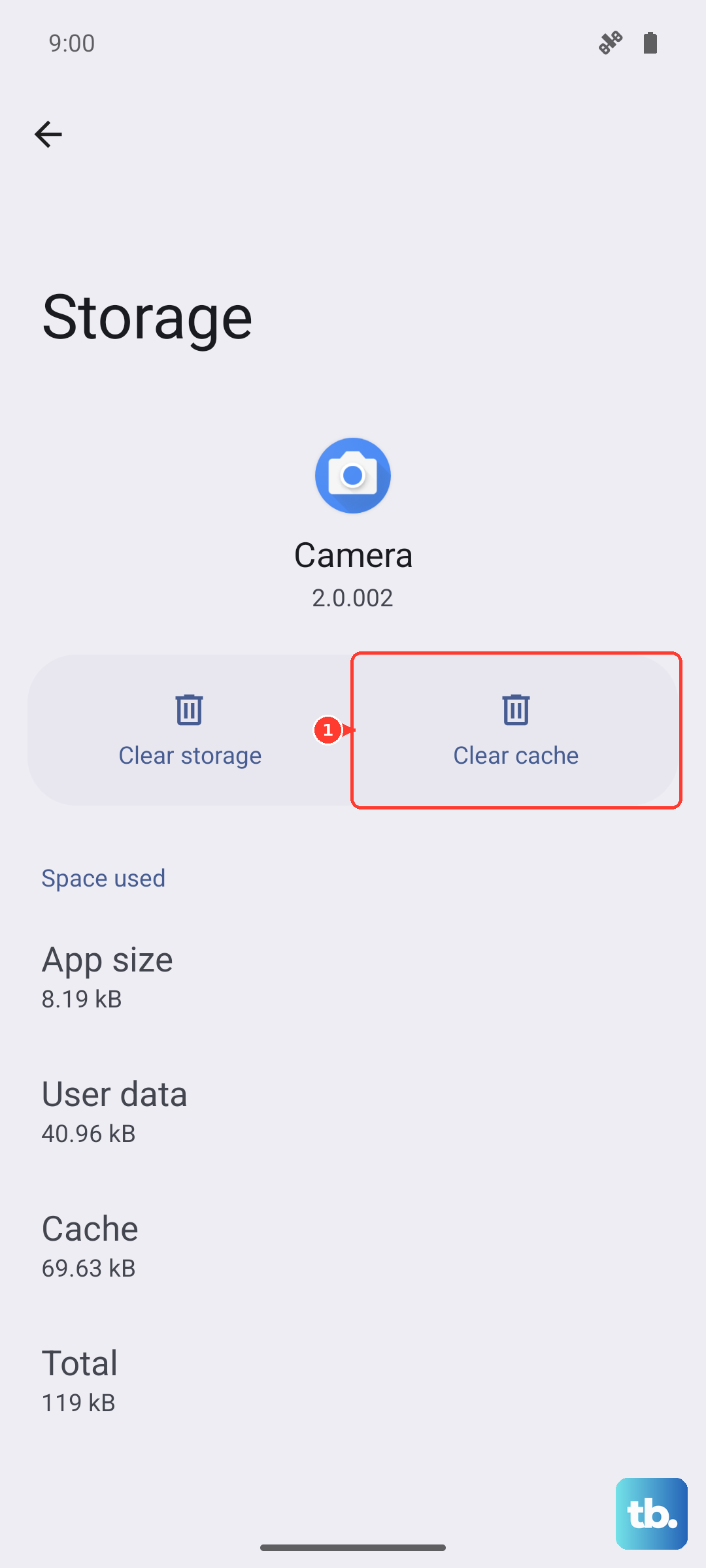
This only deletes temporary data and won't affect your messages or login info. After clearing, return to the app's information screen, tap "Force stop," and reopen it to see if notifications return.
Update the App and Your Phone's Software
An outdated app is a common culprit. Open the Galaxy Store or Google Play Store, go to your profile, and check for updates. Install any available updates for the apps giving you trouble.
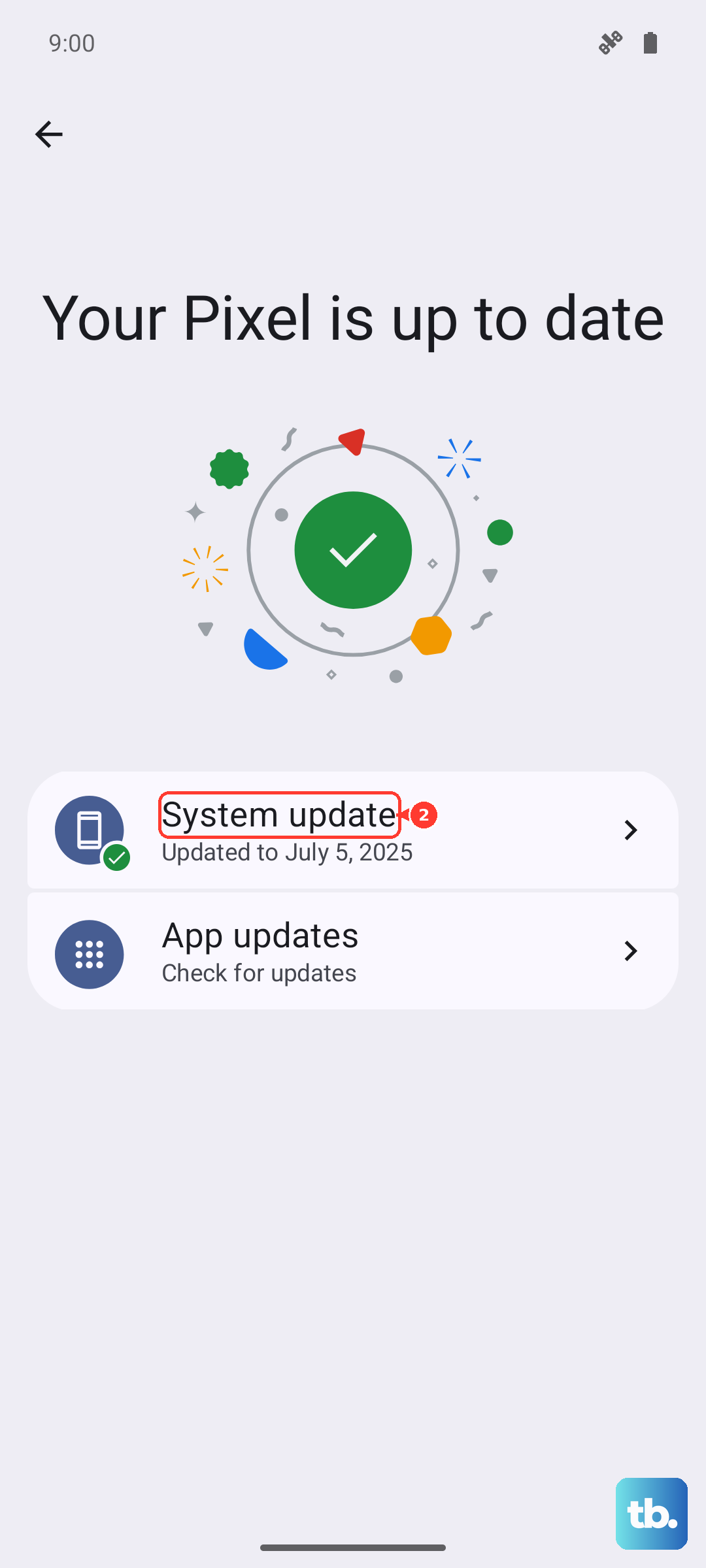
Then, check for a system update. Software updates can help with app problems. Go to Settings > Software update > Check for updates and follow the on-screen instructions. Depending on your software and carrier, the option may be "Download and install," "Check for system updates," or "Check for software updates."
Reset the App's Preferences
If you've denied permissions by mistake, this is an easy fix. Go to Settings > Apps, tap the three-dot menu in the top right, and select "Reset app preferences."
This returns app preferences to their defaults. Review the confirmation screen before proceeding, then check the affected app's notification settings again. Open Settings > Apps, select the app, tap Notifications, and turn on "Allow notifications" if it's off.
Check for Conflicting Modes or Routines
Bixby Routines or Modes can automatically change settings. Open the Modes and Routines app and review any that are active. A routine for "Sleep," for instance, might be turning on Do Not Disturb and forgetting to turn it off.
Look at the "Then" actions in your routines to ensure they aren't muting notifications when you don't want them to. I've seen this trip up a lot of users on new Samsung devices.
Check Sleeping Apps
Sleeping apps may not send notifications when they're closed. Go to Settings > Battery > Background usage limits, then open Sleeping apps.
Touch and hold the app that's missing alerts, then tap Remove. If it isn't listed there, check Deep sleeping apps and remove it from that list instead. Open the app again and check whether its notifications return.
Boot Into Safe Mode
This checks if a third-party app is causing the conflict. Press and hold the Side and Volume down buttons together for a few seconds until the power menu appears. Then, touch and hold "Power off" until the "Safe mode" option appears.
Tap "Safe mode." Check notifications from a preinstalled app, since downloaded apps are disabled here. If those notifications work normally, a downloaded app may be the problem. Restart normally to leave Safe mode, then uninstall recently downloaded apps one by one to find the culprit.
Reset All Network Settings
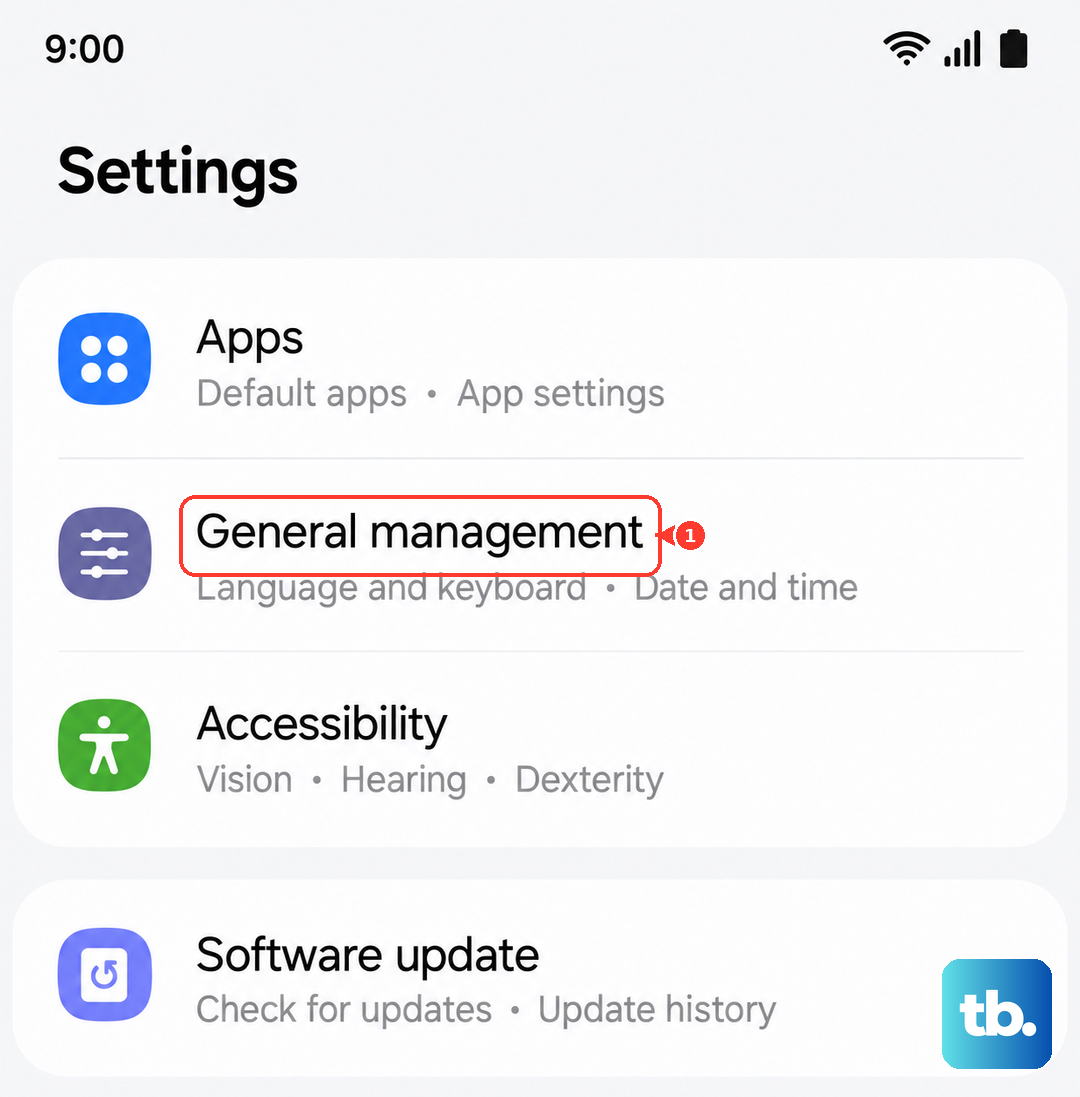
This can help if the issue is related to syncing over mobile data or Wi-Fi. Go to Settings > General management > Reset. Select "Reset mobile network settings" for mobile data problems or "Reset Wi-Fi and Bluetooth settings" for Wi-Fi problems. Tap "Reset settings," then "Reset" to confirm.
Neither option erases your apps or personal data. After "Reset Wi-Fi and Bluetooth settings," you'll have to reconnect to your Wi-Fi and re-pair Bluetooth devices. Choose the reset that matches the connection giving you trouble, then check whether the app can sync and send notifications.
Turn Off Power Saving
Power saving can prevent app notifications from appearing. Swipe down from the top right of your screen to open the Quick settings panel, then tap the Power saving icon if it's highlighted to turn it off.
Test the affected app again to check whether it sends notifications with Power saving disabled. If alerts are still missing, open the app and check its own notification settings, menus, or help page for any additional controls that may be blocking them.