
Missing calls on your brand new Galaxy S26 Ultra is a real headache. You see the notification pop up, but the phone stays completely silent. Since this is a 2026 device running One UI 8.5, there are a few new settings and some early software quirks to check. Let's get your ringer working again.
Check Your Phone's Sound Mode
The quickest thing to check is your sound profile. Swipe down twice from the top of your screen to open the full Quick Settings panel. Look for the sound icon, it will show a bell, a vibration symbol, or a circle with a line through it.
If you see the "Silent" icon (the circle with a line), tap it to switch to "Sound" or "Vibrate" mode. You can also press the physical volume up button on the side, then tap the three-dot menu that appears above the volume slider to make sure "Media volume" isn't linked to your ringtone volume.
Disable Do Not Disturb and Modes
One UI's Modes and Routines are powerful, but they can silence your phone automatically. Pull down the Quick Settings panel and look for the "Do Not Disturb" or "Moon" icon. If it's highlighted, tap it to turn it off.
You should also check for any active Modes. Go to Settings > Modes and Routines. See if "Sleep," "Driving," or a custom mode is currently running. These often silence calls, so make sure any active ones are turned off.
Adjust Your Ringtone and Volume
Sometimes the issue is with the specific ringtone file. Head to Settings > Sounds and vibration > Ringtone. Try selecting a different default Samsung tone and tap "Apply." Then, have a friend call you to test it.
While you're there, check the volume level. Go to Settings > Sounds and vibration > Volume. Make sure the "Call" and "Notification" sliders are turned up. I'd recommend setting them to at least 70% for a good audible level.
Review Call Settings and Blocking
Samsung has several call management features that can send calls straight to voicemail. Open your Phone app, tap the three-dot menu in the top right, and go to Settings > Block numbers. Verify the caller isn't accidentally on your block list.
Also check for "Silence unknown callers." In the same Phone settings menu, look for this option and make sure it's toggled off if you want all calls to ring through.
Disconnect Bluetooth Accessories
If your S26 Ultra is connected to Galaxy Buds, a smartwatch, or a car stereo, the call audio might be routing there. Swipe down to the Quick Settings panel and tap the Bluetooth icon to turn it off temporarily.
You can also go to Settings > Connections > Bluetooth, tap the gear icon next to a connected device, and make sure "Call audio" is disabled if you don't want calls on that device.
Check App-Specific Notifications
This is crucial if you're using an app like WhatsApp, Skype, or Google Voice for calls. Open Settings > Notifications > App notifications. Select the messaging or calling app in question.
Ensure notifications are turned on for that app. Then, tap the notification category for "Incoming calls" or "Voice calls" and make sure the sound is set correctly and isn't being overridden by a "Silent" notification channel.
Restart Your Galaxy S26 Ultra
A simple reboot clears out temporary glitches that can affect system sounds. Press and hold the Side key and Volume Down button together for about 10 seconds until you see the Samsung logo appear, then release.
This force restart method works even if the screen is frozen. It's a good first step for any odd behavior on a new phone like this.
Update Your Software
Early software bugs are a known possibility with a newly released device. Samsung frequently pushes updates to fix these kinds of issues. Connect to Wi-Fi, then go to Settings > Software update > Download and install.
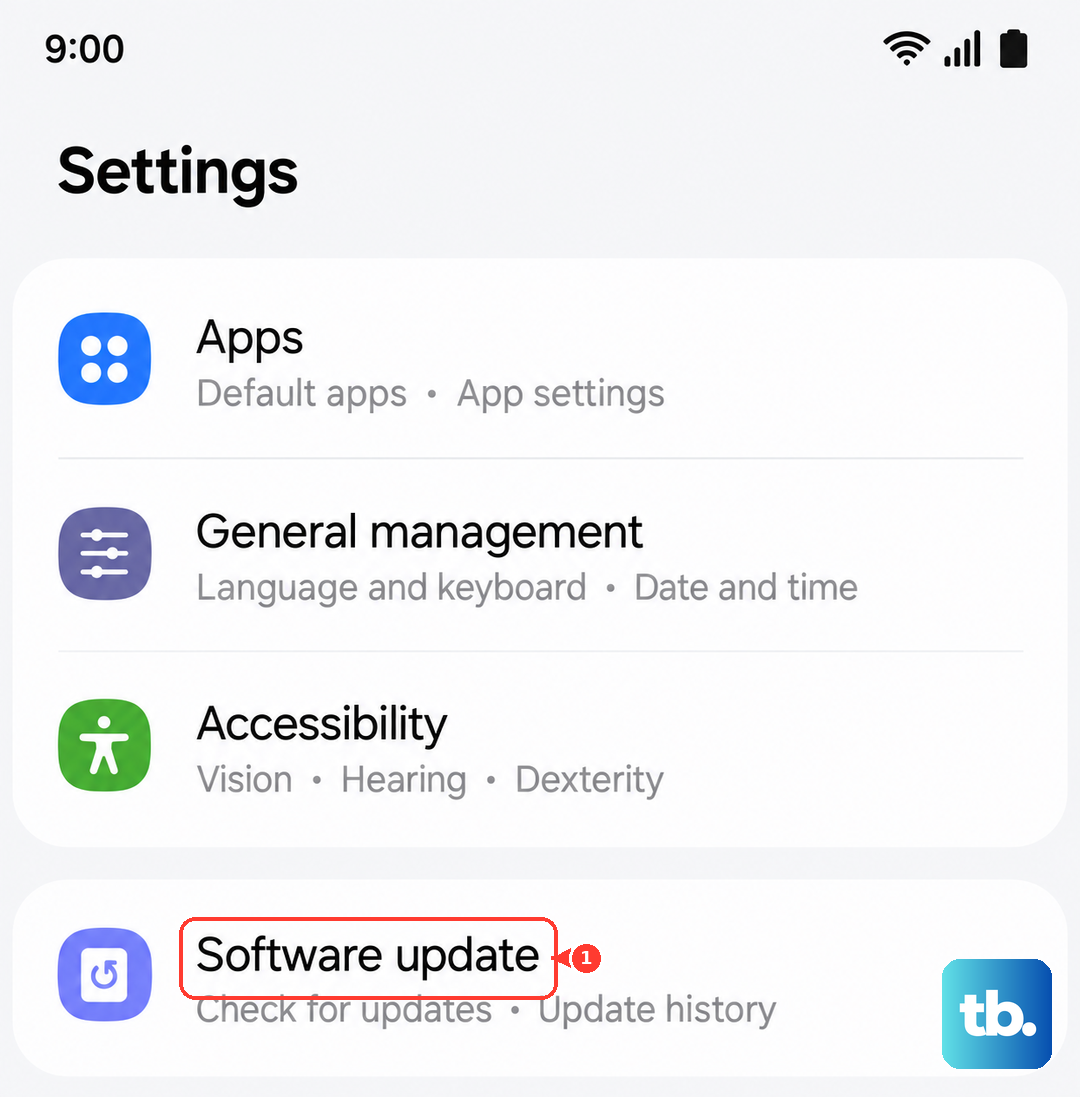
Make sure your battery is above 30% before starting an update. Installing the latest firmware can resolve a ringer problem caused by a software bug introduced in the initial release.
Reset App Preferences
This resets permissions and notification settings for all your apps without deleting any personal data. Go to Settings > Apps > Menu (three dots) > Reset app preferences.
You'll need to re-grant permissions when you use apps again, but it can fix issues where a system app's sound settings got corrupted. It's a less drastic step than a full reset.
Check for Call Forwarding
Call forwarding, if active, sends your calls to another number before your phone can ring. Open the Phone app, tap the three-dot menu, and go to Settings > Supplementary services > Call forwarding.
Make sure all forwarding options (like "Always forward" or "When busy") are set to "Disable." You might need to contact your carrier if these settings are grayed out.
Use Samsung's Diagnostic Tool
The S26 Ultra has a built-in diagnostic menu. Open your Phone app and dial *#0*#. This will launch the secret test menu.
Tap "Speaker" to test the top and bottom speakers. If they work here but not for ringtones, the issue is almost certainly a software or settings problem, not hardware.
Reset All Settings
This will revert all your sound, network, and display settings back to factory defaults. Your photos, messages, and apps will remain untouched. Go to Settings > General management > Reset > Reset all settings.
You'll need to enter your PIN or password. Afterward, you'll have to reconfigure your Wi-Fi, ringtones, and wallpapers, but it often clears up persistent sound issues.
Boot Into Safe Mode
Safe Mode disables all third-party apps. If your ringer works in Safe Mode, a recently downloaded app is likely causing the conflict. To enter it, press and hold the Side key until the power menu appears.
Then, tap and hold the "Power off" option on your screen. You'll see a "Safe Mode" prompt, tap it to reboot. If the problem is gone here, start uninstalling apps you added around the time the issue began.
Perform a Factory Reset
This is your last resort. A factory reset will erase everything on your phone, so you must back up your data first using Samsung Cloud or a computer. Go to Settings > General management > Reset > Factory data reset.
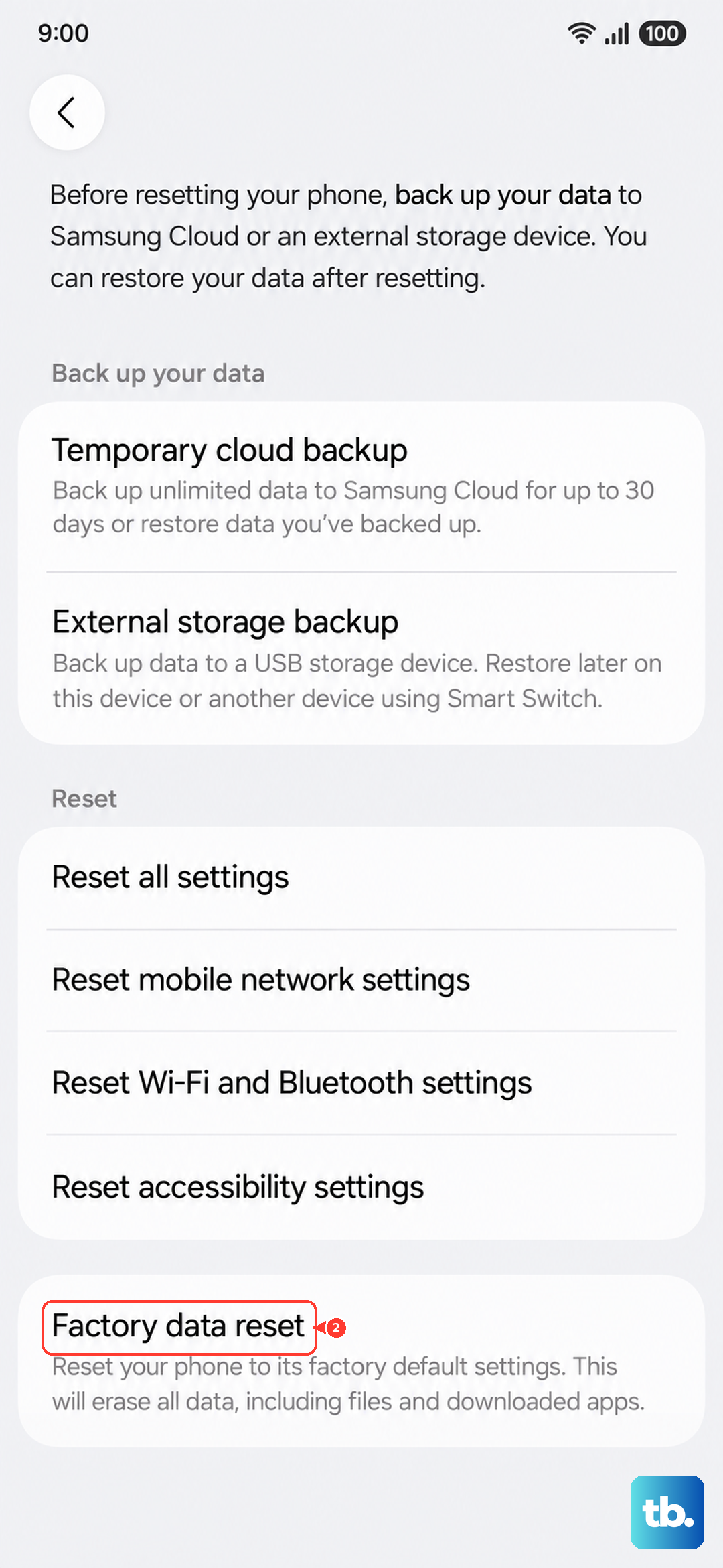
After the reset, set up the phone as new without restoring a backup initially. Test the ringer right away. If it works, a piece of data in your old backup was likely corrupted.