
If your brand new Samsung Galaxy S26 Ultra isn't feeling as snappy as you expected, you're not alone. Even with top-tier specs, a few software quirks or background tasks can introduce lag. The fixes are usually straightforward and don't require any special tools.
I'd start with a simple restart. It's the quickest way to clear out temporary glitches that can slow things down, especially on a new device that might have some early software bugs.
Press and hold the Volume Down button and the Side/Power button together for about 10 seconds. Let go when you see the Samsung logo appear on the screen. This force restart can clear up minor performance hiccups instantly.
Close Apps Running in the Background
Having too many apps open in the background can eat up your S26 Ultra's RAM. To close them, swipe up from the bottom of the screen and hold to enter the recent apps view. You can swipe individual apps off the screen to close them, or tap the three-dot menu and select 'Close all' for a clean slate.
Check for Software Updates
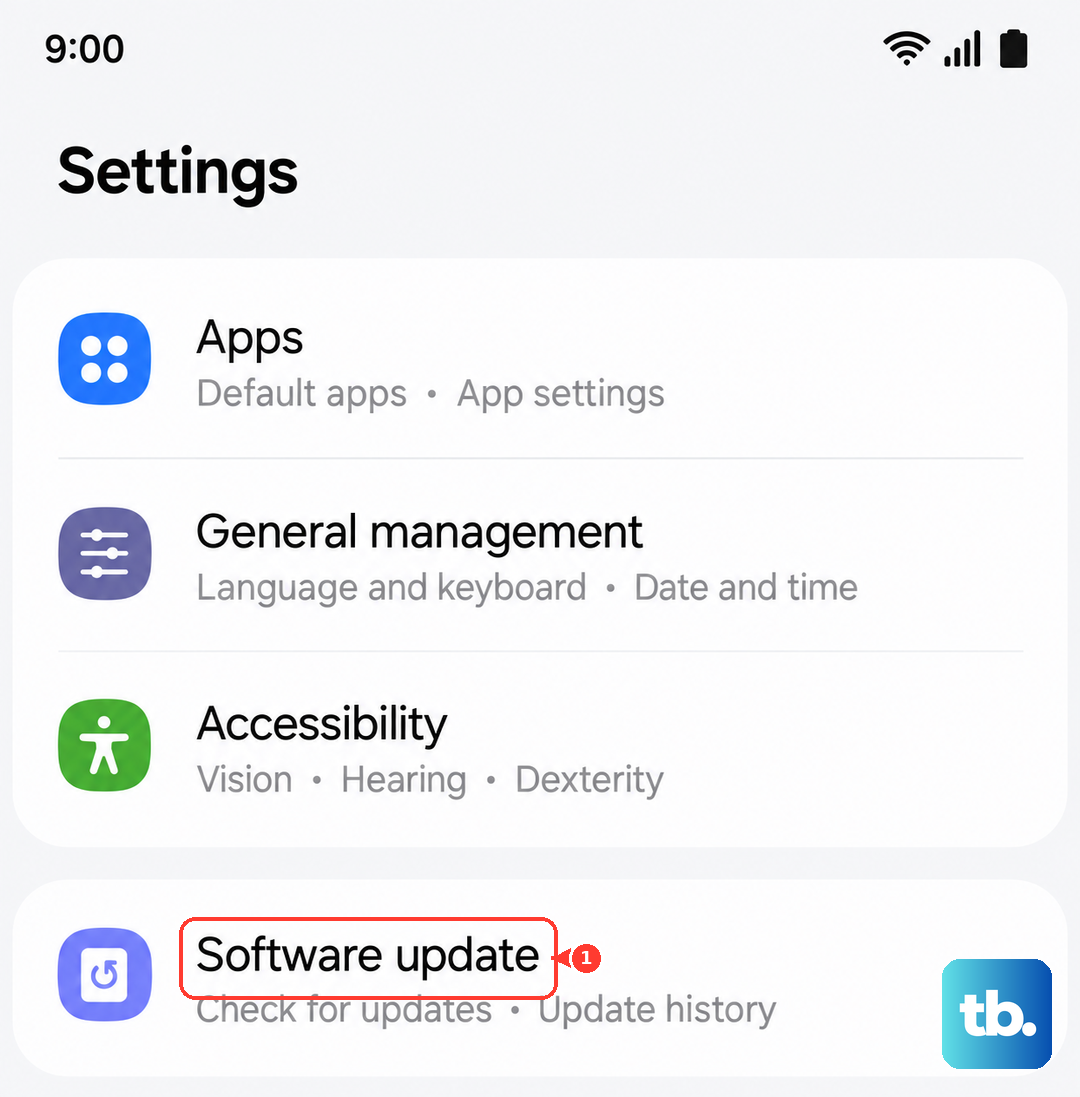
Since the S26 Ultra is a new device running One UI 8.5, Samsung is likely pushing out updates to fix performance bugs. Keeping your software current is crucial. Go to Settings > Software update and tap 'Download and install'. Make sure you're connected to Wi-Fi and have your phone plugged in or above 50% battery.
Free Up Internal Storage
Your phone can slow down if its storage is nearly full. Head to Settings > Battery and device care > Storage. This screen gives you a great breakdown of what's using space. Tap on categories like 'Images' or 'Apps' to clean them out. The 'Clean now' button can also remove temporary junk files with one tap.
Consider moving photos and videos to Samsung Cloud or another service. Also, the S26 Ultra doesn't support microSD cards, but you can plug in a compatible USB-C flash drive to offload media files if you need more room.
Manage Your Device's Performance Profile
The S26 Ultra has different performance modes that balance speed and battery life. Swipe down with two fingers to open your Quick Settings panel and look for the 'Performance profile' tile. Tapping it lets you switch between Light, Standard, and High Performance modes.
If you're not gaming or doing intensive tasks, the Light mode can reduce background activity and make the phone feel smoother for everyday use. You can find more detailed settings under Settings > Battery and device care > Performance profile.
Optimize Battery and Charging Settings
When enabled, the S26 Ultra's Battery Protection feature can limit charging to 80% to prolong battery health. While great for the long term, it means you're not starting the day with a full charge, which some users feel impacts performance later. You can toggle this in Settings > Battery > More battery settings.
Also, make sure you're using a compatible charger. For the fastest 60W Super Fast Charging 3.0, you need a Samsung 60W charger and a good USB-C cable. A slow charger won't hurt the phone, but it won't give you that quick power top-up.
Clear App Caches Individually
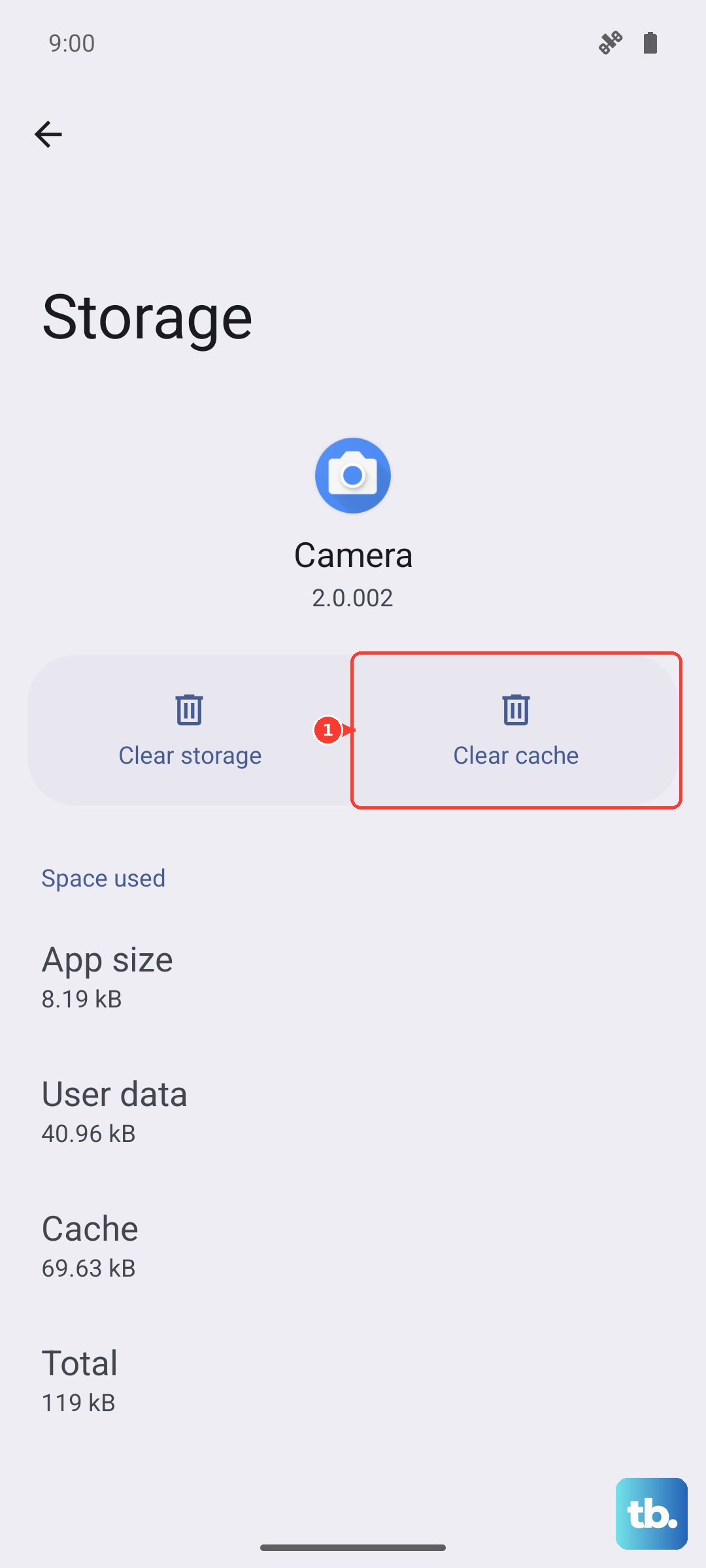
Over time, apps store temporary data that can become corrupted and cause slowdowns. You can clear this cache without deleting your personal data in the app. Go to Settings > Apps, select the app that's feeling sluggish (like your browser or social media apps), then tap 'Storage'. Hit 'Clear cache' at the bottom.
Reduce Animations and Visual Effects
One UI has smooth animations, but reducing their speed can make the phone feel faster. Enable Developer Options by going to Settings > About phone > Software information and tapping 'Build number' seven times. Then, go back to Settings and into 'Developer options'.
Scroll down to the 'Drawing' section. You can change 'Window animation scale', 'Transition animation scale', and 'Animator duration scale' from 1x to 0.5x. This makes UI transitions feel much quicker.
Review Background Activity for Apps
Some apps are overly aggressive about running in the background. You can put them to sleep to save battery and resources. Go to Settings > Battery and device care > Battery > Background usage limits. Here you can enable 'Put unused apps to sleep' automatically or manually add apps to the 'Sleeping' and 'Deep sleeping' lists.
Perform a Network Settings Reset
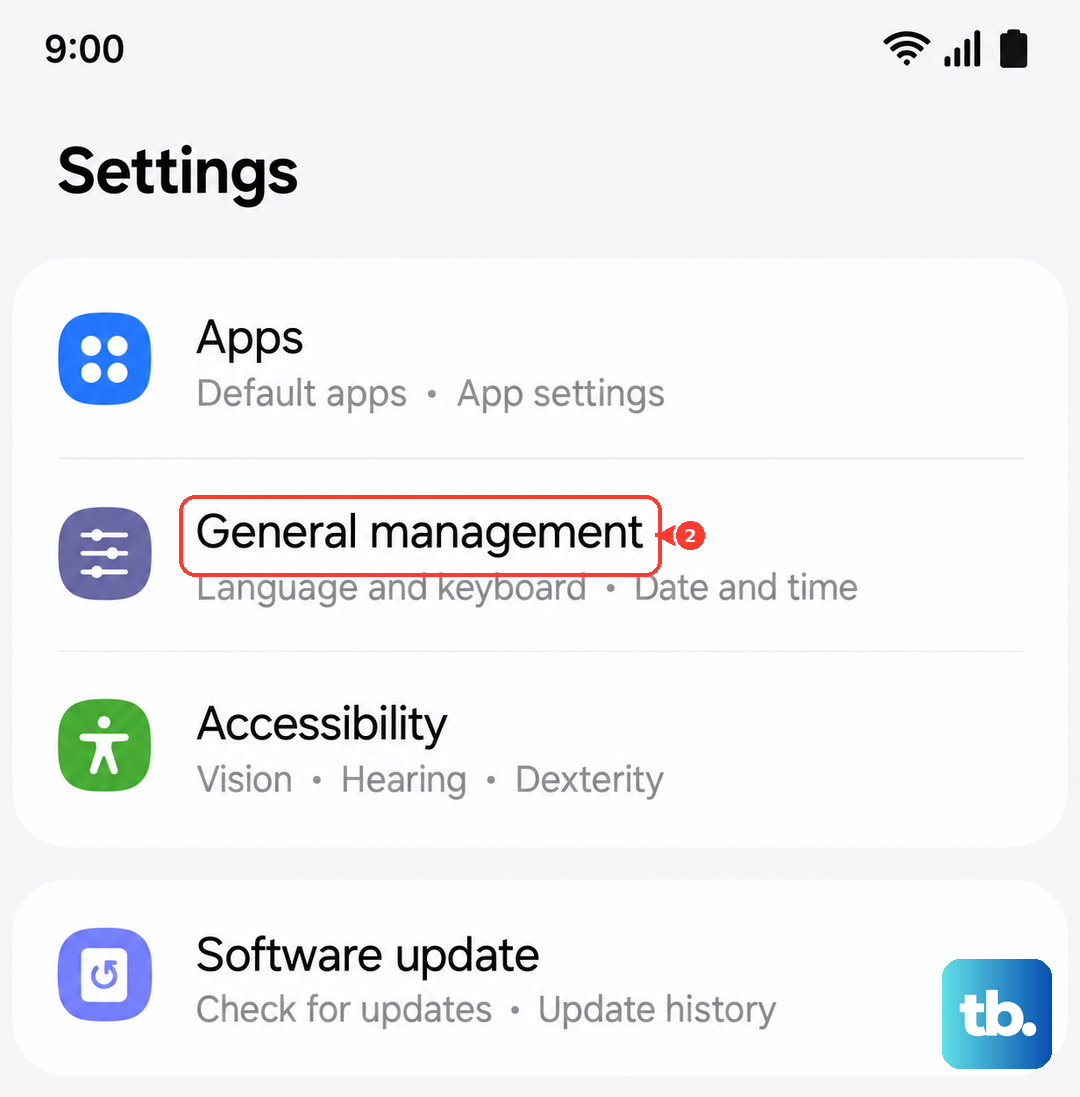
If your slowdown seems related to connectivity, like slow browsing or laggy app downloads, resetting your network settings can help. This clears all Wi-Fi networks, Bluetooth pairings, and mobile data settings. Go to Settings > General management > Reset > Reset network settings. You'll have to reconnect to Wi-Fi and re-pair Bluetooth devices afterward.
Keep the S Pen Slot and Charging Port Clean
This is a specific tip for the S26 Ultra design. Debris from your pocket can get trapped in the S Pen slot, which is right next to the USB-C port. This debris can sometimes migrate and cause connectivity issues with charging or data transfer, which the phone might misinterpret as a system problem. Gently clean out the S Pen slot and the USB-C port with a dry, soft-bristled brush.
Reset All Settings as a Last Resort
If you've tried everything and the phone is still laggy, you can reset all your settings without erasing your personal data. This will revert all your preferences for Wi-Fi, wallpaper, sounds, and apps back to default. Navigate to Settings > General management > Reset > Reset all settings. Enter your PIN if prompted and confirm. It's a bit of a hassle to set things up again, but it often resolves deeper software conflicts.