
That error message popping up on your brand new Galaxy S26 Ultra is a real buzzkill, especially when you're trying to send a quick text. It's a common hiccup, often tied to early software bugs on a fresh device, but you can almost always get your keyboard back with a few simple steps.
Force Stop and Restart the Keyboard App
This is the quickest fix and often works on the first try. It just clears any temporary glitch that's hanging up the Samsung Keyboard app.
Head into Settings > Apps. You might need to tap the three-dot menu and select Show system apps to find it. Scroll down and tap on Samsung Keyboard, then hit Force Stop. Go back to any app where you type and see if it's working now.
Give Your Phone a Quick Reboot
If force stopping didn't do the trick, a full restart of your S26 Ultra is the logical next step. It clears the system's working memory and can resolve a surprising number of minor software conflicts.
Just press and hold the Side key and Volume Down button together for about 10 seconds until you see the Samsung logo. Let it boot back up and check your keyboard immediately.
Clear the Keyboard's Cache and Data
Corrupted temporary files can cause the keyboard to crash. Clearing the cache is safe and won't delete your personal dictionary or saved text, but clearing data will reset the keyboard to its default settings.
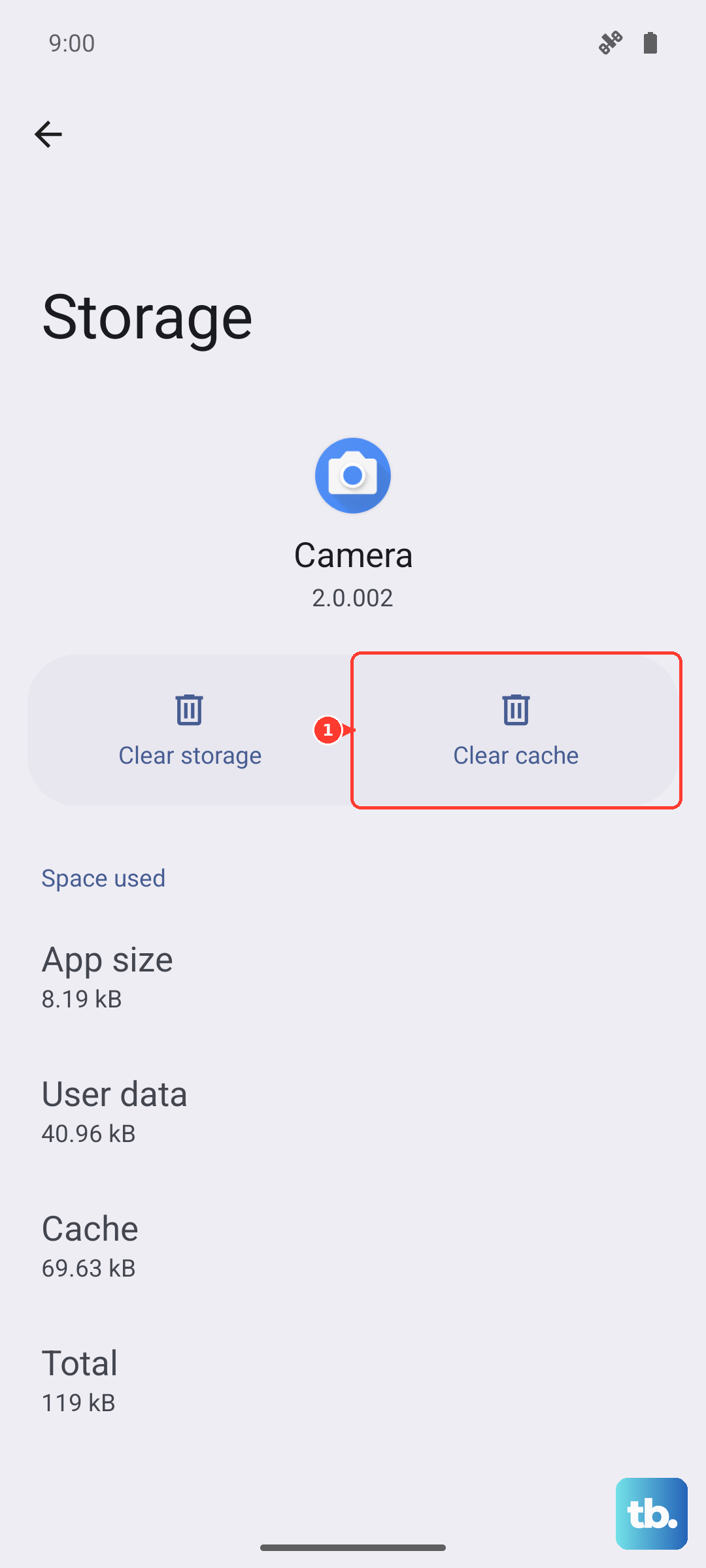
Go back to Settings > Apps > Samsung Keyboard. Tap on Storage. Tap Clear Cache first and test the keyboard. If it's still failing, come back here and tap Clear Data. You'll need to re-grant any permissions and set it as your default keyboard again afterward.
Check for Keyboard and System Updates
Since the S26 Ultra is so new, Samsung is likely pushing out updates to squash bugs like this. You need to check two places.
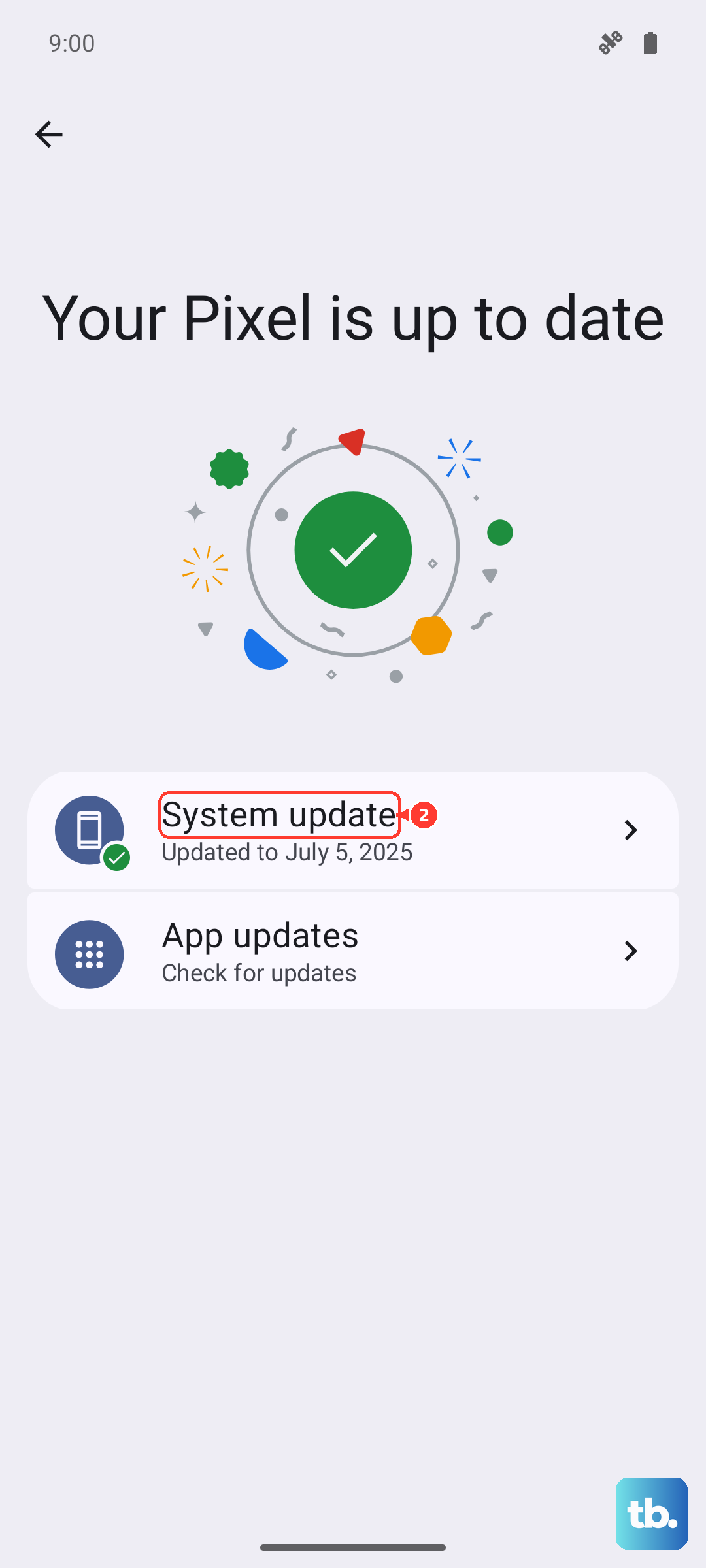
First, open the Google Play Store, tap your profile icon, and go to Manage apps & device. See if there's an update available for Samsung Keyboard. Next, check for a full system update by going to Settings > Software update > Download and install. Installing any available updates is a very common fix for early-adopter issues.
Reset Your Keyboard Settings
If a custom setting or theme is causing a conflict, resetting everything to default can help. This won't erase your personal data, just the keyboard's configuration.
Navigate to Settings > General management > Keyboard list and default. Tap on Samsung Keyboard and then look for the Reset settings option at the bottom. Confirm the reset and your keyboard will revert to its out-of-the-box state.
Boot Into Safe Mode
This is a great way to figure out if a third-party app you installed is causing the problem. Safe Mode temporarily disables all apps you downloaded.
Press and hold the Side key and Volume down key until the power menu appears. Tap and hold the Power off option until you see a prompt to reboot to Safe Mode. Tap it. If your keyboard works perfectly in Safe Mode, you know an app is the culprit. Start by uninstalling recent downloads, especially other keyboards, launchers, or accessibility apps.
Try a Different Keyboard App
While you're troubleshooting the main issue, installing a third-party keyboard like Gboard or SwiftKey from the Play Store gives you a fully functional workaround. You can switch between keyboards by holding the space bar or going to the notification panel when typing.
I'd use this as a temporary fix so you can keep using your phone normally while you work on the core problem with the Samsung Keyboard.
Reset All System Settings
This is a more significant step but still doesn't touch your photos, messages, or apps. It will reset all your system preferences, Wi-Fi networks, Bluetooth pairings, display settings, etc., back to default, which can eliminate a deeper configuration conflict.
Go to Settings > General management > Reset > Reset all settings. Enter your PIN if asked and confirm. Your phone will reboot and you'll need to set up your preferences again, but it often resolves persistent, weird glitches.
Check for Conflicts with the S Pen
This is a specific tip for the S26 Ultra. The S Pen slot is right next to the USB-C port, and debris can sometimes migrate from there. While it's a long shot for a keyboard issue, it's good practice to keep the area clean.
Gently remove the S Pen and use a can of compressed air to blow out any lint from the slot. It's just one less variable and helps prevent future issues, especially with charging.