
Seeing "Call Failed" on your Samsung Galaxy S26 Ultra is a real headache, especially on a brand new 2026 flagship. This usually means your phone is struggling to connect properly to your carrier's network. Since it's a new device, early software bugs in One UI 8.5 can sometimes be the culprit, alongside the usual suspects like weak signal or a network setting that's gotten out of sync.
Here are ten ways to get your calls working again, starting with the quickest fix you can try right now.
Toggle Airplane Mode
The fastest way to reset your cellular connection is with Airplane Mode. This clears any temporary network glitches that might be preventing calls from going through.
Swipe down twice from the top of your screen to open the full Quick Settings panel. Tap the Airplane Mode icon to turn it on, wait about 10 seconds, then tap it again to turn it off. Your phone will reconnect to the network, which often resolves the issue immediately.
Check Your Signal Strength
Weak signal is the most common reason for call failures. Look at the signal bars in the top-right corner of your S26 Ultra's screen. If you only have one or two bars, try moving to a different location or near a window.
Buildings, terrain, and even weather can interfere with cellular signals. If you're in a basement or a large concrete building, you might need to go outside or upstairs to get a stable connection for your call.
Perform a Force Restart
A simple force restart can clear out minor software hiccups in One UI that might be affecting the phone app or modem. This is different from a normal restart and is a good first step for any weird behavior on a new phone.
Press and hold the Volume Down button and the Side/Power button simultaneously for about 10 seconds. Release both buttons when you see the Samsung logo appear on the screen. Let the phone boot up completely and then try your call again.
Check Do Not Disturb and Focus Modes
Your S26 Ultra's Focus modes or Do Not Disturb might be configured to block calls, even outgoing ones. It's worth a quick check to make sure they aren't accidentally interfering.
Swipe down from the top to see your notification panel. If you see a moon icon or a label like "Work" or "Sleep," tap on it to see its settings. Make sure calls are not being silenced or blocked by the active mode.
Verify Your SIM Card
A loose, dirty, or faulty SIM card can definitely cause call failures. The SIM tray on the S26 Ultra is on the bottom frame. Use the ejector tool that came in the box (or a small paperclip) to gently pop the tray out.
Remove the SIM card, give the gold contacts a gentle wipe with a soft, dry cloth, and carefully reinsert it. Make sure it's seated firmly in the tray before sliding it back into the phone. If you have another phone handy, testing the SIM card there can tell you if the issue is with the card itself.
Update Your Phone's Software
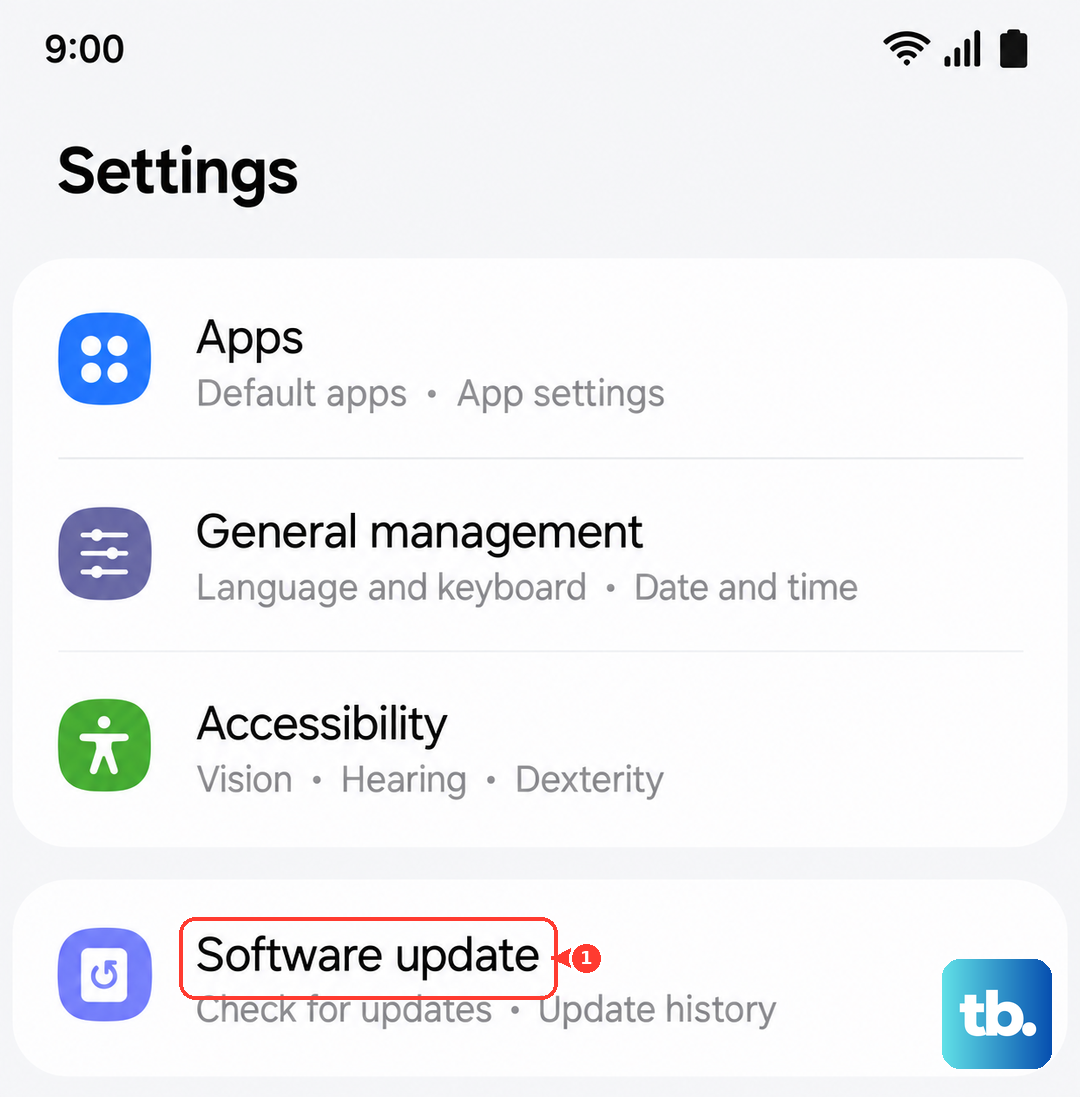
Since the S26 Ultra is a new device, Samsung is likely releasing software updates to fix early bugs. These updates often include stability improvements for network connectivity and the phone dialer.
Go to Settings > Software update and tap "Download and install." Make sure you're connected to Wi-Fi and have your phone plugged into a charger, like a Samsung 60W Super Fast Charging 3.0 brick, to ensure the update completes smoothly.
Reset Your Network Settings
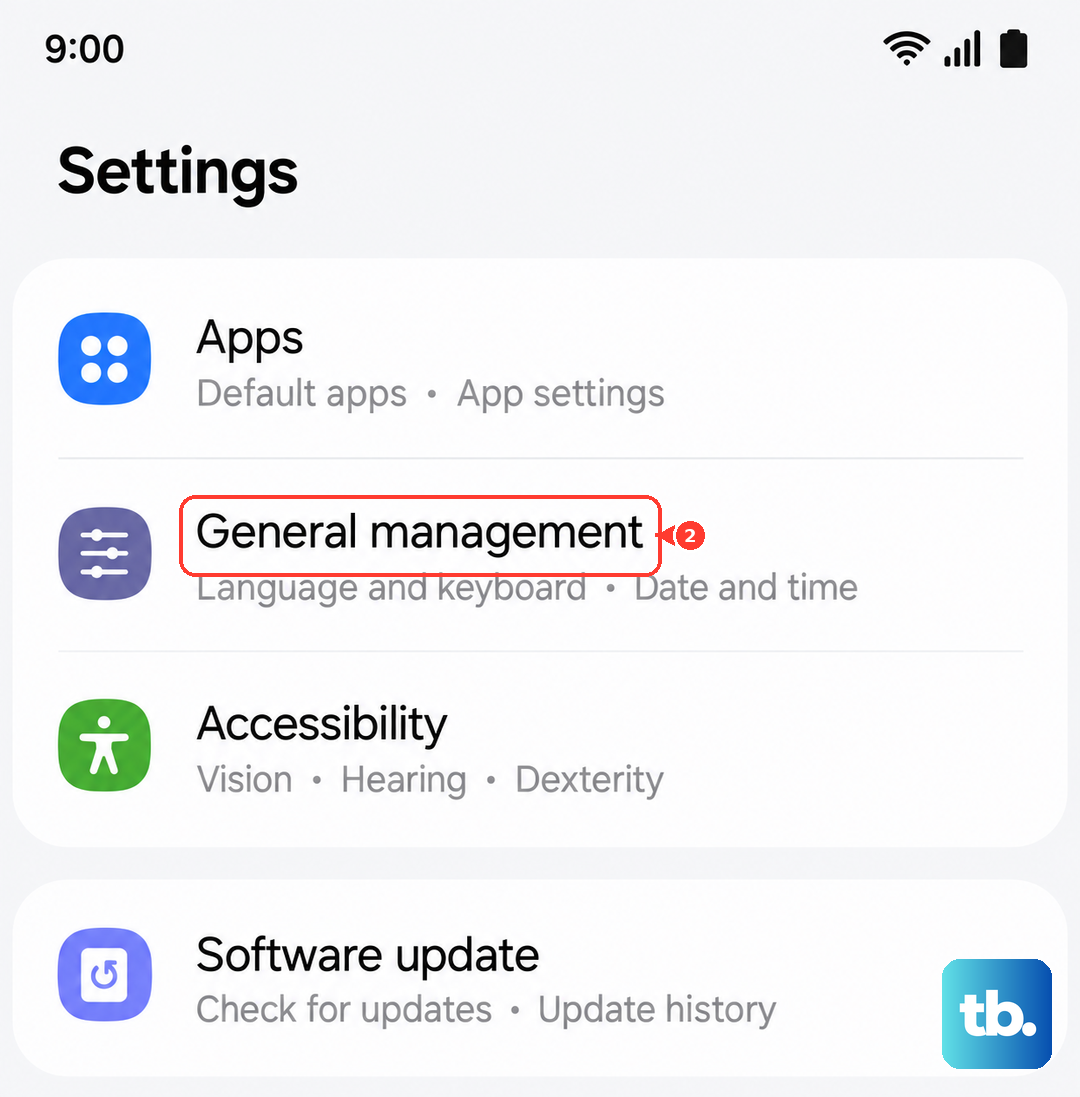
This will clear all your saved Wi-Fi networks, Bluetooth pairings, and cellular network preferences back to default. It's a strong fix for persistent network issues without deleting your personal data like photos or messages.
Go to Settings > General management > Reset. Tap "Reset network settings" and confirm by entering your PIN or password. Your phone will reboot, and you'll need to reconnect to Wi-Fi and re-pair Bluetooth devices, but it often resolves stubborn calling problems.
Check for Carrier Services Updates
Your mobile carrier pushes configuration updates to your phone to optimize network performance. Making sure you have the latest one can fix calling issues specific to your carrier's network.
Open the Galaxy Store app and tap the menu icon (three horizontal lines). Go to "Updates" to see if there are any pending updates for carrier services or related apps. Installing these can sometimes provide an immediate fix.
Try Switching Network Modes
Sometimes, the advanced 5G network can have handoff issues that drop calls. You can try forcing your phone to use 4G LTE, which is often more stable for voice calls, just as a test.
Navigate to Settings > Connections > Mobile networks > Network mode. Instead of "5G/LTE/3G/2G (auto connect)," select "LTE/3G/2G (auto connect)." Try making a call. If it works, you know the issue is related to 5G connectivity, and you can switch the mode back later after the problem is resolved on the network side.
Contact Your Mobile Carrier
If you've tried everything here and calls are still failing, the problem might be on your carrier's end. There could be a network outage in your area, a problem with your account, or your SIM card might need to be replaced.
Give your carrier's customer service a call from another phone. They can check for outages, reprovision your line on their network, and send you a new SIM card if needed. Since the S26 Ultra is new, it's also worth confirming with them that your account is properly configured for all the device's network features.