You reach for your Samsung Galaxy S26 Ultra and the 6.9-inch screen stays completely black, with no Samsung logo, no buzz, and nothing when you tap it. Maybe it went dark mid-use and now refuses to wake, or it sat overnight and looks like it died entirely. A black display does not always mean a broken phone.
On a device this new the cause is often a drained battery, a frozen system, a misbehaving app, or a software hiccup that has a fix you can do yourself.
The fixes below are ordered from the easiest and safest to the more involved. Start at the top and work down, stopping the moment your screen comes back to life.
The official reset and the service path sit at the end on purpose, because you should never erase your phone or book a repair before the simpler steps have had their chance.
Charge the phone for a full hour before assuming it is dead
A deeply drained battery can make the S26 Ultra look completely lifeless, with a black screen and no response at all. The phone may have shut itself down to protect the battery, and it needs real charge before it will show anything.
Give it time rather than tapping repeatedly and concluding it is broken.
Plug the phone into an appropriate charger.
Connect directly to a wall outlet, not an extension cord, and make sure the cable is firmly seated at both ends.
Let it charge for at least 1 hour. The charging indicator can take up to 10 minutes to appear, so a still-black screen early on is normal.
After charging, press and hold the Side button for 15 to 20 seconds and watch for the Samsung logo.
If the logo appears and the phone boots, the issue was simply an empty battery and you are done. If nothing happens after a solid hour on the charger, move on to checking the hardware.
Check the cable, adapter, and USB-C port for damage
Before you blame the phone itself, rule out the things feeding it power. A frayed cable, a faulty adapter, or debris in the port can stop charging entirely and leave you with a screen that never lights up.
Remove any case and inspect the phone, charger, and USB-C cable for physical damage, liquid, corrosion, or bent pins inside the port.
Swap to a different known-good cable and adapter if you have one, then try charging again directly from the wall.
If charging now works and the screen wakes, the original cable or adapter was the problem.
Dry the port and charge wirelessly if you see a moisture warning
If a water-drop (moisture) icon appears, the phone is deliberately blocking cable charging as a safety measure to help prevent corrosion of the port. This is not necessarily a sign of damage.
High humidity or debris in the port can trigger the warning.
Dry the USB-C port thoroughly and try the cable again only once it is fully dry.
In the meantime, you can keep using the phone by charging it on a Qi2 wireless charger, which the S26 Ultra supports at up to 25W, so you are not stuck without power while the port dries.
Force restart with Volume down and the Side button
If the screen is black but the phone may actually be on and simply frozen, a force restart is the single most useful fix, and it does not erase any of your data. Because the S26 Ultra has no separate Power key, the Power function lives on the Side button, and you combine it with Volume down.
Press and hold the Volume down button and the Side button at the same time.
Keep holding until the device turns off and turns back on. The screen goes black first, then the Samsung logo appears.
Samsung describes the timing in slightly different ways across its guidance. Some pages say to hold the Side button and the Volume down button for more than 7 seconds until it vibrates and the logo shows, while other guidance says to hold for up to 20 seconds.
The button combination of Volume down plus the Side button is the consistent part, so keep holding through the longer window if the shorter one does not trigger a restart. Release when you feel the vibration or see the Samsung logo.
Boot into Safe mode to catch a problem app
If the phone does start but the screen keeps going black or behaving strangely, a third-party app may be the culprit. Safe mode loads the phone with only its built-in software so you can tell whether something you installed is to blame.
Power the phone off.
Turn it on, and when the Samsung logo appears, press and hold the Volume down button.
Keep holding until the phone finishes starting. The words "Safe mode" will display in the bottom-left corner of the screen.
If you cannot fully power the phone off first, you can reach Safe mode from the power menu instead.
Press and hold the Side button and the Volume down button at the same time, then touch and hold the Power off icon and tap the Safe mode icon.
Use the phone for a while in Safe mode. If the display behaves normally with no blackouts, a downloaded app is causing the problem.
Uninstall the apps you added most recently, especially anything installed just before the trouble started, then restart the phone normally to exit Safe mode.
Install any pending software update
Software bugs can cause display and boot problems, and Samsung delivers fixes for them through updates. If your screen works well enough to reach Settings, it is worth checking for one.
Go to Settings, then Software update, then Download and install.
On some menus this may read "System updates" instead, so swipe to and tap whichever label appears, then choose Download and install.
Install anything that is available.
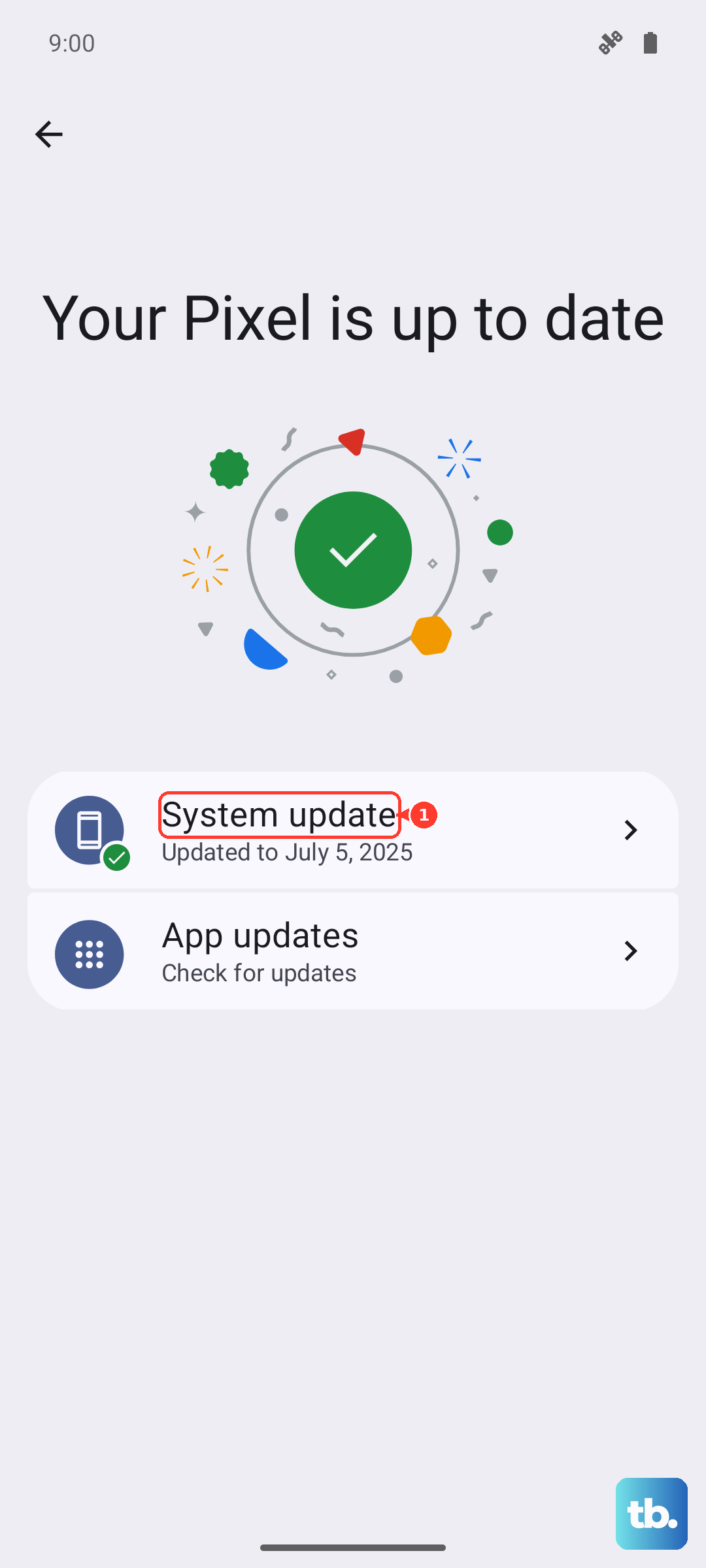
Keep the phone charged during the process and do not disconnect or use it until the update finishes.
The phone will reboot on its own as part of installing the update, so a brief black screen during that reboot is expected, not a fault.
Use Smart Switch emergency software recovery from a computer
If the phone still will not get past a black screen and you suspect its software is corrupted, you can try to restore it from a computer using Samsung's official desktop tool. Smart Switch is available for Windows PC and Mac and is Samsung's official tool for updating and recovering device software over USB.
- 1.Install and open the Smart Switch app on a Windows PC or Mac.
- 2.Connect the phone to the computer with a USB cable.
- 3.In Smart Switch, select MORE, then Emergency Software Recovery and Initialization.
- 4.Follow the on-screen device list and prompts to attempt to restore the phone's software.
Work through the prompts carefully and leave the phone connected to the computer until the process completes.
Factory data reset as a last resort
If your screen works enough to reach Settings and every fix above has failed, a factory data reset can clear corrupted software that is causing the black screen. This is the most drastic on-device step because it erases everything.
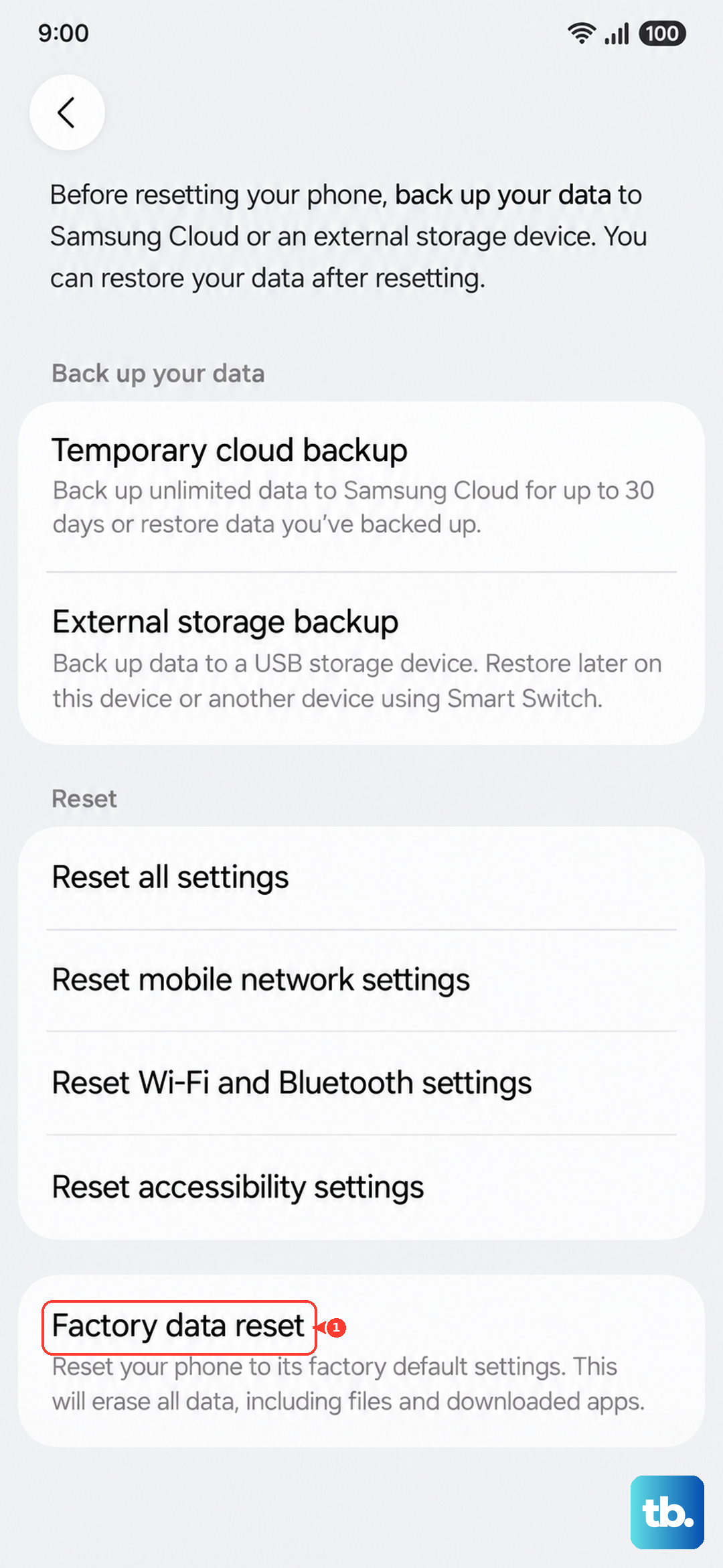
Back up your data first.
Samsung warns that you should save any information you need prior to the factory reset because your personal information may not be recovered afterward. A factory reset erases all of your apps, settings, and personal files.
Go to Settings, then General management, then Reset, then Factory data reset.
Tap Reset.
Tap Delete all.
You may be asked for your screen lock and your Samsung account password to confirm.
Once the reset completes, the phone starts fresh, and if the black screen was caused by software, it should now boot normally.
Contact Samsung or book a repair if the screen stays black
If the screen still will not turn on after a full charge and a force restart, the device needs service. A persistent black screen after charging and a restart usually points to a hardware issue that needs trained hands.
Use Samsung's troubleshooting and book a repair path through the Samsung Support Center to start a service request.
The Samsung Members and Samsung Care apps are Samsung's official support and diagnostic tools for the phone, so they are a good place to begin, and you can also reach a Samsung Care Pro by phone through Samsung Support.
Frequently Asked Questions
How do I force restart a Galaxy S26 Ultra with a black screen?
Press and hold the Volume down button and the Side button at the same time until the device turns off and turns back on. The screen goes black and then the Samsung logo appears. Samsung's guidance ranges from more than 7 seconds to as long as 20 seconds, so keep holding through the longer window if the shorter one does not work. A force restart does not erase any of your data.
My phone shows a water-drop icon and will not charge, what does that mean?
The water-drop (moisture) icon means the phone has detected moisture and is blocking cable charging as a safety measure to help prevent corrosion of the USB-C port. Dry the port thoroughly and try the cable again only once it is dry. In the meantime, you can still charge the S26 Ultra on a Qi2 wireless charger, which it supports.
Will charging really fix a phone that looks completely dead?
Often, yes. A deeply drained battery can make the S26 Ultra look completely off with a black screen. Charge it from a wall outlet for at least 1 hour, knowing the charging indicator can take up to 10 minutes to appear, then press and hold the Side button for 15 to 20 seconds to see if the Samsung logo shows.
Does a factory reset delete my photos and apps?
Yes. A factory data reset erases all of your apps, settings, and personal files, and Samsung warns that your personal information may not be recovered afterward. Back up anything you need before you reset. Use it only as a last resort, when your screen still works enough to reach Settings, then General management, then Reset, then Factory data reset, and the earlier fixes have not solved the problem.
What should I do if none of these steps bring the screen back?
If the screen stays black after charging for an hour and performing a force restart, the device needs service. Use the Samsung Support Center's troubleshooting and book a repair option, or open the Samsung Members or Samsung Care app to start a service request.